Using CSVs to Dial with Nooks
Last updated: September 22, 2026
Overview
Users can dial Prospects in Nooks by uploading a CSV file containing contact information. This feature is ideal for teams that manage contact lists outside of a connected CRM or SEP, or for those who wish to test or run one-off call campaigns.
Once uploaded, the CSV will generate a call list in Nooks that can be accessed directly from the Dialer.
Enabling CSV Dialing
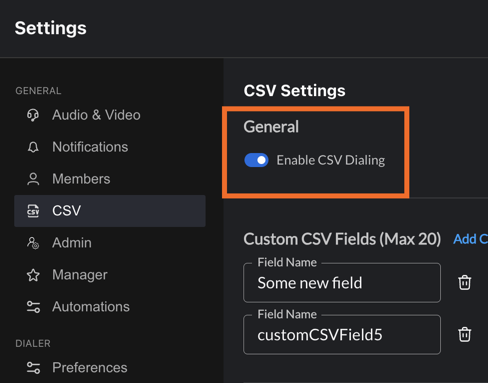
A Nooks admin or your customer success manager can enable CSV dialing from your Workspace settings, here:
Uploading a CSV
You can either upload data from an existing CSV to create a new call list in the dialer, or manually enter contact data in a spreadsheet-style format.
To upload your CSV in Nooks:
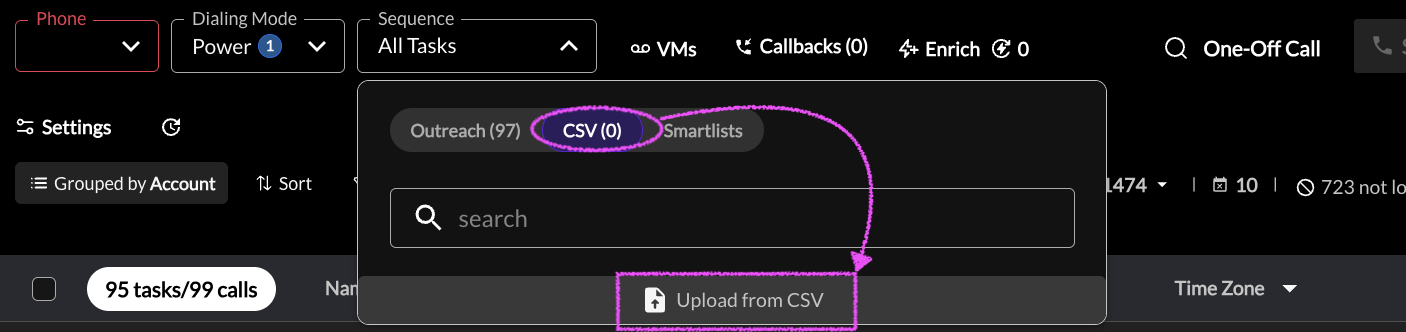
Go to Sequences > CSV > Upload from your Dialer view.
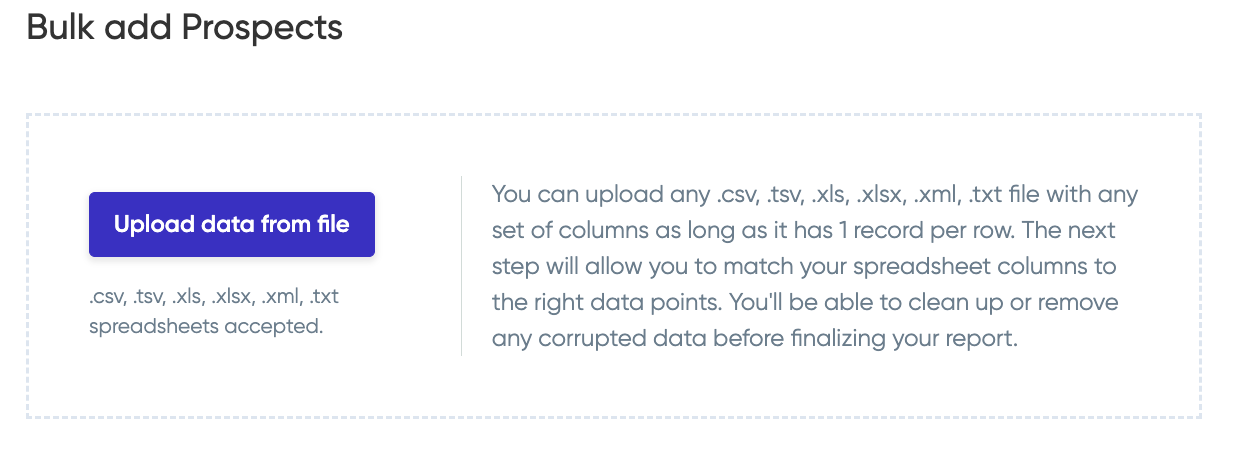
Choose Upload data from file to upload your call list, or drag your file over to the upload file area.
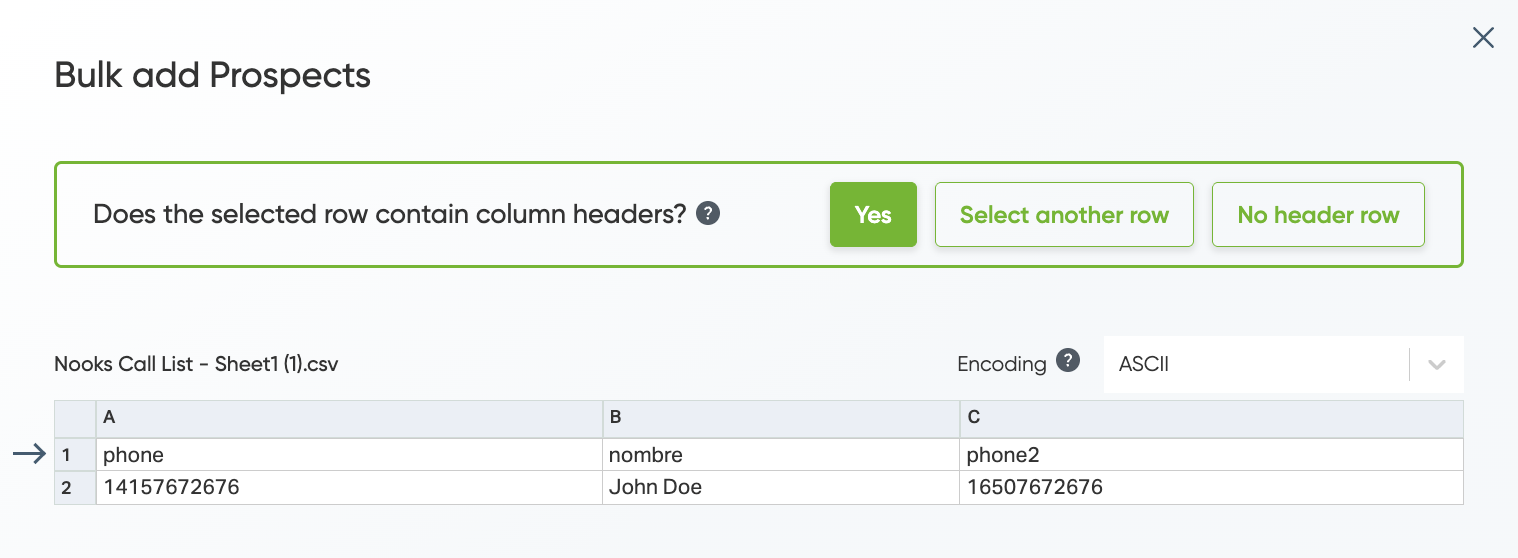
Select the column headers, then click Yes.
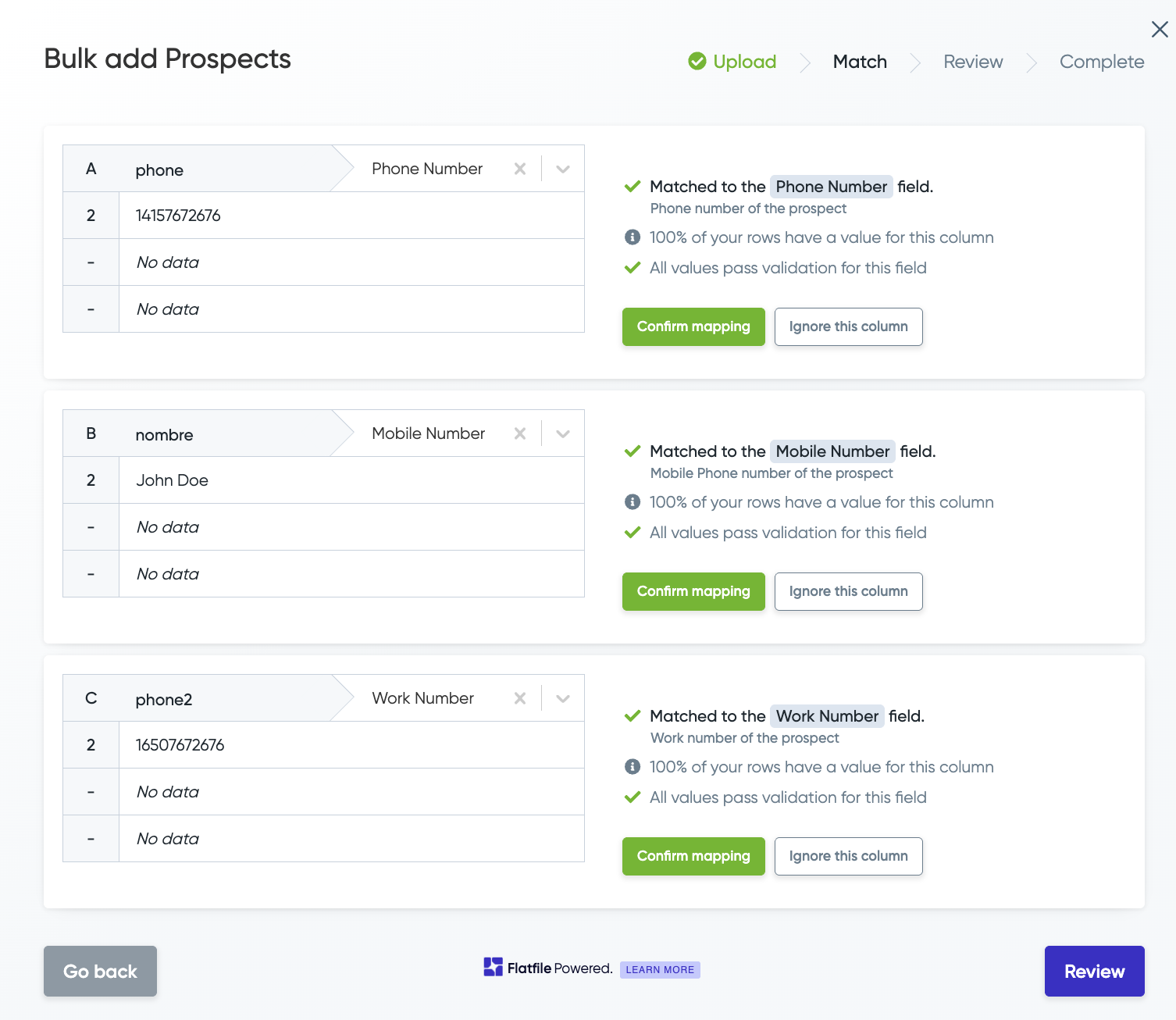
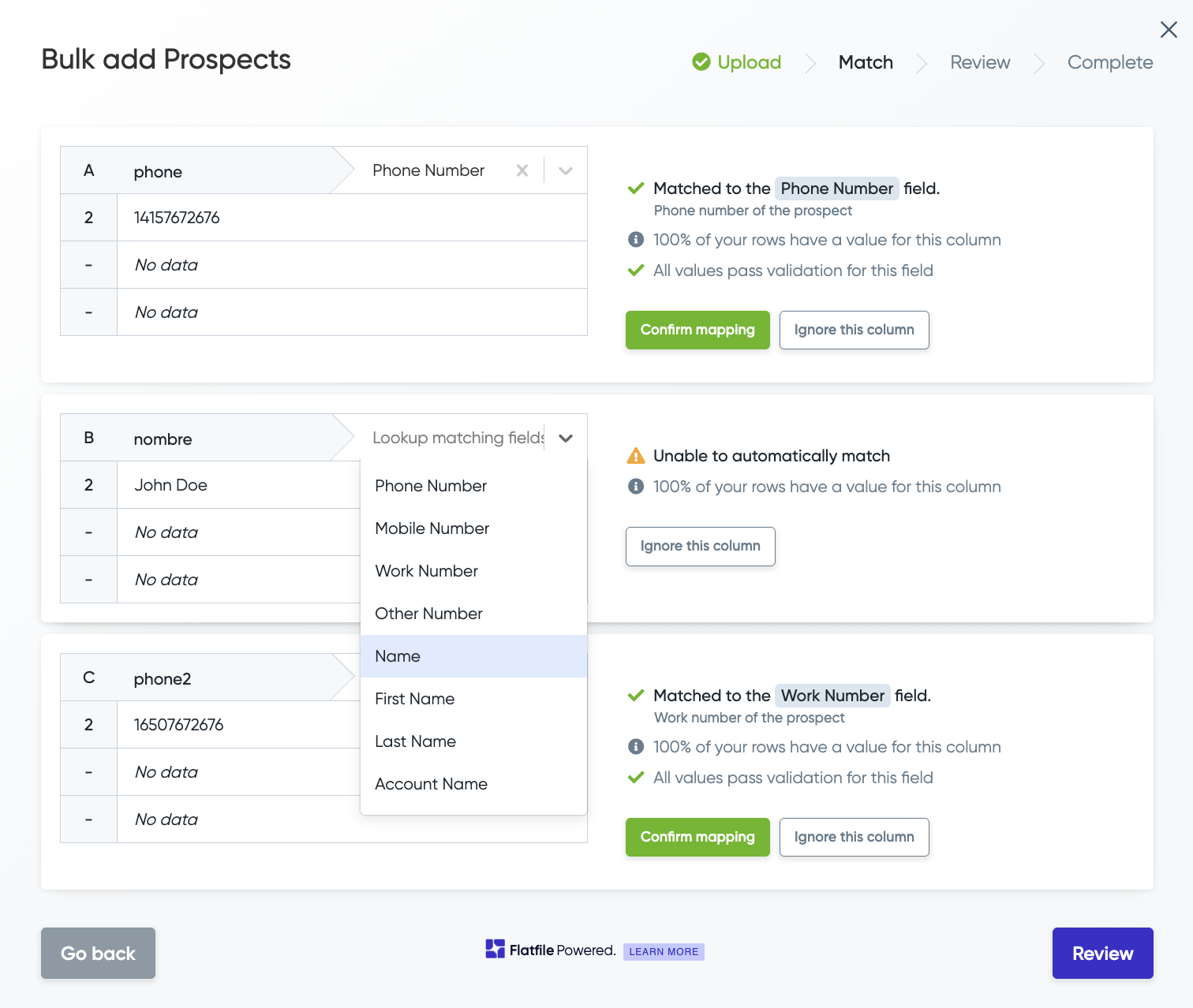
Nooks will do its best to map the column headers to the correct dialer fields and will ask you to confirm mappings. You can also look up matching fields before uploading.
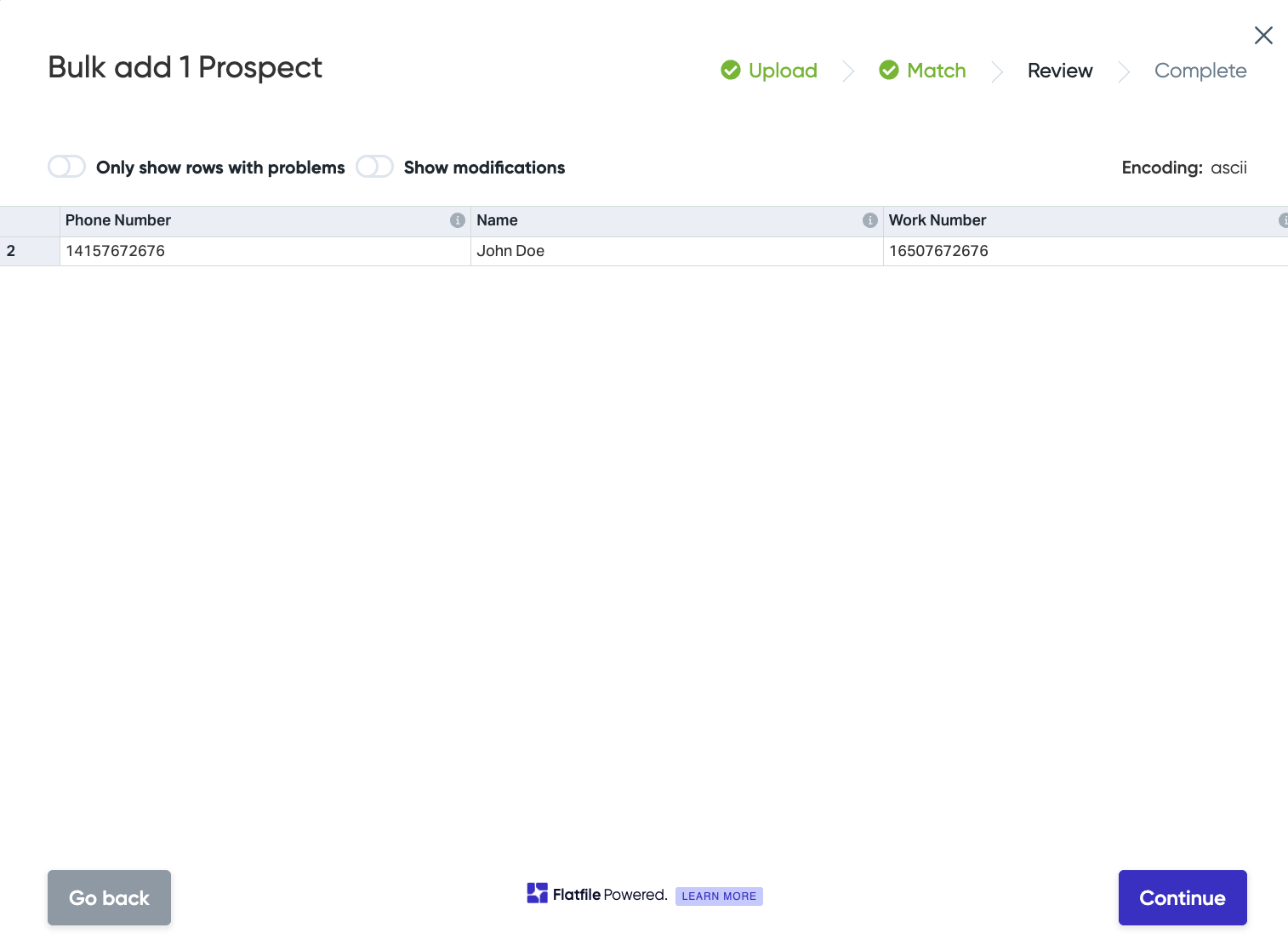
Click Review to review your call list, then click Continue to upload your file to the Dialer.
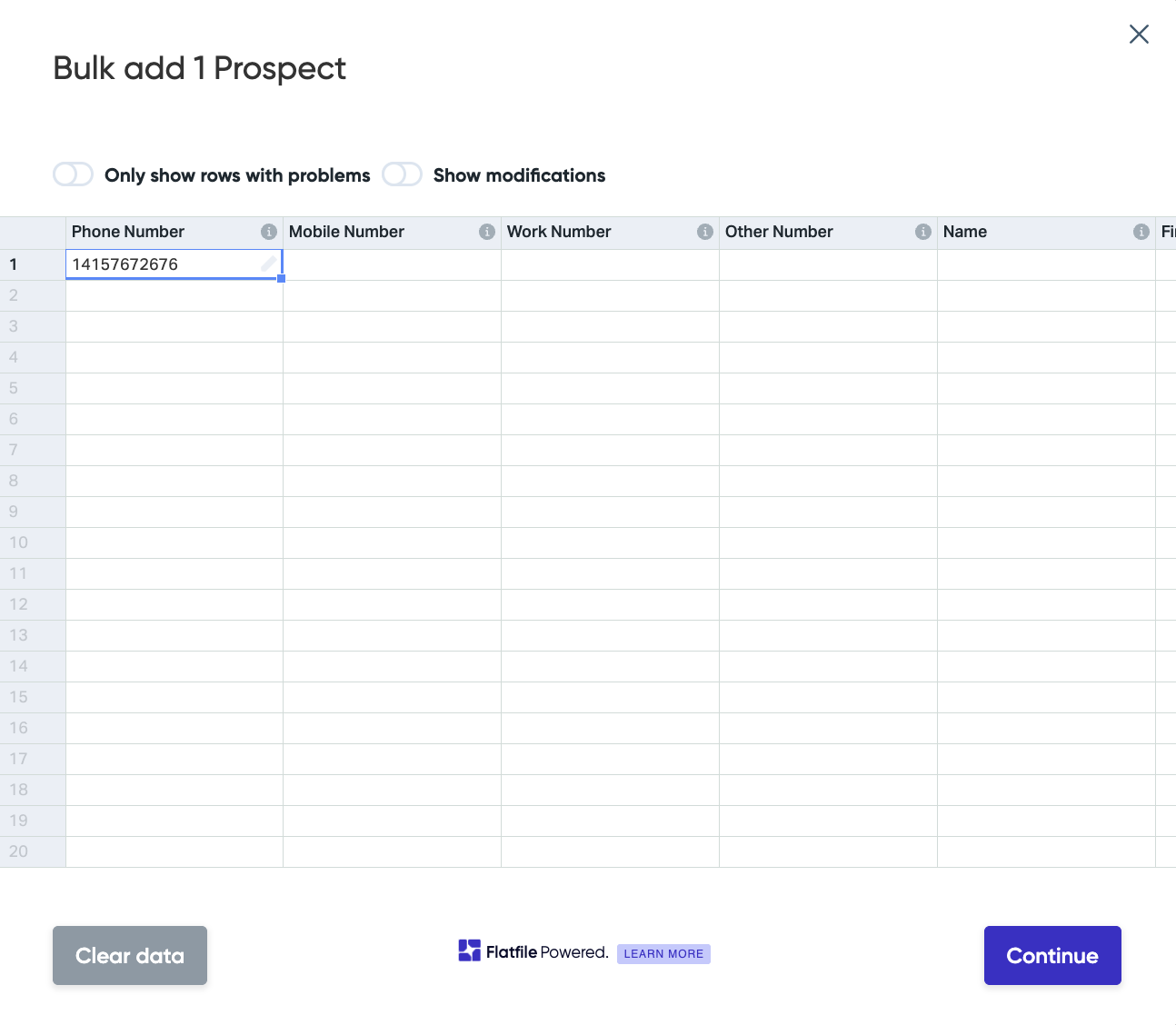
Or manually enter your data in the spreadsheet table provided, press Enter, and click Continue.
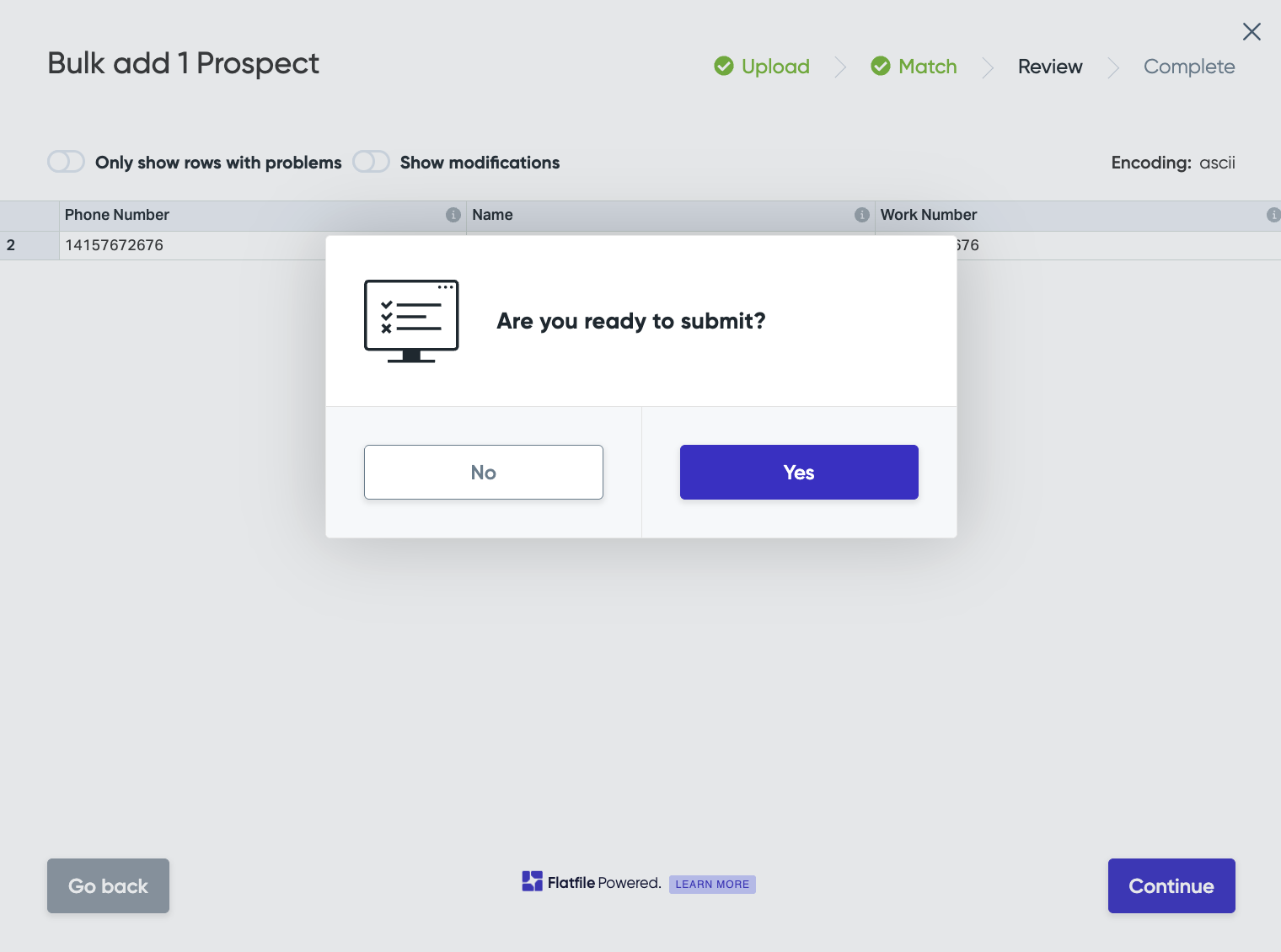
Confirm your submission by clicking Yes.
Once processed, the CSV will appear as a new list in the dialer and will be saved in your Sequence dropdown.
CSV Requirements
Your CSV only needs to include a valid phone number to begin dialing, but here are some optional fields that may be helpful while dialing:
Field | Required | Description |
Phone Number | Yes | Valid phone number E.164 format recommended eg. + [country code] [area code] [subscriber number] |
Mobile Number | No | Prospect's mobile number |
Work Number | No | Prospect's work number |
Other Number | No | Prospect's other number |
Name | No | Prospect’s full name |
First Name | No | Prospect’s first name |
Last Name | No | Prospect’s last name |
Account Name | No | Prospect’s account or company name |
Title | No | Prospect’s role or title |
Prospect Email | No | Prospect email address |
Prospect CRM Link | No | Prospect's CRM link |
Linkedin Link | No | Prospect's Linkedin link |
Time Zone | No | Prospect's time zone. Use an IANA time zone name, such as America/New_York. |
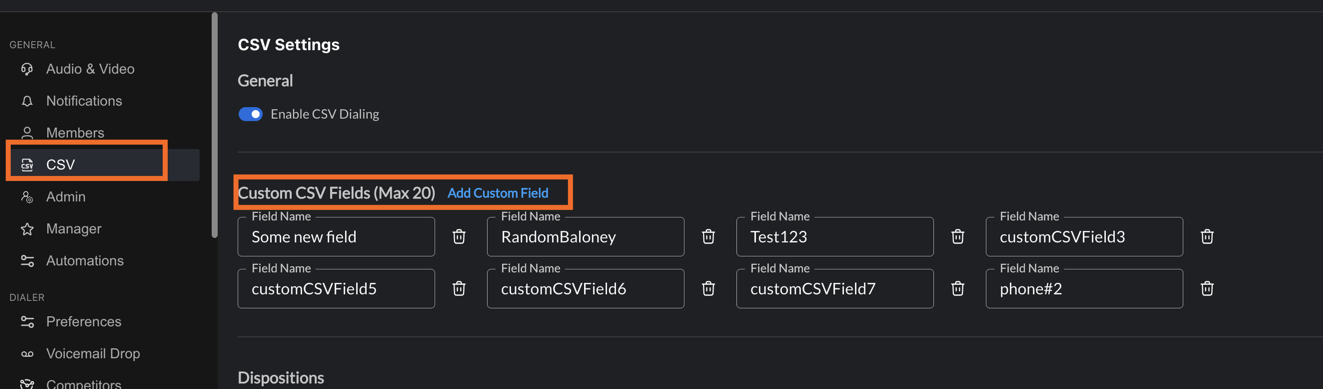
There is no built-in Notes field at upload. To bring notes or any other extra column into Nooks, an admin first adds a Custom CSV Field: go to Settings > CSV, click Add Custom Field under Custom CSV Fields, and give it a name (up to 20 custom fields). The field then appears as a mapping option when you upload a CSV, and its values can be shown as a column in your dialer call list.
Formatting Tips for uploading a CSV:
Confirm numbers are valid and include a country code if they are international numbers.
Avoid empty header rows or merged cells.
Each row should represent one Prospect.
Dialing from a CSV
Once uploaded, you can begin dialing your uploaded Prospects directly from Nooks:
Open your Dialer.
Select Source > CSV from the sequence dropdown.
Choose your uploaded file.
Begin calling Power Dialing Prospects one by one or using Parallel Dialing (if enabled).
While calling, you can:
Log call outcomes and notes.
Update Notes and create Follow Up Call tasks.
Revisit completed calls within the Call Library.
Data Flow and Call Logging
Prospects uploaded via CSV are stored within Nooks for calling and call-logging purposes only. These contacts are not synced back to any external systems. For example, if you have a CRM like HubSpot connected to your Nooks workspace and dial a CSV list, those calls will not log back to HubSpot. If you would like the calls to log to a connected CRM/SEP, we recommend uploading the CSV to that tool first, and loading the prospects that way.
Call data from CSV calls such as duration, disposition, and notes are logged in Nooks’ internal database and can be viewed and exported via Reporting > Team Dialing Report > Call Browser > Calls Library for record-keeping or analytics.
Quirks and Best Practices
CSVs are user-specific; files uploaded in one user's instance will not appear in another.
If your team uses both a CRM/SEP integration and CSV uploads, your Admin can set a default dispositions source under Settings > Integrations.
Uploaded lists can be deleted by navigating out of the list and selecting Delete. You won’t be able to delete an uploaded list while it’s actively in use for dialing.
Each CSV upload can include up to 2,000 records.
CSV dialing doesn't support one-off dialing by default. Reach out to your account manager for access!
Even if enabled, one-off dials for a CSV cannot be logged in Nooks.
Refreshing tasks and "removing" prospects from a CSV that you no longer want to call
A CSV is a static list of prospects to call. As you're calling down the list and you click "refresh" tasks, it will start you at the top of your list again. Use this when you're ready to dial through the list again.
By default, if you navigate to another sequence or CSV, or you close Nooks, Nooks will "remember" your spot in your CSV so that you can pick up where you left off.
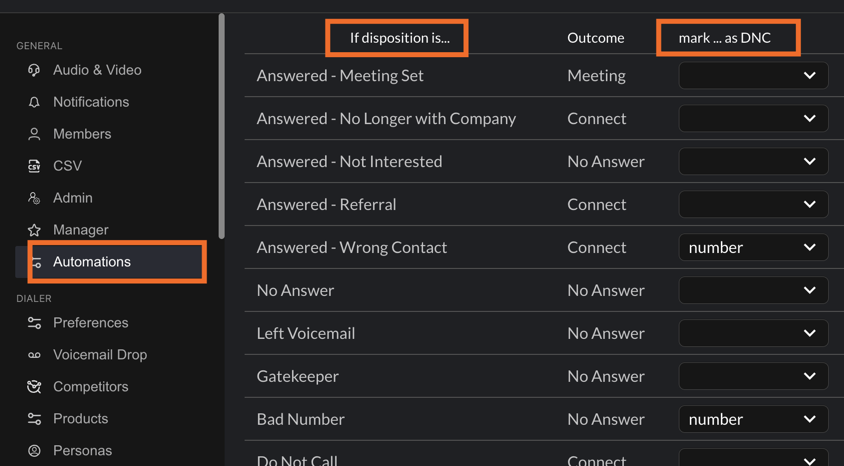
If you want to prevent Nooks from redialing a prospect in the list (for example, you already booked a meeting with them), we recommend using the DNC automations in Nooks settings to effectively accomplish this. For example, if you have a disposition named "Meeting booked" and you want to remove those prospects from the CSV list, you can go to Automations and mark that disposition as DNC.