Configuring Branded Domains for Email Tracking and Unsubscribes
Last updated: September 24, 2026
To track email opens, link clicks, and unsubscribes in Nooks, your team will need to configure a custom domain. This guide walks through the process of setting one up.
Background
When tracking and unsubscribe links appear to come from your own domain rather than a shared one, email providers like Gmail and Outlook are more likely to deliver your messages to the inbox instead of spam. This setup:
Improves inbox placement
Protects sender reputation
Minimizes potential deliverability complications
To safeguard your sender reputation, email tracking and unsubscribe links will be disabled for your Workspace until you have a custom domain configured. Emails will still send normally, but opens and clicks will not be recorded. If unsubscribe links are enabled, recipients will see a plain-text opt-out prompt instead.
Setup Steps
This setup requires a DNS change, which is typically handled by your IT, network, or DNS administrator. We recommend looping in the right person early. The DNS change itself is quick, but getting access can take time.
Step 1 (Nooks Admin): Choose Your Custom Hostname
Pick a subdomain for Nooks to use for email tracking and unsubscribe links. A good subdomain should:
Begin with "track" – for example,
track.acme.comMatch your sending domain – if you send from
@acme.com, usetrack.acme.comNot include special characters – these can hurt deliverability
Avoid words like "Sales", "Marketing", and "Nooks" – these can hurt deliverability
Nooks supports multiple branded tracking domains. If your team sends from more than one domain, you can add a tracking subdomain for each one. See Step 5 for details.
Step 2 (Your IT Team): Update Your DNS Record
Share your chosen subdomain with your internal DNS administrator and ask them to add a CNAME record with the following values:
Field | Value |
Type | CNAME |
Name/Host | Your chosen hostname (e.g., |
Value/Target |
|
TTL | Default / Auto |
Proxy/Cloud/CDN | None. This must be a plain, unproxied CNAME. Do not route it through Akamai, Cloudflare, or any other CDN. |
The process of adding a CNAME record varies by DNS provider. Instructions for common DNS providers are linked below.
Step 3 (Nooks Admin): Enter Your Chosen Hostname in Nooks
Once your DNS administrator confirms the CNAME has been added, enter your subdomain in Nooks:
Go to Settings → All Settings.
Under Sequencing, select Email.
In the General tab, locate the Branded Tracking Domain setting.
Input your chosen hostname, then press Save.
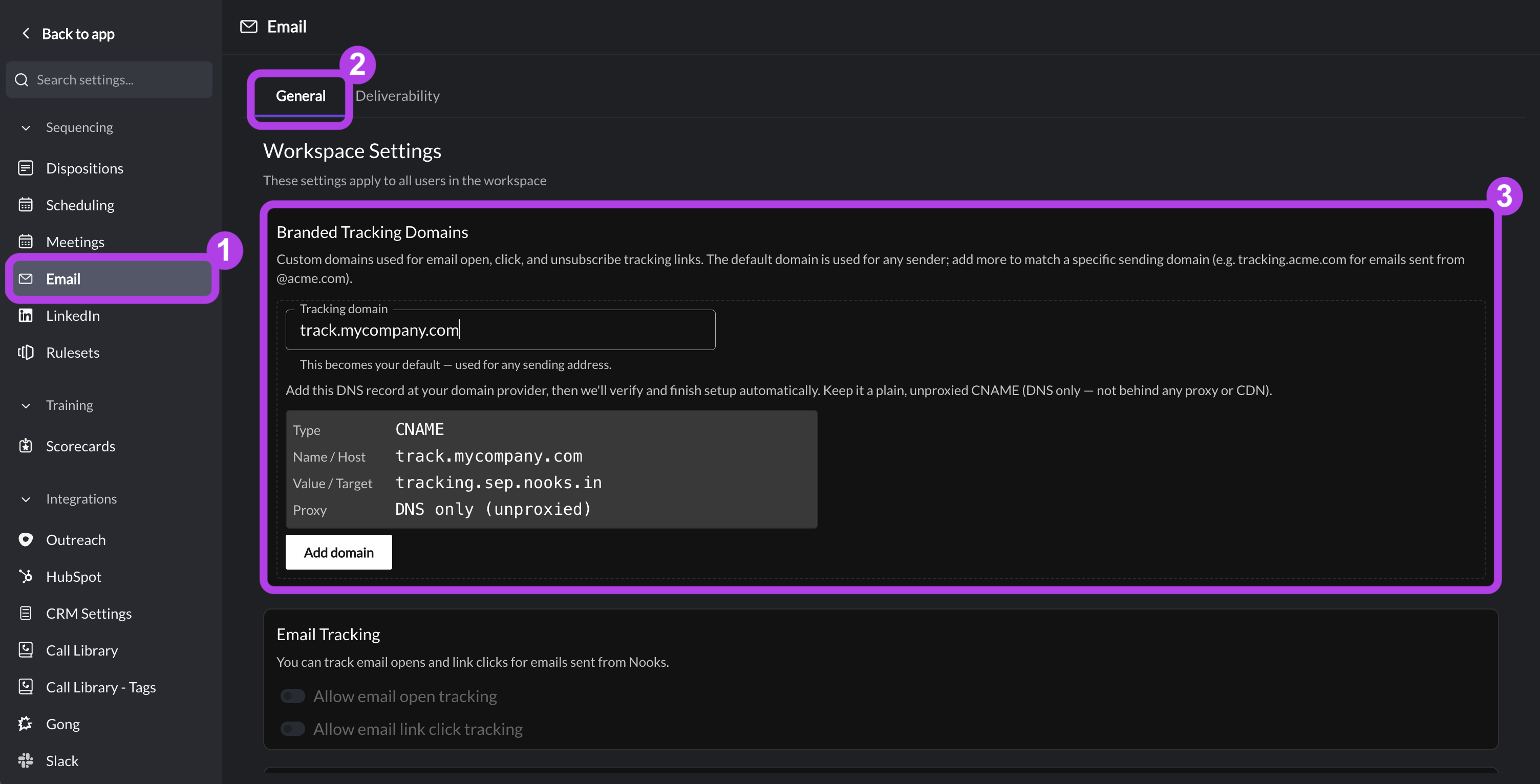
Step 4 (Automated): Nooks Validates and Provisions Your Domain
Once the subdomain is saved, Nooks automatically validates the CNAME record is properly configured and provisions the necessary infrastructure. Unless there is a configuration error, no additional action is necessary from your team. You can monitor the progress from Nooks Settings.
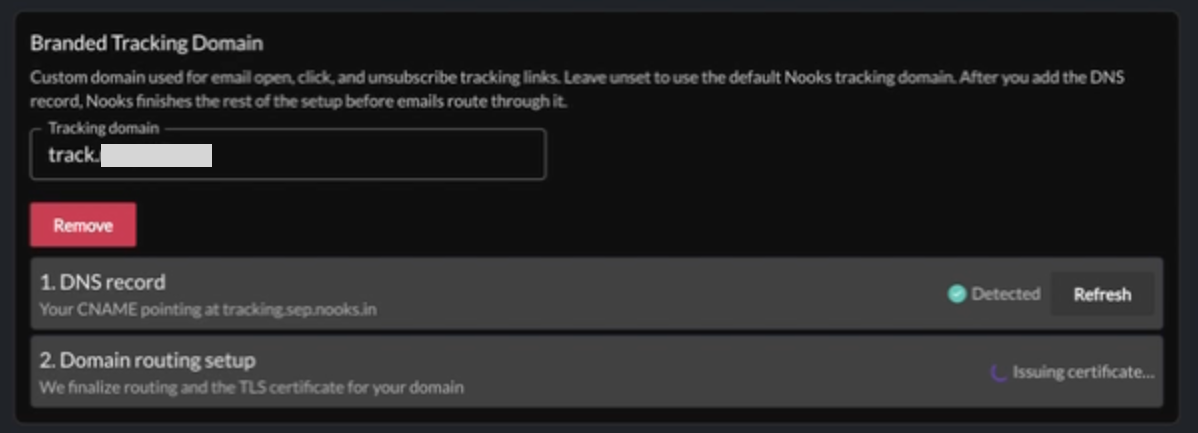
The automated setup consists of two stages:
DNS Record Detected – Nooks confirms that your CNAME is resolving to the correct target. Note that DNS changes can take time to propagate to the whole internet. If your record is not immediately detected, wait a few minutes. Nooks will continue checking automatically as propagation completes.
See the Troubleshooting section of this guide if this check returns an error.
Domain Routing Active – Nooks provisions TLS and routing for your custom hostname.
The tracking domain will show as Live once the setup is fully complete.

Step 5 (Nooks Admin & Your Internal IT Team): Add Additional Custom Subdomains
Skip this step if your team only sends from one domain.
If your team sends emails from more than one domain, add a branded tracking domain for each one. This keeps your sender reputations isolated and improves deliverability across all your sending domains.
In Nooks, go to Settings → All Settings → Email.
In the Branded Tracking Domains section, click + Add Domain.
Follow Steps 1–4 for the new domain.
Repeat for any additional domains.
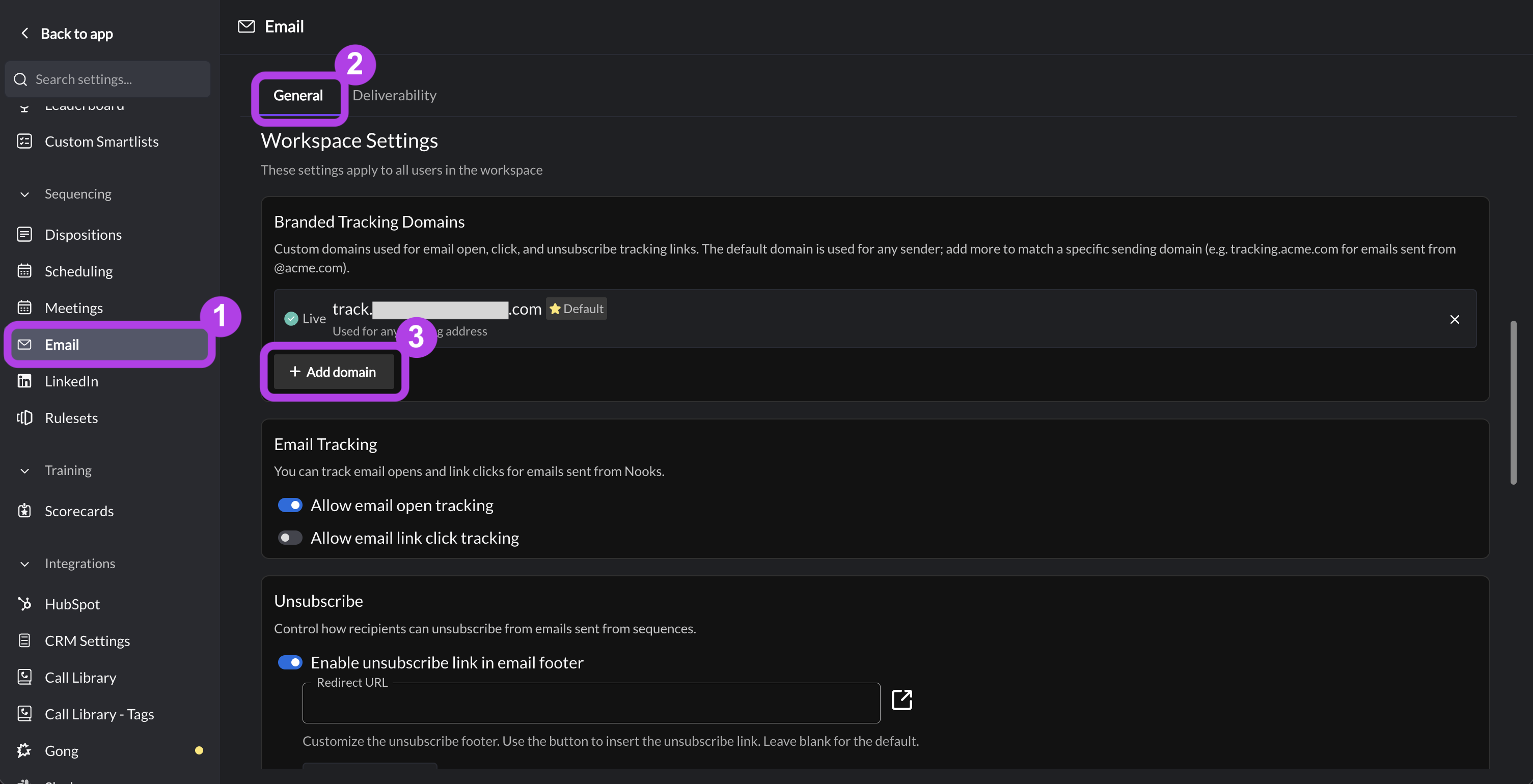
Step 5b (Nooks Admin): Select Your Default Branded Tracking Domain in Nooks
If you've added more than one branded tracking domain, choose which one should serve as the default by clicking the star icon next to it.
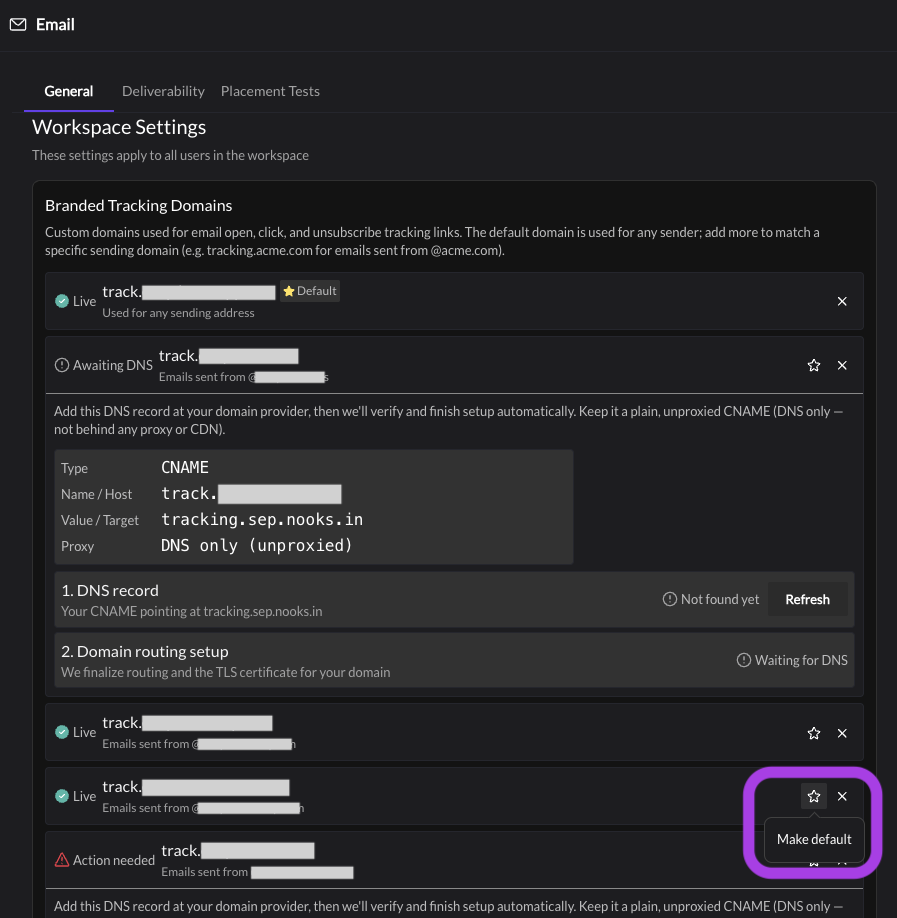
The default domain is used for any emails from an address whose domain does not match any of your Workspace's branded tracking domains. The first branded tracking domain you add is automatically set as the default, but we recommend setting your main web domain as the default instead.
Step 6 (Nooks Admin): Configure Email Tracking and Unsubscribe Settings
Once at least one branded tracking domain is live in Nooks, the Workspace-level email tracking and unsubscribe settings are automatically unlocked. You can proceed with configuring them for your team.
How Multiple Branded Tracking Domains Work
When your team has more than one branded tracking domain, Nooks automatically picks the right one based on the sending email address' domain. If there's no exact match, Nooks falls back to your Workspace's default tracking domain.
Example: If track.acme.com is your default and track.getacme.com is also configured:
Sending Domain | Tracking Domain Used | Reason |
|
| Exact match |
|
| Exact match |
|
| Default fallback – no match |
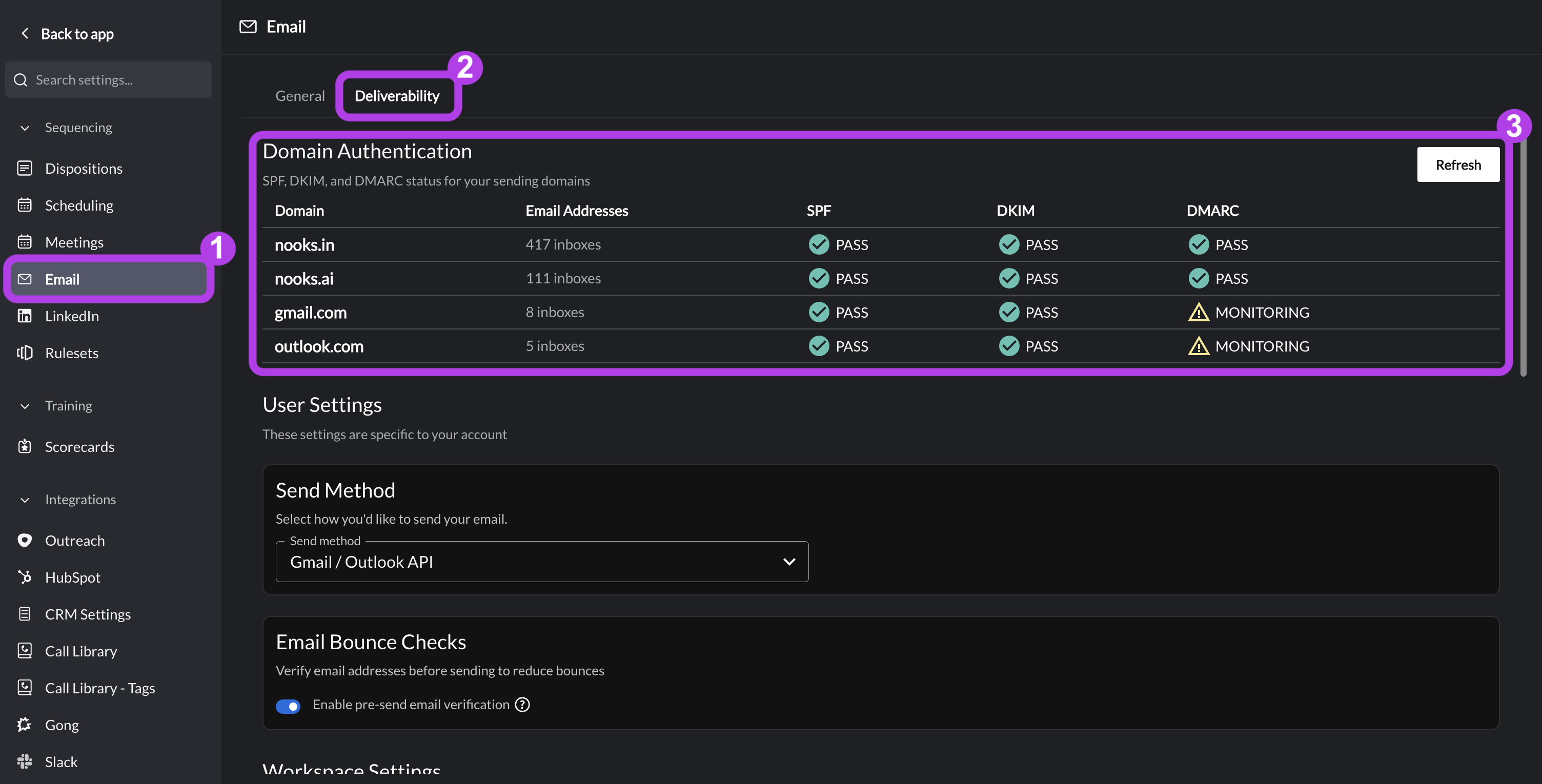
Reviewing Your Workspace's Connected Sending Domains
For the best deliverability, aim to have a branded tracking domain for every sending domain connected to Nooks. There is no limit on the number of branded tracking domains you can configure.
To review your Workspace's connected domains:
Go to Settings → All Settings.
Under Sequencing, select → Email.
Click into the Deliverability tab.
Locate the Domain Authentication section, where you can see the domains your team has connected to Nooks Sequencing.
End-User Setup
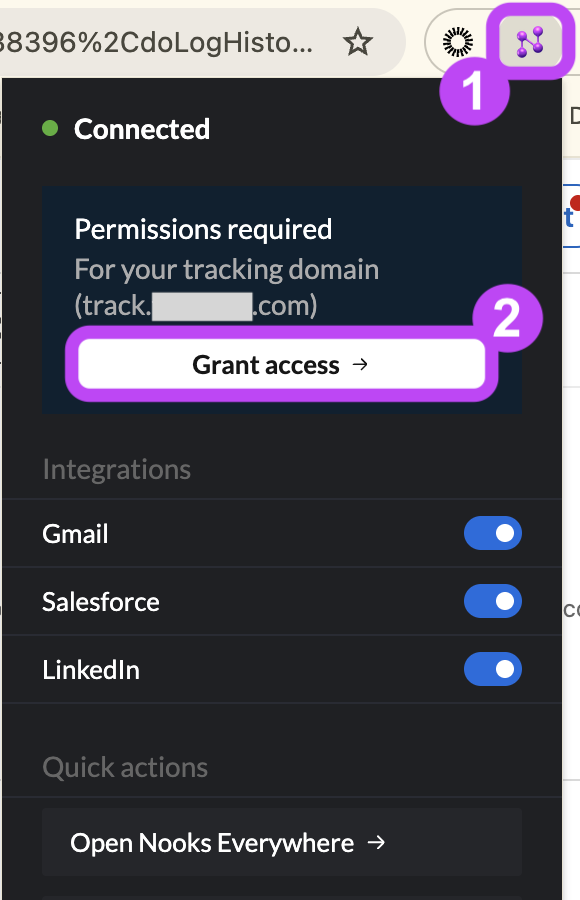
When end-users install the Nooks Chrome extension, they will need to grant permissions for your team's tracking domains. These permissions prevent email open metrics from being inflated when users open their own emails.
To grant permissions, users can:
Click on the Nooks Chrome extension in the top-right corner of their Chrome browser.
Press Grant Access.
Removing a Branded Domain from Your Workspace
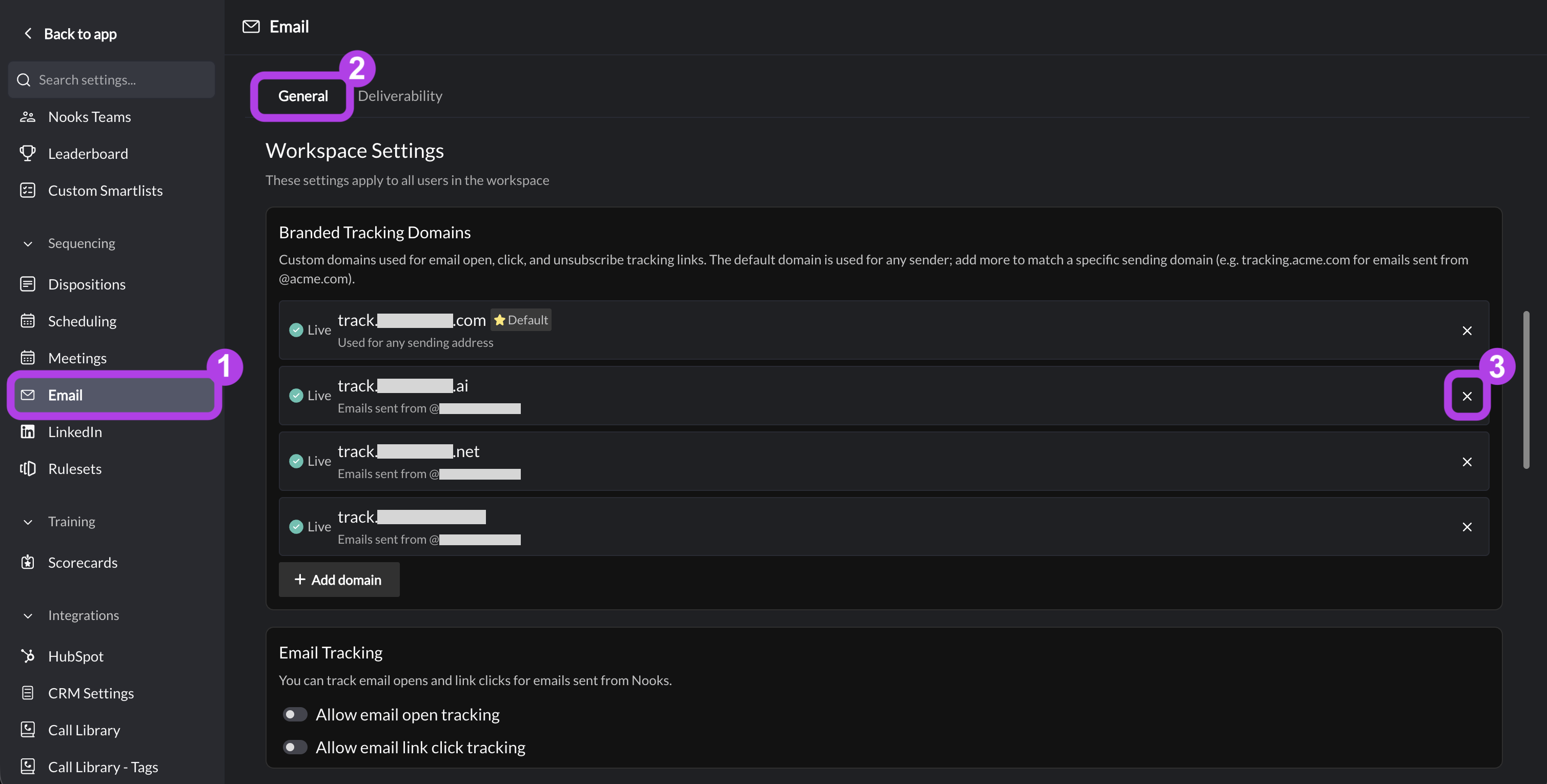
Removing a branded tracking domain prevents it from being used on future emails. Only remove a domain if you will no longer send emails from addresses at that domain.
To remove a branded tracking domain:
Go to Settings → All Settings.
Under Sequencing, select Email.
In the General tab, locate the Branded Tracking Domain setting.
Press the x on the right of the branded tracking domain you want to remove.
Troubleshooting
This section identifies some common errors that arise while setting up branded tracking domains in Nooks and how to resolve them.
Not Yet Found
DNS changes can take up to 48 hours to fully propagate across the internet. If your record continues to show Not Yet Found after a few minutes, confirm with your DNS administrator that the CNAME record was saved correctly in your DNS registrar. Then, wait and check Nooks again. Nooks will continue checking automatically.

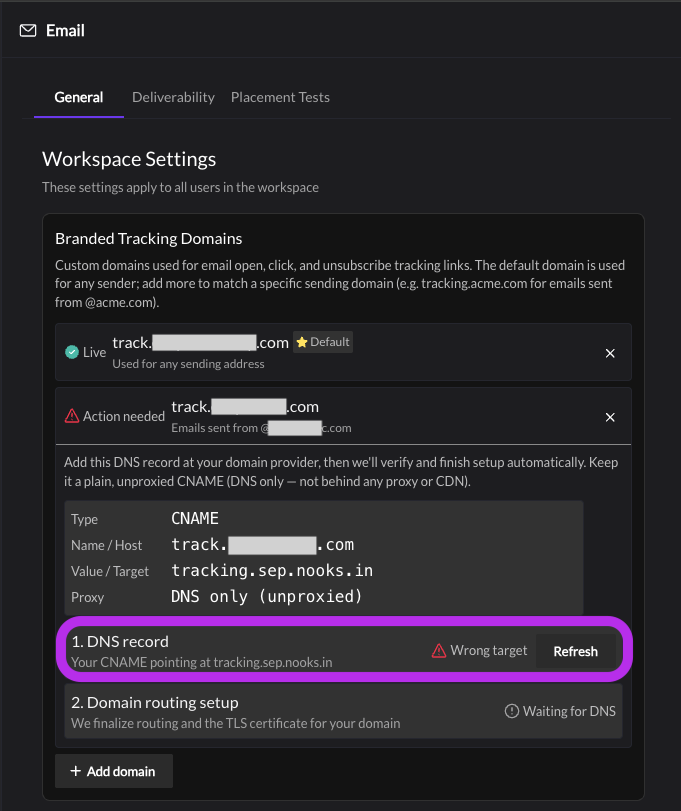
Wrong Target Error
If Nooks' DNS record check returns a Wrong Target error, it indicates that your CNAME exists but is pointing somewhere else. To resolve, connect with your internal DNS administrator to ensure the the CNAME record's value/target is set to "tracking.sep.nooks.in" in your DNS registrar.
FAQs
Why are open-tracking, click-tracking, and unsubscribe links disabled prior to this setup being completed?
As a protective measure for new Nooks Sequencing Workspaces, tracking and unsubscribe links are intentionally paused until your custom domain infrastructure is in place. This ensures you never send emails with at-risk tracking or unsubscribe links, which can negatively impact your sender reputation and your emails’ inbox placement.
Why can’t we proxy the CNAME record through our own CDN (like Cloudflare or Akamai)?
The tracking domain must point directly to Nooks’ servers to securely and accurately process tracking events. Proxying the record through an additional CDN will break Nooks’ tracking functionality.
How long does it take for this setup to take effect?
Once you add the DNS record on your side, propagation usually occurs within 24–48 hours. Tracking and unsubscribe link functionality will be enabled for your Workspace immediately after.
Should we use the domain that we are sending emails from as our hostname?
For better deliverability, we recommend configuring your hostnames to match the domain your team is using to send emails.
If your team uses multiple sending domains, we recommend adding a custom hostname for each of the sending domains you have connected to Nooks. Doing so will better isolate and protect your sender reputation, resulting in improved email deliverability.
Do we still need to set up a custom tracking hostname if we are using the Nooks–Sendgrid integration?
When using the Nooks–Sendgrid integration, Nooks still fully manages email open tracking, link click tracking, and unsubscribe links. Thus, it is still necessary to follow this process to set up a custom hostname in Nooks to take advantage of tracking and unsubscribe link functionality.
How many branded tracking domains can we add to Nooks?
There is no limit on the number of branded tracking domains you can add to Nooks. We strongly recommend creating a branded tracking domain for each sending domain your team is using. This will best isolate your sender reputations, improving deliverability across all of your connected domains.
Will Nooks fuzzy match a sending domain to a branded tracking domain?
No. Nooks requires an exact match between the sender's email domain and one of your live branded tracking domains. If no exact match is found, it falls back to your default branded tracking domain.
For example, an email sent from @getacme.com will not automatically use track.tryacme.com. An email sent from @getacme.com would only use track.tryacme.com if it is set as the default and there's no exact-match tracking domain configured for @getacme.com.