Lusha Enrichment Integration
Last updated: July 16, 2026
This guide covers the Lusha Enrichment Integration in Nooks. It will walk through the steps to connect Lusha to Nooks, discuss how the enrichment feature works, and cover some of the frequently asked questions about the integration.
Background
Nooks Enrichment helps users quickly find new mobile numbers and email addresses for their prospects. This tool helps reps save time, increases coverage, and improves connect and email deliverability rates.
The Lusha integration enables reps to leverage Lusha for enriching prospect phone numbers and emails within Nooks. Reps can use Lusha either as a standalone provider or as part of a waterfall enrichment process, which sequentially searches multiple providers for new phone numbers.
Setup Requirements
The Nooks <> Lusha integration requires your team to have a Lusha Pro, Premium, or Scale plan. If your team is on a different Lusha plan, you will be unable to complete the integration setup steps.
To complete the integration setup steps, you will need to be an admin or manager in Lusha, and an admin or manager in Nooks.
Integration Setup Steps
Follow the steps below to connect the Lusha <> Nooks enrichment integration.
Step 1: Generate a Lusha API Key
To connect Lusha to Nooks, you need to obtain an API Key in Lusha. To do this:
Log in to Lusha.
Navigate to the API page.
On the Lusha API page, click Generate New Key or use an existing, active key.
Click the clipboard icon to copy the key.
Do not close this page until you have finished entering this key in Nooks.
This guide from Lusha's help center contains additional information about Lusha's API and API Keys.
Step 2: Enter the Lusha API Key in Nooks
Once you have an API Key from Lusha, head to the settings page in Nooks to connect the Lusha integration. To do this:
Open the Nooks web app.
In the left-hand navigation menu, click Settings > All Settings.
Under Integrations, click Nooks Enrichment or Nooks Numbers.
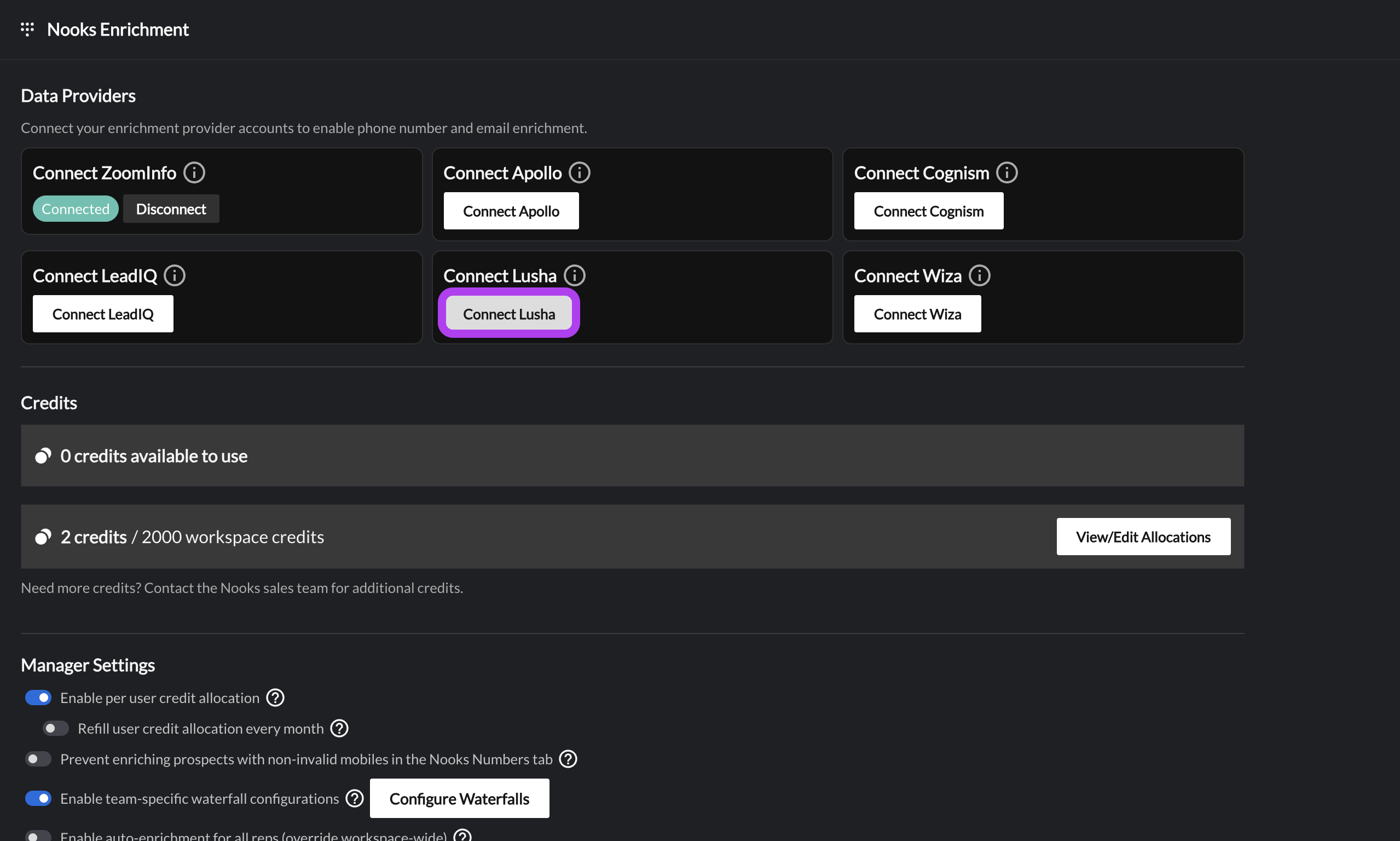
Scroll down and click the Connect Lusha button.
In the pop-up window, enter your API Key. Press the Connect Lusha button in the lower-right of the pop-up.
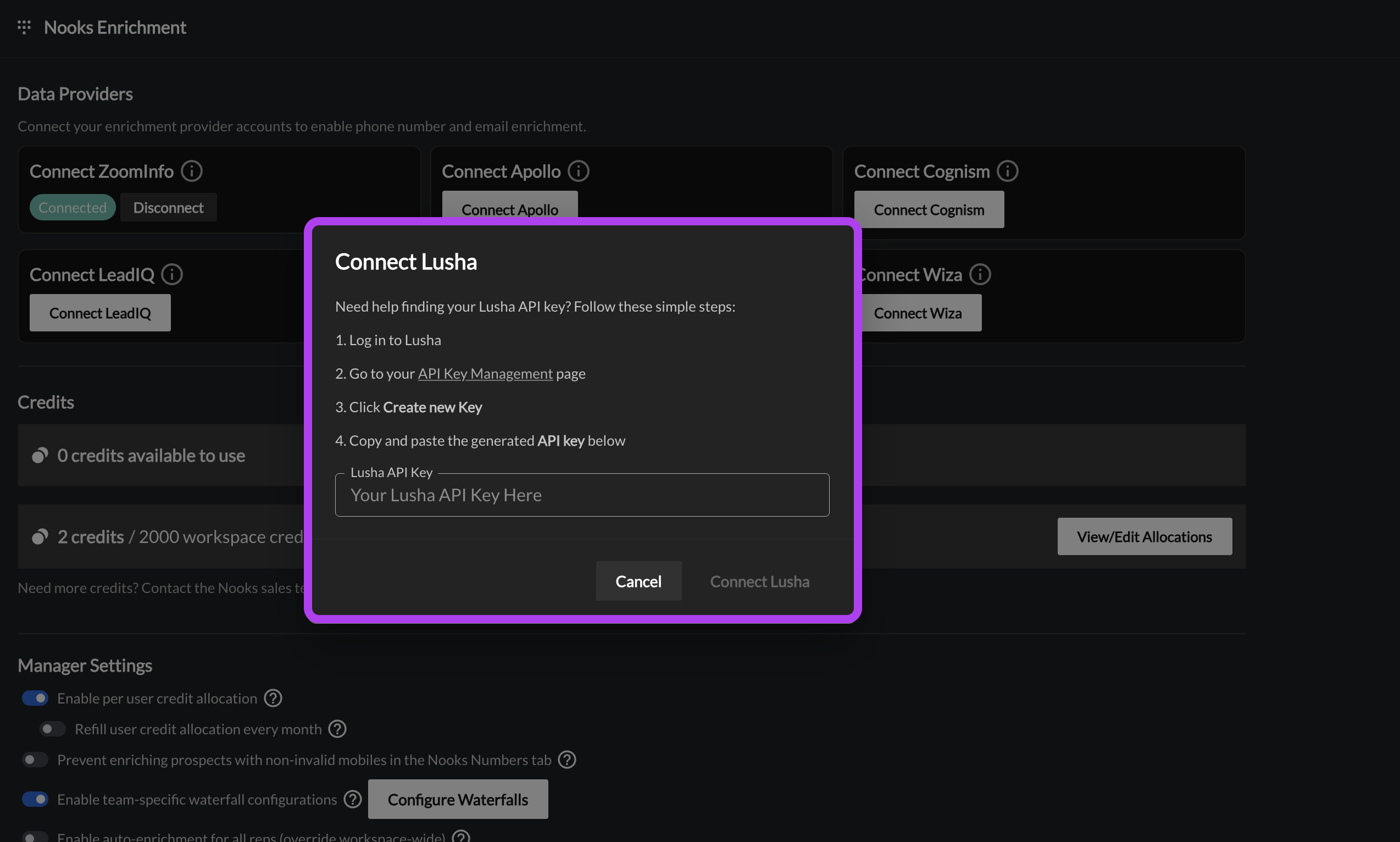
Press the Connect Lusha button to connect the integration.
Note: If you update, rotate, or revoke your Lusha API Key after connecting the Nooks <> Lusha Enrichment Integration, you will need to reconnect the integration with your updated Lusha API Key, as the old one will no longer function.
Once the Lusha integration is connected, users will be able to use Lusha to find new phone numbers in Nooks. If your team is using a custom Waterfall Enrichment or syncing Nooks Numbers results to fields in your CRM, you can now configure those settings for Lusha.
Phone Number Enrichment with Lusha
When using Lusha for prospect phone number enrichment, Nooks prioritizes finding a new mobile number.
If your team has configured successful enrichments to map to a field in your CRM, Nooks will map the new mobile found in Lusha to that field on the corresponding prospect’s record in your CRM.
Email Enrichment with Lusha
When using Lusha as part of your team’s email enrichment waterfall, Nooks will look for any email address match for the prospect. If one is found, it will be returned and written back to the standard email field on the corresponding prospect’s record in your CRM.
Lusha Credit Usage
When Nooks enriches a number or email using Lusha, credits will be deducted from your organization’s credit balance in Lusha. Credits are not deducted from your Nooks Enrichment credit balance.
Setting Per User Credit Limits
After connecting the Lusha enrichment integration, you can limit the number of Lusha credits each user can use via the enrichment integration. To do so:
In Nooks, o to Settings → All Settings.
Under Integrations, select Enrichment.
In the Lusha enrichment card, click Set per-user limit.
Toggle on Enable per-user cap.
Enter the number of bulk credits users can use from Lusha on Nooks enrichments.
Optionally, toggle on Refill Monthly for users' credit limit to be reset to your Workspace's configured limit at the beginning of each month.
The limit is a blanket user that applies equally to all users. Nooks does not support setting different limits for different users.
What Happens when the Per-User Credit Limit Is Reached
When a user reaches the per-user credit limit, they can no longer use Lusha for new enrichments in Nooks until the per-user credit limit is raised by an admin/manager, or their credit limit resets at the beginning of the month (if the monthly refill option is enabled).
Users who hit their limit receive an error message along the lines of:
Provider Limit Reached
Lusha has 1 enrichment remaining for this rep, but this enrichment would use 2 enrichments.
Select fewer prospects or ask a manager to raise this provider limit in Phone Data settings.
Users can unblock themselves from this error by:
Selecting fewer prospects to enrich with Lusha (if there are sufficient credits to enrich some prospects in the batch).
Choosing a different data provider to enrich with.
Asking a Workspace admin or manager to increase the per-user credit limit.
Lusha Enrichment Integration Health Monitoring
Nooks will alert you if an error is detected with your Lusha API passthrough integration. There are two potential errors that will appear.
Lusha credentials are no longer working. Enrichments using Lusha will fail – contact an admin or manager to reconnect.
Where this error appears: This error will appear at the top of the Nooks Numbers page and at the top of the Nooks Enrichment or Nooks Numbers settings page. A "Credentials Error" chip will also appear next to Lusha in the Data Providers section of the Nooks Enrichment or Nooks Numbers settings page.
How to resolve this error: This error indicates Nooks has lost connection to the integration, most often because your Lusha API key has expired or been deleted. To resolve this error, try reconnecting to the Lusha enrichment integration.
Lusha enrichment credits are exhausted. Contact an admin or manager to purchase more credits.
Where this error appears: This error will appear at the top of the Nooks Numbers page and at the top of the Nooks Enrichment or Nooks Numbers settings page. A "Credentials Error" chip will also appear next to Lusha in the Data Providers section of the Nooks Enrichment or Nooks Numbers settings page.
Steps to resolve this error: This error indicates that your team has run out of credits in Lusha. To resolve this error, purchase additional credits through Lusha.
FAQs
Is there a way to cap how many bulk credits are used from Lusha?
Nooks currently displays when your team has exhausted your Lusha credits. However, there is not a way to cap the number of credits used from Lusha.