Executing Call Tasks from the Tasks Page
Last updated: September 23, 2026
This guide walks through the different options for actioning call tasks from a Nooks Sequence. It explains how to execute them from the Tasks page and from the Dialer.
Availability: This feature is available to users with a Nooks Sequencing seat.
Overview
The Tasks page is your to-do list in Nooks Sequencing. It is a singular table that surfaces all manual work assigned to you from a Sequence or a one-off task, including calls, manual emails, manual LinkedIn tasks, SMS tasks, and action items. When a prospect reaches a call task in a Sequence or a one-off call task becomes due, those calls show up on your Tasks page.
Calling from the Tasks page keeps your sequencing work in one place. You open a call task, pick a number to call from, pick a number to call to, and Nooks dials for you. When you log a call, Nooks:
Saves the call in Nooks.
Logs the call as an activity in your CRM.
Marks the call task “complete” and, when applicable, advances the prospect to the next step of the Sequence.
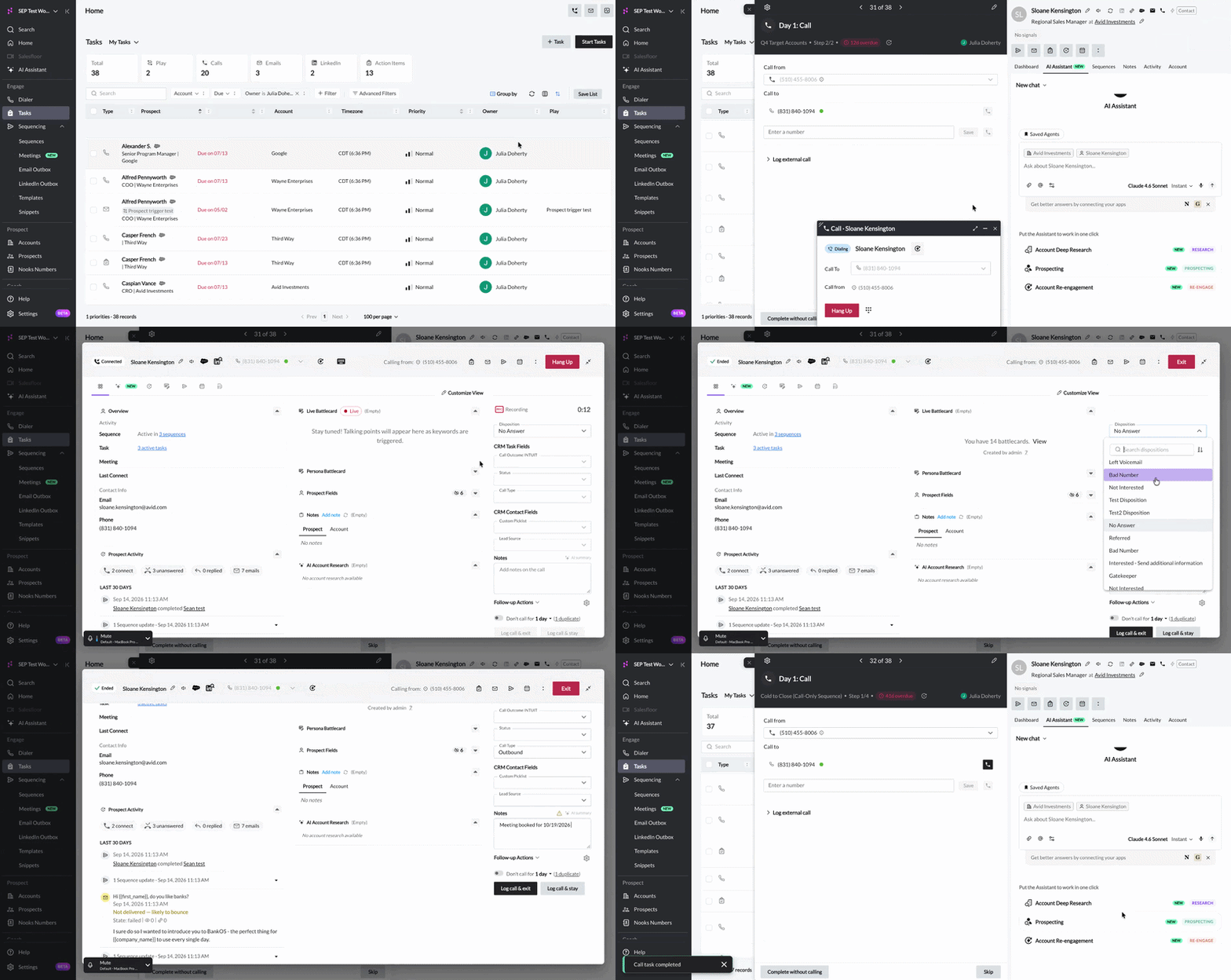
Find Your Call Tasks
To open the Tasks page, click Tasks in the left-hand navigation menu, under Engage. The page opens to the My Tasks view by default. This view shows all the tasks you own that are due today or earlier, so overdue tasks are included. Tasks you already completed or skipped do not show.
To set up a list of calls to work, follow these steps:
Click the Calls card above the Tasks Table. The table now shows only your call tasks.
(Optional) Narrow the list with filters. You can filter on Nooks fields like Sequence or Sequence Step, or on fields from your CRM. For calling, try the Business Hours option in the Timezone filter, which only shows prospects whose local time is currently inside your Workspace’s business hours window.
(Optional) Set your sort order. By default, tasks sort by Due date, oldest first, unless you change it. This is the order you will work through your tasks with Start Tasks.
Reminder: Adjust or clear your filters when you complete all the call tasks that match your criteria to avoid missing tasks that did not meet your initial criteria.
Start Working Your Call Tasks
Once your list is set up, you have two ways to start calling.
Use Start Tasks to work through your whole list in order.
Open one task at a time.
Whichever way you start, you work each call task the same way, using the steps in the sections after this one.
Work Your List with Start Tasks
The Start Tasks button lets you work through your list one task after another, without going back to the table each time. It is the fastest way to get through a block of call tasks.
With your list filtered and sorted, follow these steps:
If you only want to work some of the tasks, check the boxes next to them.
Click Start Tasks.
Call and log each task. When you finish a task, Nooks moves you to the next one.
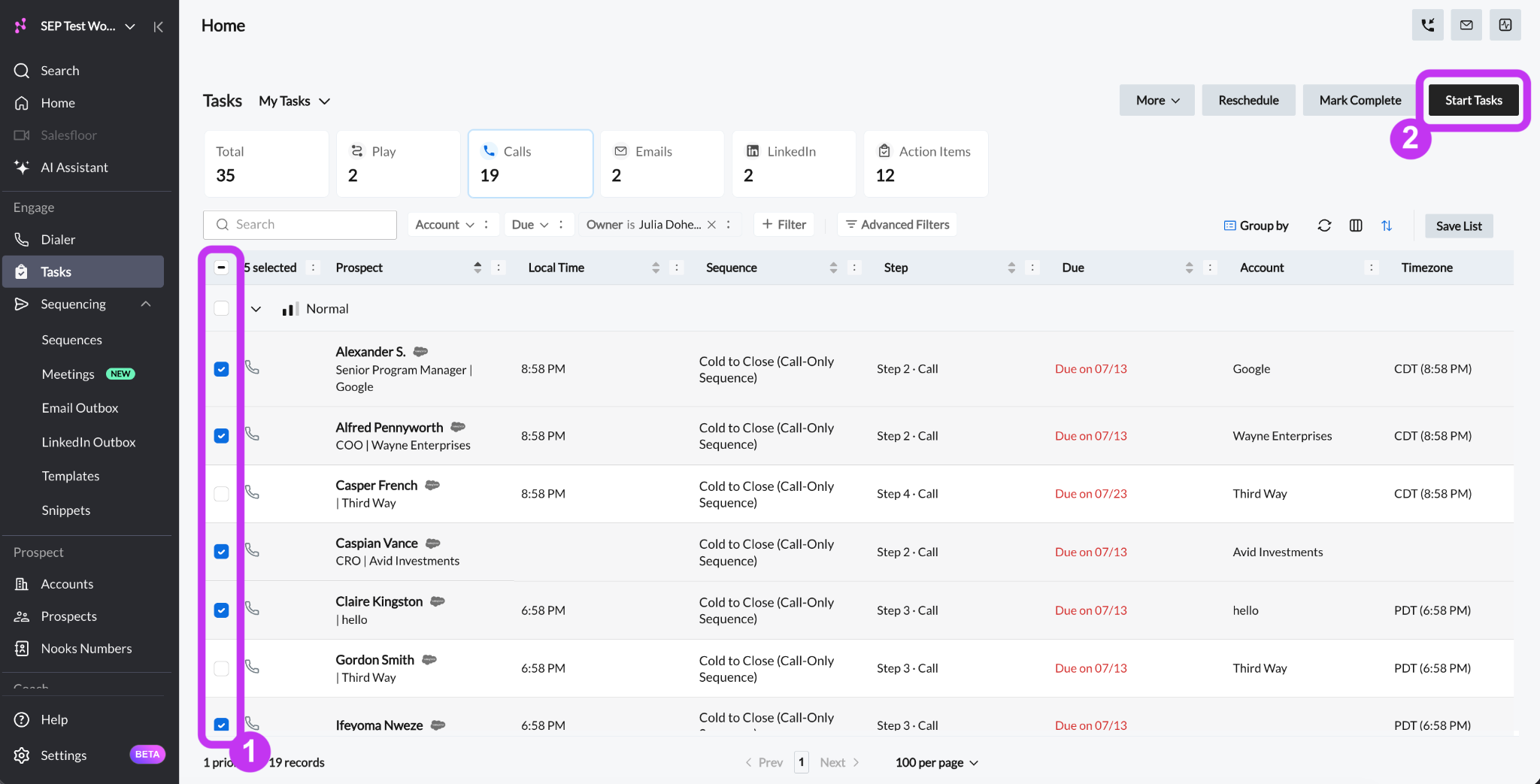
Start Tasks works with every manual task type, not just calls. If you want a calls-only session, click the Calls card first. If you want a mixed-task session, filter your list to the task types you want to work.
Open a Single Task
If you do not necessarily know where in your list you want to start or which tasks you want to include in a working session, click on an individual task in your list to open the task side panel. The panel opens to the task you clicked, and you can use the arrows at the top to move back and forth through your list.
Move to the Next Task
After you log a call, skip a task, or complete a task, Nooks moves you to the next task on its own. When every task in your Start Tasks queue or task list is done, the panel closes.
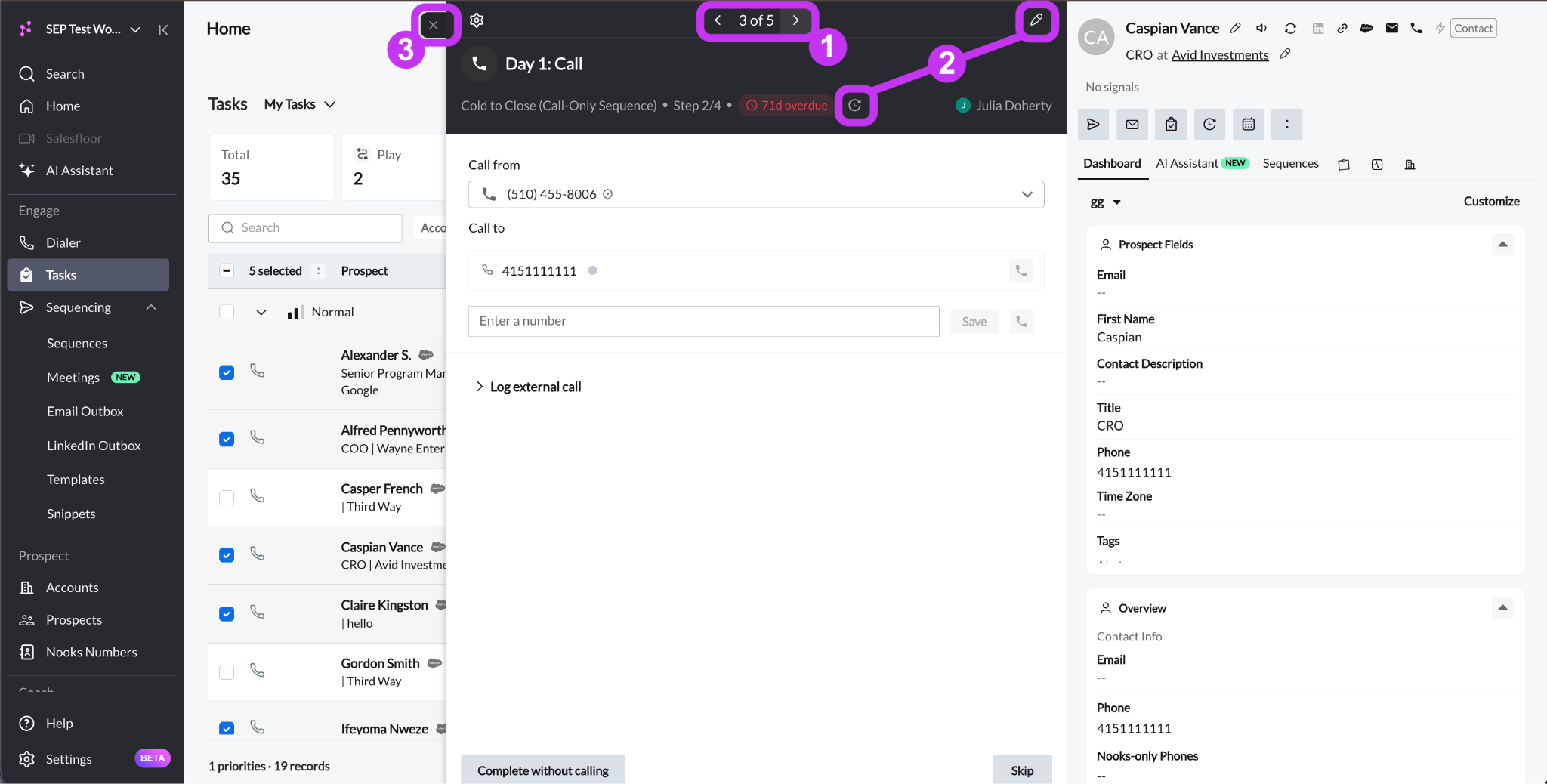
The top of the panel also has some controls you can use at any time:
Previous task and Next task arrows, which let you move through your queue without closing the task panel, along with a counter (for example, “7 of 38”) that shows you where you are in your task list.
Edit task and Reschedule task actions, which let you modify the task details and due date.
Close button, which lets you end your session and return to the Tasks Table.
How a Call Task Looks
Click any call task in your list to open it in the task panel. The panel opens on the task you clicked. You can use the arrows at the top to move back and forth through your list.
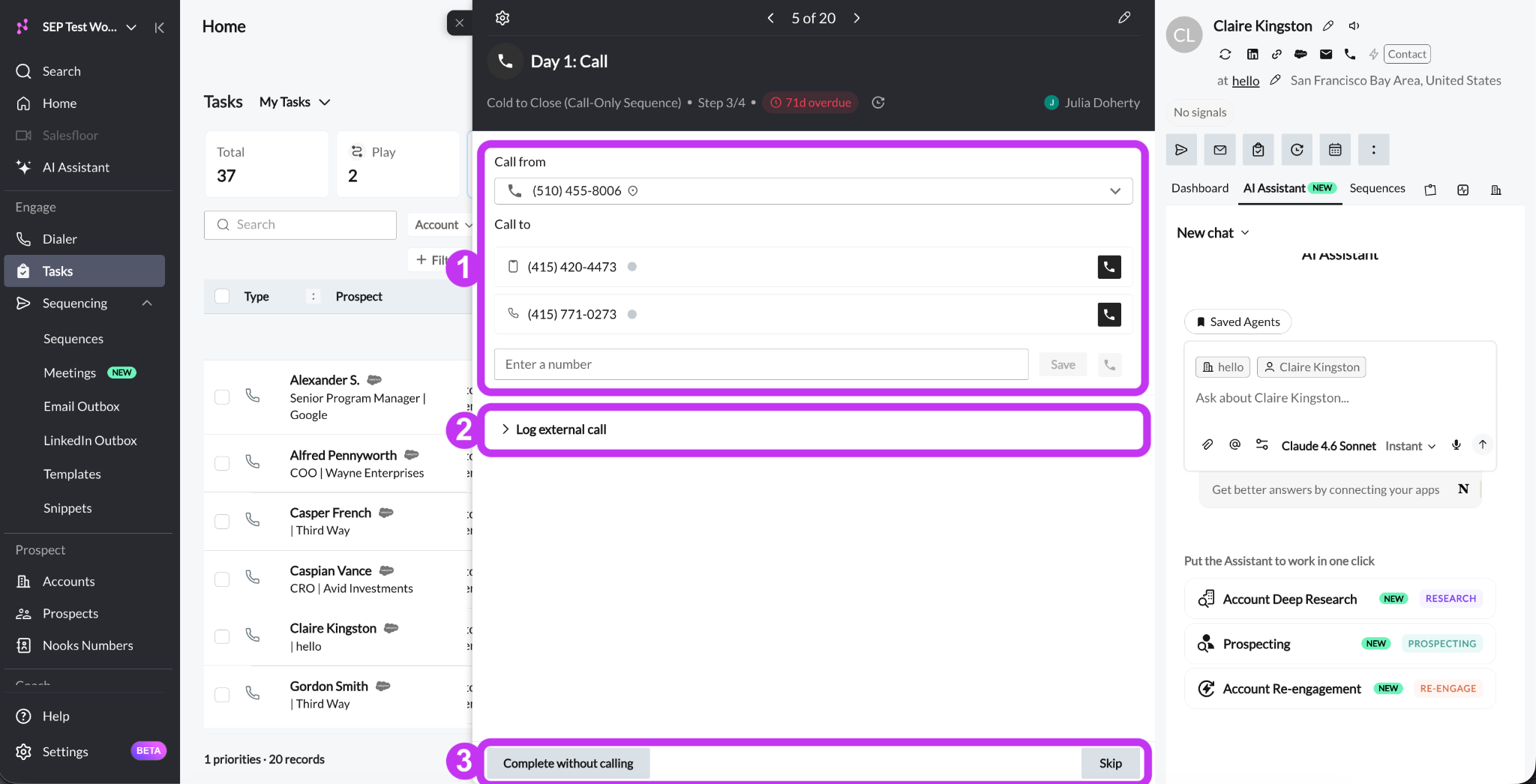
When you have a call loaded in it, the task panel has three areas:
Call from and Call to, where you pick your Nooks phone number and the prospect’s phone number for the call.
Log external call, a section you can expand to log a call you made outside Nooks.
Complete without calling and Skip, which you can use to clear the call task without actually calling the prospect.
Calling a Prospect from a Call Task
The primary method of working a call task is calling the prospect through Nooks. When you call and log the task, Nooks saves the call in Nooks, logs the task to your CRM, and moves the prospect forward in their Sequence (when applicable).
Choose a Number and Dial
From a call task you have opened, follow these steps to initiate a call to the prospect:
In the Call from box, choose the Nooks phone number you want to call from.
Under Call to, find the number you want to dial. This list shows every phone number saved for the prospect. Each number shows a colored status dot, indicating the quality of the phone number.
To call a number not in the Call to list, enter the number into the Enter a number field.
Click the phone button next to the number you want to dial.
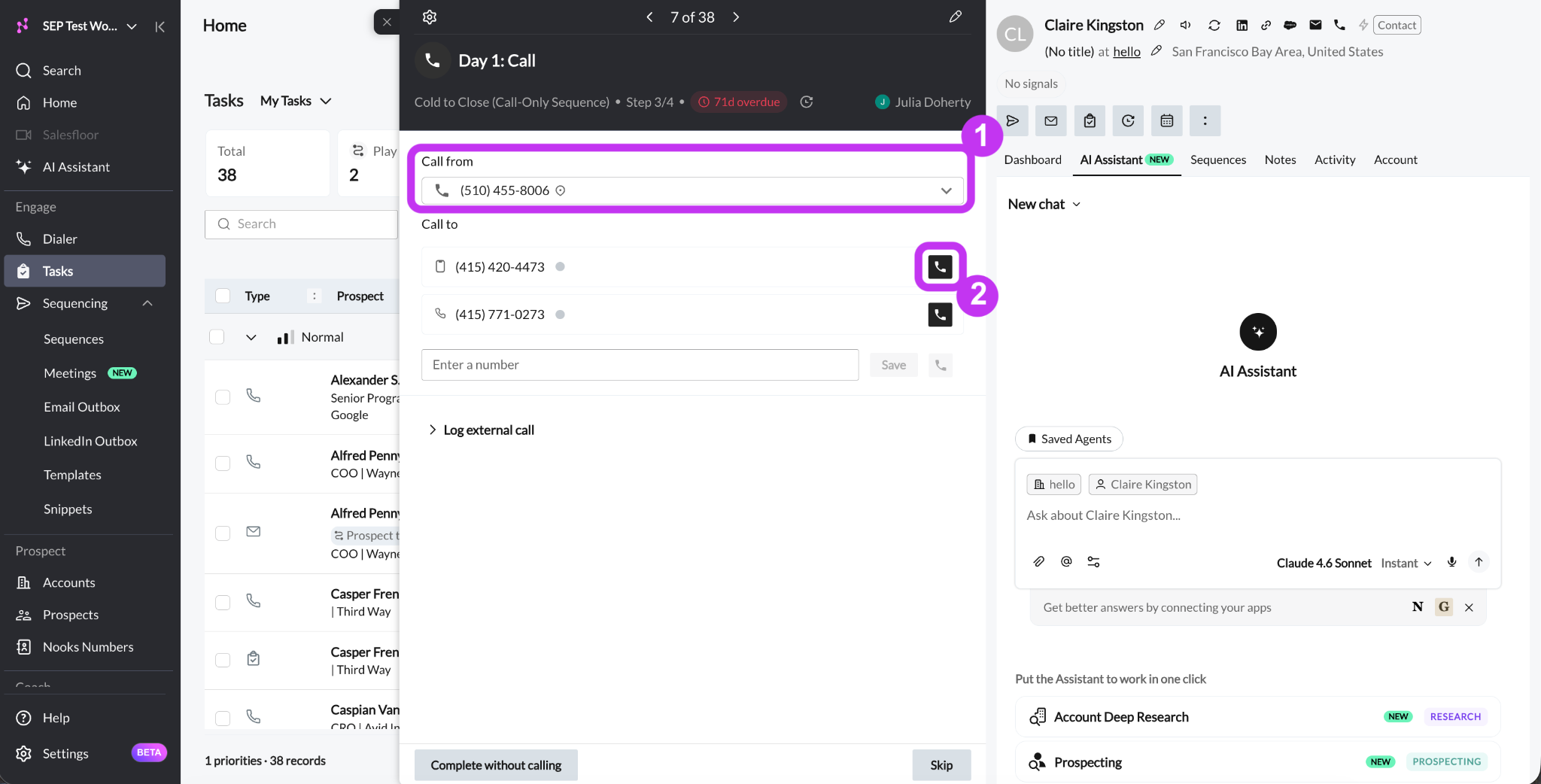
Right after clicking the phone button, Nooks opens a call window and places your call to the prospect. While Nooks is dialing one number, the other dial buttons in the task are grayed out. If a number no longer works, you can click its status dot to change its status to remind yourself and other teammates not to call that number in the future.
During the Call
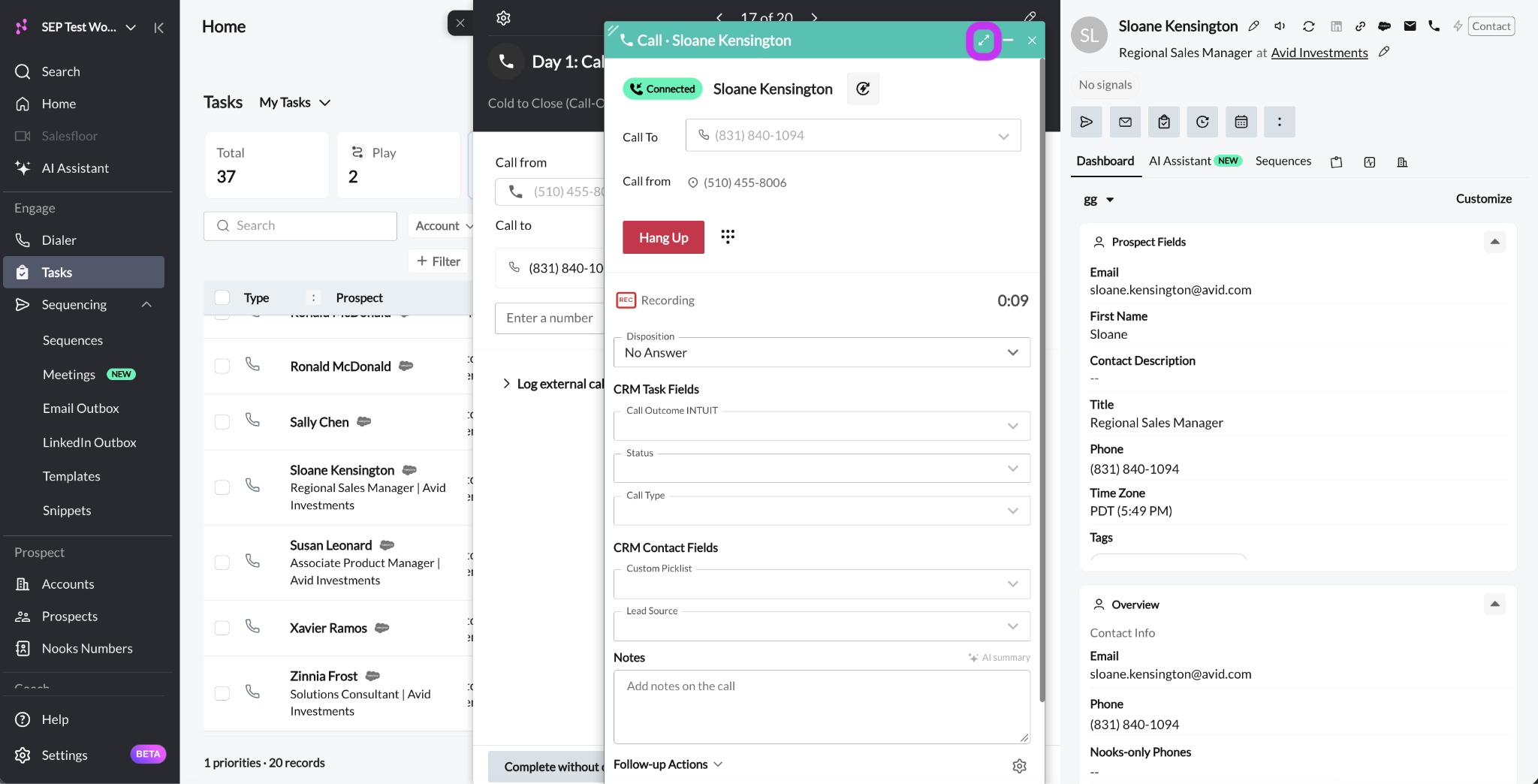
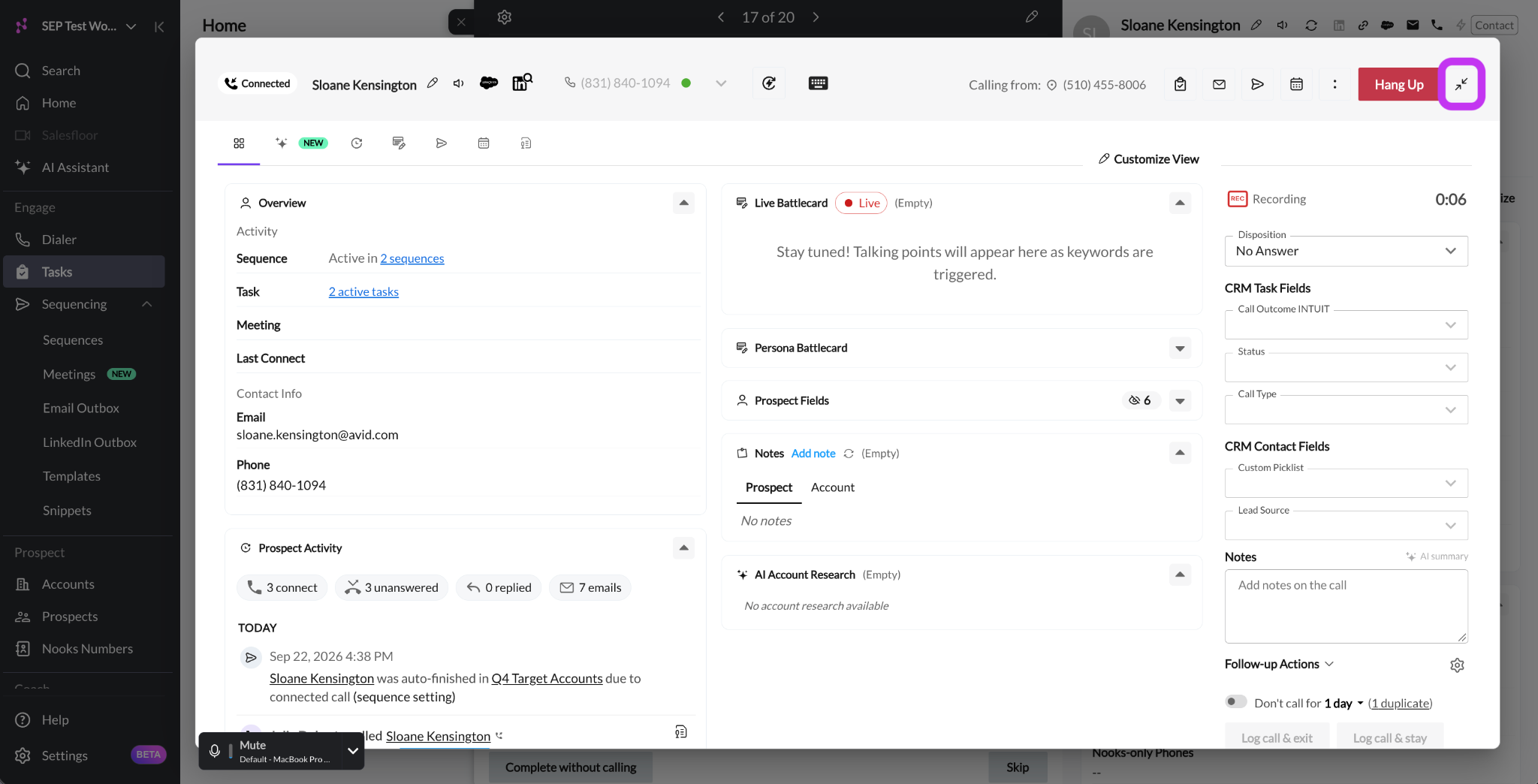
Have your conversation as usual. To expand or minimize the call window, click the expand arrows or minimize arrows in the top-right corner of the call window.
Minimized View
Expanded View
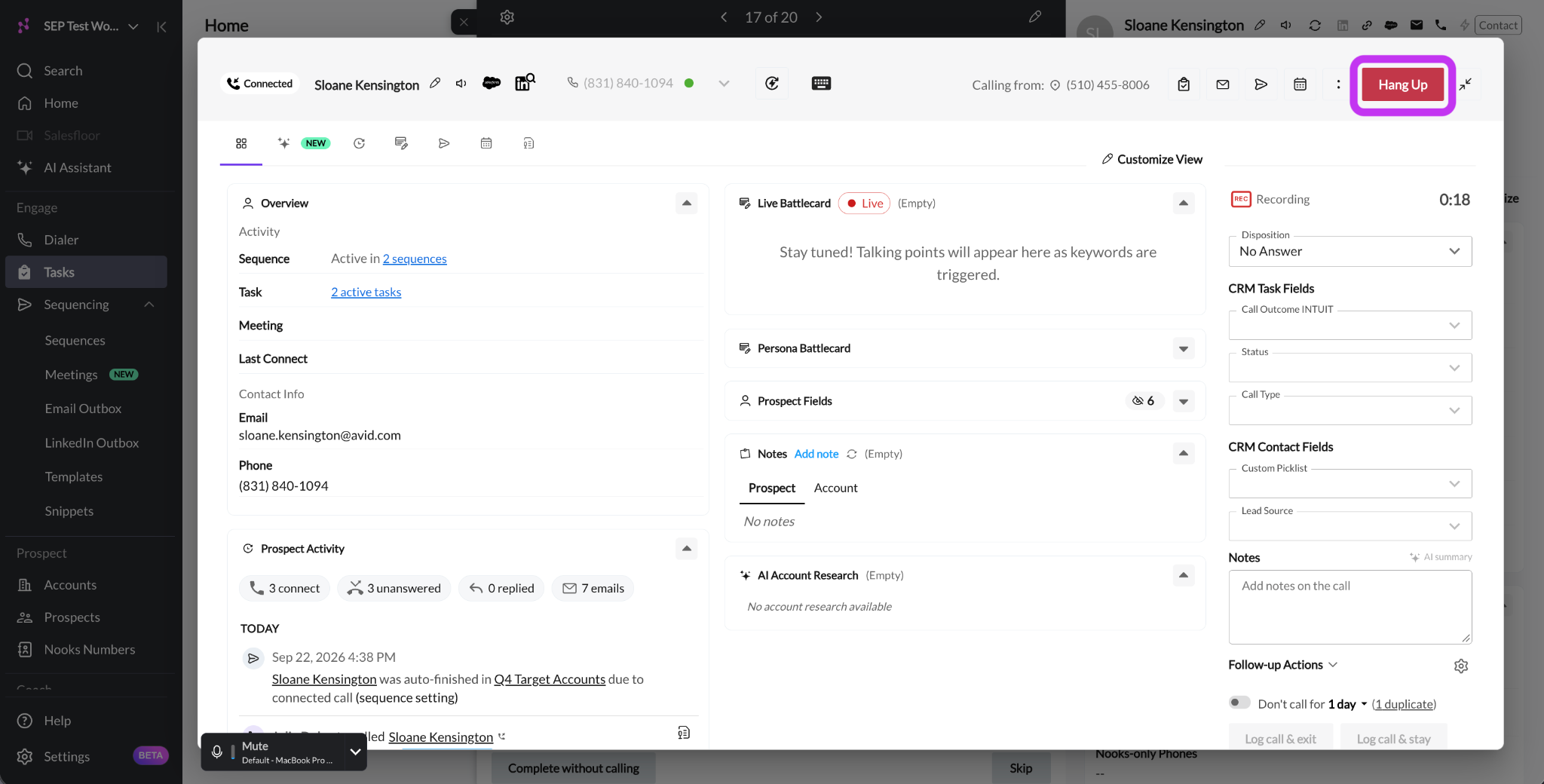
Click Hang Up to end the call at any time. Once the call ends, you can log your call. Your prospect can also terminate the call at any time, which also enables you to log the call.
Log the Call
When the call ends, fill out the logging form. This is how your call gets saved in Nooks and your CRM. The form includes the following fields.
Field | Required | Instructions |
|---|---|---|
Disposition | Required | Pick the outcome of the call from your Workspace’s list. You cannot log the call until you choose one. |
Notes | Optional | Add any notes about the call. You can click AI Summary to have Nooks write a summary for you. This option only works when the full call recording is available and the call was long enough. |
Other Call Fields | Optional | Your admin may add additional call fields for you to complete. These sync to the CRM with the call. |
When you are done, click one of the following buttons to log the call:
Log call & exit: Logs the call to Nooks and your CRM, completes the call task, and moves the prospect to the next step in the Sequence. The call window closes and the task panel moves to the next task in your task list. Use this option when you are done with this prospect for the time being.
Log call & try another number: Logs the call to Nooks and your CRM, but keeps the call window open so you can dial another of the prospect’s numbers. Use this when you want to try the prospect at a different number right away. If the prospect has no other valid numbers, this button reads Log call & stay instead.
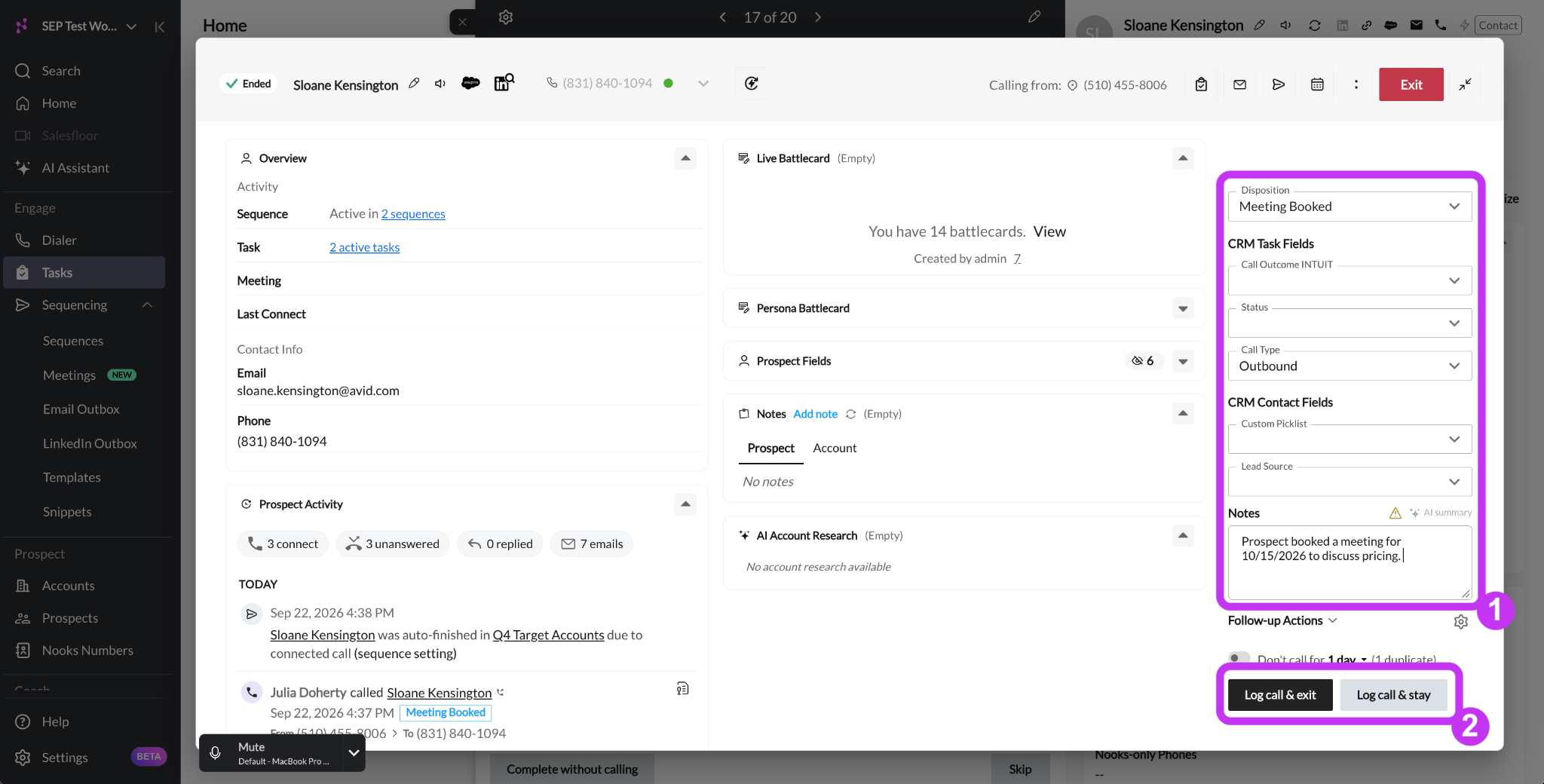
Note: Logging a call from a task always completes that task, even when you choose Log call & try another number. The first call you log completes the task and moves the prospect forward in their Sequence (when applicable). Nooks simply holds the task panel in place so you can keep dialing the prospect’s other numbers. Each extra call you log is saved as its own call record. When you close the call window, the task panel moves on to the next task in your task list.
If You Close the Call Window without Logging
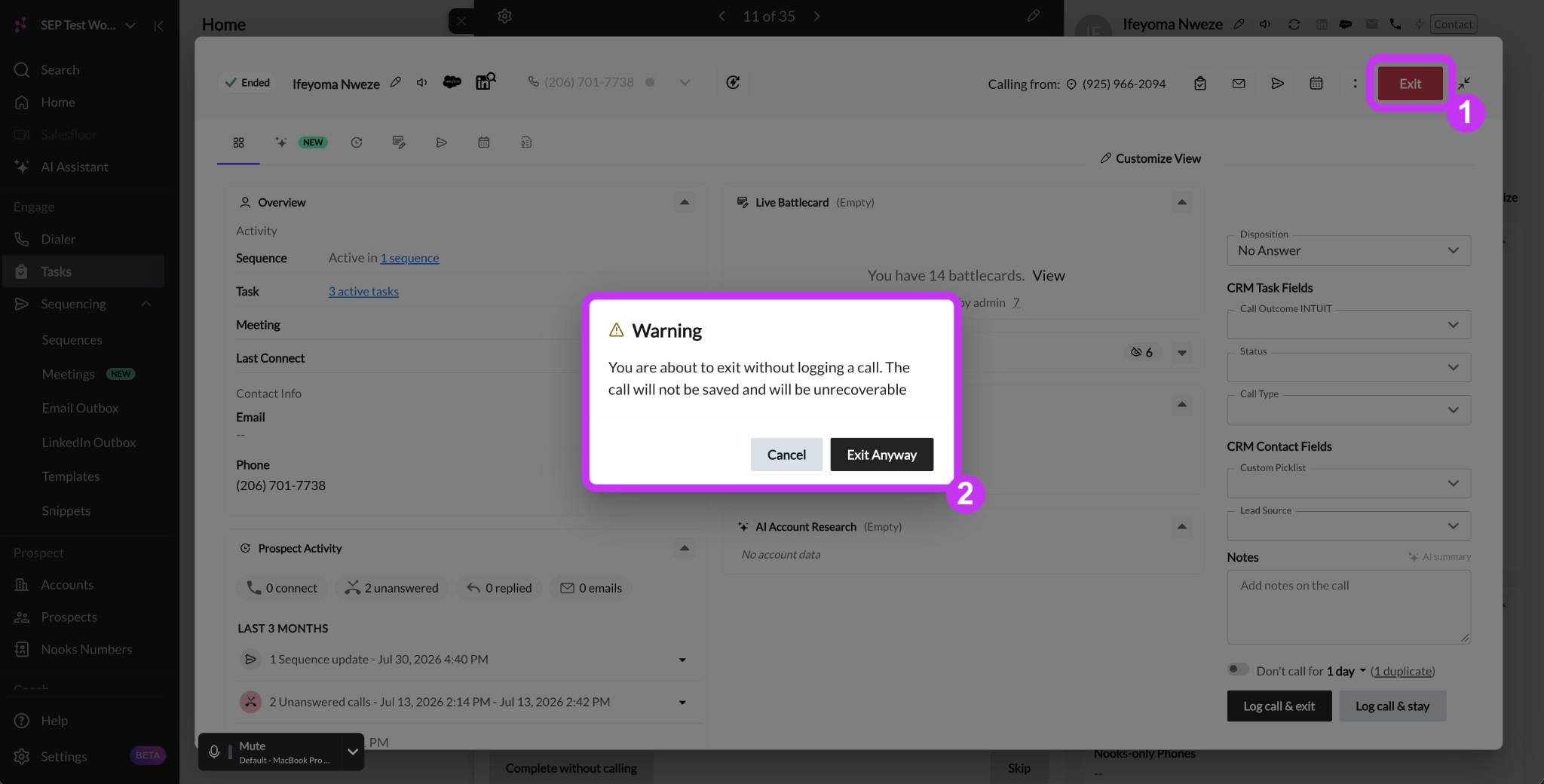
After the call ends, you can click Exit to leave the call window without logging. Nooks warns you first: You are about to exit without logging a call. The call will not be saved and will be unrecoverable. Click Cancel to go back and log the call, or Exit Anyway to leave.
If you exit without logging, the call is not saved in Nooks or your CRM, and the task remains open in your task list. To ensure you are credited with the work you have completed, always log a call after you place a call before navigating away.
Call a Number Not on the Prospect’s Record
Sometimes you find a new number for a prospect, like a direct line from their website or a business phone in their email signature. You can dial it right from the task panel, without recording it in your CRM first.
With the call task open in the task panel, follow these steps:
Type the number into the Enter a number box under Call to.
Press Enter, or click the phone button to the right of the input box.
Have your call, then log it the same way you would any other call.
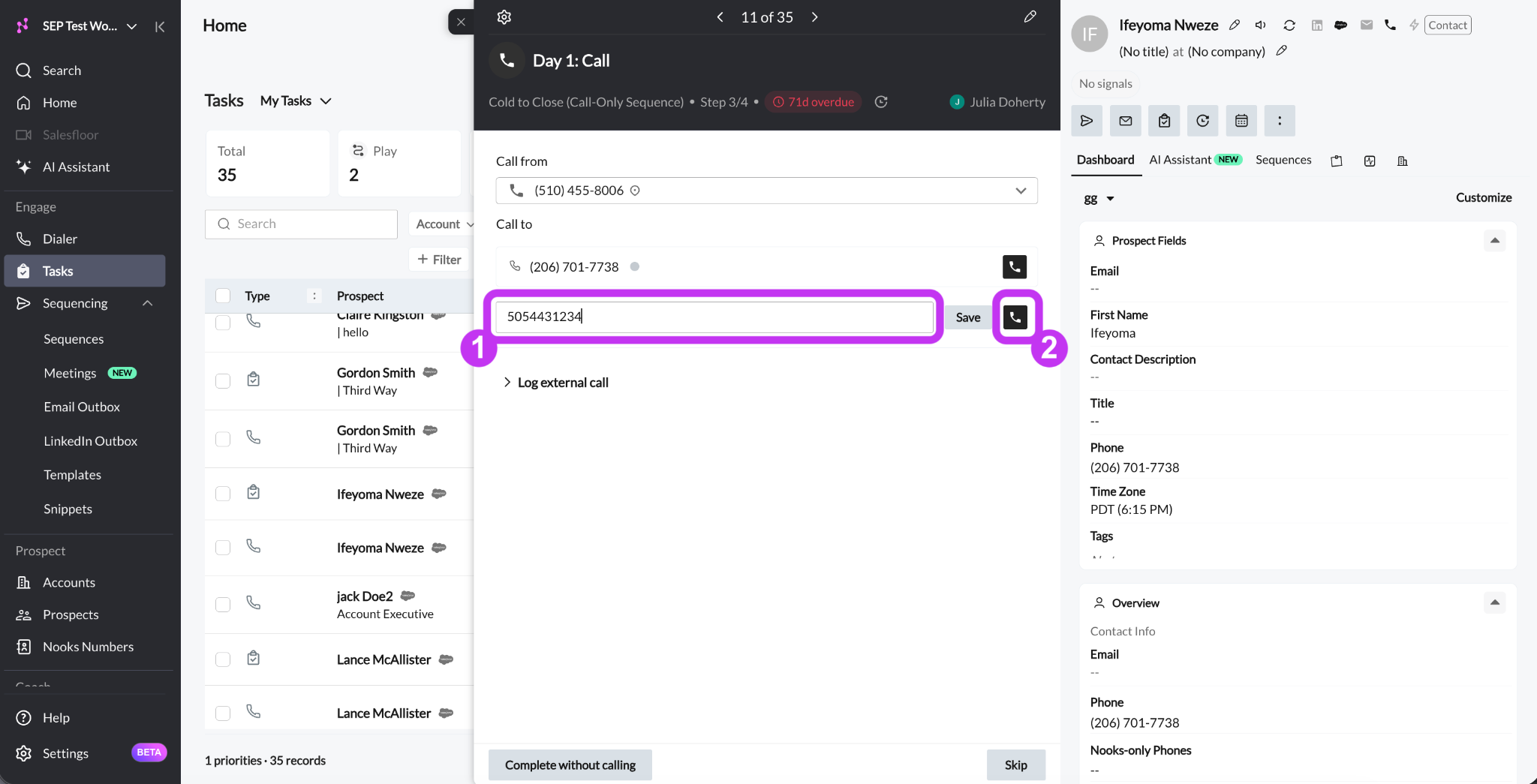
Because you dialed from the task panel, this call is tied to the open call task. Logging it completes the task and, when applicable, advances the prospect in their Sequence, just like calling a saved number.
Nooks does not add the new number to the prospect’s CRM record unless you save it. To save it:
Click Save to the right of the input box.
Choose a Save to option for the CRM phone field you want. Each option shows what is in that field now (and will be overwritten), or “Empty”.
If the field already has a different number saved to it, Nooks asks you if you want to replace it. Click Overwrite to replace the old number, or Cancel to keep it.
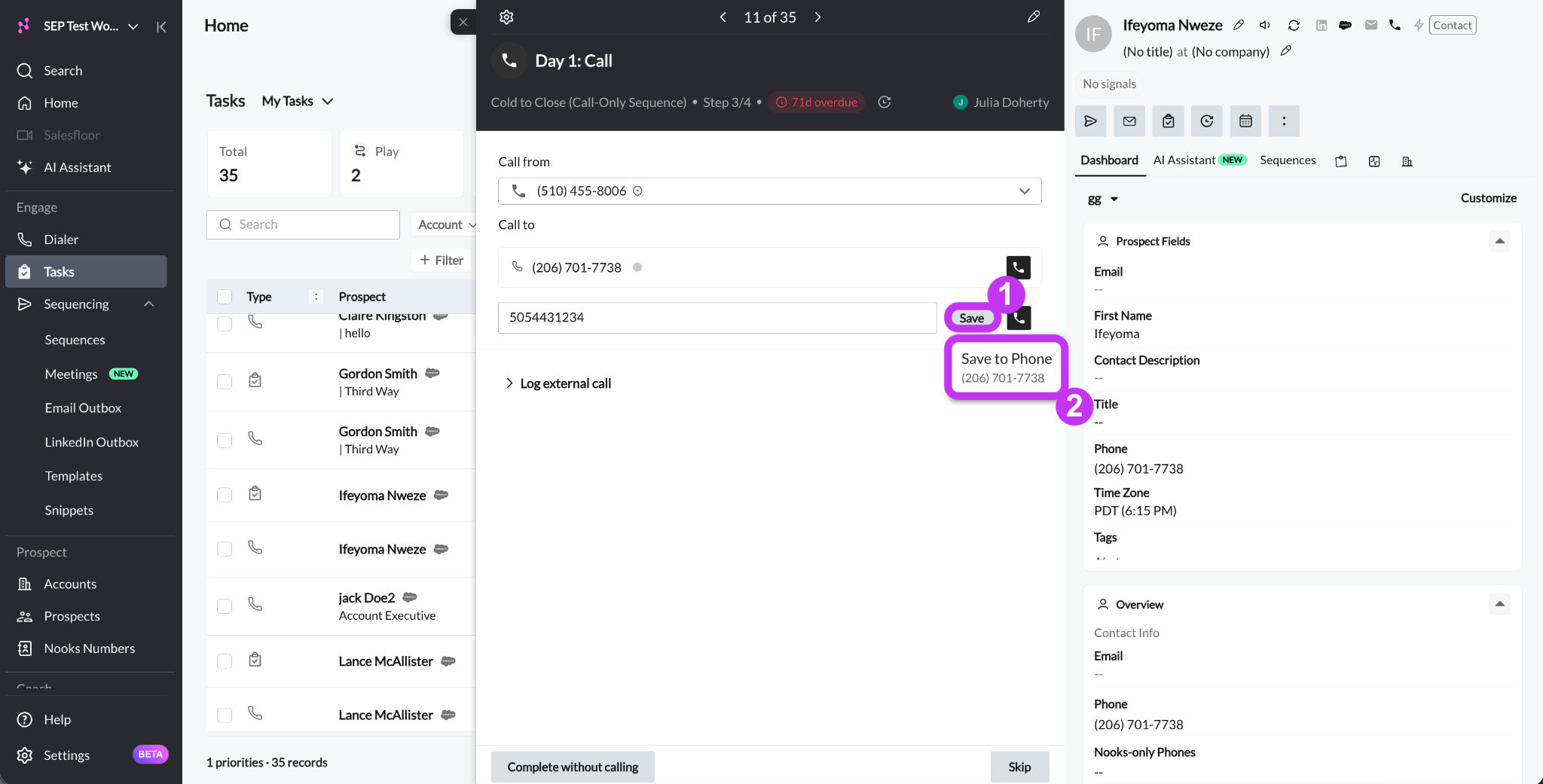
Heads up: Overwriting a phone field replaces the old number. Double-check the field before you click Overwrite.
Log an External Call
Sometimes you call a prospect outside of Nooks, such as from your cell phone or desk phone. You can still log that call against a call task so that you get credit for it in Nooks and your CRM.
With the call task open in the task panel, follow these steps:
Click Log external call to open the section.
Choose an outcome under Call disposition. This field is required.
Add any notes under Call notes. Notes are not saved until you log the call.
Fill in any additional call logging fields your Workspace admin team has surfaced for your Workspace.
Click Log & Complete.
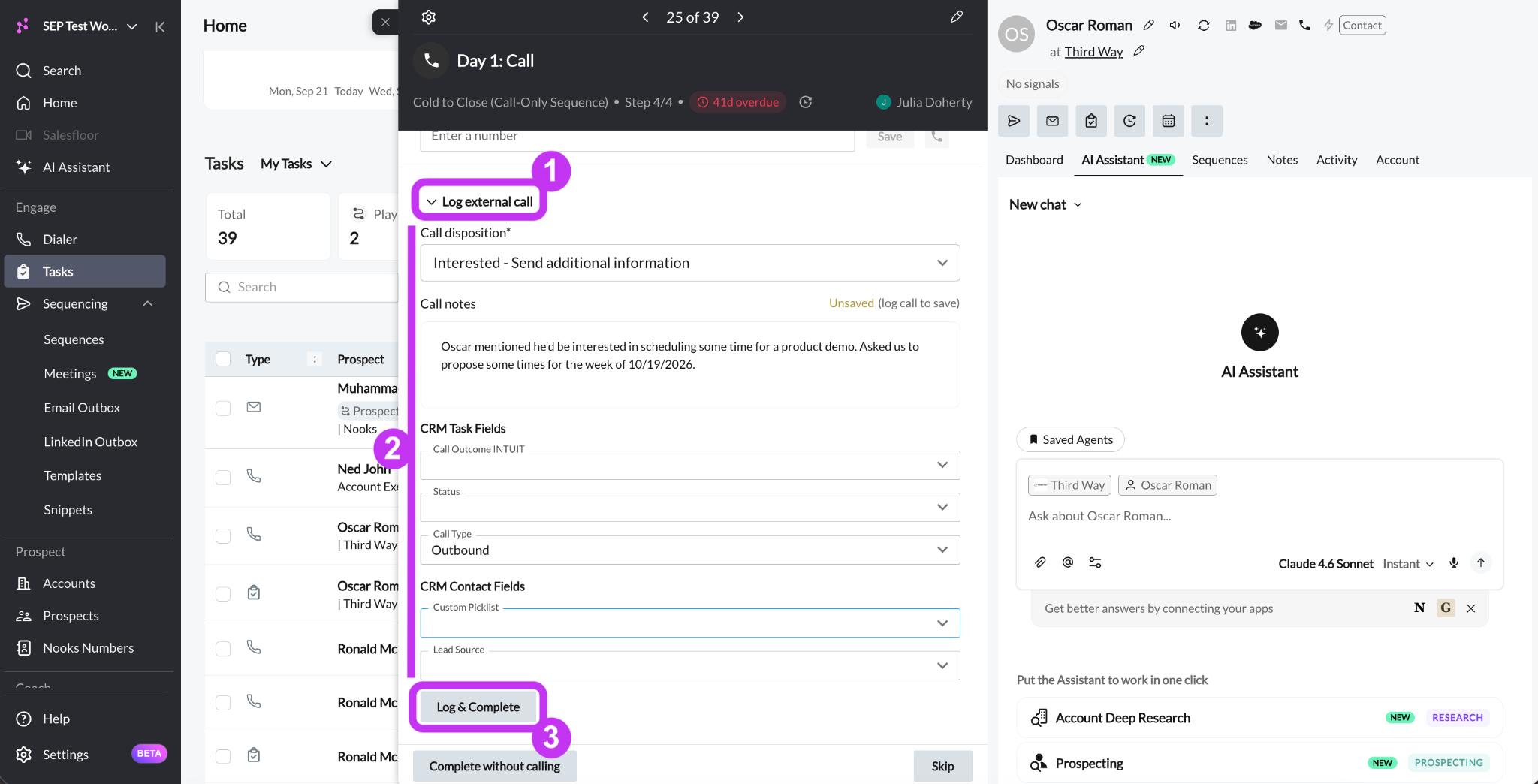
When you click Log & Complete, Nooks saves the call, records it in your CRM, completes the task, and moves the prospect to the next step in their Sequence (when applicable). The task panel then moves to the next task in your task list.
Note: Because the call did not happen in Nooks, the call record has less information. There is no call recording or duration, and the phone numbers are saved as “external” instead of real numbers.
Only use Log external call for calls you made outside Nooks. If you dialed from Nooks, log the call in the call window instead. Logging the same call twice (using these different options) creates duplicate records in both Nooks and your CRM.
Skip a Call Task
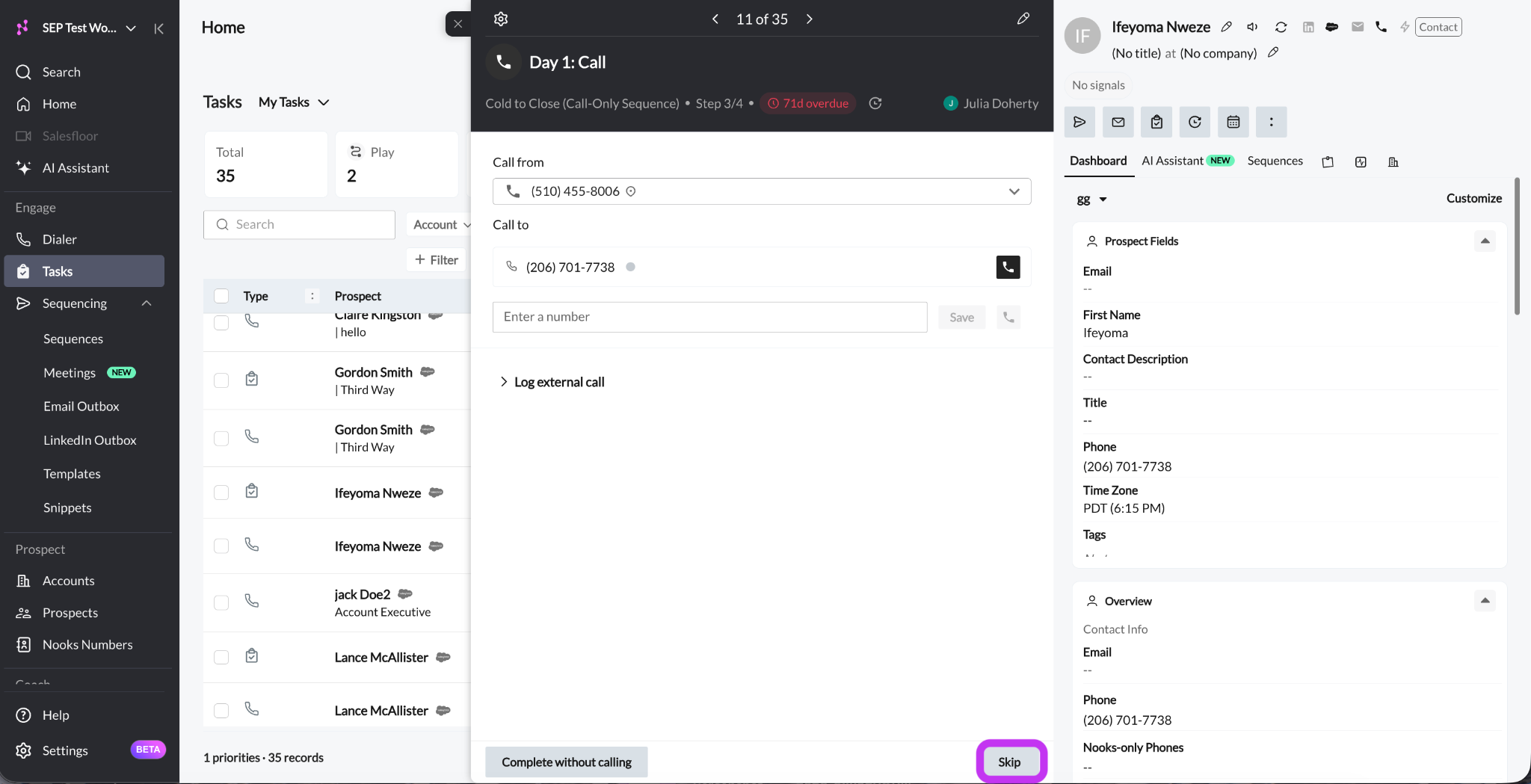
Click Skip at the bottom of the task panel when you do not want to work the task. For example, you might skip a call step for a prospect you already spoke with this week or who does not have any more valid phone numbers.
When you skip a call task, the following things happen.
The task is marked as skipped, not completed. It will not count toward your completed tasks.
No call is logged in Nooks or in your CRM. If Nooks made an open task in Salesforce for this call task, Nooks removes it.
For call tasks from a Sequence, the prospect moves to the next step in the Sequence. If this task was the last step, the prospect finishes the Sequence.
The task is removed from your task list, and the task panel moves to your next task.
Nooks does not ask you to confirm when you click Skip in the call panel, and you cannot undo it. If you just want to look at the next task without clearing this one, use the forward and backward arrows at the top of the task panel instead.
Complete a Call Task without Logging
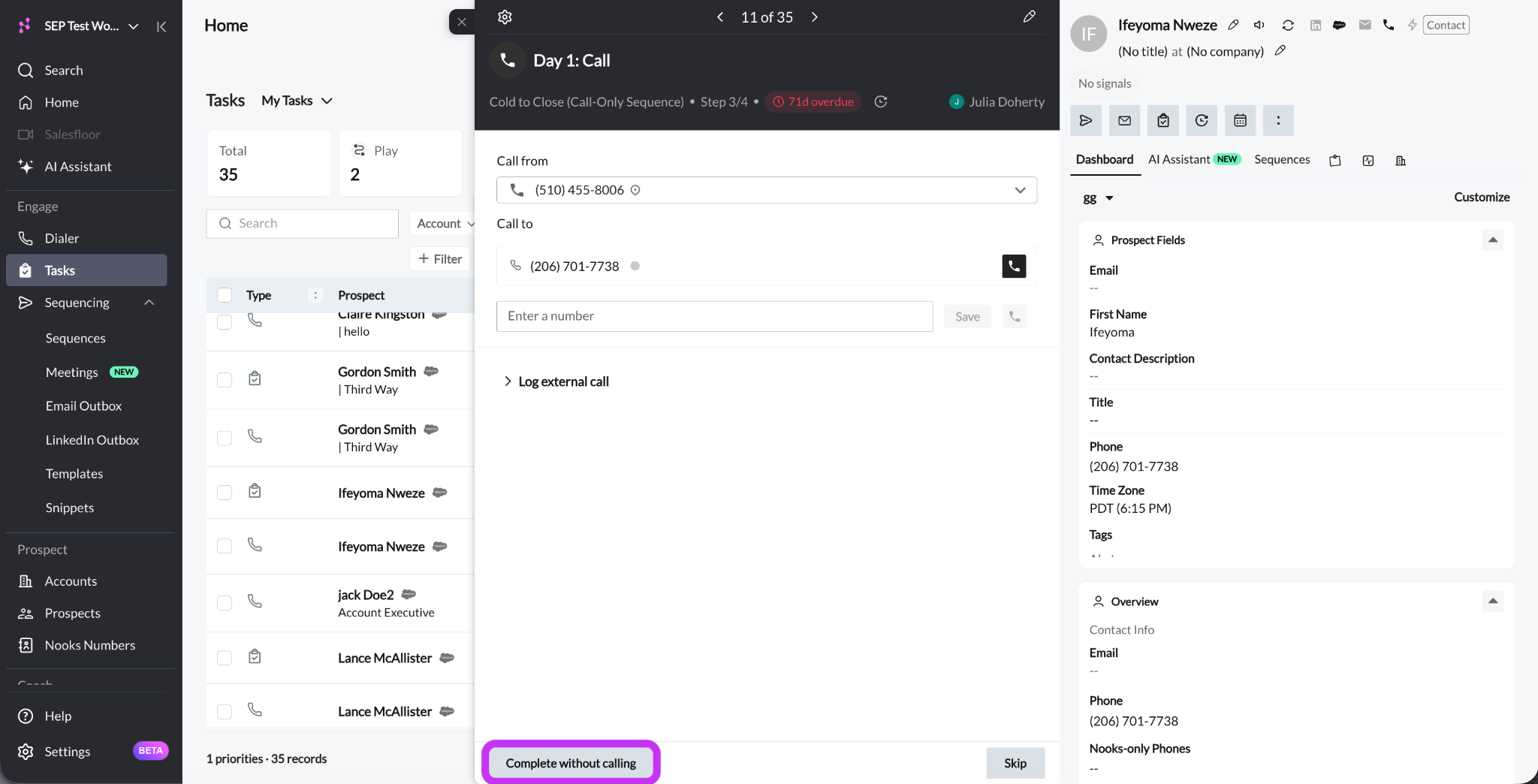
Click Complete without calling when the task is done but you did not make a call through Nooks and do not want to log one. If you did call the prospect outside Nooks, use Log external call instead so that the call is saved.
When you complete a call task without calling, the following things happen.
The task is marked as completed.
No call is saved in Nooks, and nothing is sent to your CRM.
For call tasks from a Sequence, the prospect moves to the next step in the Sequence. If this was the last step, the prospect finishes the Sequence.
The task counts toward your completed tasks, even though no call was made.
You cannot undo this action.
FAQs
What is the difference between "Skip" and "Complete without calling"?
Both keep the prospect in their Sequence and move the prospect to the next step (when applicable). Additionally, neither logs a call activity in your CRM.
Skip marks the call task as
skipped. The prospect still advances to the next Sequence step, but the task is logged as skipped rather than completed. It won't pad your completed-task metrics.Complete without calling marks the call task as
completed. The call counts toward your completed tasks in the activity log and analytics, and the prospect moves to the next Sequence step. Because the task is logged as completed, it can inflate your activity metrics if no call was actually made.
I skipped or completed a call task by mistake. Can I undo it?
No. There is no way to turn a completed or skipped task back into an open one. This is also true for Log call & exit. If you still need to call the prospect, create a new one-off call task for them.
What does “Log external call” do?
It lets you log a call you made outside Nooks, like from your cell phone. You pick a disposition, add notes, and click Log & Complete. Nooks saves the call, sends it to your CRM, completes the task, and moves the prospect forward. Do not use it for calls you made in Nooks, or you may create a duplicate call record.
Why is the “Log” button grayed out?
To enable the Log & Complete, Log call & exit, Log & try another number, and Log & stay buttons, you need to first choose a Call disposition.
Can I log a call and still try the prospect's other numbers?
Yes. After your first call, click Log call & try another number. Nooks logs the call and keeps the call window open so you can dial another number. Keep in mind that the first call you log completes the task and moves the prospect forward in the Sequence. Every call you log is still saved. Once you close the call window, the other numbers for that task are turned off and show "Task already completed".
Can Start Tasks power dial or parallel dial my call tasks?
No. Start Tasks opens your tasks one at a time, and you dial each one yourself. To power dial or parallel dial, use the Dialer page.
Why did Start Tasks take me to the prospect’s page?
You are using the Full prospect page view. To stay on the Tasks page, click the gear icon (Task view settings) at the top of the task panel and switch to Side panel over list.
Can I work a call task before it is due?
Yes. Change the Due filter to show future tasks, then open the task and call as usual.
Why does my call task count on the Tasks page not match the Dialer?
The two pages count tasks in different ways. The Dialer only shows call tasks that are due or overdue, and it splits them into callable and uncallable tasks. Tasks with no valid phone number, for example, do not show in the Dialer. The Tasks page can show future tasks too, depending on your filters. Your filters on each page also change the counts.