Creating and Using Battlecards in Nooks
Last updated: July 24, 2026
This guide explains what Battlecards are, how to set them up, and how to use them to handle objections, navigate competitor conversations, and deliver the right message to the right prospect.
Background
Battlecards are in-platform content cards that sales reps can reference during live calls. They provide talk tracks, scripts, and key messaging tailored to specific objections, competitor mentions, personas, or product questions
There are two categories of Battlecards in Nooks: Static and Live.
Static Battlecards are manually browsable reference cards that users can access on demand from the Battlecards tab of the Dialer during a call. They do not trigger automatically.
Live Battlecards trigger in real time based on keywords the prospect says on a call, surfacing the talk track exactly when it’s needed.
Some of the key benefits of Battlecards are:
Providing reps with ready-made scripts and responses during calls, reducing hesitation in high-stakes conversations.
Ensuring messaging consistency across personas, objections, and competitive scenarios.
Helping new reps ramp faster by embedding coaching in the calling workflow.
Improving competitive positioning and objection handling at scale.
Informing AI-generated email content when Battlecards are used as a data source by AI Email Agents, boosting email personalization and relevancy.
Types of Battlecards
Nooks offers five types of Battlecards organized into Static and Live categories. Choosing the right type for each piece of content is key to building an effective Battlecard library.
Static Battlecards
Static Battlecards are always available to reps from the Battlecards tab during a call. Reps navigate to the Battlecards tab of the Dialer manually — these cards do not pop up automatically based on what the prospect says.
Availability: Static Battlecards are included with a Dialer seat.
General
General Battlecards are open-ended reference cards available during any call. They are best used for case studies, success stories, product overviews, or other evergreen content that does not map to a specific scenario or persona. Reps can review General Battlecards from the “Battlecards” tab of the Dialer at any time.
Persona
Persona Battlecards are linked to specific prospect Personas (e.g., “VP of Sales” or “SD/BD Director”). They automatically surface in the prospect card of the Dialer when a prospect’s assigned persona matches the card’s tag. Each persona can have only one linked Battlecard, and each Battlecard can only be linked to one Persona.
Live Battlecards
Live Battlecards trigger automatically when the prospect says a word or phrase that matches the Battlecard’s configured trigger words. Live Battlecards provide reps with the right messaging at the right moment, reducing hesitation and improving objection handling.
Availability: Live Battlecards are included with an AI Coaching Assistant seat.
Objection
Objection Battlecards fire when a prospect voices a common objection on a call, such as “I don’t have budget,” “Send me an email,” or “I’m not the decision maker.” Objection Battlecards are best formatted as short, 2-3 sentence verbatim responses that reps can use in the moment.
Competitor
Competitor Battlecards surface when a prospect mentions a competing product or vendor during a live call. Rather than listing feature comparisons, Competitor Battlecards are best formatted as 2–3 discovery questions that reps can ask when a competitor comes up. Trigger words should include all known name variations of the competitor.
Product
Product Battlecards appear when a prospect names one of your company’s product offerings during a live call. The best Product Battlecards distill the product’s features, its value, and a customer success story into a talk track that reps can use.
Access and Permissions
The types of Battlecards you can create and view depends on your Nooks licensing and your role within your Nooks Workspace.
Licensing Requirements
Not all Battlecards are available to all customers. Below are the licensing requirements to use each type of Battlecard:
Static Battlecards (General and Persona): Included with the Nooks Dialer.
Live Battlecards (Objection, Competitor, and Product): Included with the AI Coaching Assistant.
Role-Based Permissions
Your user role in Nooks determines what Battlecards you can create, edit, and share. The table below summarizes how Battlecard management varies depending on your Nooks user role.
Action | User Role | Manager or Admin Role |
Create Battlecards | ✅ Yes | ✅ Yes |
Edit own Battlecards | ✅ Yes | ✅ Yes |
Edit another user's Battlecards | ❌ No | ✅ Yes |
Make a Battlecard public (team-visible) | ❌ No | ✅ Yes |
View private Battlecards created by other users | ❌ No | ✅ Yes |
Pin Battlecards | ✅ Yes (personal only) | ✅ Yes (personal only) |
Configuring Battlecards
Creating a Battlecard follows the same basic flow, regardless of Battlecard type. The key differences in the Battlecard creation process are that:
Persona Battlecards require a Persona tag.
Live Battlecards require trigger words.
Creating a New Battlecard
The steps below walk through how to create a new Battlecard in Nooks.
Click the Battlecards tab in the left-hand navigation menu in Nooks.
Click New (upper-right) to create a new Battlecard.
Select the type of Battlecard you want to create. You can create a General, Persona, Objection, Competitor, or Product Battlecard.
Add a descriptive title and write your content in the rich text editor, which supports headings, bullet points, bolding, and other text formatting options.
Optionally, select a folder (top-left corner) to save your Battlecard in or create a new folder.
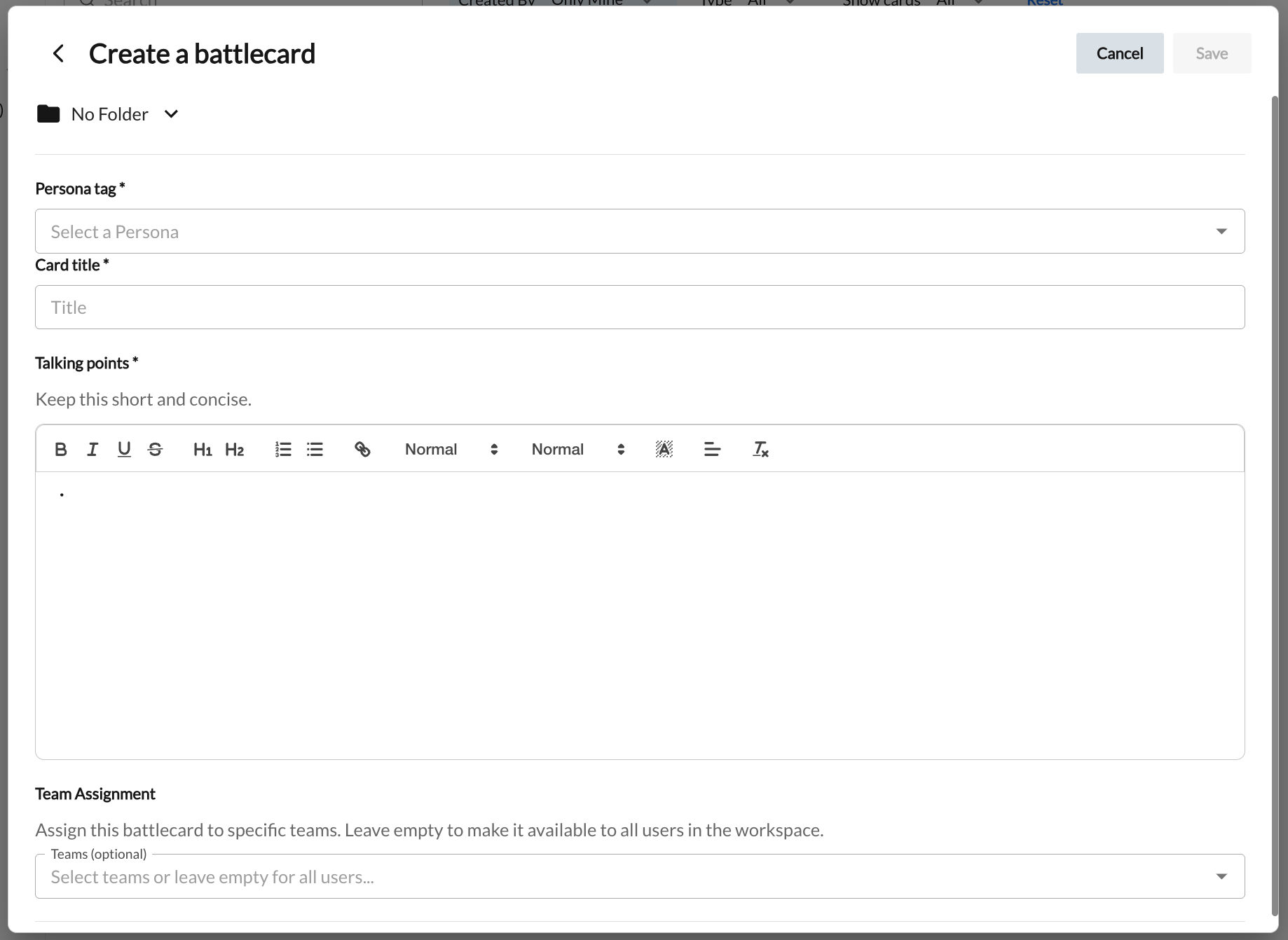
Depending on your user role and the type of Battlecard you are creating, complete the additional configuration steps below.
For Persona Battlecards: Click into the Persona Tag field and select one of your Workspace’s Personas to link to the Battlecard.
A given Persona can only be linked to one Persona Battlecard, and a given Persona Battlecard can only be linked to one Persona.
For Live Battlecards (Objection, Competitor, and Product): Add trigger words or phrases in the Trigger Words field (see below for additional guidance).
For Manager and Admin Users: In the Team Assignment dropdown, select the Nooks Teams that will be able to see this Battlecard. Leaving this field blank will make the Battlecard visible to all users in your Workspace.
Battlecards created by standard users are always private to the standard user. They cannot be shared with other team members, though managers and admins can review and edit them.
Finally, save the Battlecard.
Click Save.
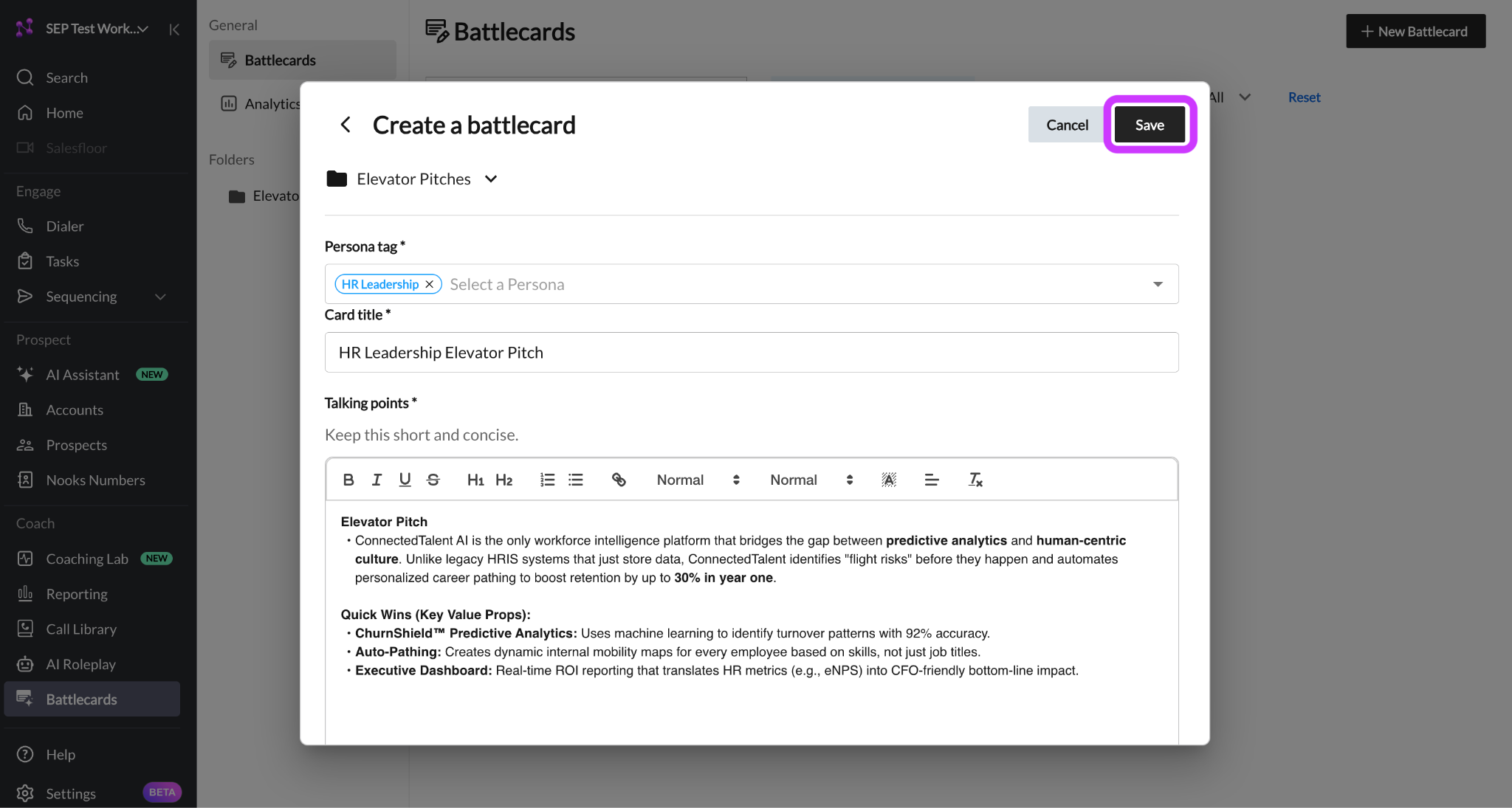
Configuring Triggering Words for Live Battlecards
Trigger words are the keywords or phrases that a prospect must say during a call to activate a Live Battlecard. Configuring an accurate and comprehensive list of trigger words is critical to how often and how accurately your Battlecards fire.
The following rules apply to all trigger words across Objection, Competitor, and Product Battlecards.
Trigger words match on prospect speech only. Trigger words will not match if the Nooks user says them.
Trigger words are fuzzy matched, so a phonetically similar word may match (e.g., “Nooks” and “Nukes”).
To avoid confusion, each trigger word or phrase can only be assigned to one Battlecard per team the Battlecard is scoped to.
Phrases must match the general sequence of words the prospect says.
Trigger Word Best Practices
Include common variations of the target phrase (including abbreviations). For example, a timing Objection Battlecard might include: “next month,” “next quarter,” “not right now,” “a couple months out,” “later this year,” “end of summer,” and so on.
Use prospect language when configuring your trigger words, not internal terminology or marketing-speak.
Character Limits
Static Battlecards do not have character limits. However, we recommend keeping Battlecards pithy to ensure reps are delivered exactly the information they need when on a call.
Live Battlecards are capped at 500 characters. This limit ensures content is concise enough for a rep to read during an active call.
Using AI to Generate Live Battlecards
AI Generated Battlecards are available to users with an AI Coaching Assistant seat in Nooks.
For Competitor and Product Battlecard types, Nooks can generate draft content using AI. AI generated cards are marked as such in the Battlecard library and should be reviewed before being made public.
Nooks generates AI Battlecards by looking through all of your team’s historical calls where the competitor/product was mentioned and distilling the best talk tracks. The AI generate option is most effective when your team has a sizable call volume but lacks existing enablement content or talking points to pull from.
To use AI to generate a Battlecard:
From the Battlecards page, press the + New Battlecard button. Then, choose to create a Competitor or Product Battlecard.
Toggle to AI Generate mode.
Enter the competitor or product names and their common variations. These are the keywords or phrases Nooks will look for in your team’s historical calls to generate the Battlecard.
Optionally, scope the Battlecard to a specific team using the Team Assignment dropdown.
Press the AI Generate button.
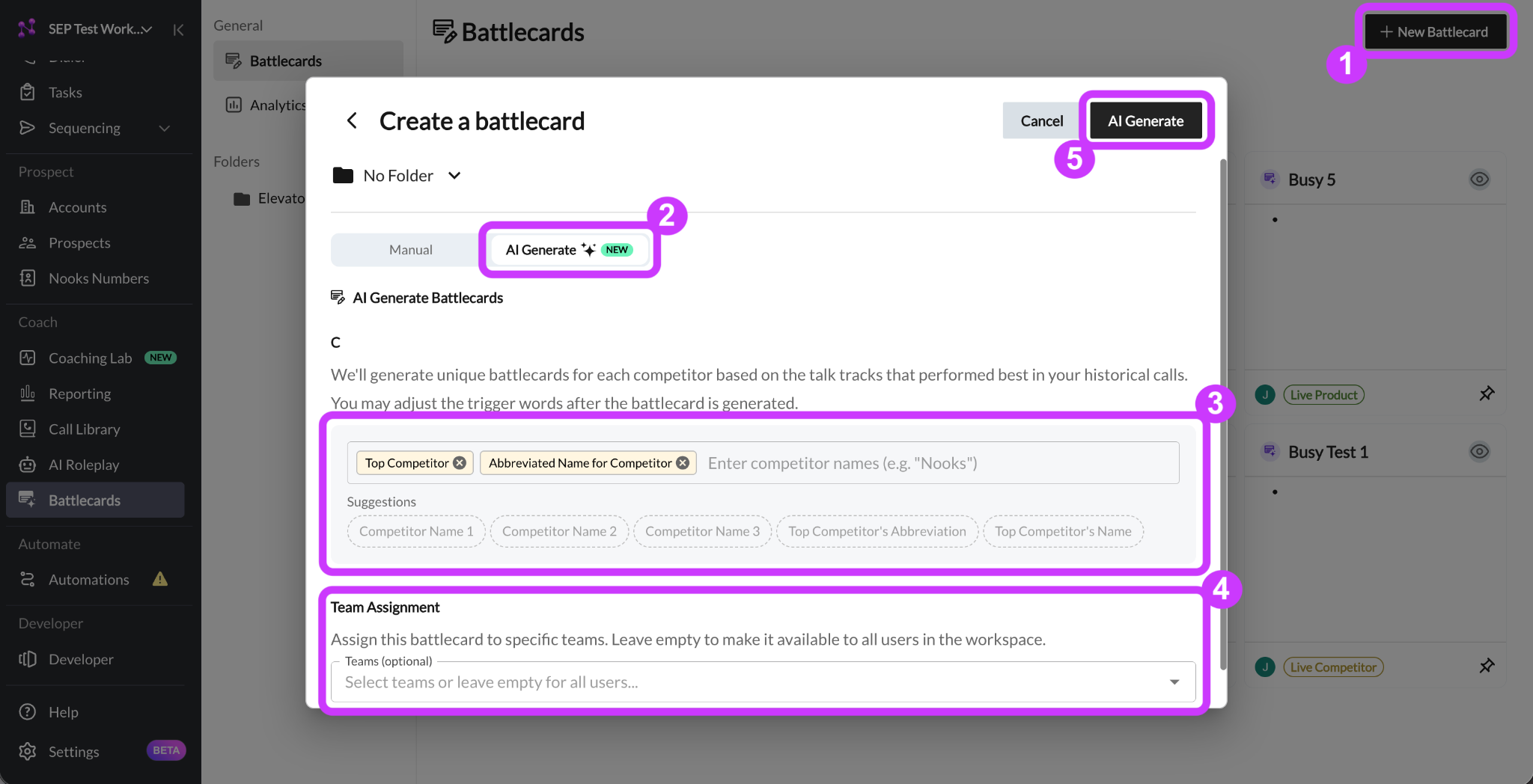
AI Battlecards take roughly one minute per Battlecard to generate. After the Battlecard finishes generated, open the Battlecard and review it to ensure the talking track accurately aligns with your company’s brand positioning.
Organizing Battlecards
From the Battlecards page, you can organize Battlecards into folders to make the library easier to navigate. Folders support nested structures for larger libraries. To move a Battlecard into a folder:
Open the Battlecard.
Select the target folder from the folder dropdown in the top-left corner.
Press Save in the top-right corner.
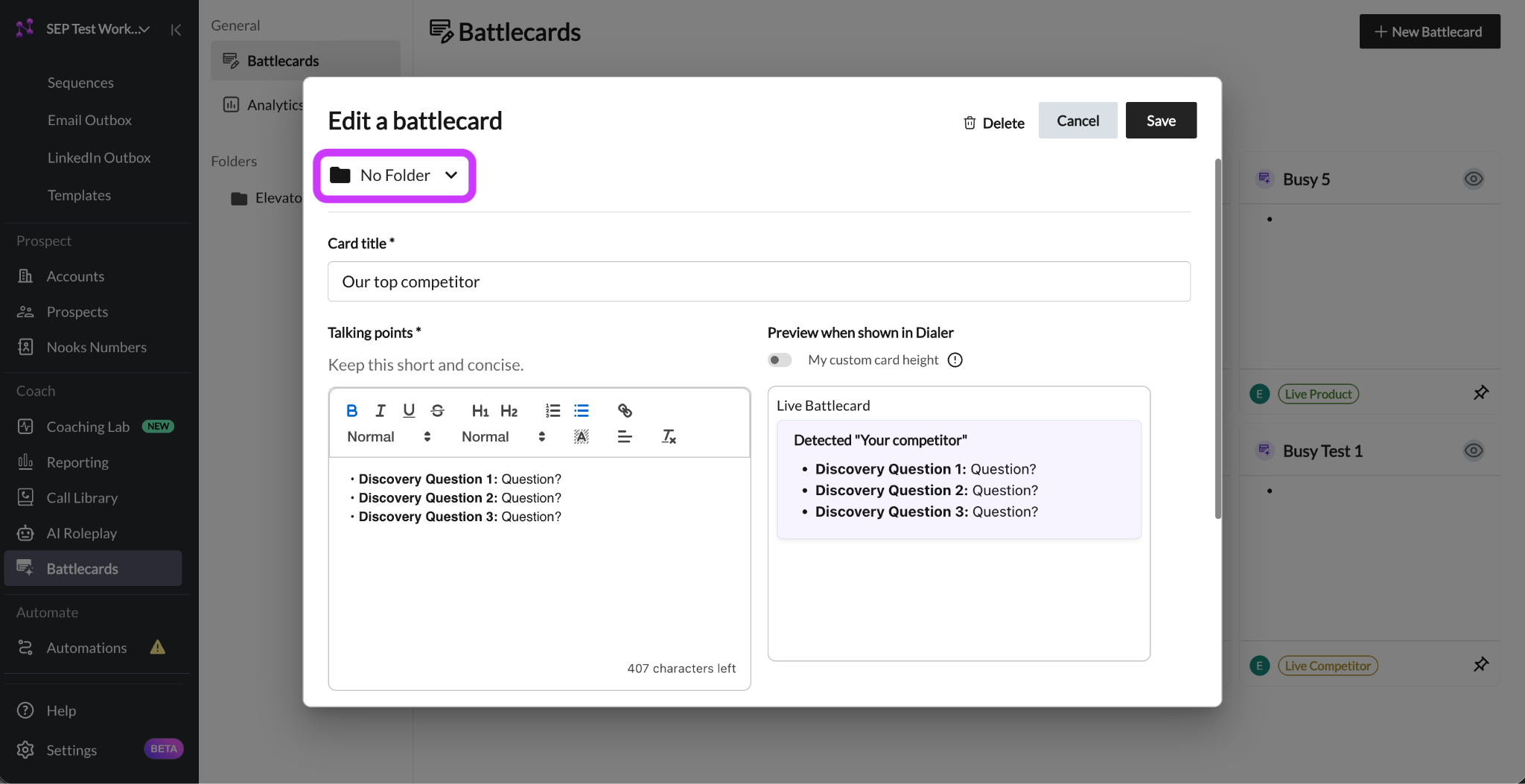
Accesssing Battlecards During Calls
The following steps describe how to retrieve your Battlecards while prepping for or engaged in a call.
Battlecard Library in the Dialer
This section applies to users with a Dialer seat in Nooks.
When in the Nooks Dialer, you can access your private and your Workspace’s shared Battlecards from the Battlecards tab of the Dialer. From there, you can search for and filter for specific Battlecards. You can access the Battlecards prior to dialing as well as while a conversation is in progress.
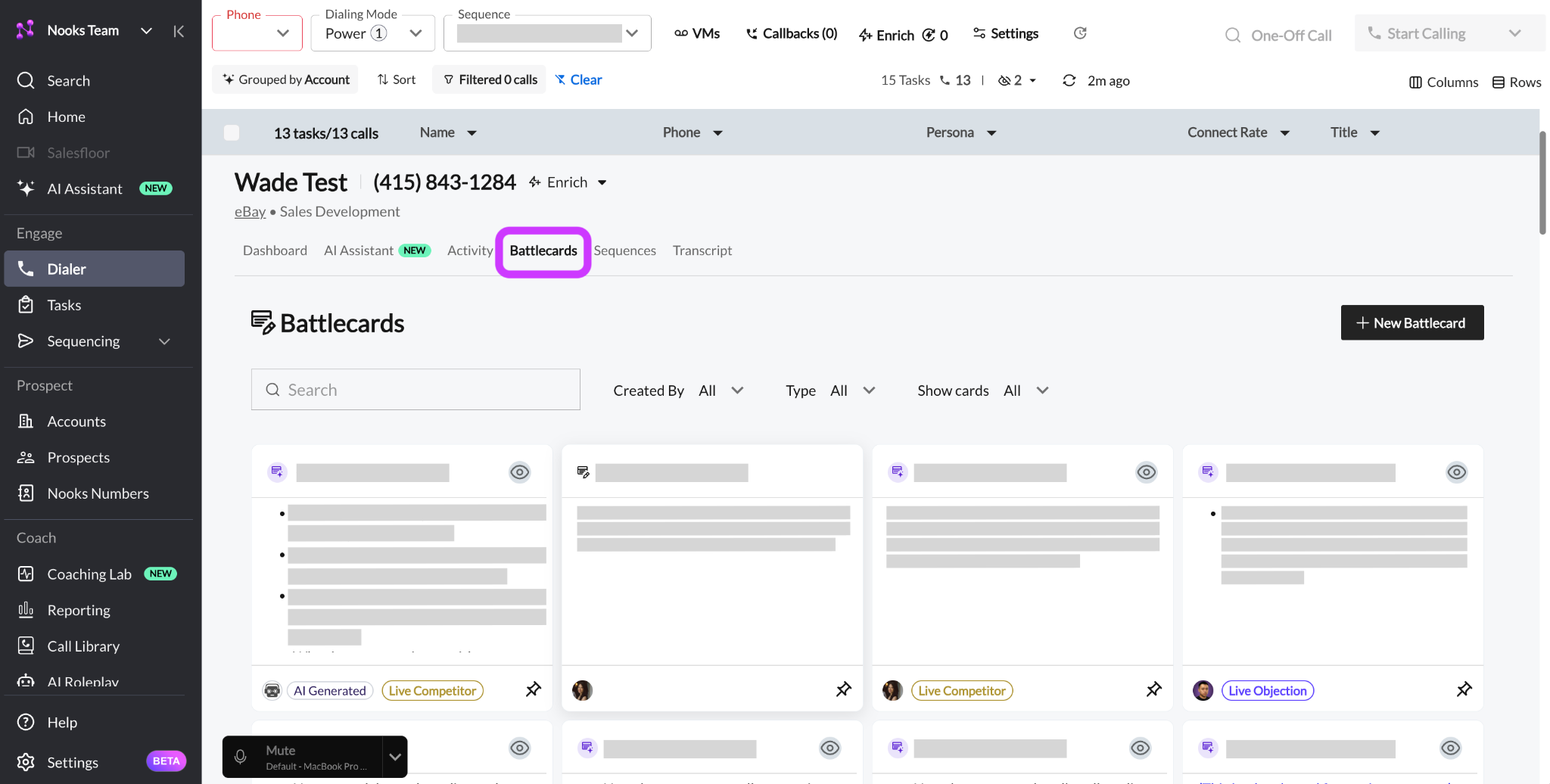
Battlecard Library in the One-off Dialer
These steps apply to users with a Dialer license and to users with a Dialer and/or Nooks Sequencing license.
When in the one-off dialer completing a call task, you can access your private and your Workspace’s shared Battlecards from the Battlecards tab of the Dialer. From there, you can search for and filter for specific Battlecards. You can access the Battlecards prior to dialing as well as while a conversation is in progress.
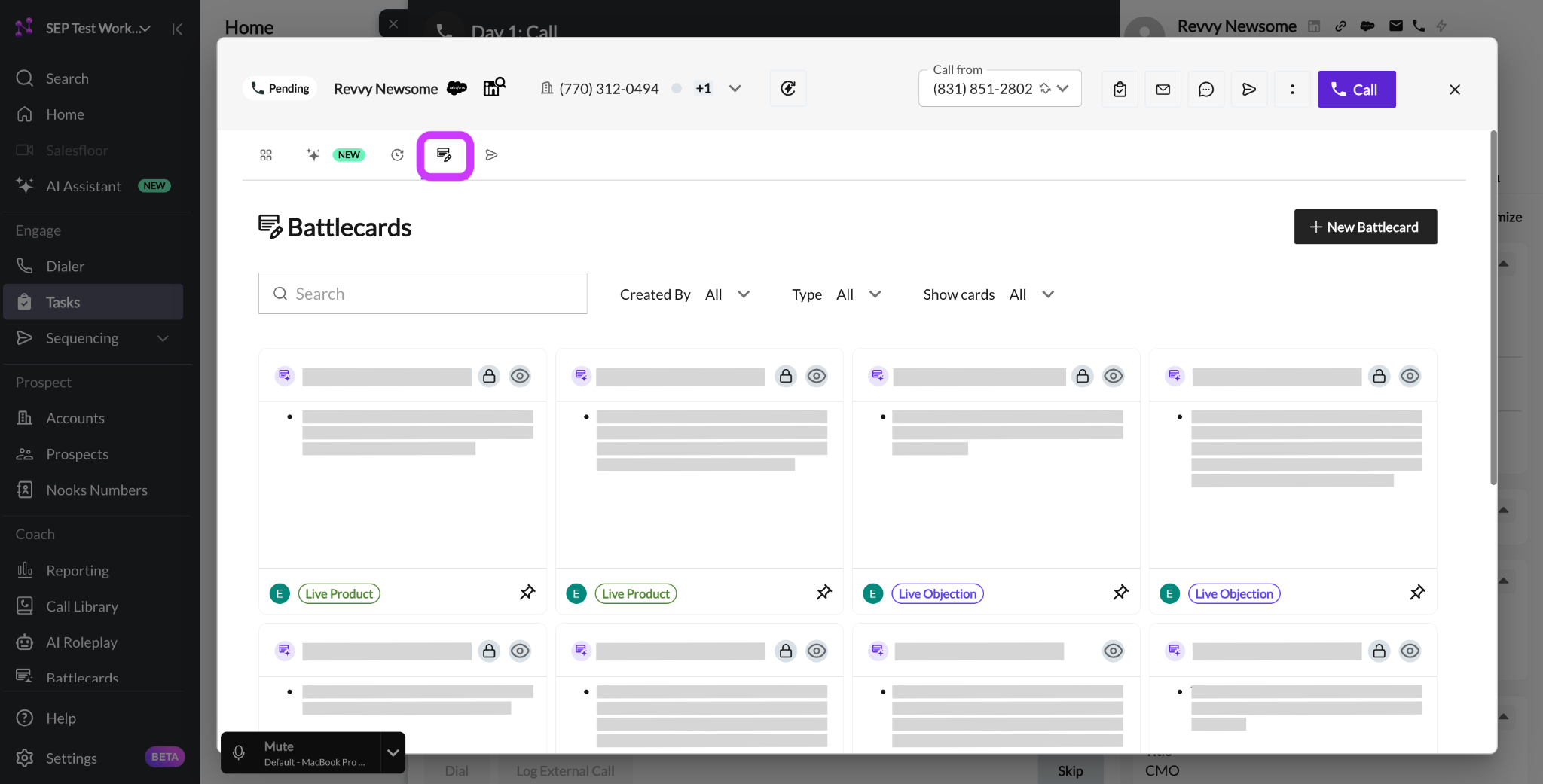
Persona Battlecards
Persona Battlecards are designed to surface automatically whenever you load a prospect with a matching Persona into the Dialer or one-off dialer. If your Workspace has a Battlecard that is tagged to a given prospect’s Persona, the Battlecard will show up in the Persona Battlecard card of the Dialer.
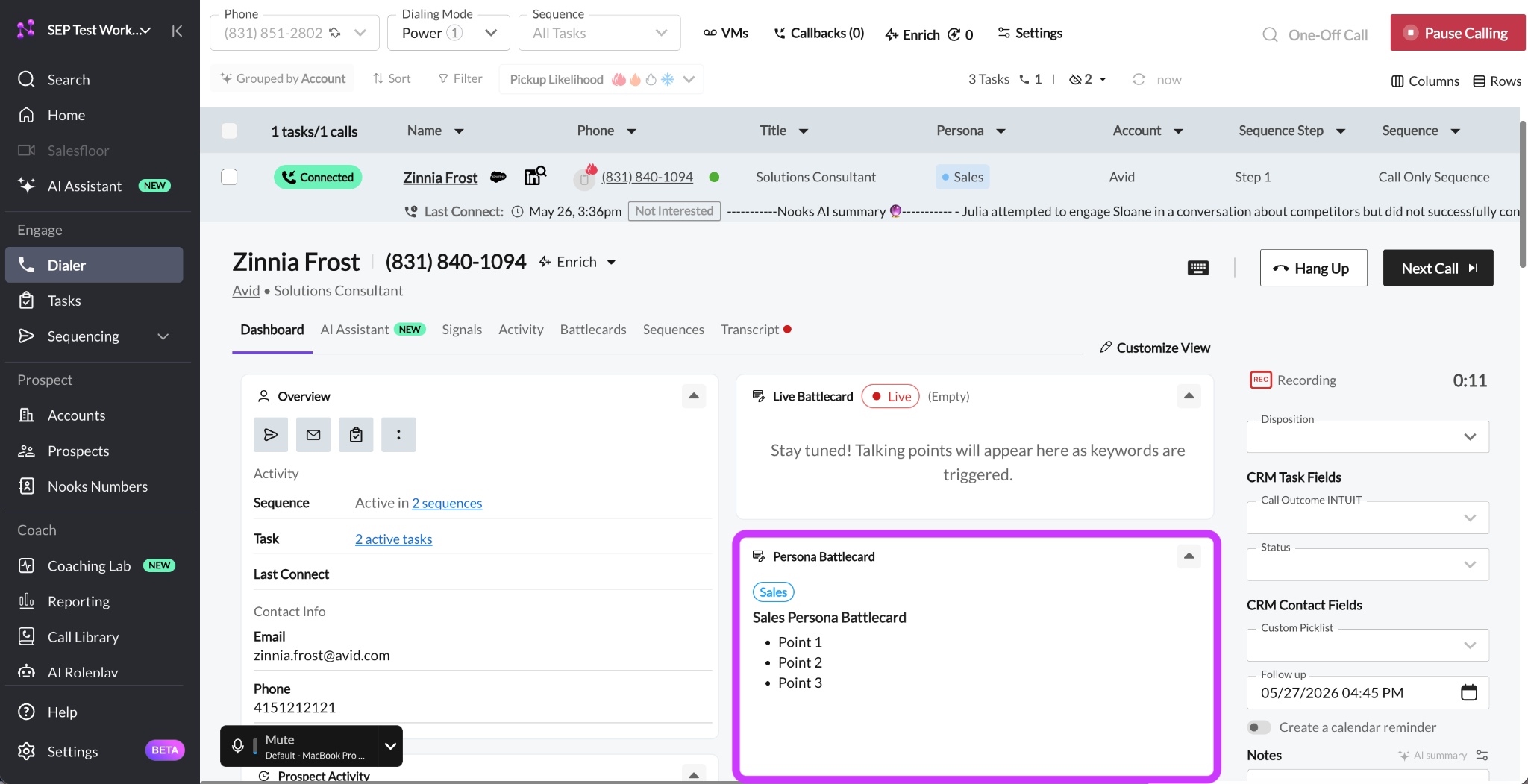
Enabling the Persona Battlecard Card: To ensure you’re able to quickly reference a prospect’s Persona Battlecard, ensure that the Persona Battlecard card is enabled for your Dialer. To do so:
Load a prospect in the Dialer.
In the Dashboard tab, click on the Customize View (top-right).
Under Battlecards, check the Persona Battlecard card.
Press Done Editing to save.
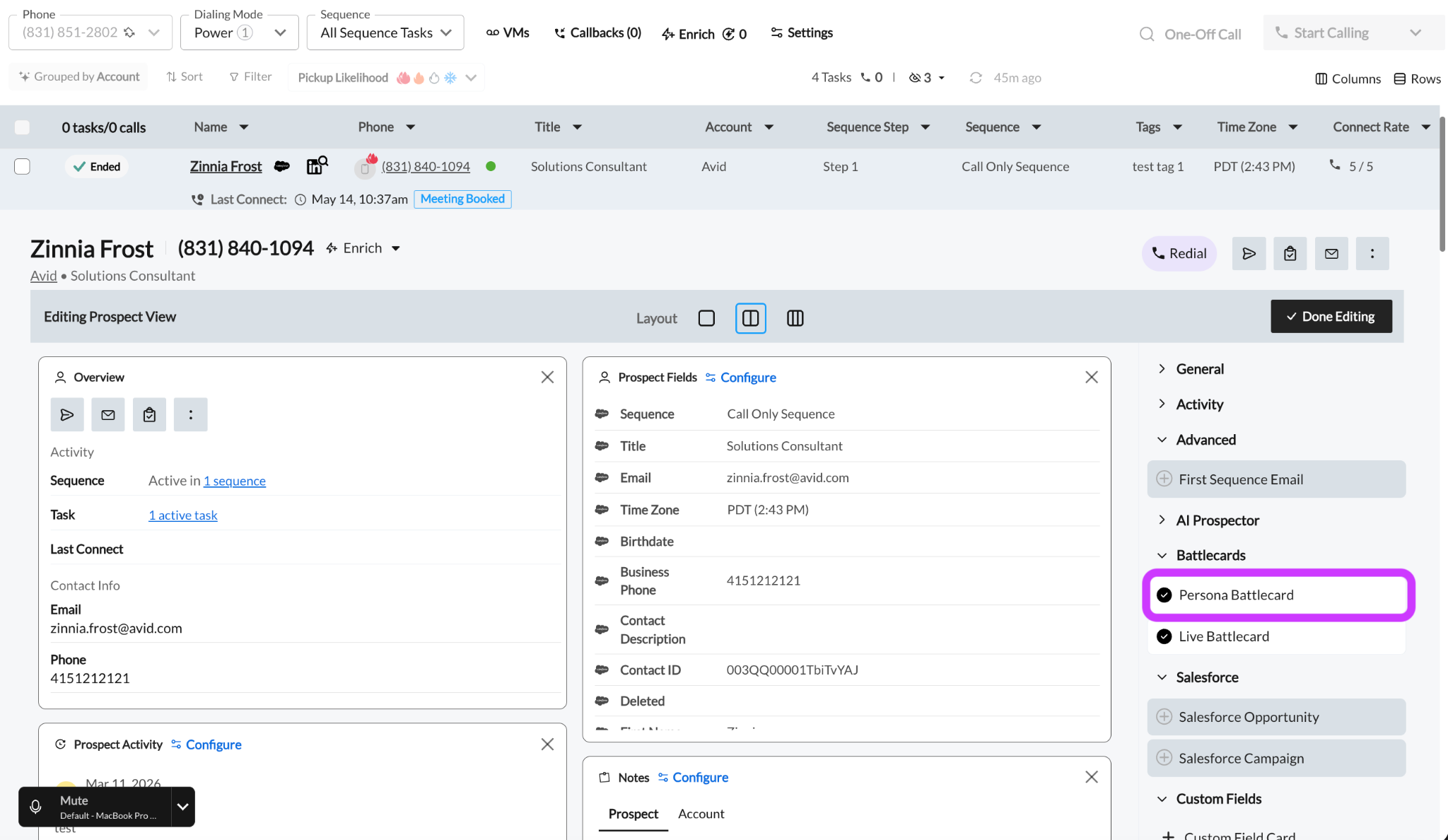
Live Battlecards in the Dialer
This section only applies to users with an AI Coaching Assistant seat.
Live Battlecards appear automatically when Nooks detects a trigger word or phrase in the prospect’s speech. They surface in the Live Battlecards card within the Dashboard tab of the Dialer or one-off dialer.
Once configured, the end-user will experience the following behavior during a call:
When a trigger phrase is detected, the Live Battlecard card populates with a “Detected ‘[trigger word]’” label alongside the relevant talk track.
The card surfaces in real time, giving the end-user immediate access to the right response.
End-users can rate the Battlecards as Helpful or Not Helpful directly from the Dialer. This feedback is tracked and visible in reporting.
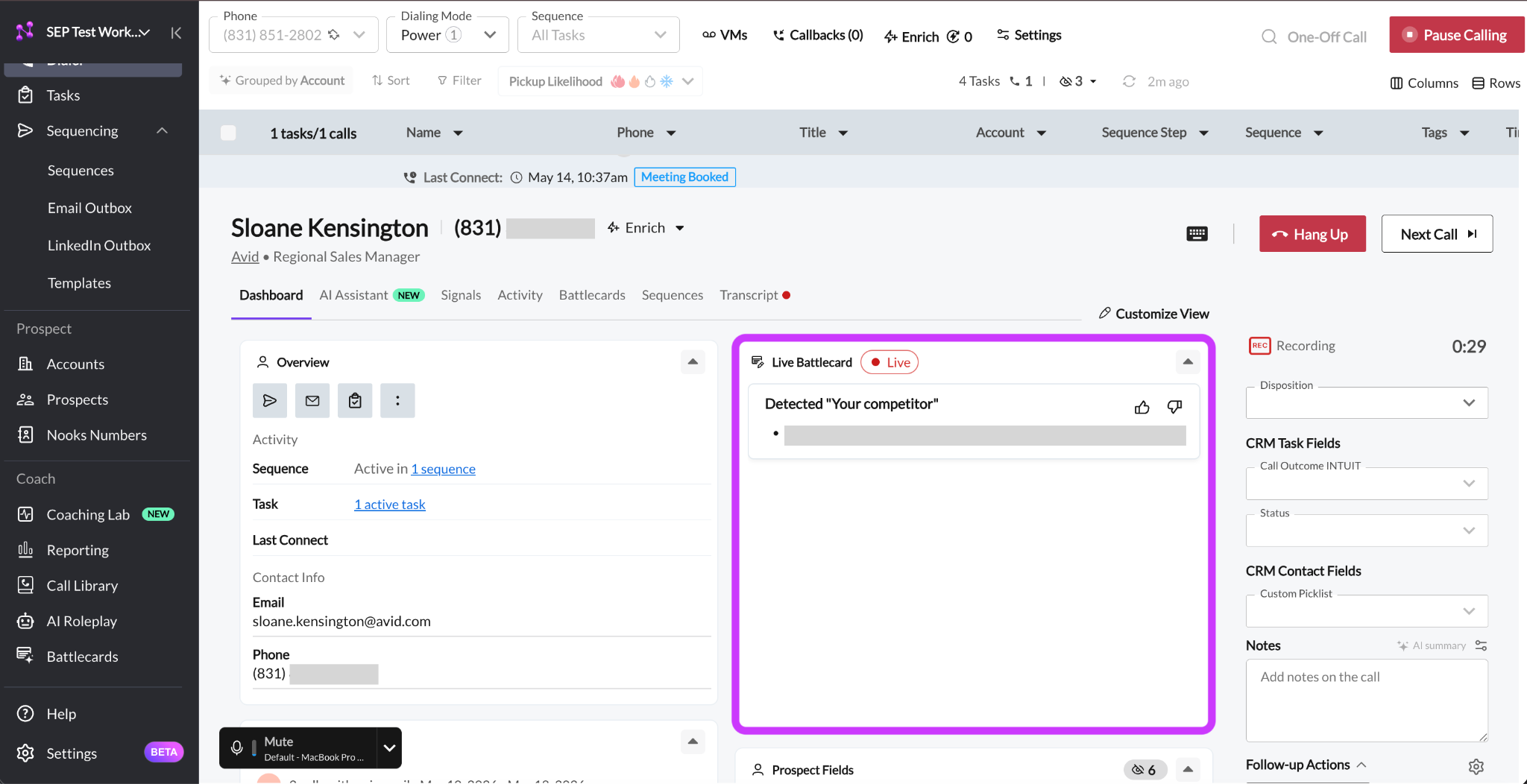
Important Requirements: Live Battlecards require call recording that captures the prospect’s audio. If one-way (rep-only) recording is enabled, Live Battlecards will not function. In two-party consent states and territories, Nooks supports Live Battlecard transcription during the call without persisting the prospect’s audio after the call ends.
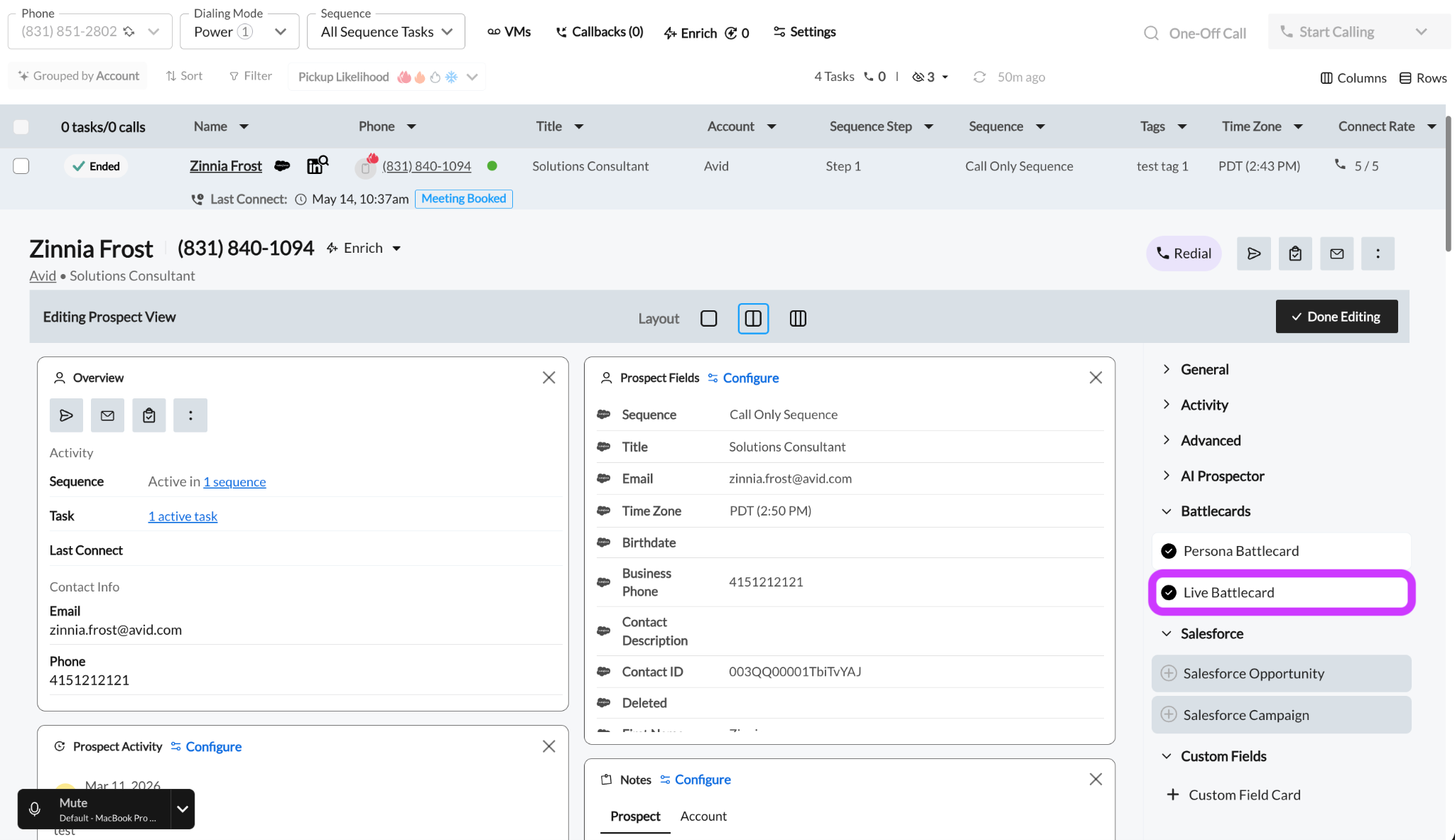
Enabling the Live Battlecard Card in the Dialer: To ensure you’re able to see Live Battlecards as you make your calls, ensure the Live Battlecards card is visible in your Dialer.
Load a prospect in the Dialer.
In the Dashboard tab, click on the Customize View (top-right).
Under Battlecards, check the Live Battlecard card.
Press Done Editing to save.
Battlecards as an AI Data Source
Your team’s Battlecards act as a knowledge base that Nooks AI can draw upon when users leverage AI features. Both the AI Assistant and AI Email Agents query your Workspace’s Battlecard library when generating call prep, AI-drafted emails, and account intelligence. Nooks AI can filter Battlecards by type and title, enabling it to surface the most relevant Battlecard for a given prospect and scenario during email generation and pre-call research.
The quality of the Nooks AI outputs for your workspace is tied to the quality of your Battlecard library. Clearly titled, well-organized, informative Battlecards improve the AI’s ability to generate compelling content that lands.
Best Practices
Building a strong Battlecard library does not require creating dozens of Battlecards on day one. A focused, high-quality set of Battlecards is more effective than a large library of inconsistently formatted, weak, or incomplete Battlecards.
Getting Started
Start small and build from what you know. Below are some steps to help your prioritize which Battlecards to create:
Aim to create 5–7 high-quality Battlecards first, then expand from there.
Repurpose content you already have. Enablement decks, internal slides, and website pages are all good starting points.
Most customers using Live Battlecards will have more Objection and Competitor Battlecards than Product Battlecards. Do not worry if you only end up having one or two Product cards and ten or more Objection cards.
Writing Effective Battlecards
When composing your team's Battlecards, reference existing enablement materials and playbooks as a jumping off point. Doing so reduces the legwork in starting a Battelcard library and keeps your talk tracks aligned with your brand positioning. Some tips for structuring and formatting your Battlecards include:
When defining card titles, use words that are likely to be searched by end-users.
Keep cards short and scannable. Use bolding, bullets, and italics to add emphasis. Avoid long paragraphs.
For Objection Battlecards: Write a short, verbatim 2–3 sentence response the rep can read directly. In high-stakes calls, reps should have to do as little thinking as possible.
For Competitor Battlecards: Consider using 2–3 discovery questions instead of a feature comparison list.
For Product Battlecards: Follow the [VALUE]/[FEATURE]/[STORY] format. Include why the feature matters, what it includes, and a customer success example.
Management and Upkeep
Keeping Battlecards current is an ongoing responsibility, not a one-time setup task. Below are some recommendations to build into your team’s Workflow:
Refresh Battlecards regularly as your messaging, products, or competitive landscape changes.
Have managers generate AI Battlecards, review them, and make them public once approved.
FAQs
Is pinning a Battlecard an org-wide action?
No. Pinning is personal. Each user manages their own pinned cards so that they can have easy access to the messaging that is most helpful to them. An admin or manager pinning a card does not pin it for anyone else on the team.
Can I link more than one Persona to a Battlecard, or have more than one Battlecard per Persona?
No. Each Persona can only be linked to one Battlecard, and each Battlecard can only be linked to one Persona. If you need slightly different content for the same Persona across different scenarios, create separate standard Battlecards that can be accessed from the Battlecard library.
Who can edit a Battlecard?
For the most part, only the Battlecard's owner can edit a Battlecard. The exception is managers and admins, who can edit any Battlecard in the Workspace. If a team member leaves the company and owns public Battlecards, a manager or admin can open the card and update it directly.
Why am I not seeing the option to share a Battlecard with a team or my Workspace?
Only admins and managers can make Battlecards public. If your Nooks user role is that of a standard "user", the Battlecards you create will be private to you.
Do Live Battlecards trigger based on what the rep says?
No. Live Battlecards only trigger based on what the prospect says. If you are on a call and say the trigger word for a Battlecard yourself, the Live Battlecard will not surface.
Why aren't my Live Battlecards firing?
If your Live Battlecards do not seem to be firing on a call, check the following common culprits:
Confirm that you have an AI Coaching Assistant seat in Nooks.
Confirm that the Live Battlecard card is added to your customized Dialer view.
Verify that the correct trigger words are added to the card.
Review that your Workspace's call recording settings are configured to capture prospect audio, not rep audio only.
Test the Live Battlecard out with a colleague by giving them a call and having them say one of the Battlecard's trigger word.
How long does AI generation take for a Battlecard.
AI generation takes approximately one minute per Battlecard for Competitor and Product Battlecard types.
Can Live Battlecards be triggered by a CRM field or prospect attribute?
No. Live Battlecards can only be triggered by words the prospect says live on a call. For attribute-based guidance, use Persona Battlecards, which surface based on the prospect's assigned Persona in Nooks.