Changing Dispositions on a logged call
Last updated: September 24, 2026
Sometimes a user might accidentally choose the wrong disposition when logging a call in Nooks. We're all human and we make mistakes!
By default, only Admins and Managers can change dispositions in Nooks, your admin can grant this permission to other roles by going to All Settings > Permission Profiles > Users > Dialer and toggling Edit call dispositions ON.
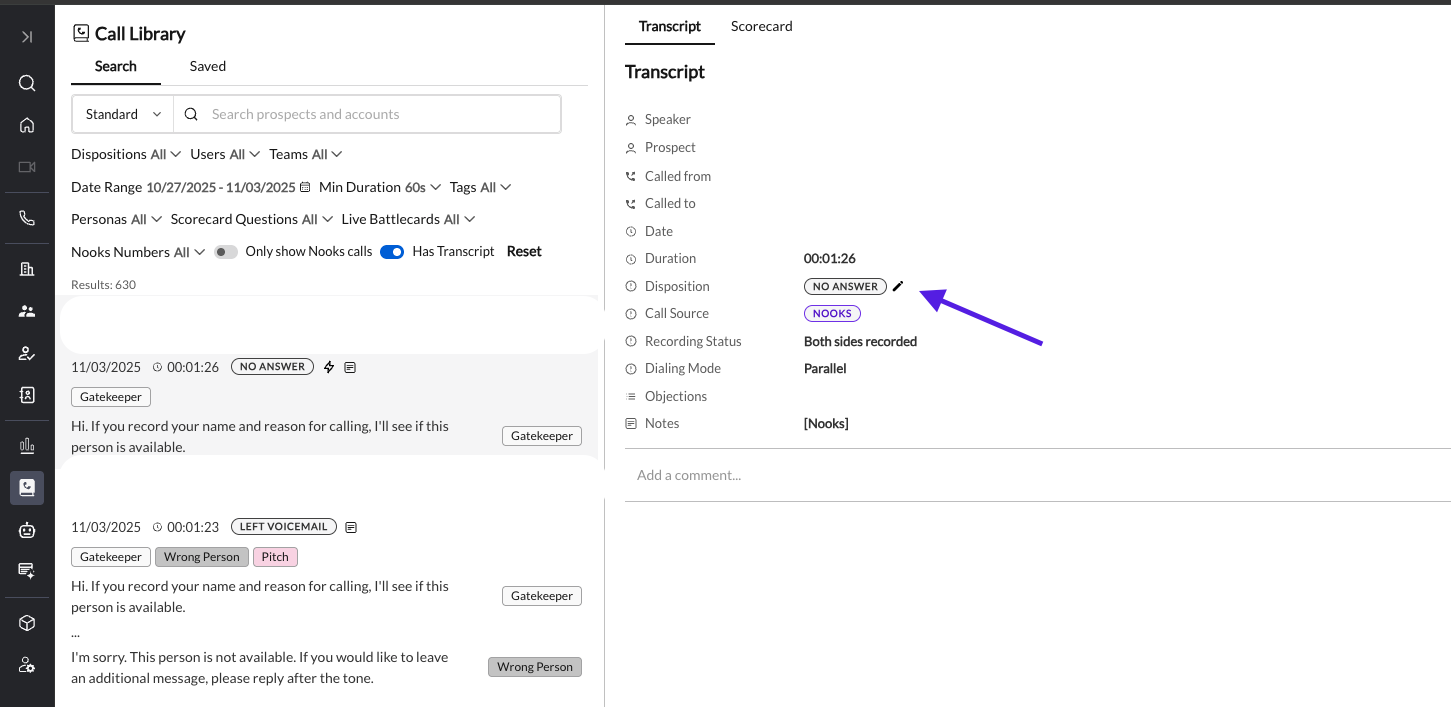
To change the disposition of a logged call (by default, only Admins and Managers can do this; your admin can grant this permission to other roles):
Go to the Call Library tab in Nooks.
Open the call and click its disposition.
Choose the correct disposition from the menu.
Limitations: This only changes the disposition in Nooks, so the change shows up in Nooks reporting. It is not sent to your connected SEP or CRM, so update the logged call activity there yourself. Changing the disposition also doesn't undo anything the original disposition already triggered, such as a number marked invalid or Do Not Call, a sequence step completed or finished, a follow-up task created, or a disposition automation that already ran. Reverse those separately (for example, use Remove DNC on the prospect).