Nooks Reporting: Explained
Last updated: September 24, 2026
This article is a deep-dive into the reporting capabilities of the Nooks platform. It will be broken down into 2 main sections:
How to access Nooks reporting
Types of Nooks reporting dashboards
Team Overview
User
Sequence
Accounts
Objections
How to access Nooks reporting
To access Nooks reporting, you can be either in your Nooks workspace or in a floor within your workspace. Once inside Nooks, click the "Reporting" tab in the upper lefthand corner of your screen.
Important Notes:
An admin must be set in your workspace for Nooks to pull calls from your SEP; your AE or CSM will help you set the admin.
Reporting works for every user from every floor inside Nooks.
When using parallel dialing, only completed calls are counted in reporting metrics. Cancelled calls during parallel dialing sessions do not appear in the Reporting page. For example, if you parallel dial 3 prospects and connect with 1, only that 1 connected call will count toward your dial metrics—the other 2 cancelled dials will not be included in your reporting totals.
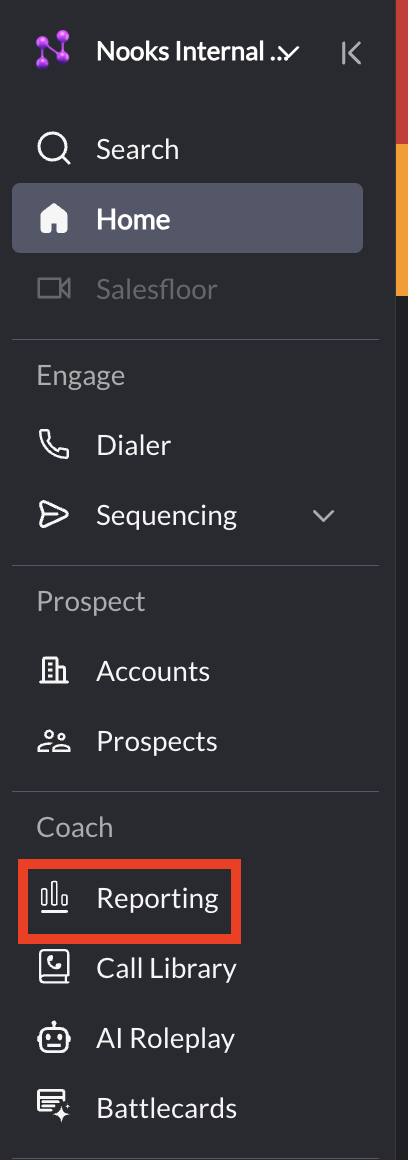
*Visual of the reporting tab
Types of Nooks Reporting Dashboards
Nooks Reporting includes these main dashboards, shown as tabs across the top of the Reporting page:
Team Overview: your team's key productivity metrics.
User: key metrics for one rep.
Sequence: performance by sequence.
Connect Rates: how often your calls connect.
Accounts: activity across your target accounts.
Personas: performance by prospect persona.
Objections and other reports, such as Time Breakdown, are under the More menu. Some dashboards, like KPI Targets, Scorecards and Plays, appear only when they're enabled for your workspace.
Team Overview
The Team Overview dashboard is designed to manage the performance of your team easily and is comprised of 3 major sections:
Conversion Funnel + Team Performance Stats
Calls Table + Callback List
Connect Rate Insights
See the video below for an overview of the Team Overview dashboard
*Tutorial on how to use Team reporting
Sequence
Sequence allows you to see how your sequences are performing across all of your reps. Similar to the Team Overview dashboard, you will see the total dials, dials per day, connects, conversations, and meetings for each sequence your team dials from in Nooks, whether it's a Nooks Sequencing sequence or one in your connected sales engagement platform or CRM (for example Outreach, Salesloft, or HubSpot).
There is only 1 "section" in this report so no video tutorial is needed, see screenshot below for reference:
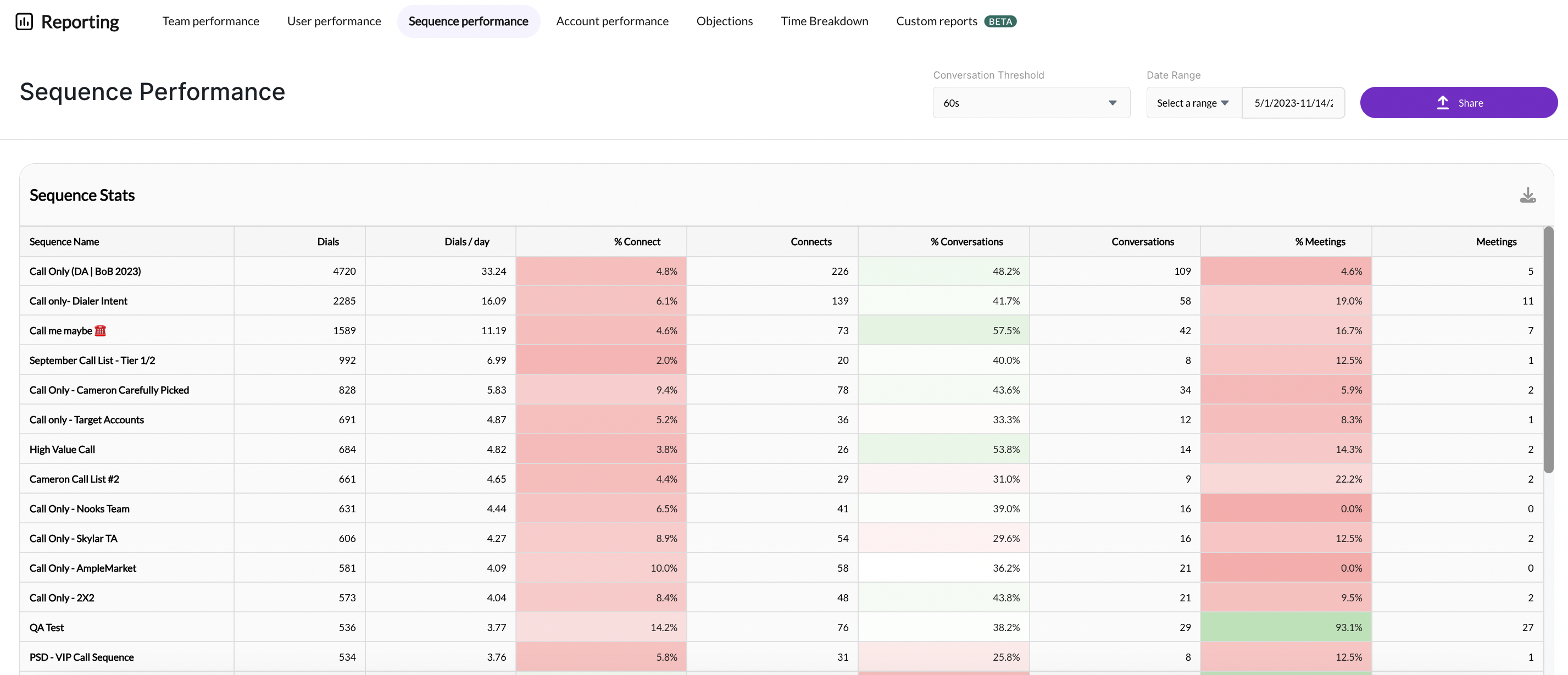
*Screenshot of Sequence dashboard
Accounts
Accounts allows you to see how your team's activity is distributed across your entire target account list. Similar to the Sequence report, you will see the amount of total dials, dials/day, connects, conversations, and meetings for every account that your reps are using Nooks to prospect into.
There is also only 1 "section" in this report so no video tutorial is needed, see screenshot below for reference:
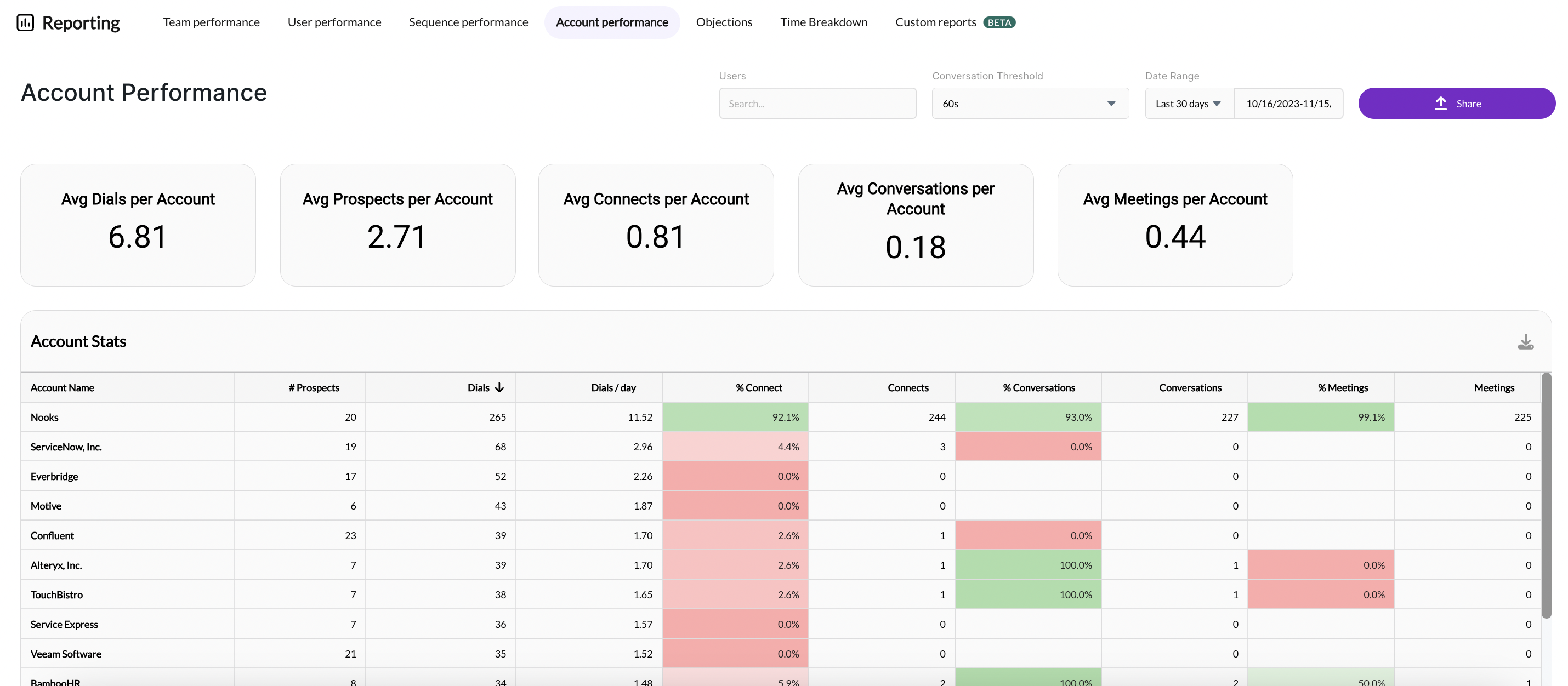
*Screenshot of Accounts dashboard
Objections
The Objections dashboard has three purposes:
Visualize which objections your team encounters the most
Highlight each rep’s objection handling strengths and weaknesses
Inform managers where to spend time coaching or which battle cards to prioritize.
*Tutorial on how to use the Objections dashboard