Navigating Dial Trees in the Dialer
Last updated: October 5, 2026
This guide explains how the Nooks Dialer detects, remembers, and navigates dial trees. It covers auto-navigation, the Dial Trees sections in the Dialer, calling dial trees manually with the dial pad, and saving extensions.
Applies To: This guide applies to users with access to the Nooks Dialer. Auto-navigation and the Dial trees section in the Dialer require a Parallel Dialer seat.
Overview
A dial tree, or phone tree, is an automated phone menu that prompts you to press buttons to reach a person or department. For example, "Press 1 for sales, press 2 for support, or press 0 for an operator." Dial trees are common on many company lines and office numbers.
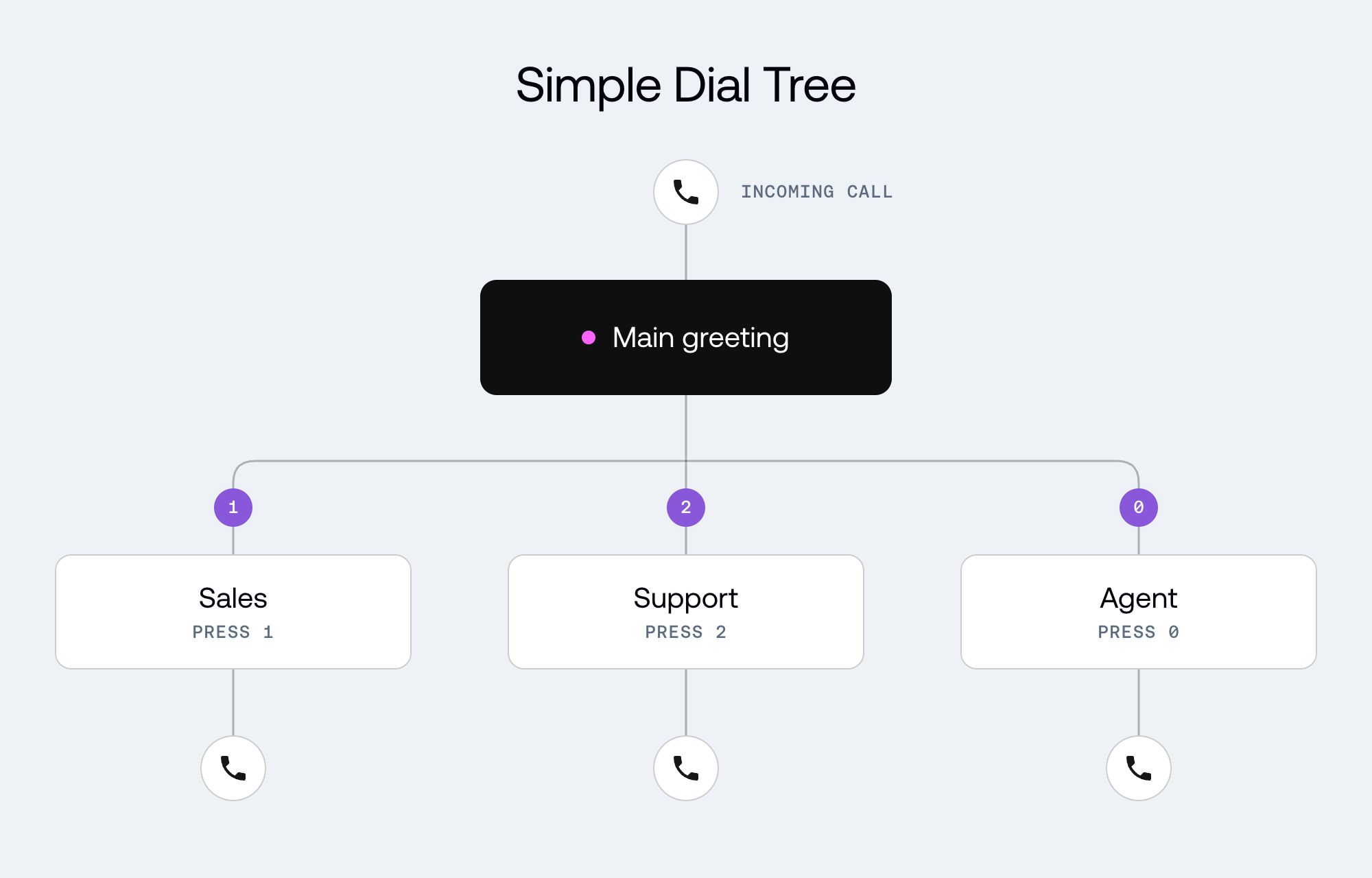
Nooks handles dial trees in two ways, depending on your settings:
Auto-navigation: While you parallel dial, Nooks listens to the phone menu and presses buttons for you. It tries to reach your prospect, or the nearest operator if it cannot.
The Dial trees section: If auto-navigation is off or you are not parallel dialing, Nooks moves known dial trees out of your main dialing list and into a separate Dial Trees section. You can call them later, one at a time.
Before You Begin
The only prerequisite to navigating Dial trees manually is access to the Nooks Dialer or one-off Dialer. For auto-navigation, check the following requirements before using it:
Parallel dialing access: The Dial Trees settings and Nooks' auto-navigation feature are available only to users with a Parallel Dialing seat.
Call recording & analysis: Auto-navigation works by reading a live transcript of the phone menu. If your Workspace does not record calls, auto-navigation cannot start. If your Workspace only records rep audio on calls to certain destinations (for example, two-party consent states or international destinations), those calls need the Live prospect audio analysis for calls where only rep audio is recorded or recording starts on consent setting turned on (Settings → All Settings → General → Admin → Call Recordings).
Manager settings: If your manager has locked Power Dialer settings, you cannot change the dial tree toggles yourself. For more information, see the Locking Dial Tree Settings for Your Team section.
Turning Auto-Navigation On
This functionality is available only to users with a Parallel Dialer seat.
The Auto Navigate Dial Trees setting is turned on by default for users who have not changed the setting. You can change it in the Dialer or your settings. Both controls change the same setting in both location.
To change Auto Navigate Dial Trees from the Dialer:
Open the Dialer.
Clicking the dialing mode menu at the top of the screen.
With a Parallel dialing mode selected (2–5 lines or Turbo), turn Auto Navigate Dial Trees on or off.
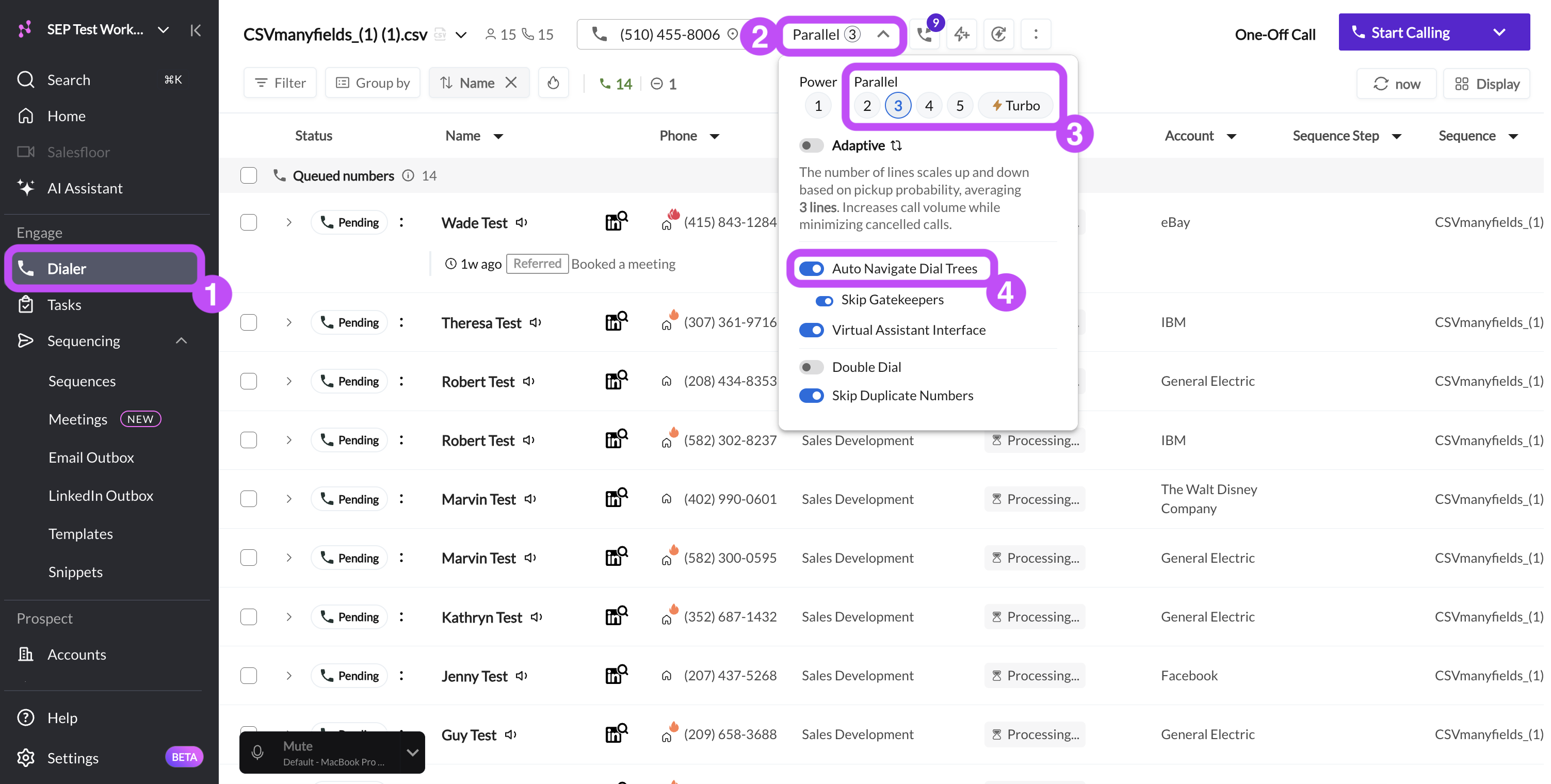
To change Auto Navigate Dial Trees from your settings:
Go to Settings → All Settings.
Under Dialer, select Preferences.
Scroll to Dial Trees, then turn Auto.

Any changes to this setting take effect immediately. If you turn Auto Navigate Dial Trees on, any dial trees in the Dial Trees section go back into your dialing list.
How Auto-Navigation Works
This functionality is available only to users with a Parallel Dialer seat.
When Auto Navigate Dial Trees is turned on, Nooks uses AI to navigate the dial tree. Nooks starts by entering a saved extension if there is one. Nooks AI then uses basic prospect information (such as the prospect name, persona, and title) to tailor its navigation to the right person. If Nooks cannot reach the prospect directly, it will attempt to reach a gate keeper for you to ask to be redirected.
While Nooks navigates, the call shows the status "Navigating." If Nooks reaches a receptionist or operator instead of your prospect, the call shows "Gatekeeper." Underneath the status, Nooks shows its current navigation status.
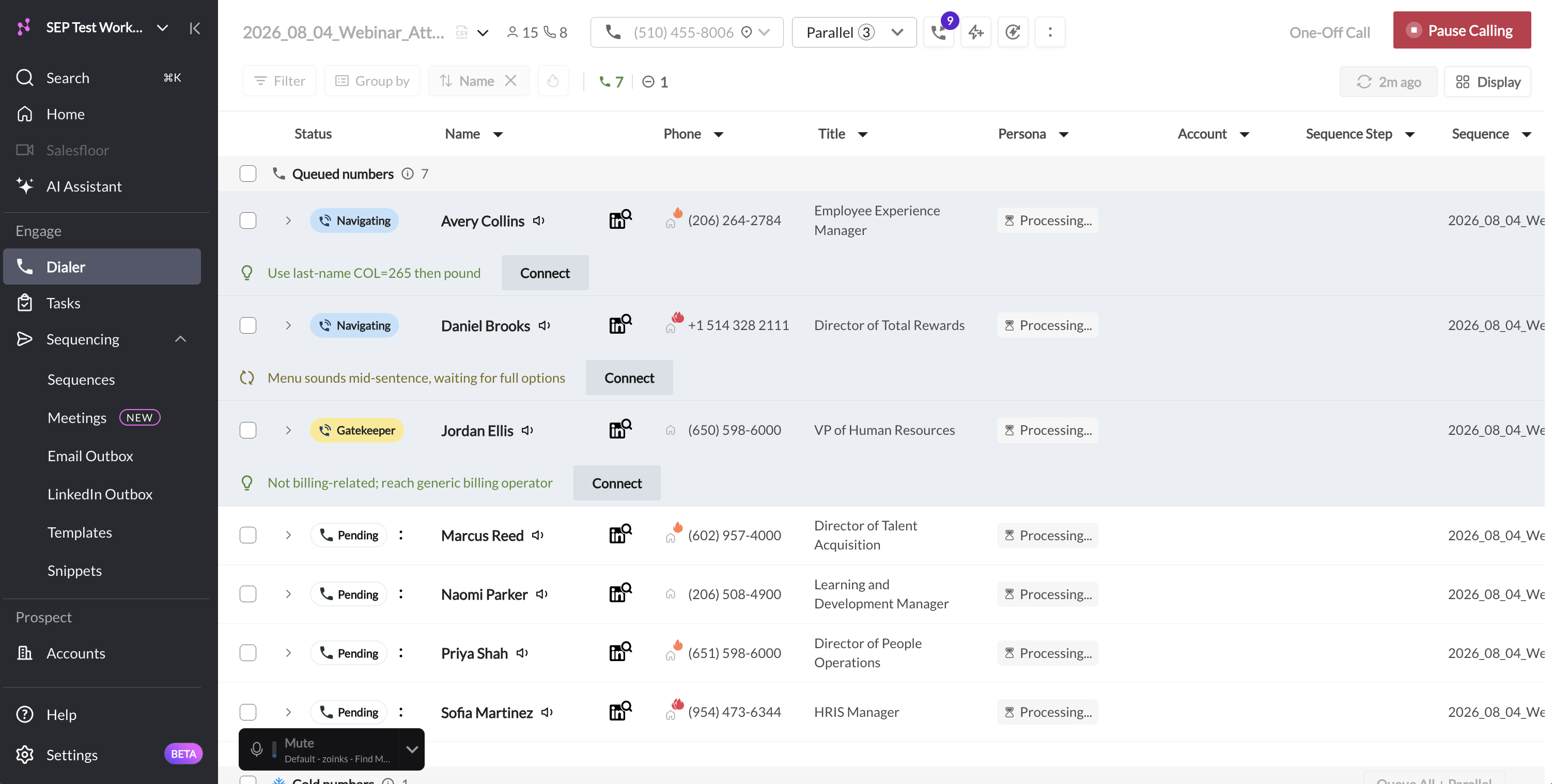
The following table describes what happens at each navigation attempt.
Outcome | What Happens to the Call |
Nooks reaches a person | The call connects to you |
Nooks reaches a gatekeeper | The call connects to you so you can ask to be transferred. If Skip Gatekeepers is on, Nooks hangs up and initiates the next call. |
The menu loopers, or Nooks cannot find a path to the prospect | The call is skipped |
The business is closed | Nooks hangs up |
You manually skip the call | The navigation stops |
Skipping Gatekeepers
This functionality is available only to users with a Parallel Dialer seat.
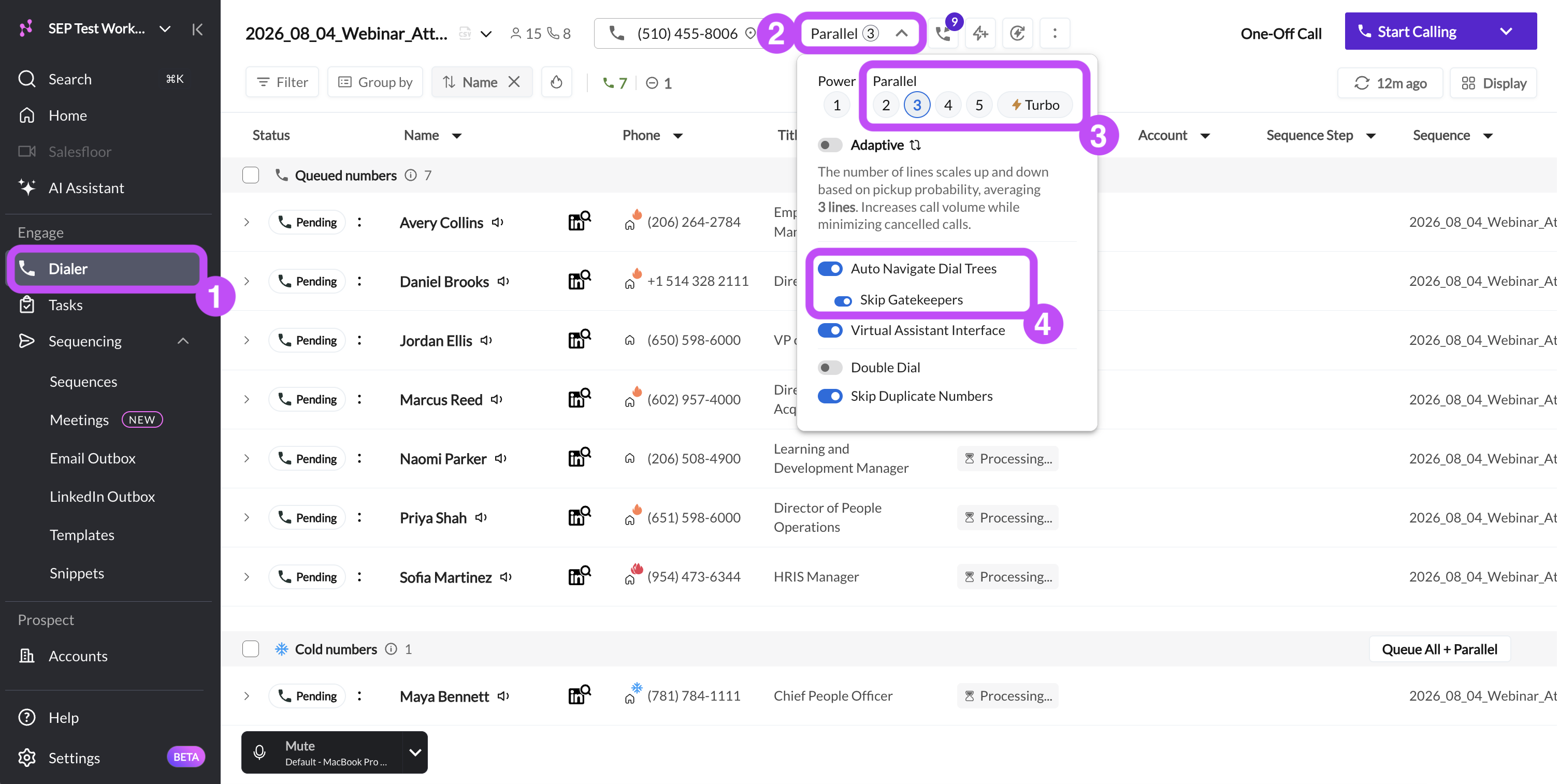
If you only want to talk to prospects directly, you can have Nooks automatically skip calls that reach a gatekeeper. This feature is available only when Auto Navigate Dial Trees is enabled.
To skip gatekeepers:
Open the Dialer.
Click the dialing mode menu at the top of the screen.
With a Parallel dialing mode selected (2–5 lines or Turbo) and Auto Navigate Dial Trees enabled, turn Skip Gatekeepers on.
Using the Dial Trees Section
This functionality is available only to users with a Parallel Dialer seat.
When Auto Navigate Dial Trees is off, Nooks moves any dial tree numbers to the Dial trees section of the Dialer. Numbers end up there in a few ways:
Known dial trees: Nooks maintains a database of known dial trees. When you load a call list or sequence, Nooks automatically moves any known dial tree numbers in that list to the Dial Trees section.
Newly detected dial trees: As you are calling, if a call reaches a dial tree, Nooks moves the number to the Dial Trees section after the call.
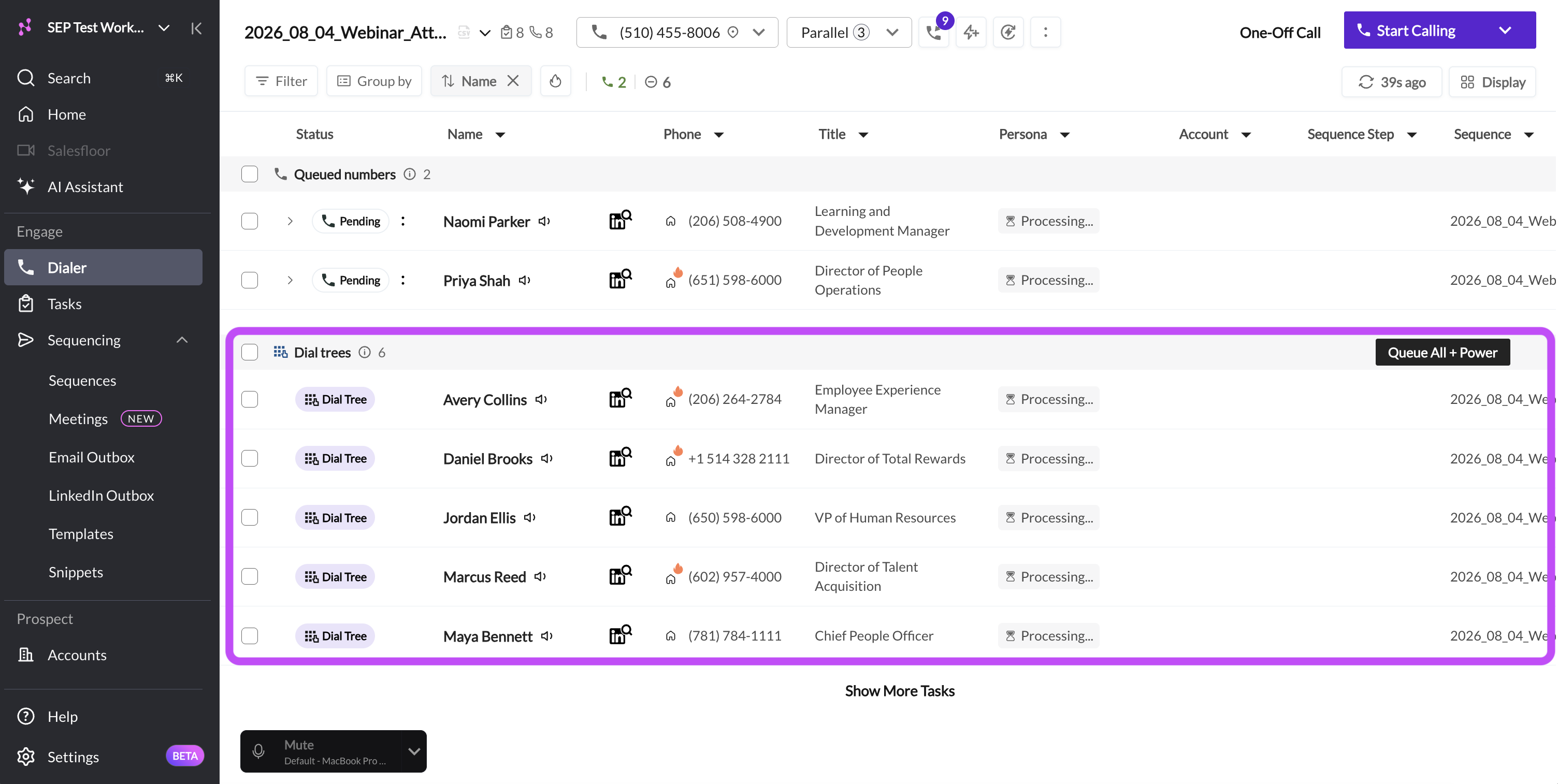
Queuing Dial Tree Numbers
This functionality is available only to users with a Parallel Dialer seat.
To call the numbers in the Dial trees section, move them back into your queue.
To queue all dial trees:
Locate the Dial trees section in the Dialer.
Click Queue All + Power.
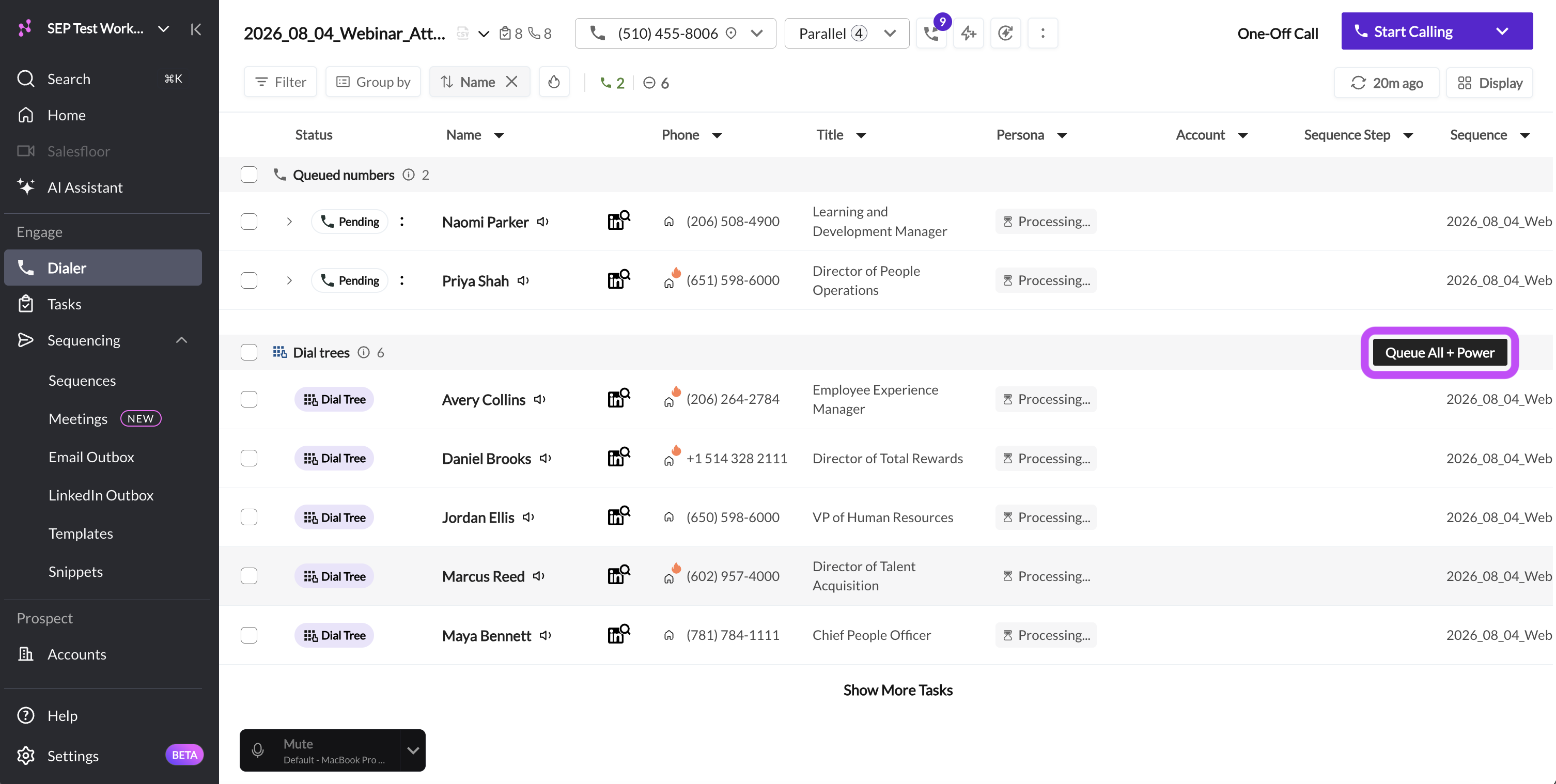
The numbers move back into your main dialing list, and Nooks sets your Dialer to one line so that you can navigate each dial tree yourself using the dial pad.
Note: Queued dial tree numbers stay in your main call list only for the current dial session. If you refresh your call list, dial trees will be separated out into the Dial tree section again.
Advancing Dial Trees
This functionality is available only to users with a Parallel Dialer seat.
If you are calling from a sequence, you can skip the dial trees and move those prospects to the next step without calling them.
To advance prospects with dial tree numbers to the next step:
Use the checkbox at the top-left of the Dial trees section to select all the prospects in the Dial trees section.
Click Advance in your Dialer's top actions.
Click the refresh (🔄) icon in the top-right corner of the Dialer.
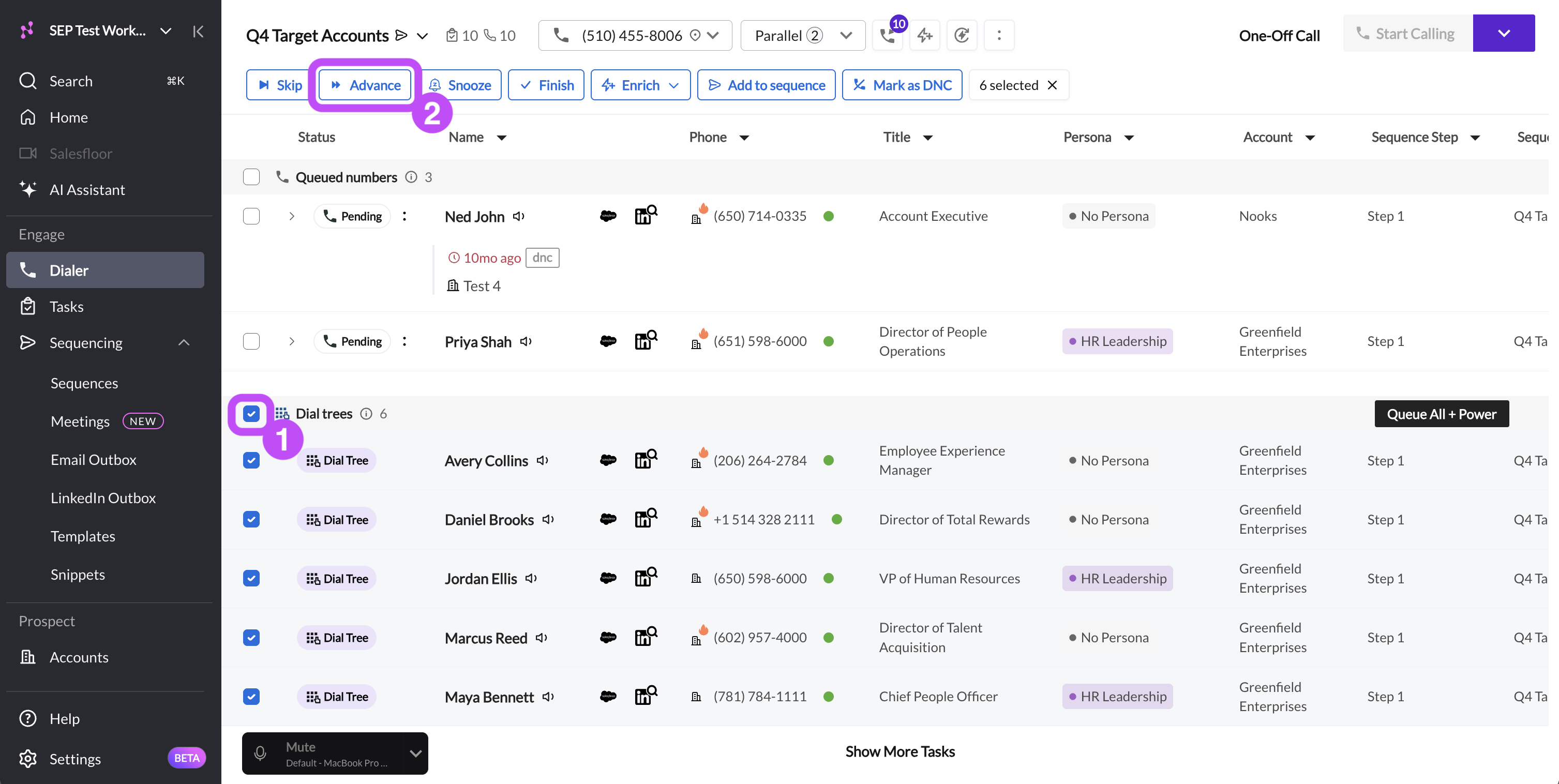
The Advance option is only available when calling from a sequence. It does not appear for calls sourced from one-off tasks, CSVs lists, or Smartlists.
Important: Clicking Advance skips the call step for prospects who may have other callable numbers. Advancing them removes a chance to reach them by phone. We recommend waiting to advance your dial tree numbers until after you have worked through the rest of your call list.
Calling Dial Trees Manually
When power dialing from a queue that contains dial trees or making a one-off call, you can work through a dial tree yourself using the dial pad.
To manually navigate through a dial tree manually in the Dialer:
In the Dialer, switch to power dialing.
In the dialing mode menu, turn off Skip Dial Trees. Leaving this setting on causes Nooks to skip any dial trees you encounter.
Start dialing. When the call connects, click the Open dial pad (keyboard) icon.
Press the digits the phone menu asks for.
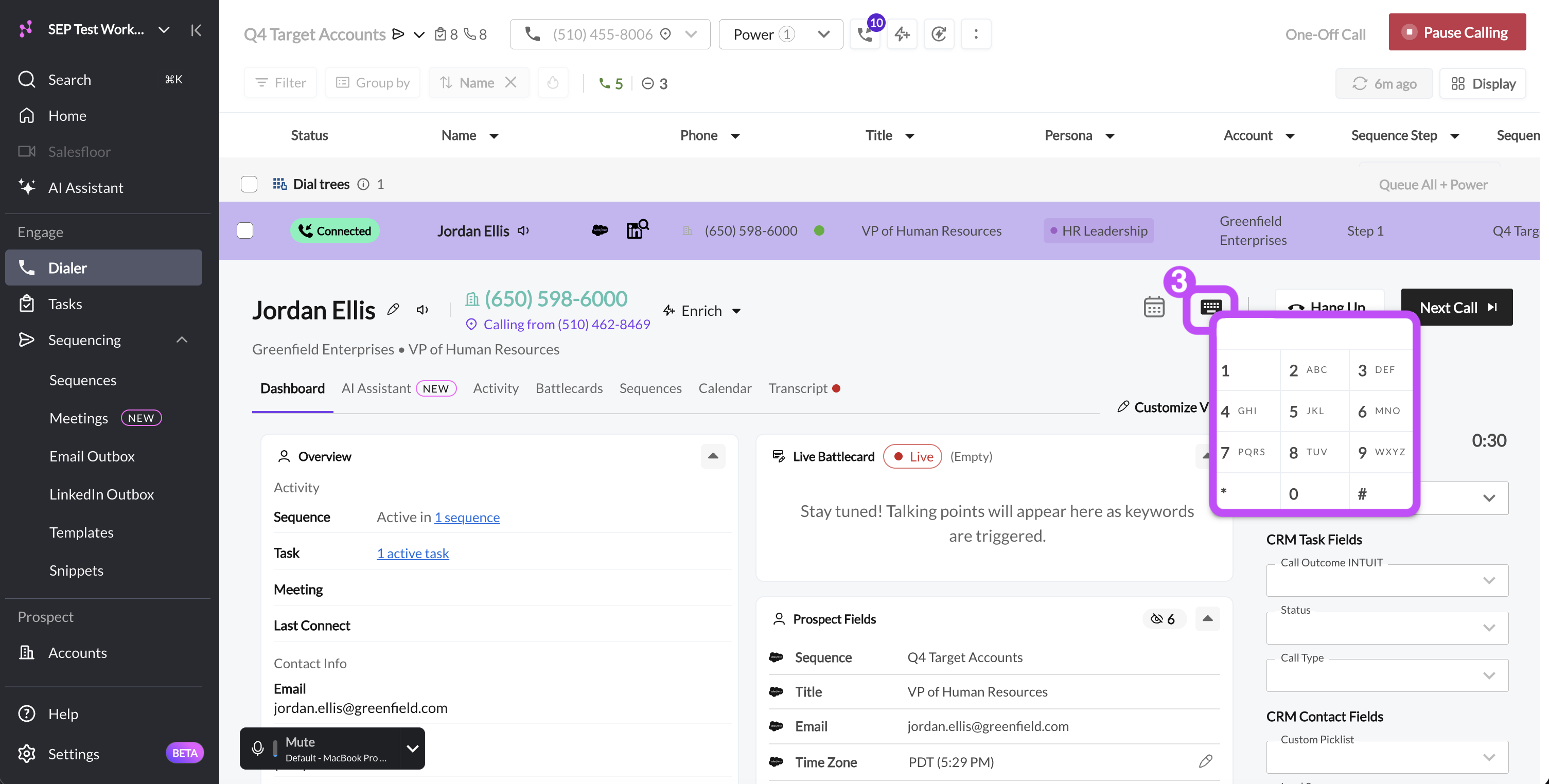
To manually navigate through a dial tree when making a one-off call:
Call your prospect.
When the call connects, click the Open dial pad (keyboard) icon.
Press the digits the phone menu asks for.
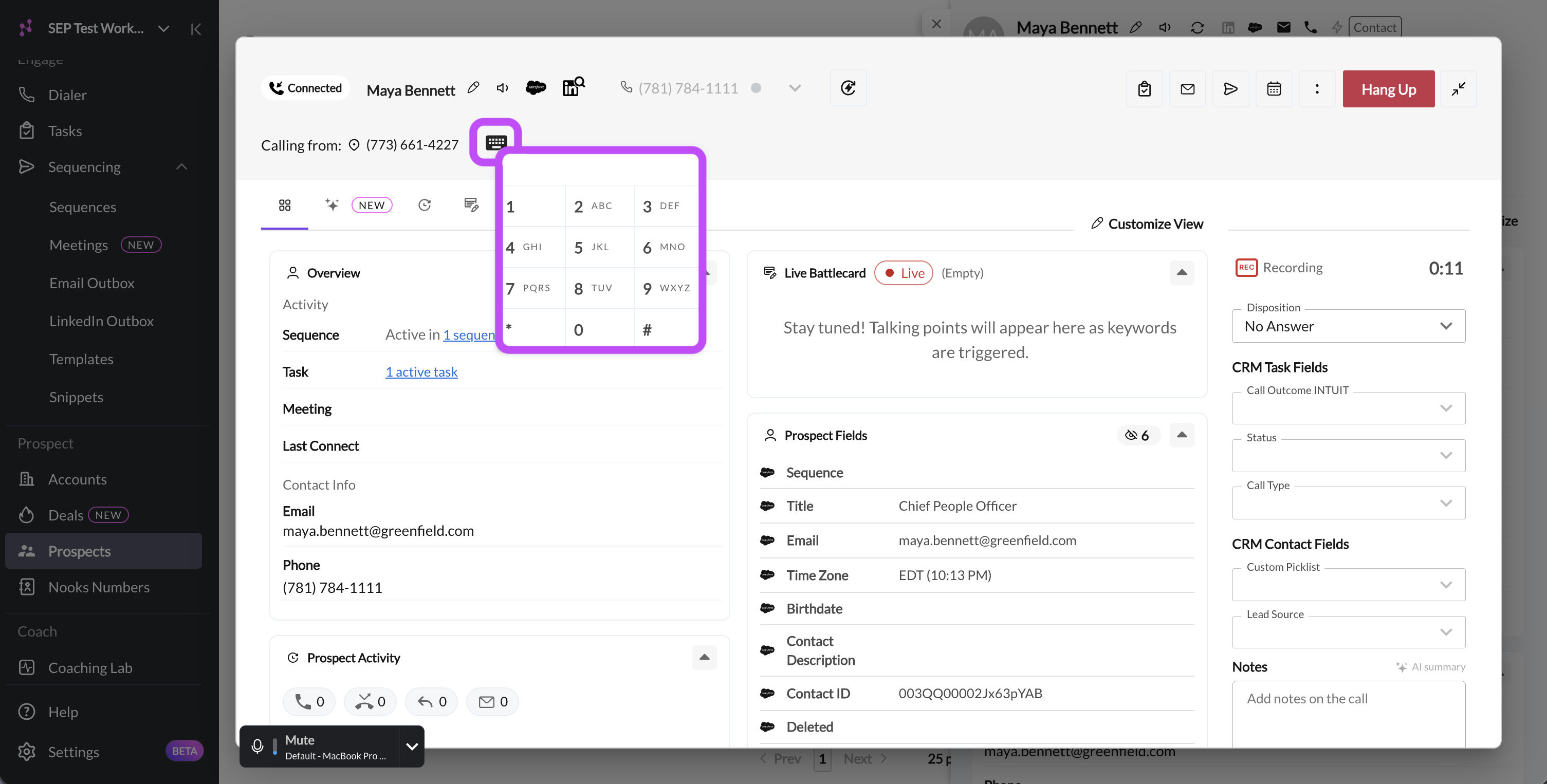
The dial pad appears only after a call connects. If the number has a saved extension, Nooks enters it automatically.
Pro Tip: To connect to dial trees while power dialing but keep skipping voicemails, click on the dialing mode menu at the top of your Dialer and select power dialing. Then, turn on Skip Voicemails and turn off Skip Dial Trees.
Locking Dial Tree Settings for Your Team
Managers and admins can set dial tree behavior for every rep and stop reps from changing it, ensuring all team members adhere to your company's calling strategy.
To lock dial tree settings:
As an Workspace admin or manager, go to Settings → All Settings.
Under General, select Manager.
Under Power Dialer Settings, turn on Override individual rep settings.
Set the following toggles for your team:
Auto-navigate dial trees
Auto-skip answering machines when using Power Dialer.
Connect to dial trees, but still skip voicemails (this setting only appears for configuration when Auto-skip answering machines when using Power Dialer is toggled on).
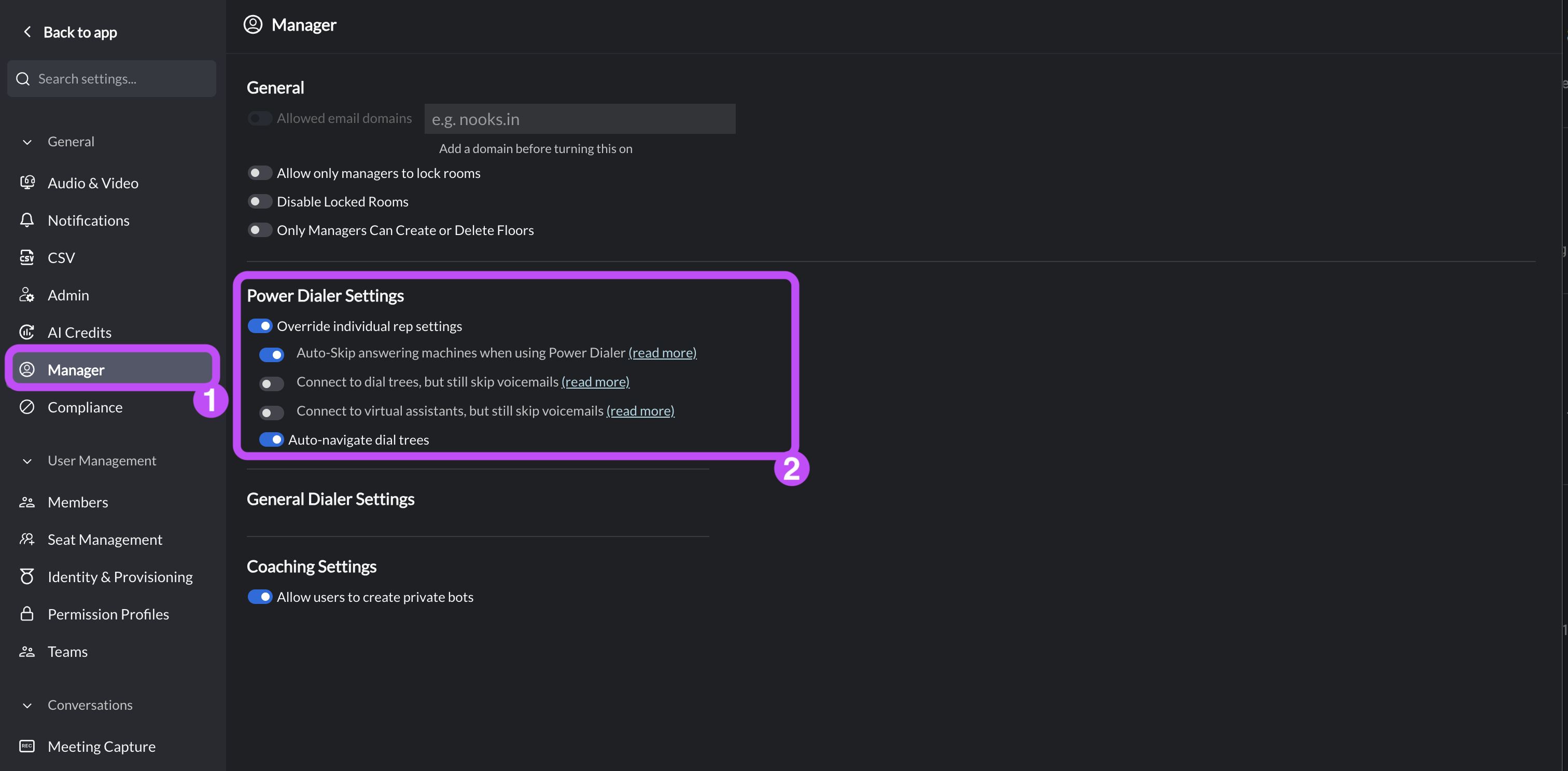
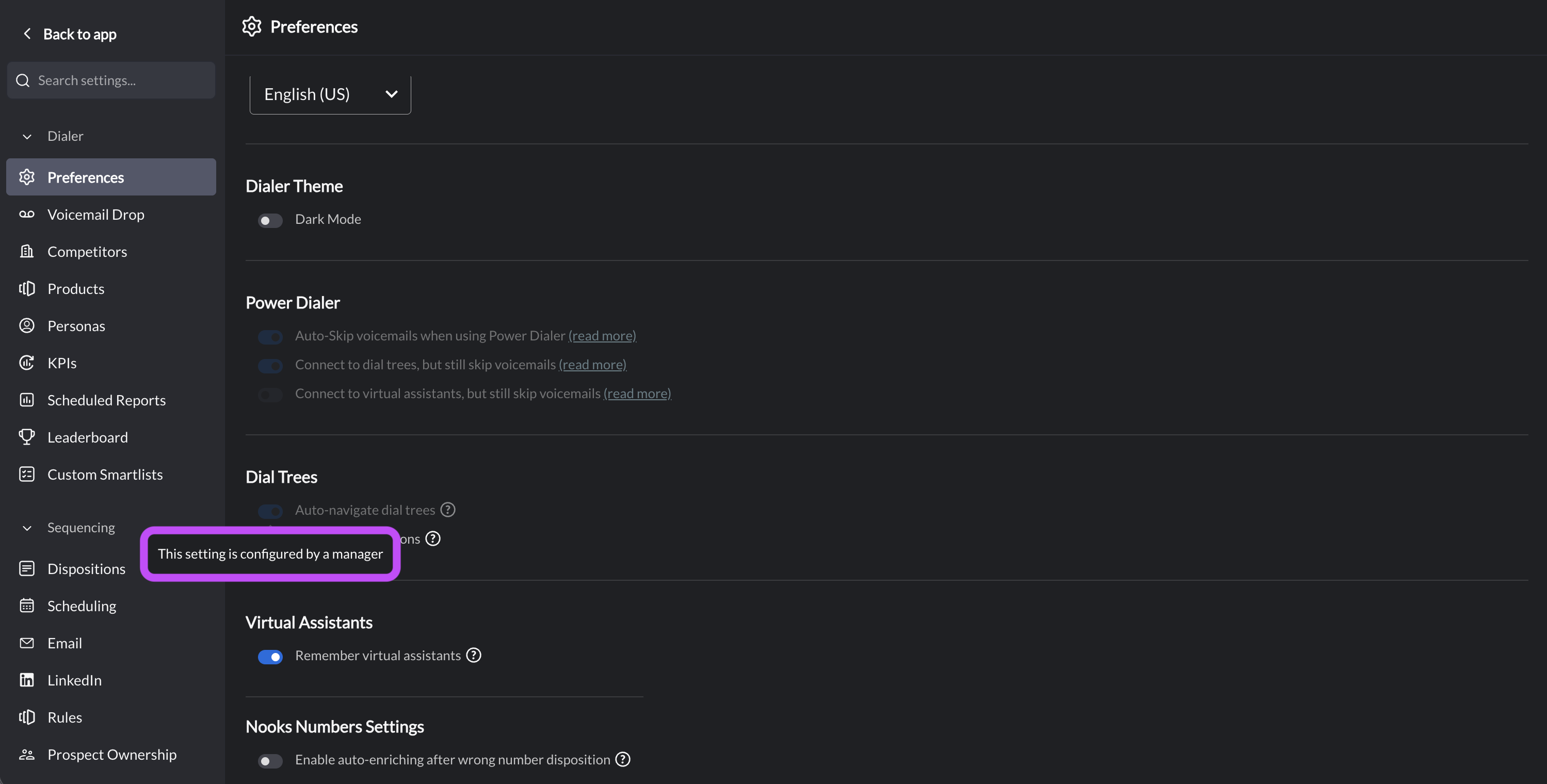
These override settings apply to every rep right away. On the end-users' settings page and in the Dialer, these settings are grayed out to adhere to your Workspace's configuration. Upon hover, users see a message reading: This setting is configured by a manager.
Best Practices
Use these recommendations to get the most out of dial tree numbers.
Leave Auto Navigate Dial Trees on. If your lists include many company main lines, auto-navigation turns them into a chance to reach prospects without slowing your session.
Prepare for gatekeepers. Auto-navigation may fallback to reaching a receptionist or operator if Nooks cannot directly reach your prospect from the dial tree. Have a short transfer request ready.
Call the Dial trees section at the end of your session. If you keep auto-navigation turned off, power dial the Dial trees section after your main parallel dialing session.
FAQs
Is auto-navigation available in power dialing?
No. Auto-navigation is only available during parallel dialing. In power dialing, Nooks enters a saved extension if there is one, and otherwise connects you to the phone menu so you can navigate it with the dial pad.
How I you control whether dial tree numbers are grouped separately in the Dialer?
If you want dial tree numbers to stay in your callable list instead of being grouped into a separate Dial trees section, turn on Auto-navigate dial trees in Settings → Dialer → Preferences under Dial Trees. With this setting on, Nooks tries to navigate known dial trees automatically while you dial. With it off, known dial trees are set aside in the Dial trees section when you are parallel dialing so you can review them separately.