Inviting Users and Managing Access from Seat Management
Last updated: October 14, 2026
This guide covers how to manage user access in Nooks from Seat Management. It goes over how to invite new users, what the invited user experience looks like, and how to update existing users’ access.
Applies To: All Nooks Workspaces. Note that the seats that show in Seat Management depend on your team's contract.
Overview
Seat Management is the control center for your Nooks Workspace. From this page, you assign users roles, access tiers, and additional products your team has purchased. For each users, there are two main dials to tune:
Role – Controls what settings a user can change and what actions a user can take.
Access – Controls what product features a user can use.
Navigate to Seat Management
Every action described in this guide takes place from Seat Management. This section walks through how to open Seat Management.
Prerequisites
Access to Seat Management is limited to certain user roles. Depending on whether your Workspace has Nooks Sequencing enabled, these permissions
Workspaces without Nooks Sequencing: Only admins can access Seat Management.
Workspaces with Nooks Sequencing: Users with the Manage Workspace Members permission can access Seat Management. This permission is granted to admins and managers by default, but can be extended to other Nooks user roles as well.
Steps to Open Seat Management
To navigate to Seat Management:
Go to Settings → All Settings (at the lower-left of the Nooks navigation menu).
Under User Management, click Seat Management.

On the Seat Management page, you see your current seat count, your currently used seats, and the users who are members of or invitees to your Workspace.
Invite New Users
You have two ways to add new members to your Workspace: inviting one person at a time, or inviting a whole group at once. Both methods start from the same Add User button inside Seat Management.
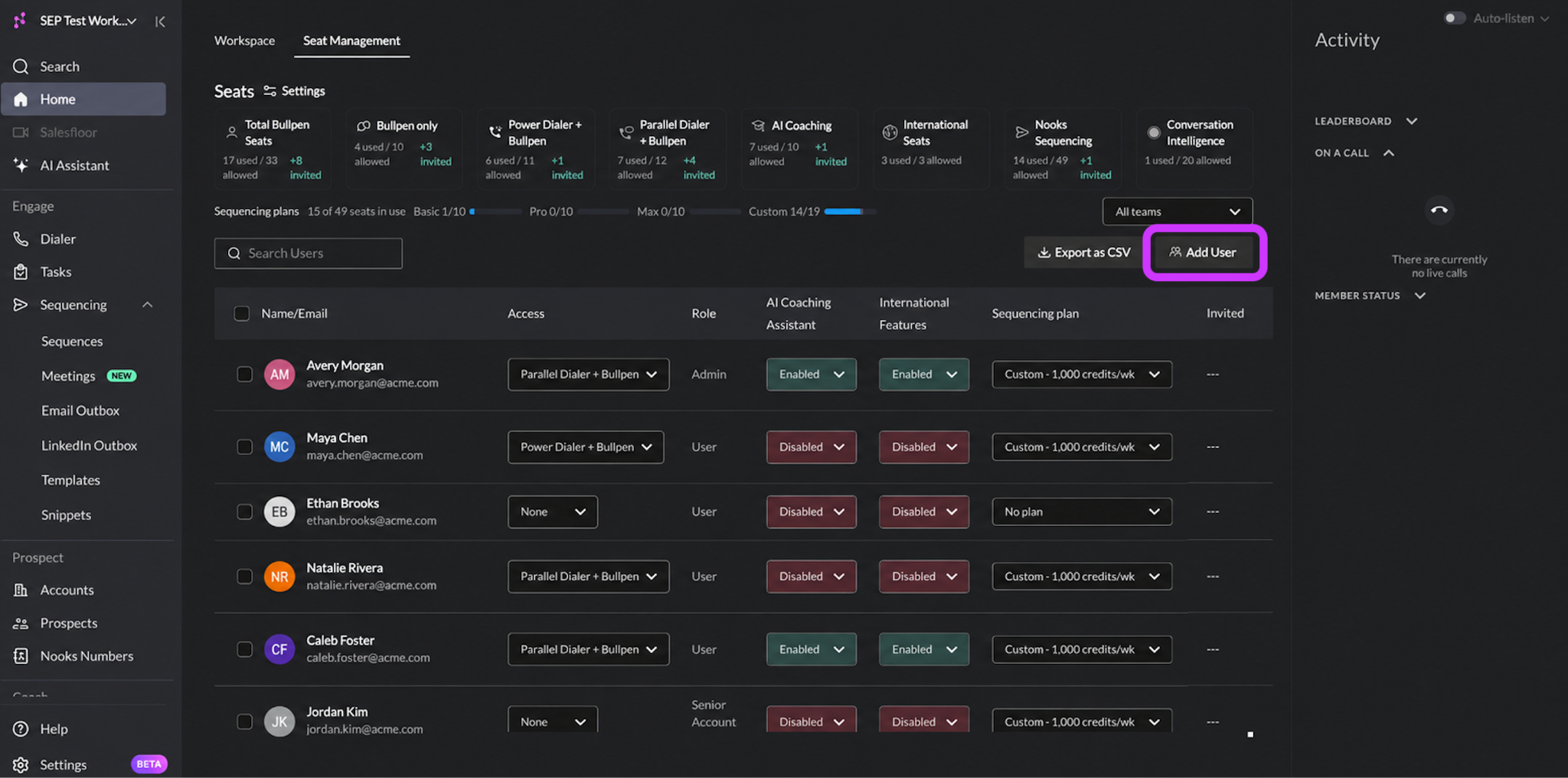
Note: Before inviting users, check your available seat count at the top of the Seat Management page. If you do not have enough seats, reach out to your Nooks representative to request more.
Adding a Single User
Follow the steps below to send an invite to a single user.
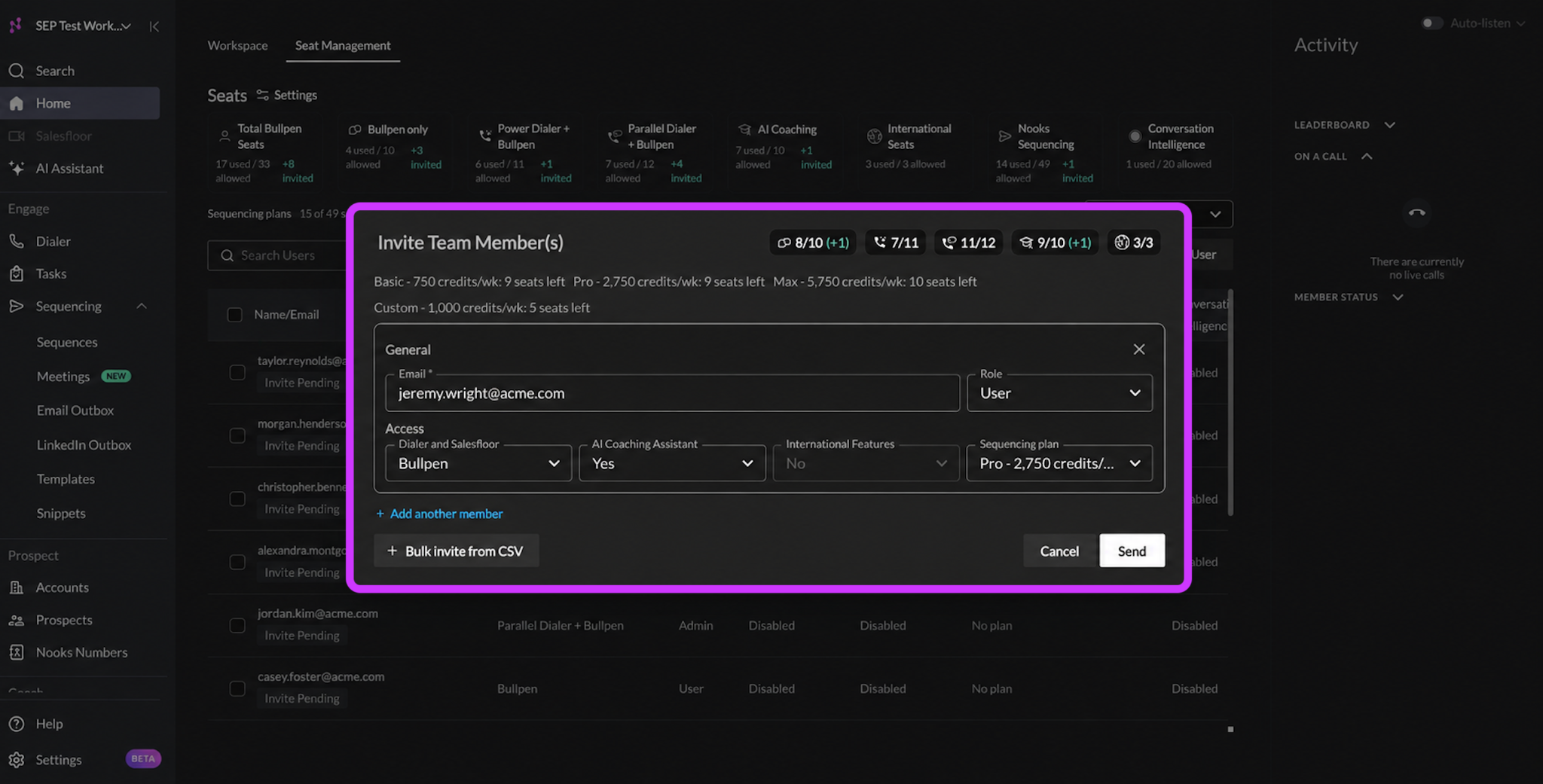
Click the Add User button in the top-right corner of Seat Management.
Enter the person’s email address. The email address you enter here is the email address the user must use when they log in to Nooks to accept their invitation. Nooks does not allow a different alias or domain at login, so be sure your input is correct.
Select a Role (User, Manager, Admin, or a custom role) and Dialer and Salesfloor Access (Bullpen, Bullpen + Power Dialer, or Bullpen + Parallel Dialer).
Select any additional product access the user needs: AI Coaching, International Features, or Nooks Sequencing. If your Workspace uses Nooks Sequencing, you must select an AI Credit plan to assign Nooks Sequencing access.
To invite another teammate, click + Add another member, then complete Steps 2–4 for that teammate.
Click Send.
Adding Users in Bulk
If you need to bring on a whole team at once, bulk inviting is faster than adding people one at a time. To do so:
Click the Add User button in the top-right corner of Seat Management.
Click + Bulk invite from CSV in the bottom-left corner of the Invite Team Member(s) dialog.
Upload a CSV file of users, their roles, and their access.
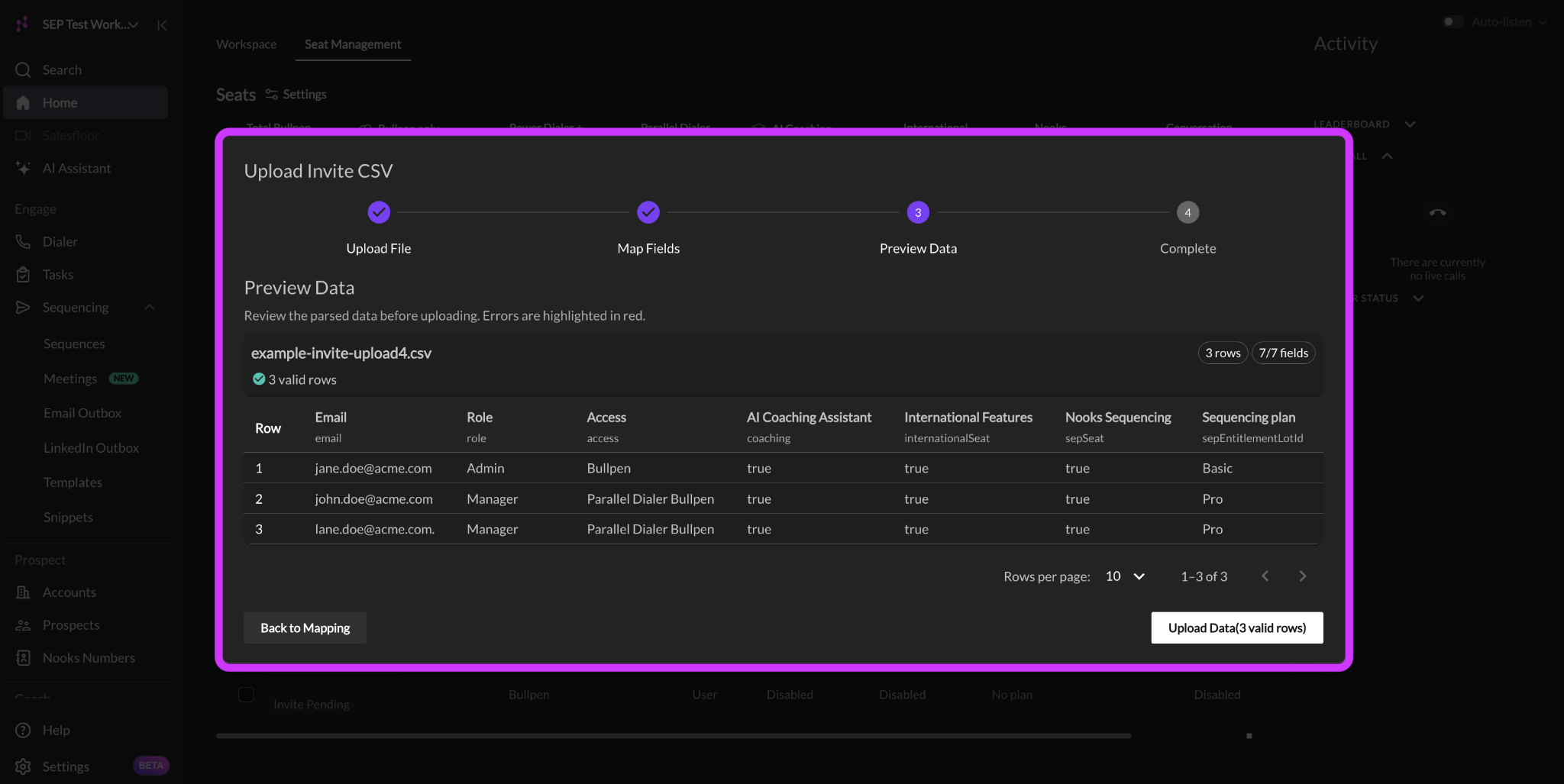
Nooks attempts to automatically match the columns in your CSV to user invite fields. Review and (re)map columns as necessary. Then, click Preview Data in the bottom-right corner.
Preview the mapped data. If everything looks correct, click Upload Data
If any of your rows have errors, correct the offending data in the CSV, then restart the upload process.
Click Send.
Formatting Your Bulk Invite CSV
When you upload a file instead of typing entries by hand, Nooks reads it as a table of columns and maps it to the fields it expected. It is helpful to know exactly what fields and values Nooks looks for before you build the file.
Three columns are required for every Workspace. Other columns may be required if your Workspace has that product enabled.
Column | Required | What Vales to Use |
Always | The person’s exact login email address. | |
Role | Always | One of Admin, Manager, or User. |
Access | Always | One of Bullpen, Power Dialer Bullpen, or Parallel Dialer Bullpen. |
AI Coaching Assistant | Only if your Workspace has AI Coaching turned on. | A checkbox value (e.g., Yes or No, True or False) showing whether this person gets an AI Coaching seat. |
International Features | Only if International Seats are rolled out to your Workspace. | A checkbox value (e.g., Yes or No, True or False) showing whether this person gets an International seat. |
Nooks Sequencing | Only if your Workspace has Nooks Sequencing is turned on. | A checkbox value (e.g., Yes or No, True or False) showing whether this person gets a Nooks Sequencing seat. |
Sequencing Plan | Only if your Workspace uses Managed Sequencing credit plans. | The exact name of the AI Credit plan (Basic, Pro, Max, or a custom plan name) for this person. |
Before saving your CSV to upload it to Nooks, ensure it meets the following file requirements.
Supported File Type: CSV format (.csv)
Maximum Rows: 1,000 records
Maximum File Size: 10 MB
Review Pending Invitations
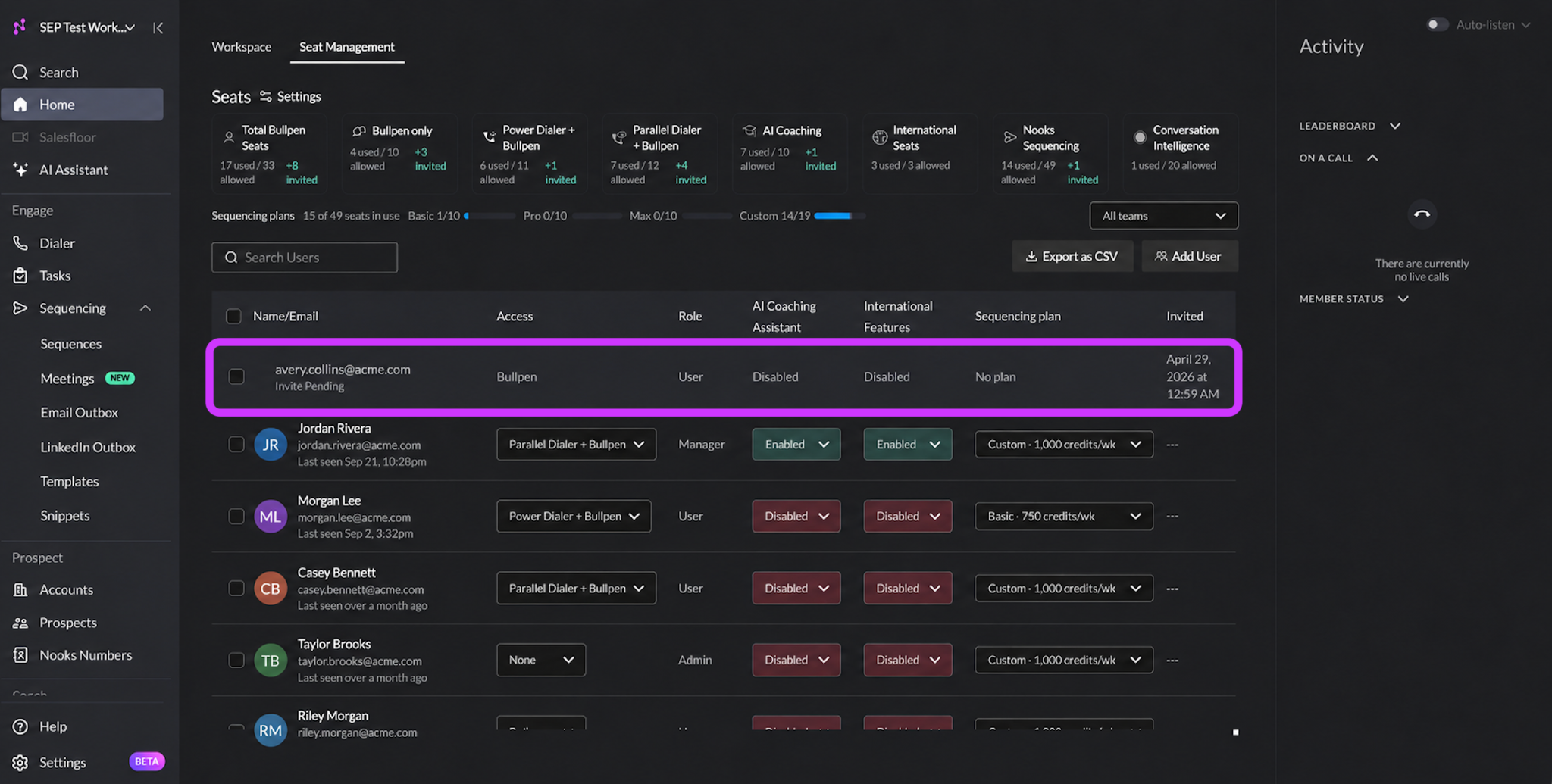
Once you send an invite, it immediately appears at the top of your Seat Management members table, so you can tell at a glance who has not joined yet. A few things set a pending invite row apart from an active one:
An “Invite Pending” chip appears under the person’s name.
The Access and Role fields are read-only for a pending invite, unlike the editable dropdowns you see for an active member.
The “Invited” column shows the date you sent the invite; for an active member, that same column just shows a dash.
What the Invited User Sees
After you send the invite, the person receives an email with a blue Accept button. They click it to sign into Nooks and set up their account. The email address the invite goes to must be the exact email address the person uses to log in. Nooks will not recognize or accept a different email address.
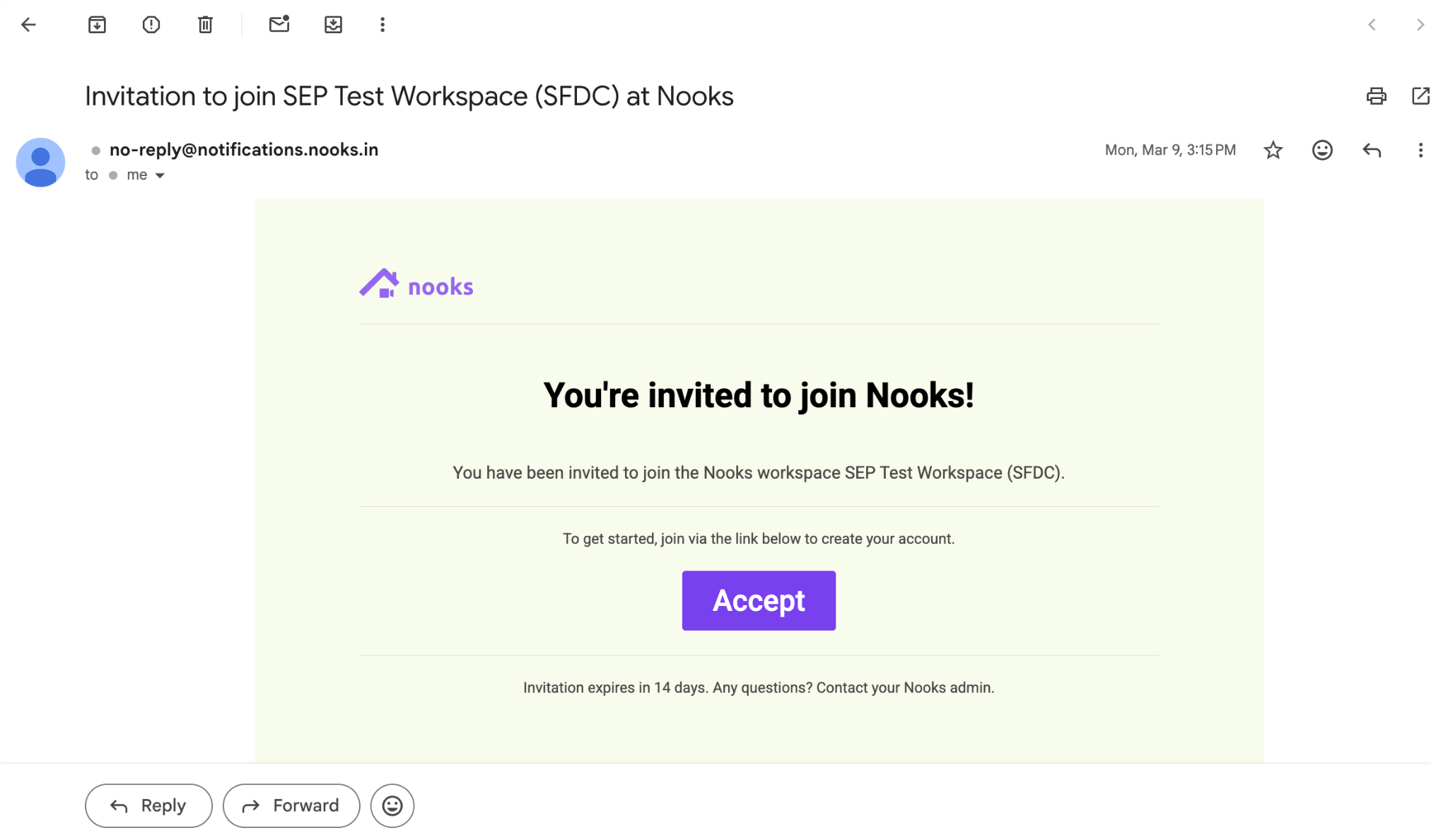
Invitations stay valid for 14 days from when you send them. If an invite link fails to work, simply delete and resend the invitation from Seat Management, which generates a fresh link.
Resend an Invitation
To resend an invitation to a user who has not yet joined or whose invitation link has expired:
Open Seat Management.
Tick the checkbox to the left of the invited user’s name.
Click Delete.
Click Add User.
Enter the user’s email address, Role, and Access again, then click Send.
Once you resend an invitation, the user must click the Accept button in the new invitation. The original invitation will cease working.
Update an Existing Member's Access or Role
You will often need to change someone’s access or role after they have already joined, whether they changed teams, get promoted, or need a different level of product access. These two changes live on different screens.
Updating a User's Access
To change a person’s access:
Open Seat Management.
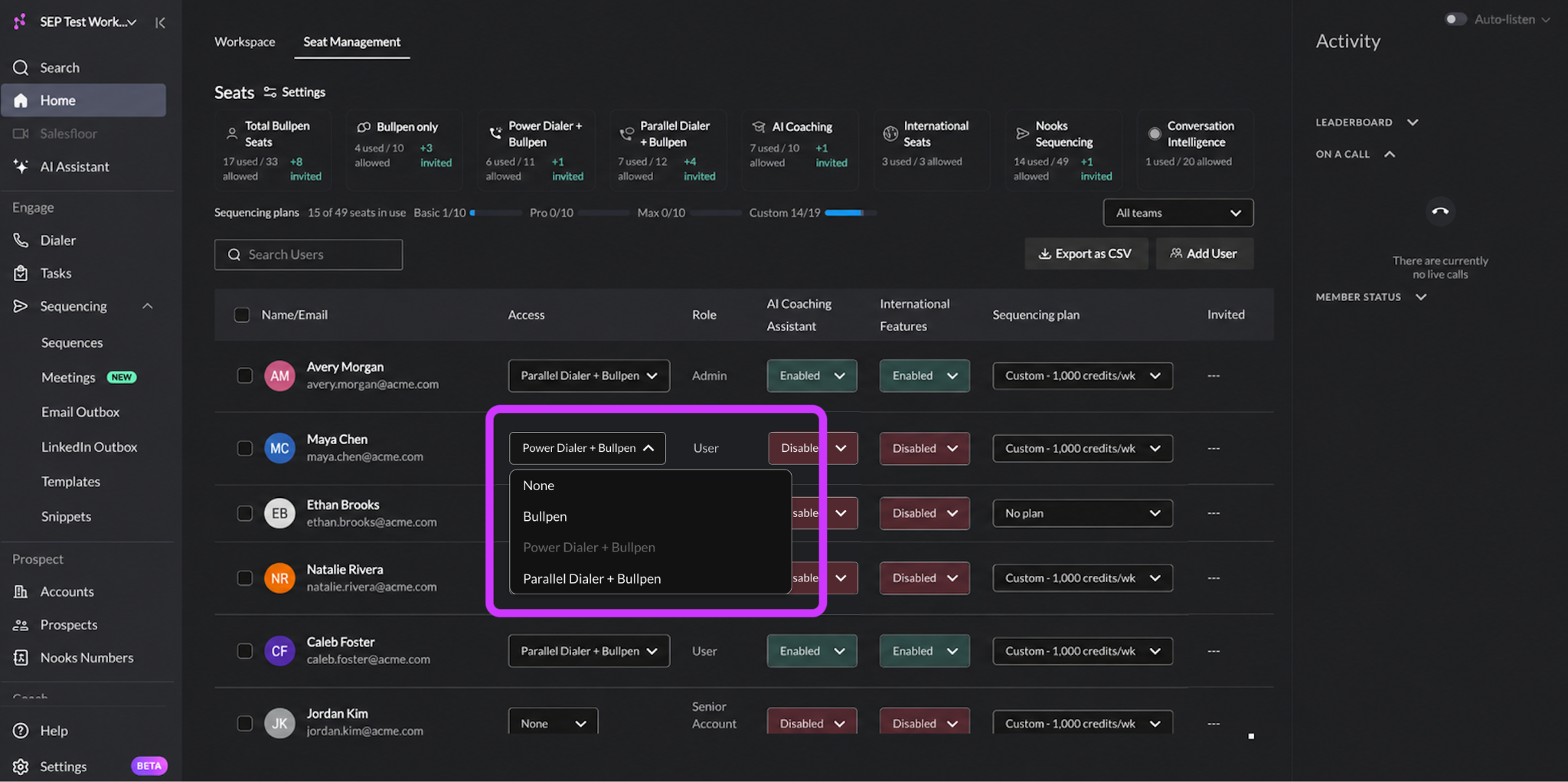
Pick a new value from the dropdown in the Access, AI Coaching Assistant, International Features, or Sequencing Plan column. Your changes save and reflect to the target user immediately.
Updating a User's Role
To change a person’s role:
Go to Settings → All Settings,
Under User Management, select Members.
Pick a new value from the dropdown in the Role column. Your changes save and reflect to the target user immediately.
Note that only an Admin can assign the Admin role to someone else. Nooks will also never let you end up with zero Admins; if you try to remove the last remaining Admin, Nooks blocks the change from saving.
Delete a User
When someone leaves your team or no longer needs Nooks access, you can remove them directly from Seat Management.
Open Seat Management.
Tick the checkbox to the left of the user’s name.
Click Delete in the header.
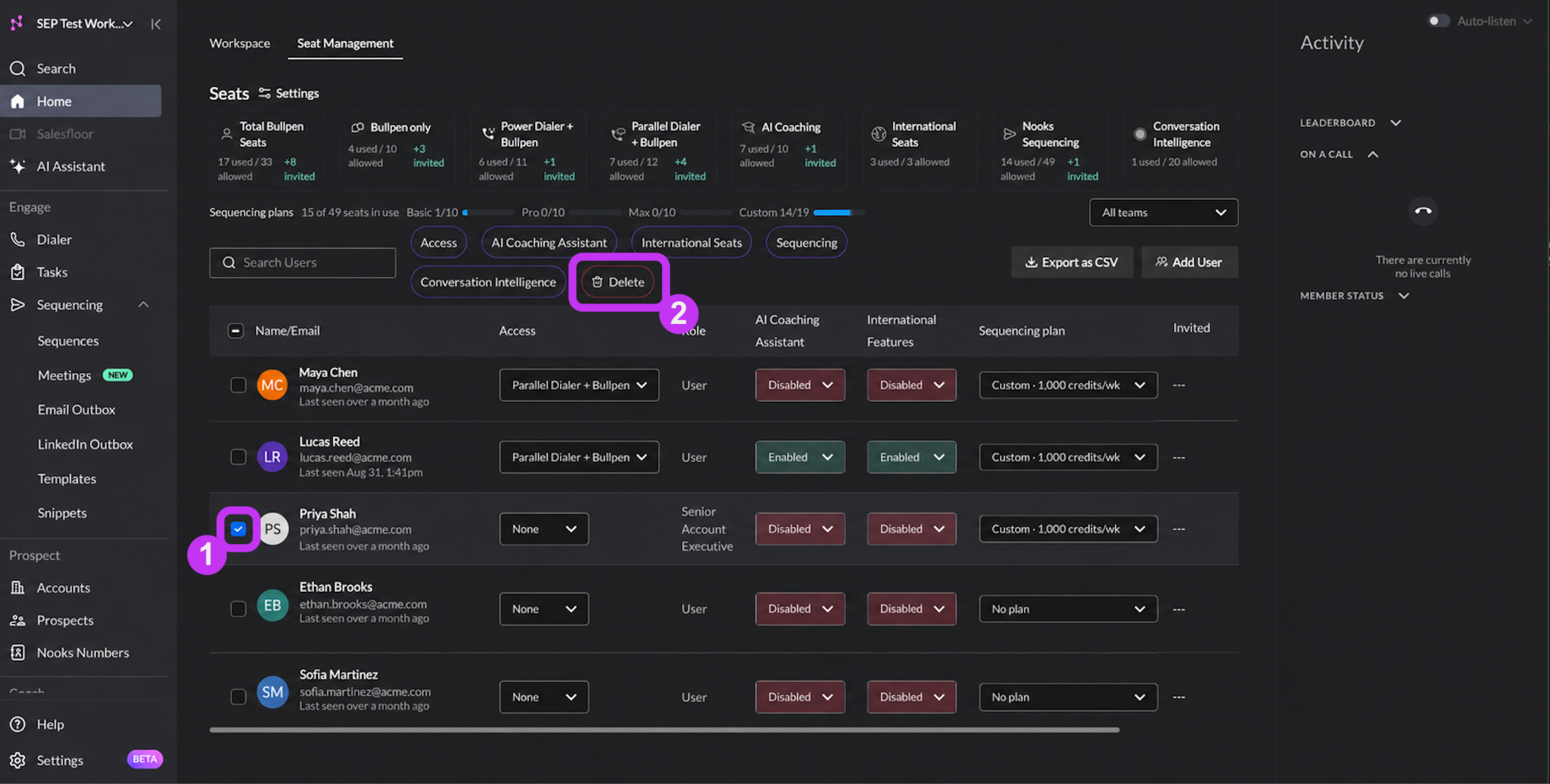
Deleting a user removes their ability to log in, but it does not impact their historical activity. Their calls, dispositions, and reporting data remain fully intact in Nooks. As with role changes, Nooks will never let you delete the last remaining Admin in your Workspace.
Dialer and Salesfloor Access Tiers: Bullpen, Power Dialer, and Parallel Dialer
Access tiers control what a person can actually do inside Nooks day to day, separate from their role. There are three seat tiers, plus a “None” option for someone who should not be able to log in and use product features at all. Each tier builds on the one below it, so a Parallel Dialer seat includes everything a Power Dialer seat includes, which in turn includes everything a Bullpen seat includes.
Access Tier | What It Unlocks |
None | No access to Nooks. |
Bullpen | Salesfloor access only: listening to live calls, viewing reporting, and using the Call Library. No Dialer access. This person generally cannot make calls in Nooks (see the Nooks Sequencing section below for exceptions). Typically best for managers or admins who need visibility and reporting, but do not personally dial. |
Bullpen + Power Dialer | Everything in Bullpen, plus the Dialer, limited to calling one prospect at a time. |
Bullpen + Parallel Dialer | Everything in Bullpen, plus the ability to parallel dial up to 5 prospects at a time and use Adaptive and Turbo Dialing. |
Additional License Types
Beyond the core access tiers, Nooks offers several other products that you can turn on for individual users, each with its own purchased pool of seats. These show up as separate dropdowns in the invite flow, right alongside Role and Access.
AI Coaching
AI Coaching gives a rep access to Nooks’ AI Coaching Suite, which includes AI cold-call training bots, a dialer simulator, AI Scorecards, Live Battlecards, AI call insights, a Coaching Lab, and transcript export.
This toggle is completely independent of a member’s Dialer access tier. A person can have any access tier, with or without AI Coaching turned on.
International Seats
An International seat unlocks non-US/Canada Nooks phone numbers, international dialing, and International Smart Presence for a user. Without this seat, a user is limited to 50 international calls per month. With this seat, a user is limited to 2,000 minutes of international connected call time. An international call is defined as any call to a destination outside the United States or Canada.
Nooks Sequencing and AI Credit Plans
Nooks Sequencing grants users access to Nooks’ native sales engagement platform. Access to Nooks Sequencing is assigned via a credit plan. Each credit plan grants users the same level of access to Nooks Sequencing. The different plans solely change a user’s weekly allowance of AI Credits, which can be used to power personal AI workflows.
Plan | Weekly Credits per Seat |
No plan | No access to Nooks Sequencing |
Basic | 750 |
Pro | 2,750 |
Max | 5,750 |
Custom plan | Set by your contract |
Choose a credit plan for each person who needs access to Nooks Sequencing. If a plan is not chosen yet, Nooks shows “No plan” next to the user’s name.
Credits reset every Monday at 00:00 UTC, do not roll over from the previous week, and do not transfer between people. A newly invited person does not inherit any credit balance a previous person on the plan used up.
Sequencing Credit Plan Holds and Reservations
If you un-assign someone from a Sequencing credit plan after they have already used credits that week, that seat is held in reserve for that user until the next Monday reset. Only that same member can reclaim the unassigned seat before the weekly reset. Assigning a Sequencing credit plan to a different user would require an additional seat. This rule applies to all seat removals and changes, including manual removal, changing the credit plan type, removal from the Workspace, and SCIM deactivation.
A pending invite with a Sequencing credit plan reserves the seat until the invite is accepted, is canceled, or expires after 14 days. Reserved seats count toward your Workspace's seat usage.
Bullpen Access plus Nooks Sequencing Access
Users with a Bullpen seat and a Nooks Sequencing seat receive limited access to the Nooks Dialer for completing Sequence call tasks, making follow-ups, and placing one-off calls.
The table below outlines what features are and are not included to users with this seat combination.
Included Features | Excluded Features |
|
|
Role Options
Roles grant users permissions to take action across Nooks. Most often, they limit what settings a user can adjust. Below is a description of the standard roles that can be assigned to users.
Role | Permitted Access |
Admin | Access to all Workspace settings. |
Manager | Access to a subset of Workspace settings. |
User | Access to their own individual user-level settings only. |
Workspaces with Nooks Sequencing enabled can use Permission Profiles to customize the exact access each of these roles receives, as well as creating additional custom roles not listed in the table above.