Pickup Likelihood and Hot Numbers
Last updated: September 24, 2026
This guide explains what Nooks’ Pickup Likelihood feature is, how to use its rating tiers to run smarter dialing sessions, and how to get the most out of your time in the Dialer.
Overview
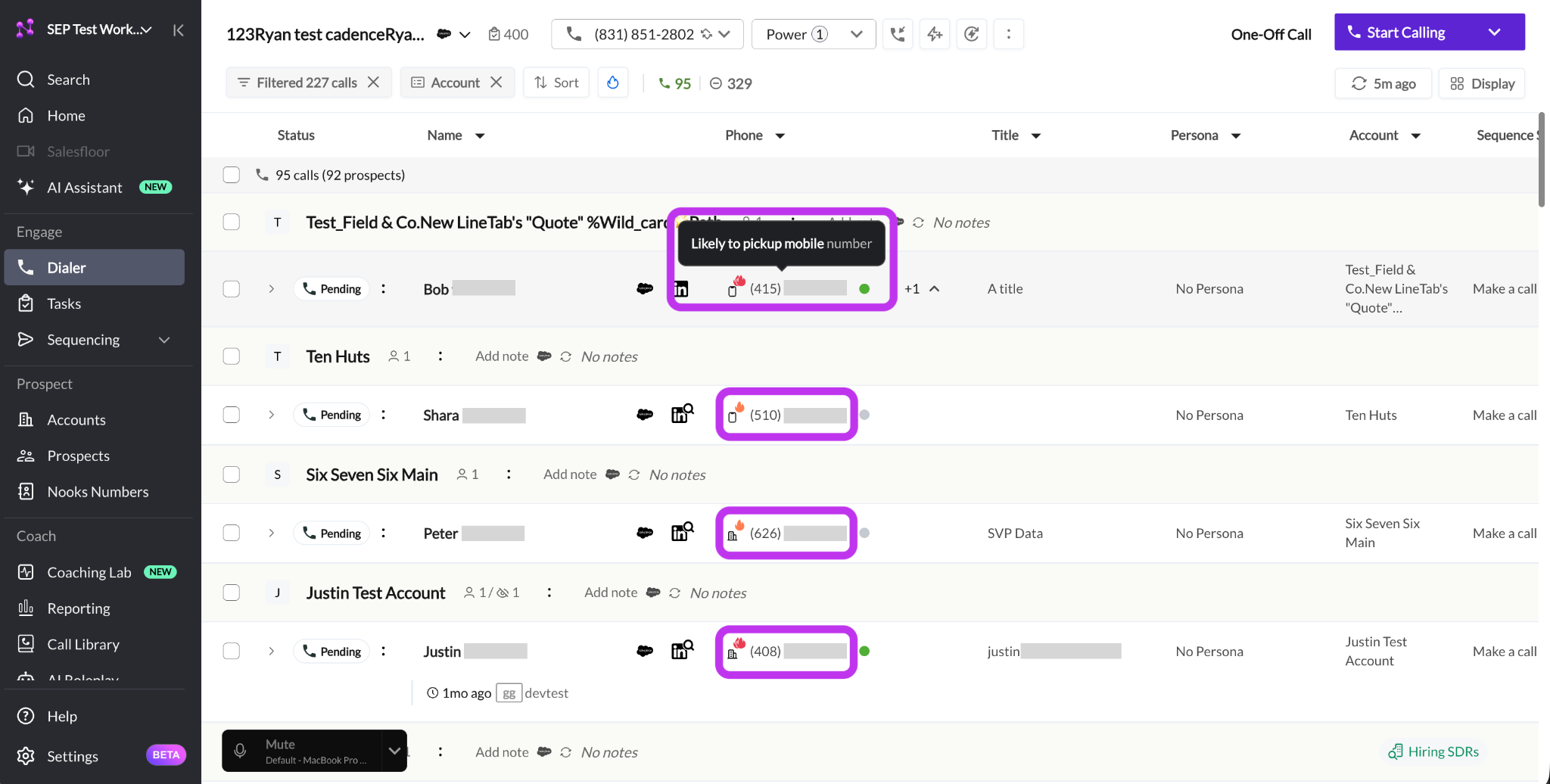
Pickup Likelihood is a Nooks Dialer feature that predicts how likely a given phone number is to result in a connect before you dial it. Every call task in your queue is classified into a temperature tier. The temperature tiers are High (sometimes called “Hot”), Above Average, Below Average, and Low (sometimes called “Cold”). They are displayed as flames 🔥 and snowflakes ❄ in your Dialer queue to make it easy to identify a number’s quality at a glance.
This feature is powered by an AI model trained on call outcome data aggregated across the Nooks platform. Because the data is pooled from every Nooks Workspace, ratings benefit from a much larger signal than any single team could generate on their own. A number that has been dialed thousands of times across many organizations carries far stronger predictive weight than one dialed only a handful of times in a single Workspace.
Some key benefits of the Pickup Likelihood feature include:
Increasing connect rates by 15–50% above Workspace average*
Simplifying rep workflow by embedding dialing best practices into a single filter
Ensuring balanced coverage while avoiding wasted dials on lowest likelihood numbers
Pickup Likelihood does not share customer-specific Workspace data across customers. It uses phone numbers dialed through Nooks and aggregated call-quality signals across the platform to generate ratings. More detail is provided in the Privacy Policy and Data Sharing section below.
*These metrics reflect data from June 2025 – June 2026. Connect rate averages are exclusively directional. Your Workspace’s rates may vary. The main takeaway is that using calling by Pickup Likelihood can improve connect rates.
Temperature Tiers
Every call task is assigned one of four temperature tiers based on the phone number’s current Pickup Likelihood rating. The table below explains what each temperature tier means and what action Nooks recommends for each tier. The ratings are listed in order of probability of pickup.
Rating | Icon | Recommendation |
High | 🔥🔥 Two flames | Treat like a warm lead: Power Dial. |
Above Average | 🔥 One flame | Prioritize: Parallel Dial 1–3 lines at a time. |
Below Average | No icon | Dial after hot numbers: Parallel Dial 3–5 lines. |
Low | ❄ Snowflake | Dial last: 4–5 lines. |
Typically, High and Above Average numbers make up the smallest share of numbers in a dial list; Below Average and Low numbers make up the largest share. However, the proportion of numbers in each tier may vary depending on the list type.
The temperature tier icons allow you to quickly scan your entire task list, giving you a clear overview of what numbers are in your dial list without needing to open any extra menus.
Recommended Dialing Workflow
Organizing your dialing workflow around Pickup Likelihood is simple and effective: Work from the hottest to coldest numbers, and match your Parallel Dial lines to the quality of the numbers you are calling. This strategy maximizes conversations at the start of your session when energy is high, then keeps you efficient as you move down the list.
Step 1: Start with High 🔥🔥 (Power Dial)
Filter for High first and power dial through these tasks. These numbers have the highest predicted pickup rate on the platform.
Step 2: Move to Above Average 🔥 (1–3 Lines)
After working through High numbers, add Above Average numbers to your filters. These numbers still have above-average pickup rates and should be dialed before the rest of your list.
Step 3: Work through Below Average (3–5 Lines)
Once you have called all the hot numbers in your list, shift to Below Average. Increase your Parallel Dial lines to maintain efficiency as the likelihood of a connect drops.
Step 4: Finish with Low ❄ (4–5 Lines)
If you have remaining time in your call session, wrap up the cold numbers. Generally, Low numbers only rarely pick up. Call these numbers with 4–5 Parallel Dial lines to work through them efficiently.
Filtering Call Tasks by Temperature Tier
You can filter your Dialer queue by temperature tier to surface call tasks based on their Pickup Likelihood. To do so:
Open the Dialer.
Select a sequence, task list, or Smartlist to dial from.
Click on the outlined flame icon in the filter area.
In the pop-up menu, select which temperature tier(s) you want to dial, then click Apply.
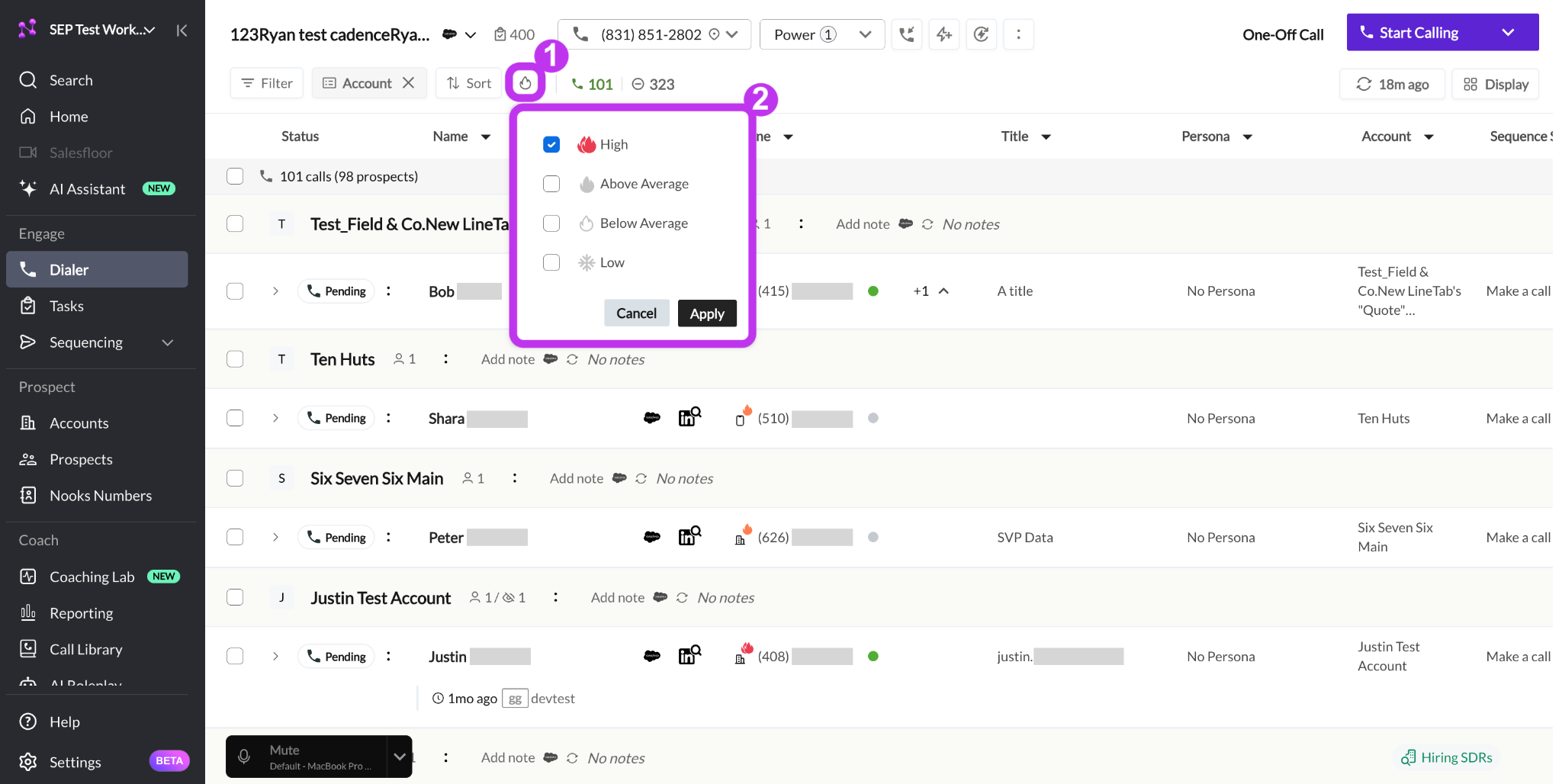
Note: Some Workspaces disable the ability to filter by only Low-rated numbers to prioritize calling warmer numbers. In these cases, if you try to apply a Low-only filter, you will see a message asking you to select at least one additional tier.
Pickup Likelihood Settings
Pickup Likelihood is enabled by default for all Nooks Dialer users. No setup is required for reps to start using it.
Several settings let admins and reps customize how this feature behaves.
End-User Settings
Individual reps can control one Pickup Likelihood preference from their personal Dialer settings. This is the main setting to use if you want a simpler Dialer view where cold numbers stay in the main callable list instead of being grouped into a separate section.
Organize low pickup likelihood numbers into a separate section
Organize low pickup likelihood numbers into a separate section: this setting automatically moves ❄ Low-rated numbers to a dedicated section at the bottom of your Dialer queue, so you don't have to filter them out by hand.
On (default) – Cold numbers are grouped and labeled separately, making it easy to work through your hot and neutral numbers first without any additional steps.
Off – Cold numbers are still labeled but are mixed with the hot and neutral numbers in your queue. You can always manually apply filters to refine your queue to just hot numbers.
To configure this setting:
Go to Settings → All Settings.
Under Dialer, select Preferences.
Under the General section, toggle this setting on or off.
Note: This setting is a personal preference and only affects your own Dialer view. If your Workspace admin has enabled the Workspace-wide override (discussed below), this toggle will be locked.
Admin Settings
Workspace admins have a couple settings that control how all reps in the Workspace interact with Low-rated numbers.
Override "Organize low pickup likelihood numbers into a separate section, to be dialed last" for All Reps (Enable Workspace-Wide)
By default, reps can individually choose whether their Dialer groups cold numbers in a separate section. Since this setting is enabled by default per-user, most reps will likely have it enabled. This admin setting removes individual control of this setting and locks the behavior for all users in the Workspace. Use this setting if you want to guarantee all reps have Low-rated numbers separated at the bottom of their queue with no ability to turn it off.
Off (default) – Reps can use the "Organize low pickup likelihood numbers into a separate section" setting in their Dialer Preferences to individually choose whether cold numbers are grouped in a separate section of their Dialer.
On – Cold numbers are grouped into a separate section of the Dialer for all users and users cannot individually modify this behavior.
To enable this Workspace-wide override:
Go to Settings → All Settings.
Under General, select Admin.
Toggle this setting on or off.
Allow Filtering By Low Pickup Likelihood Numbers
This setting controls whether users can apply a filter that shows only ❄Low-rated numbers in the Dialer.
On (default) – Users have the option of filtering their Dialer queue to only ❄ Low numbers.
Off – Users must always include at least one other temperature tier alongside the ❄ Low tier when filtering by Pickup Likelihood, preventing sessions focused exclusively on low-quality numbers.
To configure this setting:
Go to Settings → All Settings.
Under General, select Admin.
Under Number Pickup Likelihood Settings, toggle this setting on or off.
Disabling Pickup Likelihood Entirely
If your team needs to turn off Pickup Likelihood entirely, this is controlled at the data sharing level. Because the feature relies on aggregated cross-workspace call data, disabling data sharing for your Workspace will disable Pickup Likelihood ratings for all users.
Contact your Nooks CSM to adjust your Workspace’s data sharing configuration.
How Pickup Likelihood Ratings Are Calculated
Pickup Likelihood ratings are generated by a proprietary Nooks model that analyzes each phone number’s call history and assigns a score predicting how likely it is to result in a live answer. The model considers signals such as how often a number has connected when called, how recently it was last dialed, and patterns in how calls to that number typically go. Because the model is trained on call outcome data aggregated across all Nooks Workspaces, a number that has been dialed by many organizations carries more predictive signal than one dialed only a few times in a single Workspace.
For numbers with no prior call history (such as a brand-new prospect), Nooks applies a set of fallback rules using whatever cross-Workspace signals are available. New numbers that have never been dialed through Nooks will typically start at Neutral and be re-scored as call data accumulates.
Privacy Policy and Data Sharing
Pickup Likelihood uses aggregated call-quality signals to help identify numbers that are more likely to result in a live pickup. Those signals may include pickup-likelihood information derived from Nooks’ underlying live pickup detection model, along with other call-quality signals such as connection rates, provider quality rankings, and number accuracy.
To generate these signals, Pickup Likelihood uses phone numbers dialed through the Nooks platform, together with aggregated quality signals from calls across the platform, to identify numbers that are more likely to result in a live pickup. Other than the phone number itself, the cross-Workspace information used for Pickup Likelihood is aggregated and does not include call recordings, prospect names, customer-specific content, or data linking the number to a specific customer Workspace.
Customers can opt out of Pickup Likelihood and disable the feature altogether by disabling data sharing and training for the live pickup detection model. To do so, contact your Nooks CSM or email privacy@nooks.in. Because Pickup Likelihood relies on outputs from that model, opting out of data sharing or that training will also disable the Pickup Likelihood feature.
The full Nooks Privacy Policy can be found here.
FAQs
If a prospect has multiple phone numbers and only one of them is a hot number that’s being filtered for, what happens to the other cooler numbers?
Similar to other filters in Nooks, those other cooler numbers would be filtered out until you adjust your filters to include those cooler numbers or clear them entirely.
Can I see Pickup Likelihood ratings outside the Dialer?
Not currently. Pickup Likelihood ratings are only visible and filterable within the Dialer.
What happens if our organization opts out of data sharing or model training?
If your Workspace opts out of data sharing or out of training for the Nooks live pickup detection model, the Pickup Likelihood feature will be disabled and ratings will not appear in your team’s Dialer. Because the feature relies on aggregated call data pooled across the Nooks platform, opting out removes access to that signal entirely.
To opt out of data sharing or model training, reach out to your Nooks CSM or email privacy@nooks.in. Note that doing so also disables Pickup Likelihood.
Does Pickup Likelihood account for “wrong number” situations?
No. If a number has been marked as a wrong number by one Workspace, that signal is difficult to apply across Workspaces, as the same number may correctly belong to a different prospect at a different organization. Nooks’ Pickup Likelihood model primarily uses connect and no-answer signals rather than “wrong number” context. If you encounter a wrong number when dialing, mark it in Nooks to update the status for your own Workspace.
What does the snowflake icon (❄) mean?
The snowflake indicates a “cold number” that Nooks predicts is very unlikely to result in a live answer based on historical call signals. Cold numbers have a very low average pickup rate. While cold numbers are not automatically removed from your queue, Nooks recommends dialing them last and at the highest Parallel Dialing setting to work through them efficiently.