Manage Nooks Teams through SCIM
Last updated: September 4, 2026
This guide explains how to sync identity provider groups with Nooks Teams through SCIM. Once configured, Nooks automatically updates Team membership as users are added to groups, removed from groups, or deactivated in your identity provider.
Availability: SCIM Team sync is currently behind a feature flag. Contact your Nooks Support or your account team to enable it for your Workspace.
Overview
SCIM is an open standard that allows identity providers to provision and manage users and groups in connected applications.
After configuring SCIM provisioning for your Nooks Workspace, you can map a group pushed from your identity provider to a Nooks Team. Changes to the group’s membership are then reflected in the mapped Team in near real time, reducing manual maintenance and keeping Nooks Teams aligned with the groups your organization already manages.
Each mapping connects one identity provider group to one Nooks Team. You can map a group to an existing Team or create a new Team during setup. Only the currently mapped team receives membership updates from that group.
Identity provider support: SCIM Team sync currently supports Okta. Other identity providers, such as Microsoft Entra, generally follow the same provisioning flow. If you plan to use another identity provider, contact Nooks Support so we can help validate your configuration.
Requirements
Before mapping an identity provider group to a Nooks Team, verify you meet the following requirements.
SCIM provisioning is enabled for your Workspace. If you have not configured SCIM yet, follow these steps.
The groups you want to sync have been pushed from your identity provider. In Okta, the groups must have a Push Status of “Active.”
Your Nooks Permission Profile includes the Manage SCIM Provisioning and Manage Nooks Teams permissions. Admins have these permissions by default, but they can also be granted to users with other roles.
Estimated Time for Completion: Budget approximately 10 minutes to configure Team sync.
How Team Membership Is Managed
A mapped Nooks Team can include both members synced from your identity provider and members added manually in Nooks. Where a member was added determines how their membership is managed.
Member Type | Where Membership Is Managed | Behavior in Nooks |
Synced from your IdP group | Identity provider | Membership updates automatically. While the mapping is active, these members cannot be manually removed from the Team directly in Nooks. |
Added manually in Nooks | Nooks | Membership is not affected by your identity provider group. These members can be added or removed from the Team directly in Nooks. |
Team manager | Nooks | SCIM groups do not include group-owner information. Assign, change, and remove Team managers in Nooks. |
When you map a group to an existing Team, any existing Team members who also belong to the group become SCIM-managed. Existing members who are not in the SCIM-managed group remain on the Team and must be managed manually.
Teams that are not mapped to an identity provider group remain unchanged and are managed entirely in Nooks.
Map an Identity Provider Group to a Team
After SCIM provisioning is enabled and a group has been pushed successfully, you can map it to a Nooks Team from the Identity & Provisioning settings.
Go to Settings → All Settings.
Under User Management, select Identity & Provisioning.
Under SCIM Provisioning, locate the to Team sync section. Each row shows a pushed group, its readcount, and the Nooks Team it updates. Groups that have not been mapped show as “Not mapped.”
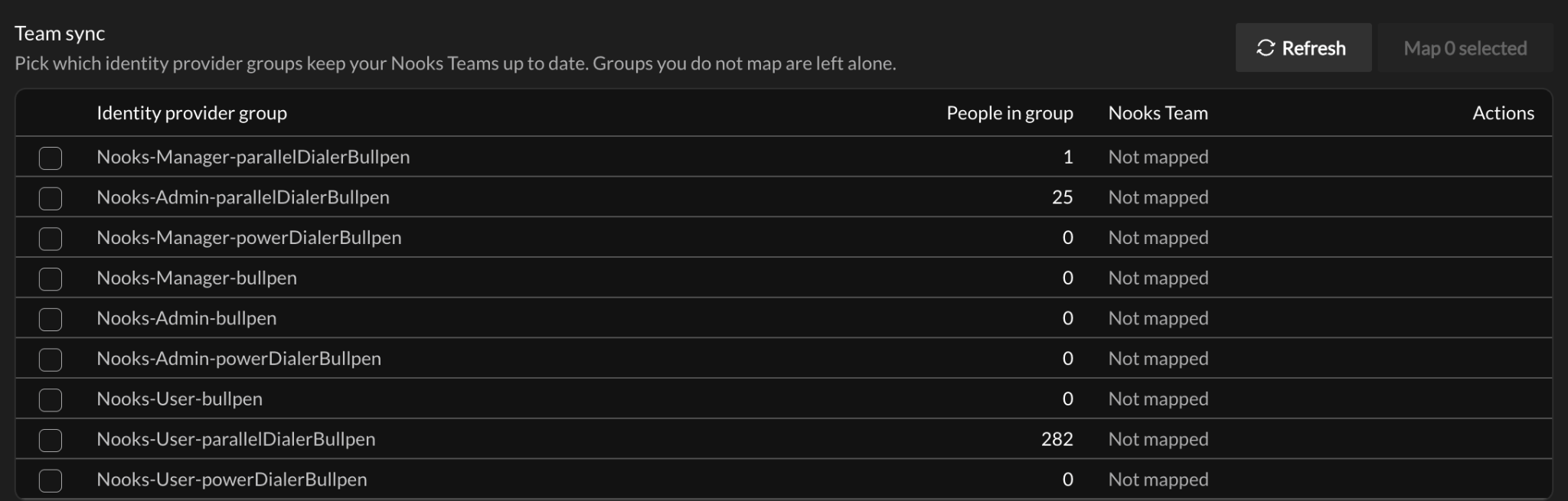
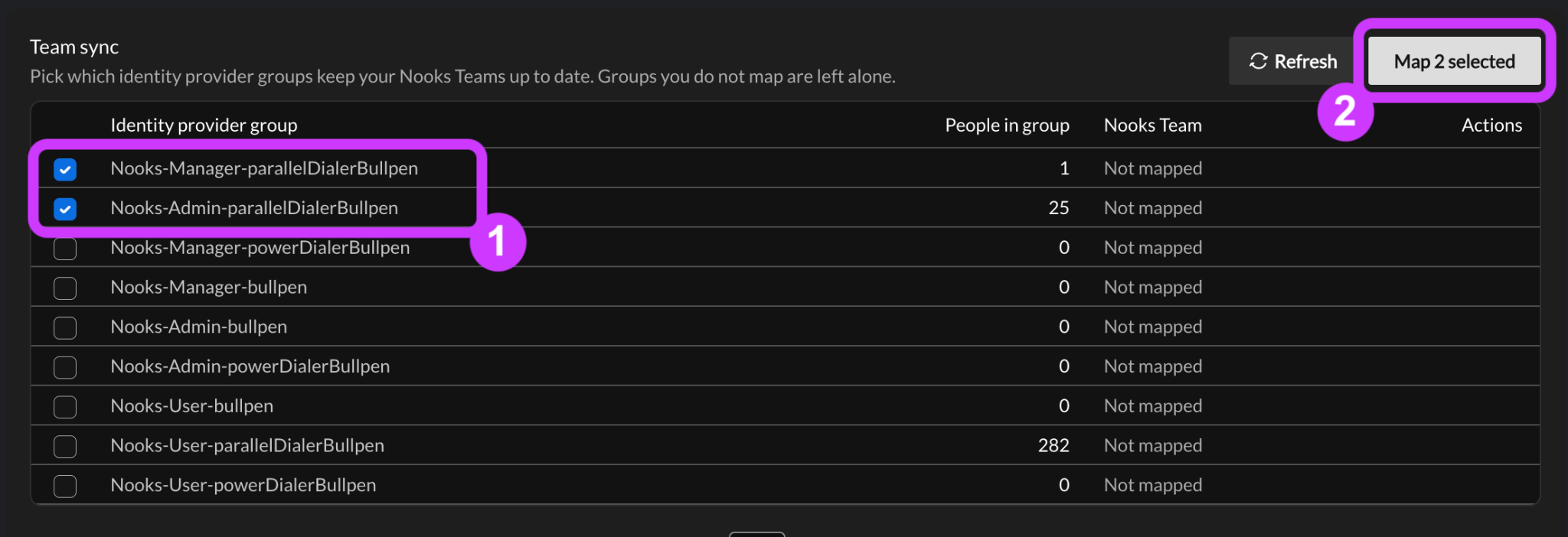
Select the checkbox next to each group you want to map, then click Map N selected. Note that you cannot select a group that is already mapped or one labeled “Deleted in your IdP.” To remap a group, you must first stop its current mapping.
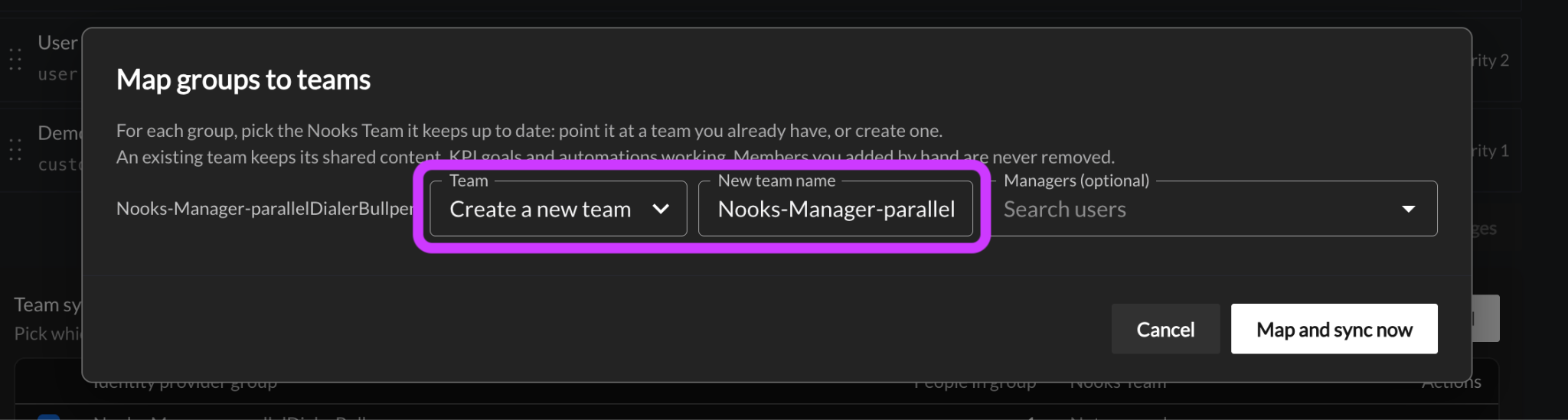
Pick a destination Team for each group:
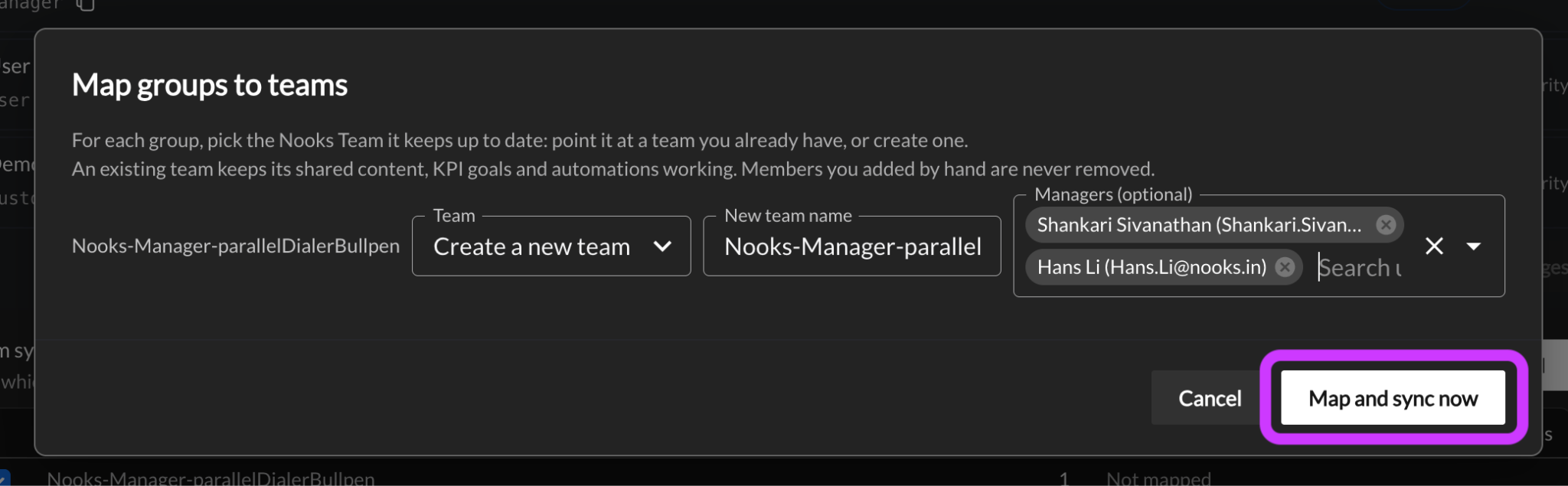
Existing Nooks Team: Select an existing Team. This option is best when one already exists, as the Team retains its ID, so shared content, KPI goals, and automations keep working.
New Nooks Team: Select Create a new team, then enter a name in the New team name field to create a Team during setup.
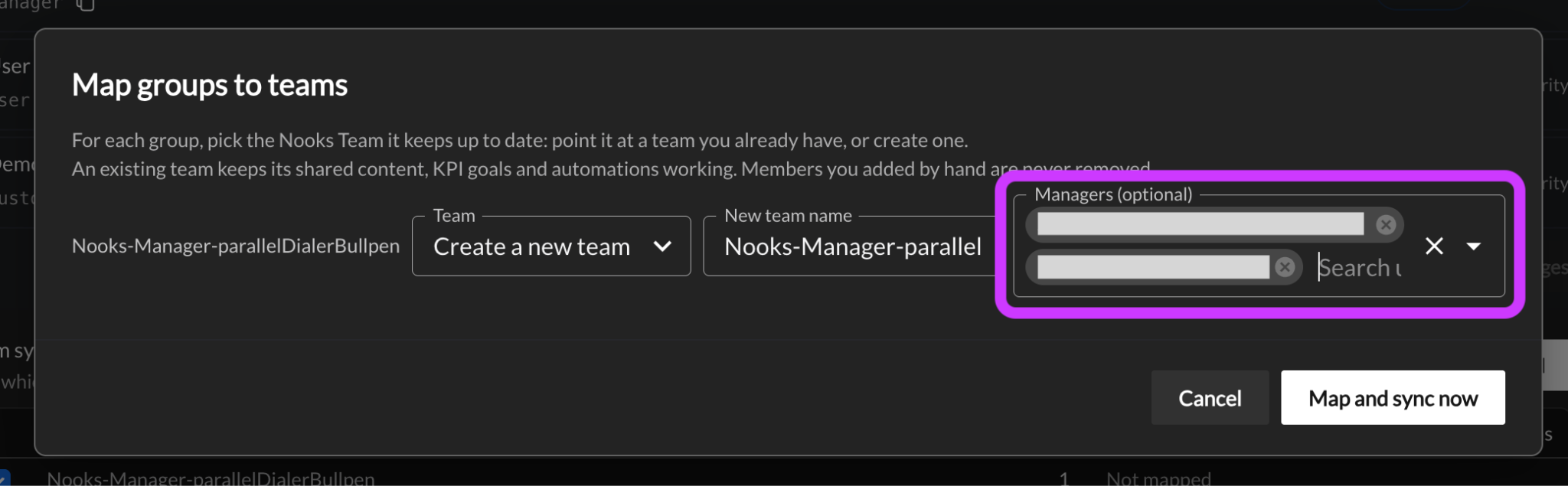
Optionally, assign the Team Managers in the same dialog. Because SCIM carries no group owner, managers must be assigned in Nooks.
Click Map and sync now. The first sync begins immediately. If a mapping conflict occurs, Nooks identifies the affected group or Team.
Review the group’s row in the Team sync table. It should display the mapped Nooks Team. When you open the Team from the Nooks Teams page, its membership should include the pushed group’s members plus any members that were manually added in Nooks.
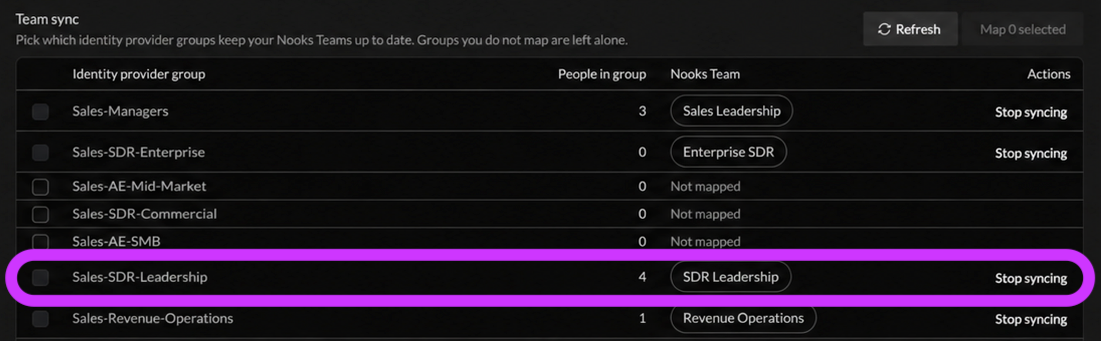
Reminder: Mappings are one-to-one. An identity provider group can only be mapped to only one Nooks Team, and a Nooks Team can only be mapped to one pushed group. Nooks grays out any groups and Teams that currently have active mappings.
What Happens When Membership Changes
The following behaviors apply while the group-to-Team mapping is active.
Action | Result in Nooks |
Add a user to the pushed group in your identity provider | The user is added to the mapped Nooks Team in near real time. |
Remove a user from the pushed group in your identity provider | The user is removed from the mapped Nooks Team in near real time. Their Nooks account remains active, and their other Team memberships remain unchanged unless you also update the corresponding groups. |
Deactivate a user in your identity provider | The user is deactivated through SCIM and removed from every Nooks Team managed through a mapped group in near real time. They are not removed from unmapped Teams. |
Add a member to the Team directly in Nooks | The member remains on the team independently of the identity provider group and can be removed directly in Nooks. |
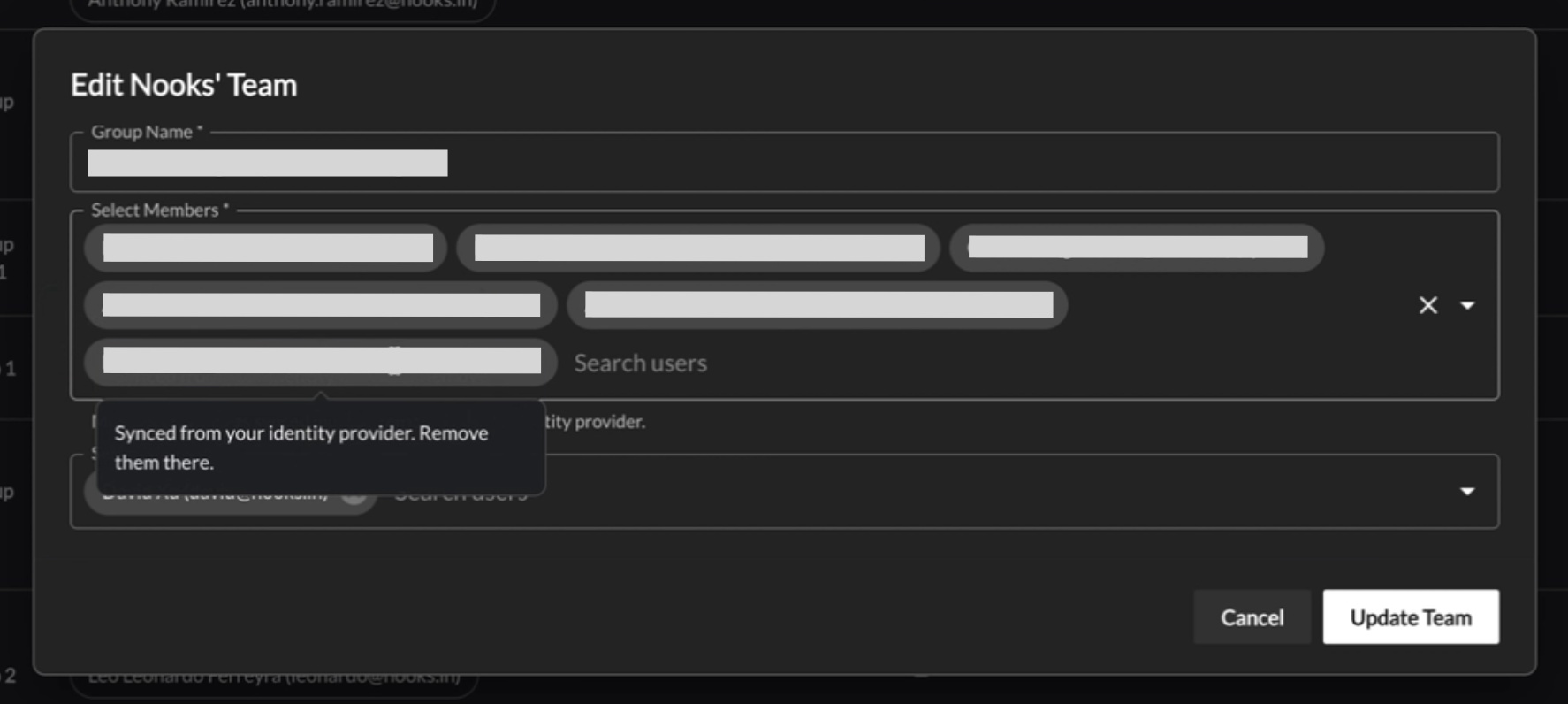
Try to remove a SCIM-managed member from the Team in Nooks | Nooks does not display an option to remove the member. Their membership must be updated in the mapped group. |
If you have the Nooks Identity & Provisioning or Teams page open when a group membership change occurs in your identity provider, refresh the Nooks page to display the latest state.
Remove a Member from a Synced Team
To remove a SCIM-managed member from the synced Nooks Team without deactivating their account entirely, update their membership in your identity provider.
In your identity provider, open the pushed group mapped to the relevant Nooks Team.
Remove the user from the group, then save or confirm the change.
After the update syncs, go to Nooks Teams settings and confirm that the user is no longer a member of the Team. If the Teams page was already open, refresh it to display the change.
Warning: Do not deactivate a user when you only want to remove them from a Team. Removing the user from the pushed group updates that group’s mapped Team. Deactivating the user revokes their access to Nooks and removes them from every Nooks Team managed through a mapped SCIM group.
Nooks does not allow you to remove SCIM-managed members from the synced Nooks Team directly from the Nooks Teams settings. When you hover their name in the Edit Nooks Team dialog, the following tooltip appears: Synced from your identity provider. Remove from there.
Deactivate or Reactivate a User
When you deactivate a user in your identity provider, they lose access to Nooks and are immediately removed from every mapped Nooks Team. They are not removed from any unmapped Teams they are on.
Reactivating a user in your identity provider restores their Nooks access and their Nooks Team membership. Wait a few moments after reactivating the user, then refresh the Team sync table and/or Nooks Teams settings for the reactivation to sync.
Stop or Change a Team Mapping
Stop a mapping when you no longer want a pushed group to manage a Nooks Team’s membership or when you need to map the group to a different Team.
To stop or change a mapping:
In Nooks, go to Settings → All Settings.
Under User Management, select Identity & Provisioning.
In the Team sync table, find the mapped group and click Stop syncing.
Confirm that you want to stop the mapping. Stopping a mapping does not remove anyone from the team. Existing synced members become regular Nooks Team members who can be managed directly in Nooks. Future changes to the pushed group no longer update the (now unmapped) Team.
If needed, edit the Team from the Teams page in Nooks Settings.
To map the group to another Team, create a new mapping and select the correct destination Team. Nooks syncs the group’s current membership to that Team.
When you remap a group, Nooks adds all current group members to the newly mapped Team. This includes group members who may have been manually removed from the Team while the Team was unmapped. Members added to the Team directly in Nooks remain on the Team even if they are not part of the pushed group.
Note: Mapping changes do not clean up the previous Team. If you remap a group from one Nooks Team to another, the previous Team retains its existing members and becomes manually managed. Review that Team and remove members manually as needed.
Disabling the SCIM team sync feature flag only hides the Team sync section. Existing mappings continue to sync. To stop syncing entirely, click Stop syncing for each mapping.
Deployment Best Practices
Configure and test Team sync with one pushed group before mapping the rest of your organization’s groups. Use the following test:
Follow the steps above to map one group from your identity provider to a Nooks Team.
Remove two people from the group in Okta. They should leave the mapped Nooks Team within moments. Verify from the Team sync table in the Identity & Provisioning settings, and the Team in Teams settings.
Add those users back to the group, along with one new user. Confirm that all three appear in the Team from the Team sync table in the Identity & Provisioning settings, and the Team in Teams settings.
Deactivate a test user in your identity provider. Confirm that the user is removed from every mapped Nooks Team from the Team sync table in Identity & Provisioning settings, and the Team in Teams settings.
Troubleshooting
Use the following table to resolve common SCIM Team sync issues.
Issue | Resolution |
The Team sync section does not appear | SCIM provisioning is disabled or the Team sync feature flag may not be enabled. First, verify your Workspace has enabled and configured SCIM provisioning, then contact your Nooks CSM or Nooks Support if the section still does not appear. |
Nooks displays | No groups have been pushed successfully. In Okta, confirm that the group’s Push Status reads Active. Assigning a group to the Okta application alone does not push it. |
The entire SCIM section is grayed out | Your Nooks Permission Profile may be missing the Manage SCIM Provisioning or Manage Nooks Teams permission. Ask a Nooks admin to review and update your permissions. |
A mapping displays a red Team Missing label | The mapped Nooks Team was deleted. Click Stop syncing, then map the group to an existing or new Team. |
A group is labeled Deleted in your IdP | The group was deleted or removed from provisioning in your identity provider. Stop the mapping, or recreate and push the group again. |
A Nooks Team does not appear as a mapping option | Another pushed group is already mapped to that Team. Stop the existing mapping or select a different Team. |
The group and Team headcounts do not match | The Team may include members who were added directly in Nooks. First, refresh the Team sync table to retrieve the current group state, then compare the synced and manually mapped members. |
If you still need help, contact your Nooks CSM or Nooks Support. Please include your Workspace name and the identity provider group you are trying to map.
FAQs
Does adding a user to a Nooks Team while the Team is mapped to a group update the group's membership in our identity provider?
No. When a identity provider group is mapped to a Nooks Team, the sync is one way from your identity provider to Nooks. Any updates to the group's membership are reflected in the Nooks Team membership in near real time.
If you manually add a user to a Nooks Team while that Team is mapped to an identity provider group, that user just becomes a member of the Nooks Team. They do not appear in your identity provider group and their Nooks Team membership must be managed directly from Nooks.