Theme Settings
Last updated: November 13, 2026
This guide covers the user-level theme setting in Nooks. It explains how to change between themes, which pages follow your theme, and how your theme works in the Nooks Chrome extension and the Nooks Outlook Add-In.
Applies To: All Nooks users. No special permissions required.
Overview
Your theme sets the colors Nooks uses across the app, including the main app pages, the left-hand navigation menu, and Settings. The theme is a personal setting. Changing it only changes what you see, not what your teammates see.
Choose a Theme
You can change your theme from the settings menu or from Dialer Preferences. Both control the same setting, so a change in one place applies everywhere.
Nooks support the six theme options, enabling you to customize how Nooks appears to your liking.
Theme | What It Looks Like |
|---|---|
Off-white | A soft off-white page and left-hand navigation menu, with white cards, dark text, and pink highlights. |
Cool gray | A light slate-gray page and left-hand navigation menu, with white cards, dark text, and pink highlights. |
Dark sidebar | A soft off-white page and a dark charcoal gray side sidebar, with white cards, dark text, and pink highlights. |
Dark | A dark charcoal page and a slightly darker left-hand navigation menu, with slightly lighter charcoal cards, light gray text, and bright pink highlights. |
Dark blue | A deep navy page and a slightly darker left-hand navigation menu, with slightly lighter navy cards, light gray text, and bright pink highlights. |
System | Switches between your light and dark theme to match your computer’s appearance. |
From the Settings Menu
You can always choose your theme from the Theme panel in the account settings menu. The Theme row in the menu shows your current choice.
To choose a theme:
In the left-hand navigation menu, click the Settings icon (gear).
Hover over Theme in your account menu.
Select one of the six theme settings: Off-white, Cool gray, Dark sidebar, Dark, Dark blue, or System. The checkmark denotes your current theme.
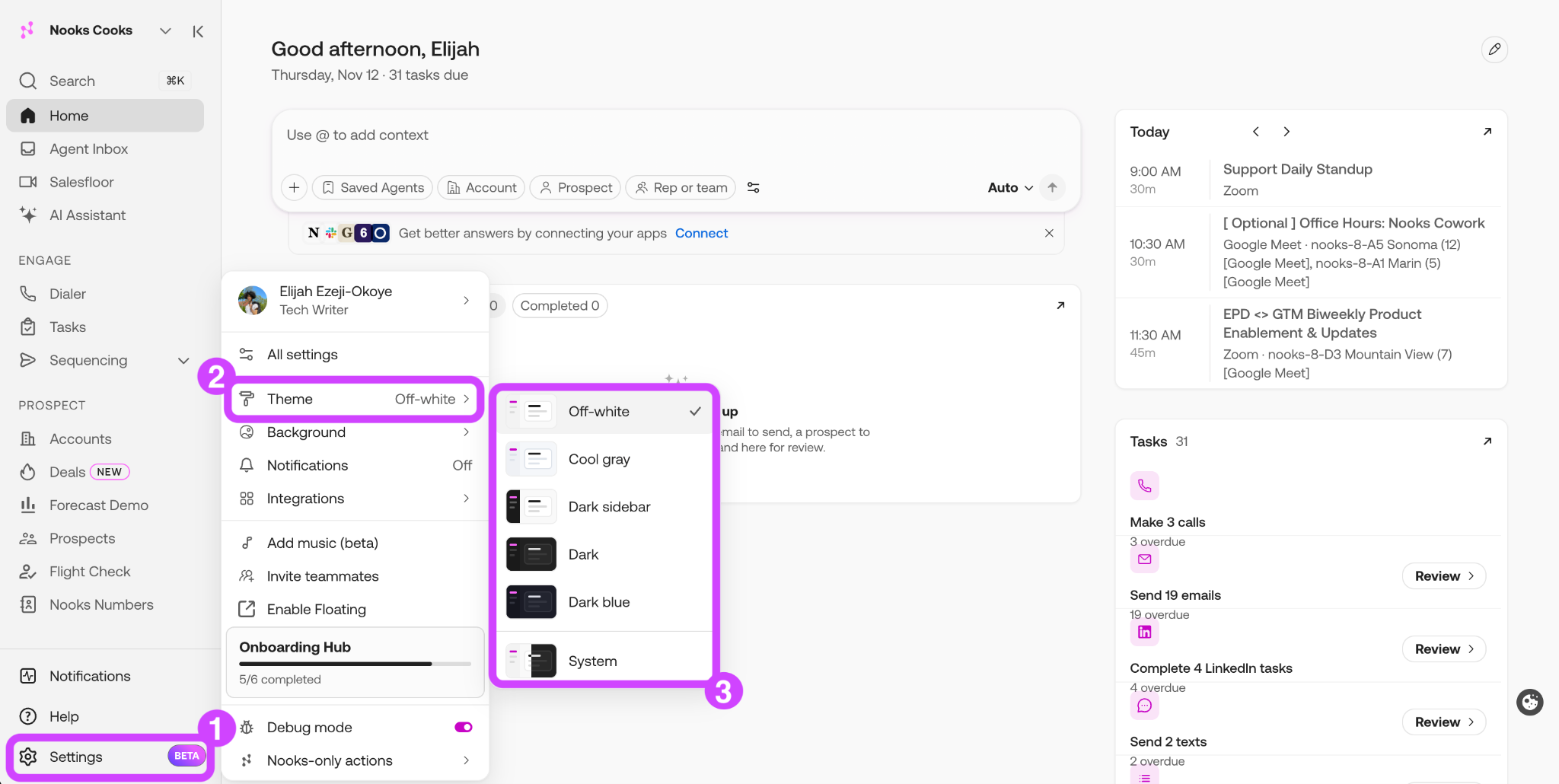
Nooks applies your choice right away. The theme panel stays open so you can compare themes before you move on.
From Dialer Preferences (Dialer seats only)
If you have a Dialer seat (Bullpen + Power Dialer or Bullpen + Parallel Dialer), you can also change your theme from Dialer Preferences.
To choose a theme:
Go to Settings → All Settings.
Under Dialer, select Preferences.
Scroll to Theme.
In the dropdown menu, select a Nooks theme.
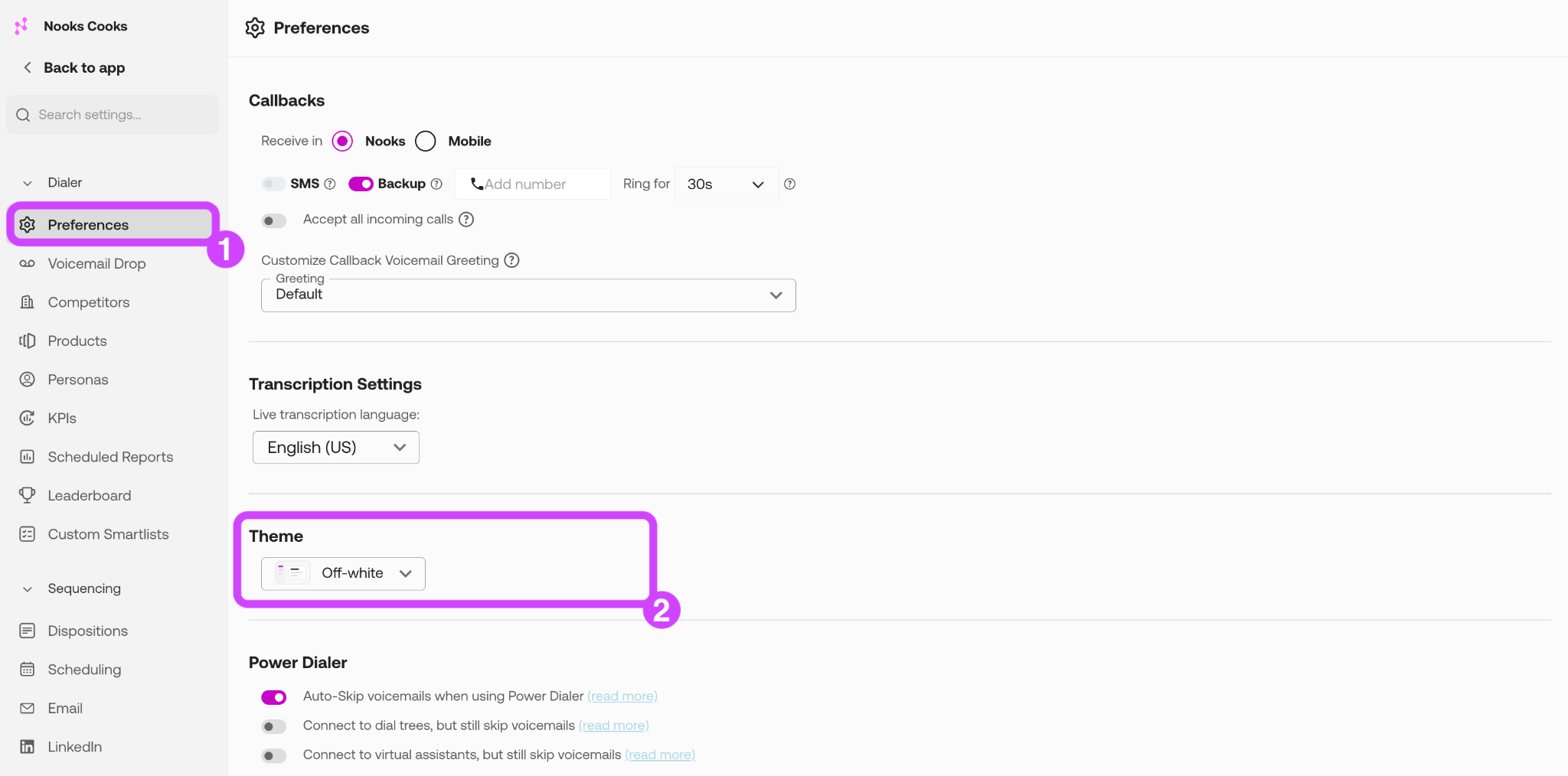
Nooks applies your choice right away. To compare themes, click into the dropdown again and select a different option.
Where Your Theme Applies
Every page in the Nooks web app consistently follows your theme. The Nooks Chrome extension and the Nooks Outlook Add-In handle your theme slightly differently.
Nooks Chrome Extension
The Nooks Chrome extension side panel follows your Nooks web app theme and has no setting of its own.
Nooks Outlook Add-In
The Nooks Outlook Add-In follows Outlook’s appearance setting, not your Nooks theme setting. Changing your appearance setting in Outlook only affects the Nooks Outlook Add-In; it does not affect your Nooks web app.
FAQs
Does changing my theme affect my teammates?
No. Your theme is a personal setting that applies only to your account.
Can an admin set a theme for the whole Workspace?
No. Each user chooses their own themes. Admins cannot set or enforce one.
Does my theme sync across browsers and devices?
Yes. Your theme is saved to your account and applies wherever you sign in to Nooks in a browser.
Does using a Dark theme change how my emails look to my recipients?
No. Your theme changes only how Nooks looks to you.
Why doesn’t the Outlook Add-In match my Nooks theme?
The Outlook Add-In follows Outlook’s appearance setting, not your Nooks theme. To change how the add-in looks, change your appearance in Outlook.