Custom MCP Connectors for the AI Assistant
Last updated: July 30, 2026
This guide explains how to connect a custom MCP (Model Context Protocol) server as a data source for the Nooks AI Assistant. It covers how to create a connector, how to choose between a shared or per-user connection, how to use it once its live, how access and permissions work, and how to manage a connector over time.
Overview
Nooks’ AI Assistant is your AI helper built into Nooks. It can knit together information from various data sources to answer questions, research accounts, identify hot prospects, and analyze data. With your approval, it can also take actions across certain tools your team already uses. Using the AI Assistant effectively can unlock time you would otherwise spend hopping between tabs during account research and prospecting.
In addition to the account and prospect context that lives in Nooks, the Assistant can read from native integrations like your CRM (Salesforce or HubSpot), LinkedIn Sales Navigator, your and Gong out of the box. You can also connect it to built-in connectors, like Notion, to grant it access to the data that lives there. Connecting a tool means the AI Assistant can pull real, up-to-date information from it during a conversation, instead of you manually checking that tool and copying details yourself.
However, some of the most useful data for your team’s prospecting workflow lives in tools that are not already in Nooks’ connectors list. For example, your team may store valuable context in a data analytics platform, an internal wiki, or a data enrichment provider.
If your team uses a tool that runs its own MCP (Model Context Protocol) server, your Workspace admin can add it to Nooks as a custom, admin-managed MCP connector. MCP is an open, shared standard that defines a common way for AI applications to connect to external tools. Once connected, Nooks’ AI Assistant can immediately integrate that tool’s data into its responses, the same way it already does for your CRM, Nooks data, and LinkedIn Sales Navigator.
A custom MCP connector can be set up two ways:
Shared (Workspace-wide): An admin connects once, and the whole Workspace inherits that single connection.
Individual (per-user): Each teammates connects their own account, and the AI Assistant uses their specific connection when acting on their behalf.
Which mode is available depends on the authentication method chosen during connector setup. See Creating a Custom MCP Connector in Nooks below.
Creating a Custom MCP Connector in Nooks
Users with the “Configure Integrations” permission on their Nooks Permission Profile can add, edit, or remove custom MCP connectors. This permission is granted to the Workspace Admin role by default and can be extended to other roles.
Recommendation: Before you start, have your target tool’s MCP documentation open. You will need it to confirm the exact MCP endpoint URL, the authentication method it expects, and what scopes it exposes.
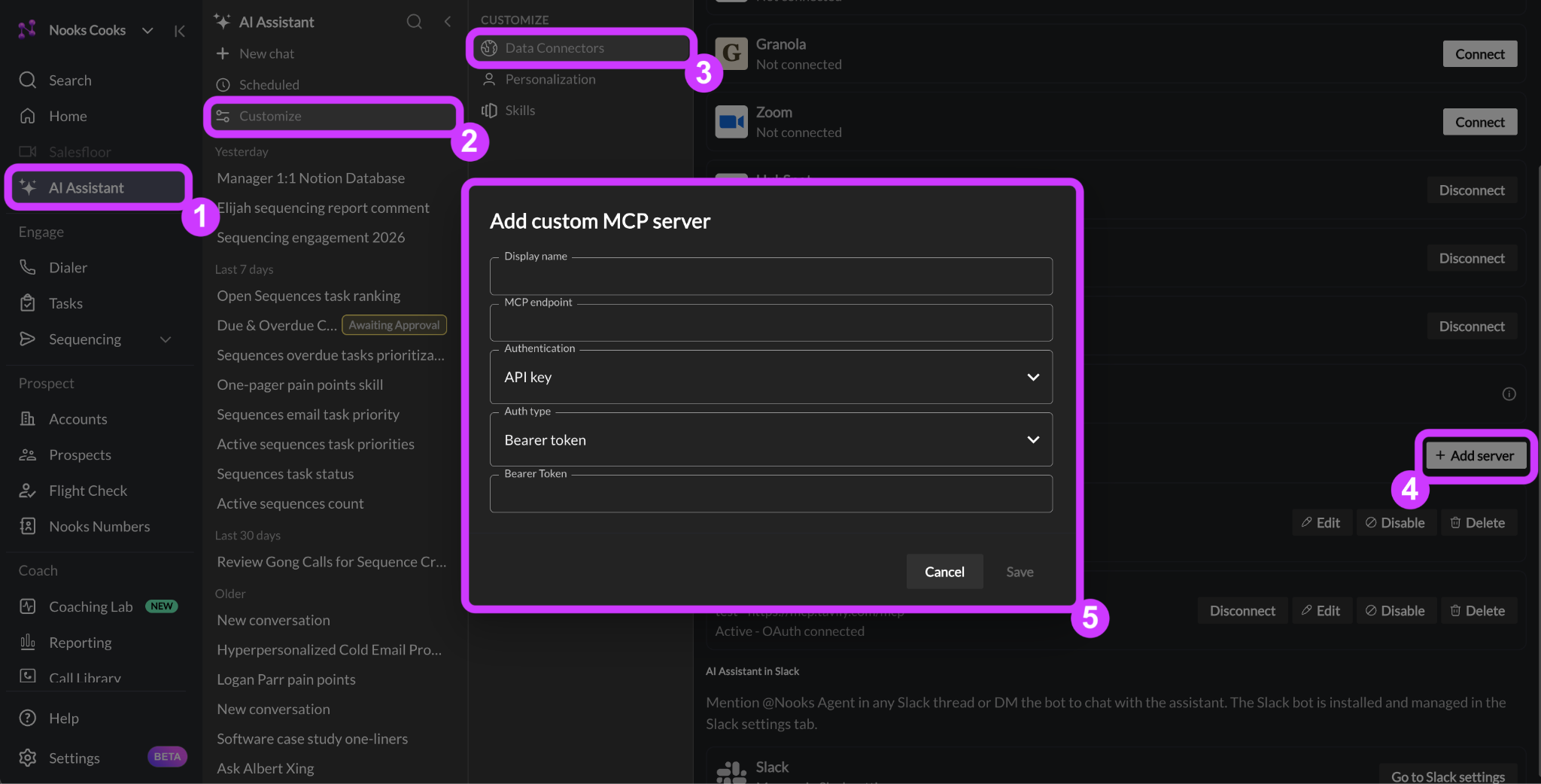
In Nooks, open the AI Assistant.
Click Customize → Data Connectors.
Locate the Custom MCP servers section, then select + Add Server. This will open a configuration modal:
Enter a Display Name. Choose a name that clearly identifies the tool, since this is how it will appear in Nooks. Users will need to reference this name in their prompt when chatting with the AI Assistant and building Agents that use it.
Enter your tool’s MCP Endpoint (the URL your tool’s MCP server exposes for remote connections). Refer to your tool’s MCP documentation for the exact value.
Choose an Authentication and Auth Type depending on what your tool’s MCP server expects, and enter the required information. Supported methods are listed in the table below.
If you chose OAuth, you will see a toggle labeled Every user must connect. This is on by default for new OAuth connectors.
On (default): Each user connects their own account through the provider's sign-in page. Teammates who have not connected yet are prompted to do so when the AI Assistant or an Agent tries to use the connector.
Off: An admin connects the server once after saving, and that single connection is shared by the whole Workspace. Teammates do not need to sign in individually, but every user receives the admin's level of access.
Press Save.
Nooks supports creating custom MCP servers using the following authentication methods. Depending on which you select, different configuration inputs are required.
Authentication | Auth Type | Configuration Inputs |
API key | Bearer token | Bearer token |
API key | Query parameter | Query parameter value Query parameter name |
API key | Custom header | Header name Header value Value prefix (optional) |
OAuth (browser sign-in) | OAuth client ID (optional) OAuth client secret (optional) Most MCP servers support Dynamic Client Registration (DCR), so Nooks registers itself as an OAuth client automatically and these fields can stay blank. Only complete these fields if your tool’s MCP server requires a pre-registered OAuth client rather than DCR. |
If you choose API Key authentication, your custom MCP connector is ready for use by your Workspace as soon as you save the configuration.
If you choose OAuth authentication, what happens next depends on the Every user must connect toggle.
Toggle on (default): After saving, each user (including the admin who created the connector) presses Connect next to the Connector for themselves, or connects from a prompt inside the AI Assistant the first time they try to use it. Only users who have completed their own sign-in can use the connector; everyone else's use of the AI Assistant and Agents simply skips it until they connect.
Toggle off: Press Connect next to the connector after saving. This opens a browser sign-in flow for the target tool. Once an admin completes the flow, access is shared by the whole Workspace without teammates needing to sign in individually.
Access and Tools
Regardless of which authentication method you use, a Custom MCP Connector’s access works the same way in Nooks.
Every tool the outside MCP offers becomes available. There is no selector to curate a list of scopes. The specific account that connects—a shared API key, single admins, each individual user's—determines what the connector can see and do.
Access limits are set by the external tool, not Nooks. What the AI Assistant can see or do through a custom MCP connector depends entirely on that tool’s own permission model, and the specific API key or account you used to connect it.
The tools that become available are determined by what the outside MCP server offers. Consult your tool’s MCP documentation for the list of MCP tools it offers.
The authentication method does not change what is exposed. The authentication method only changes how the connection authenticates and. for OAuth, whose account is used.
How Authentication Mode Changes Whose Access Applies
On a shared connector (API key or OAuth with "Every user needs to connect" toggled off), every user in the Workspace uses the same underlying credential. Everyone gets access to whatever that one account or key can see and do in the outside tool.
On an individual (per-user) OAuth connector, each user's access is scoped to their own account in the outside tool. A teammate can only see and act on what they personally have permissions to do in that tool, not what any other user (including the creating admin) can access.
Tip: Connect a credential that is scoped to only what you want the AI Assistant to see and do.
For a shared connector, that usually means a read-only API key or a service account if you don't want users to be able to take actions in that tool.
For an individual connector, remind teammates that they will be granting the AI Assistant the same access their own account has in that tool.
Refer to your tool's documentation for what credentials are available.
Using Your Custom MCP Connector in Nooks
Once created, all users can reference the connector's tools in their prompts to the AI Assistant and in their Agents. For individual (per-user) connectors, a given user's prompt can only use the connector's MCP tools once they have completed their own connection.
In the AI Assistant
To use a custom MCP connector when chatting with the AI Assistant, mention it by name in your prompt. This helps the AI Assistant pick the right tool when more than one could apply. For example:
Using [custom MCP connector's name], [task]
The AI Assistant decides on its own, based on your request, when to actually call the connector. You do not need to match the above phrasing exactly for the AI Assistant to use the connector.
When you submit your prompt, the AI Assistant shows in its thinking steps that it is hitting the custom MCP server, and integrates the information it returns in its response.

The same applies to Scheduled Agents built in the AI Assistant. Simply call out the custom MCP connector by name and state what you want to use it for. Your Scheduled Agents will call the custom MCP connector where appropriate.
In Agents Built in the Agent Builder
You can also use your custom MCP connectors when building Agents in the Agent Builder.
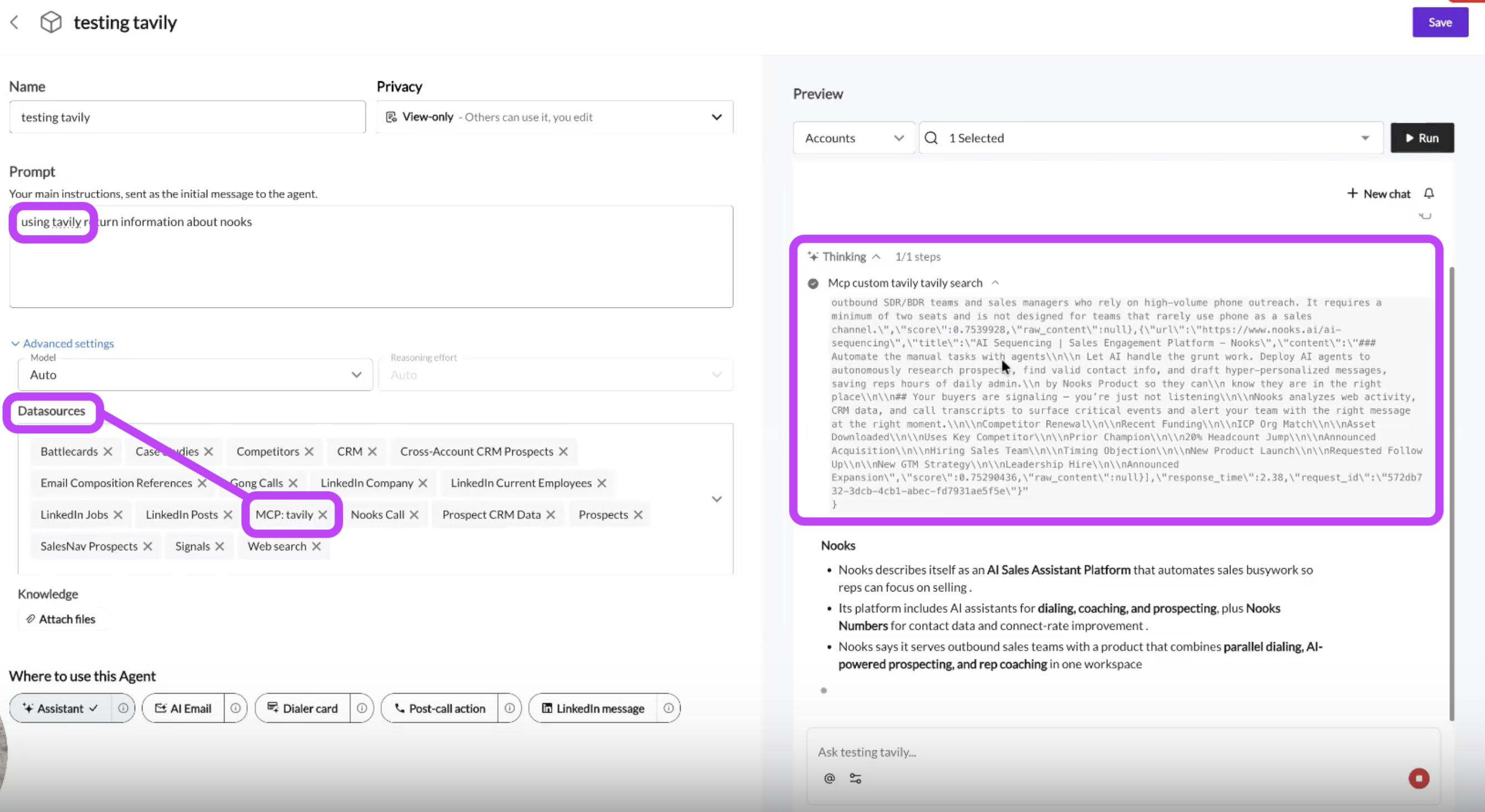
Reference the name of your custom MCP connector and what you want to do with it in your prompt.
Open the Advanced Settings dropdown and locate the Datasources field.
Click into the Datasources field and enable the custom MCP connector you referenced in your prompt. It will appear as “MCP: [Name].”
When you test or run the Agent, the Thinking steps show that the Agent calls the MCP server and the data is integrated into the Agent’s output.
Managing Your Custom MCP Connectors
Workspace admins can take actions to manage the custom MCP connectors your team has connected to your Workspace. To do so, go to AI Assistant → Customize → Data Connectors, then locate the Custom MCP servers section. Alongside each connector, you will see buttons to:
Connect/Disconnect/Reconnect (only shown for OAuth-connected MCP apps)
Edit
Delete
Disable/Enable
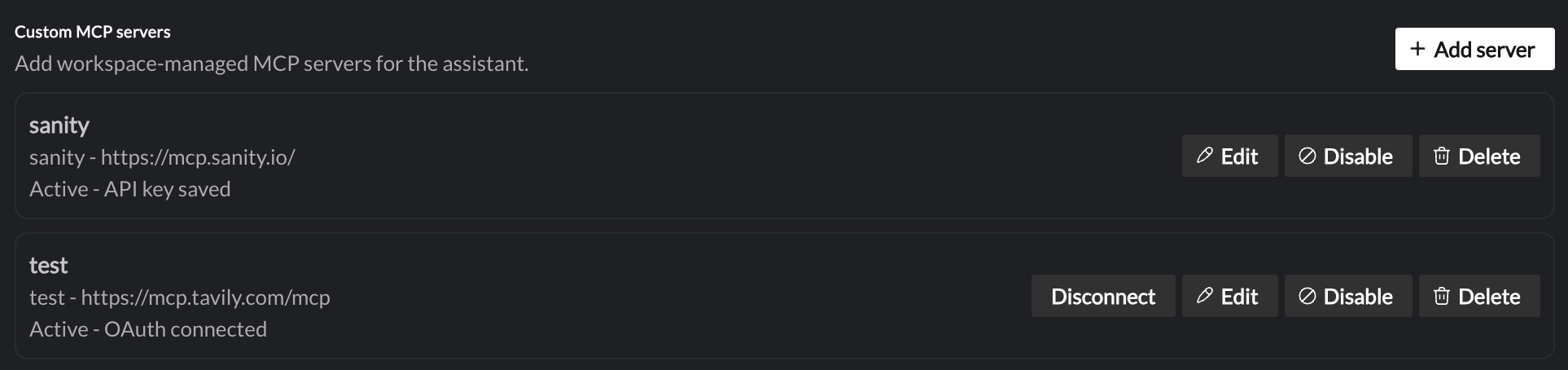
For a connector set to individual (per-user) connections, every Workspace member (not just admins) see their own Connect/Disconnect/Reconnect button. This button reflects their personal connection status. The list also shows how many teammates currently have an active connection, so an admin can gauge adoption without needing to see who specifically has connected.
Connecting, Disconnecting, and Reconnecting
These options only apply to custom MCP connections that use OAuth. An API key connector is ready for use as soon as you save it, with no separate connect step.
Shared Connectors: An admin (or someone with the "Manage Integrations" permission) must connect the MCP server before the rest of the Workspace can use it. All users in the Workspace inherit the connector's level of access to the MCP server. Disconnecting immediately ends the whole Workspace's access; reconnecting immediately restores it.
Individual (Per-user) Connectors: Any Workspace member can connect or disconnect their own connection. Disconnecting immediately ends your personal access to the connector; reconnecting immediately restores it. Your individual connection status has no effect on any other teammates.
Editing
Admins can rename a connector, change its endpoint, or update its saved credentials at any time. If you change the endpoint on an OAuth-connected server, Nooks clears the existing sign-in, so you will need to reconnect afterward.
One thing that cannot be modified after creating a custom MCP connector is the authentication method itself. Within API key authentication, you can freely change the Auth Type (Bearer token, Query parameter, or Custom header) without recreating the connector. Only the Authentication method itself (API key versus OAuth) is locked after creation. To switch a connector from an API key to OAuth, or vice versa, delete the connector and create a new one.
For OAuth connectors, you can modify the Every user must connect toggle at any time. Admins can flip it at any time to switch between shared and individual connections. Adjusting this toggle disconnects everyone's existing connection to that server, whether it was the one shared connection or each individual user's. Every affected will need to reconnect under the new mode.
Disabling and Enabling
Disabling a connector immediately stops its tools from being available to the AI Assistant but keeps its configuration and saved credentials in place. Disable a connector to temporarily pause access, such as when a server is down for maintenance or experiencing an outage, since re-enabling later does not require any new configuration.
You can re-enable a currently disabled connector at any time. Doing so immediately makes its tools available to the AI Assistant again, using whatever connections (shared or individual) were already in place.
Deleting
Deleting a connector permanently removes it from your Workspace. This action is not reversible. Use this option only when you no longer want the AI Assistant using that tool at all, or when you need to switch authentication methods. Reconnecting afterwards requires setting the connector back up from scratch.
Security and Privacy Considerations
Only connect trusted MCP servers. A custom MCP connector gives the AI Assistant the ability to read, and in some cases act on, data in that tool for your entire Workspace. Only add connectors for tools and vendors your team trusts, and confirm the endpoint you are entering is the tool's genuine, official MCP server.
Review the credential's own permissions before connecting. The AI Assistant inherits whatever access the API key, bearer token, or OAuth account connected to it has. If that credential has broad or admin-level access in the outside tool, whoever's connection it is will have that same level of access through the AI Assistant.
Use individual connections for tools where access should follow the person, not the Workspace. If your outside tool shows different data or permissions to different people, create it using the OAuth "Every user needs to connect" mode. That way, each teammate's use of the AI Assistant only surfaces what they're personally allowed to see, instead of everyone inheriting one admin's (potentially broader) access. A shared connection to a permissions-aware tool effectively gives everyone in the Workspace whatever the connecting account can see there.
Know your connector's access model. For a shared connector, remember that access is Workspace-wide; once connected, every user can invoke its tools through the AI Assistant and in Agents. For an individual connector, each user's access is their own, but is still exactly as broad as what their personal account can do in that outside tool, so the same care applies when a teammate connects with a highly privileged account.
Disable a connector immediately if something looks wrong. For example, disable a connector if a tool starts returning unexpected data or if you suspect the server has been compromised. Investigate thoroughly before re-enabling it.
FAQs
What kinds of outside tools can I connect?
You can connect any tool that operates an MCP server and authenticates with either an API key/bearer token or an OAuth 2.0 sign-in. Check your tool's own documentation to confirm it exposes an MCP server and which authentication method it uses.
Does connecting a tool depend on my subscription or plan with that outside tool?
Yes. Availability to a tool's MCP depends entirely on the outside tools own plan and licensing, not anything on the Nooks side. If your plan with that tool limits certain data or actions, those same limits apply through the AI Assistant. Refer to your tool’s MCP documentation for information on availability.
Does everyone on my team get access to a Custom MCP connector automatically, or does each person need to connect it separately?
It depends on how you configured the app.
API key connectors, and OAuth connectors with "Every user must connect" turned off, are shared. One connection (typically made by an admin) is used by everyone in the Workspace automatically.
OAuth connectors with "Every user must connect" turned on require each teammate to connect their own account before they can use it. Anyone who has not connected yet will be prompted to do so when the AI Assistant or an Agent tries to use that connector on their behalf.
How do I know what data a connector can see, or what actions it can take?
Refer to your outside tool's own MCP documentation for the full list of tools it exposes. What a specific connection can actually access is then determined by whichever credential or account is behind it—the shared API key/admin's OAuth account, or (for individual connectors) each user's own account.
Is creating a custom MCP connector the same thing as connecting Nooks to Claude or ChatGPT as an MCP server?
No. This guide covers connecting an outside tool's MCP server into Nooks as a data source, so Nooks' AI Assistant and Agents can use it. It is not related to exposing Nooks itself as an MCP server that other AI tools, like Claude or ChatGPT, could connect to.