Slack Connector for the AI Assistant
Last updated: September 22, 2026
This guide explains how to set up and use the Nooks AI Assistant directly inside Slack. It covers installation, day-to-day usage, and some commonly asked questions about it.
Background
Nooks’ Slack Connector brings Nooks’ AI Assistant right into your Slack workspace, enabling your team to consult it just as you would the AI Assistant in the Nooks web app.
For reps who spend large portions of their day working in Slack, Nooks’ Slack Connector brings important Nooks context, such as account research, call summaries, and sequencing recommendations into their same workflow. The Slack connector also enables managers to ask a quick question about an account and share the answer with a teammate in the same Slack thread.
The Slack Connector lets you talk to the AI Assistant from Slack. It reads the thread it is mentioned in, then generates a response informed by your Nooks data, along with your other connected data sources.
Installing the Slack Connector
The Slack Connector requires a one-time install from a Nooks admin. Once installed, it is available to every user in the workspace, so individual reps and managers do not need to do anything further to start using it.
Prerequisites
In order to complete installation, you need to:
Have permissions to install apps in your Slack workspace.
Be a Nooks admin or have the “Configure Integrations” permission enabled on your Nooks Permission Profile.
Setup Steps
To install the Slack Connector, follow these steps:
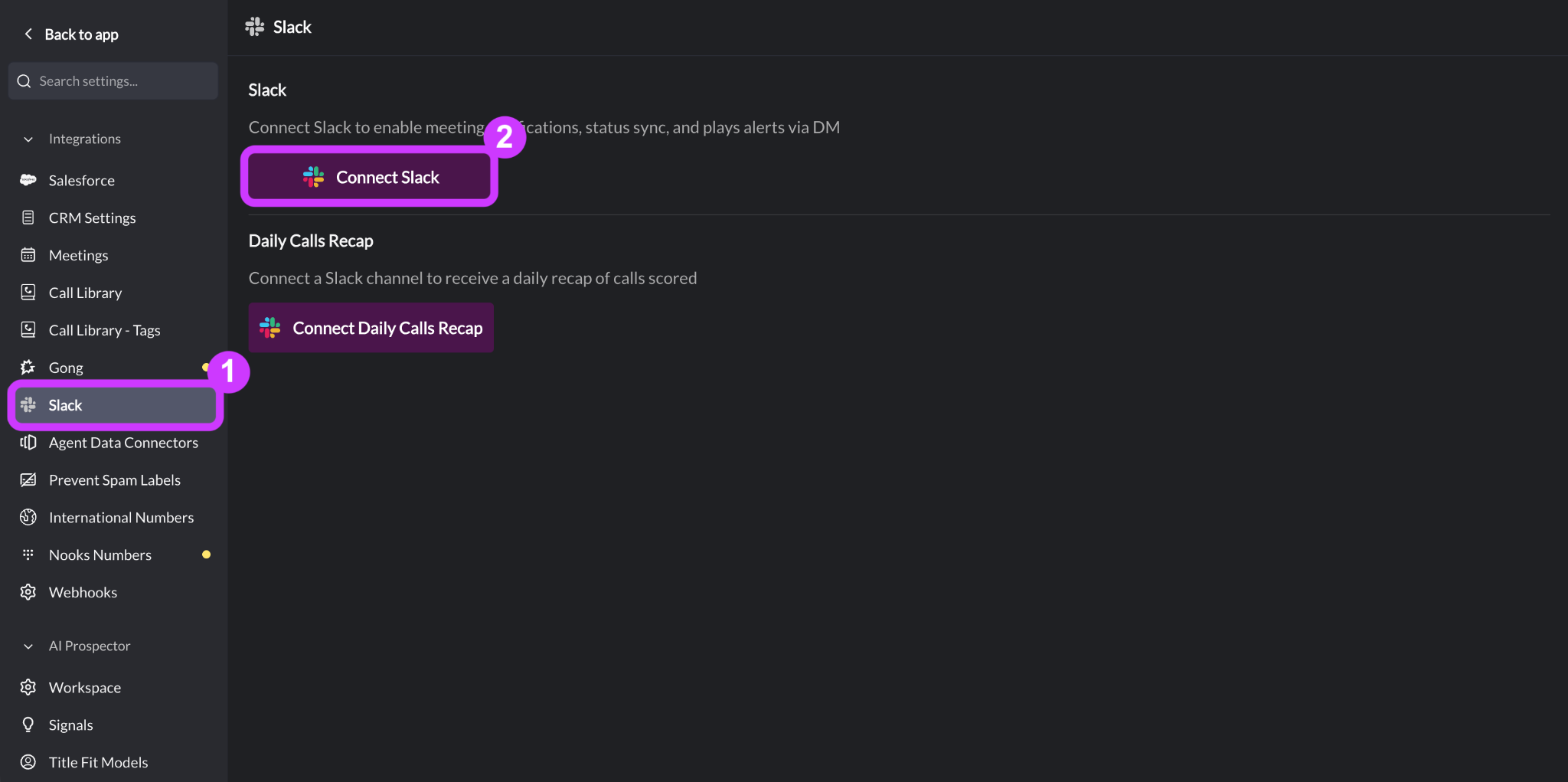
In Nooks, go to Settings → All Settings.
Under Integrations, click Slack.
Click Connect Slack to start the Slack authorization process.
In the Slack OAuth screen:
Select a slack workspace to add the Nooks Agent Slack connector to.
Select a channel for Nooks to post as a webhook. You can add the Nooks Agent to additional channels after initial installation.
Review the required permissions (see below), then press Allow.
Contact your Nooks CSM or Nooks support to ask that the Slack Connector for the AI Assistant be enabled for your team.
Upon receiving confirmation from your Nooks representative, you should be able to begin talking to the AI Assistant from Slack.
End User Identification: End-users do not have to do any additional setup. However, note that the Nooks Slack connector identifies users by matching their Slack profile email to their Nooks email. A mismatch will cause the Nooks Agent to respond with “I don’t recognize you as a Nooks user in this workspace. Ask your admin to invite you, then try again.” To resolve, add the user to Nooks or have them add their Slack profile’s email address as a connected mailbox in Nooks.
Using the AI Assistant in Slack
When you have Nooks connected to Slack, you can ask the AI Assistant any questions you would ask it in the web app. How you talk to the AI Assistant in Slack depends on where the conversation happens.
DM with the Nooks Agent: Every message you send goes straight to the AI Assistant, with no need to @-mention it first.
In a channel or thread: @-mention the Nooks Agent to get a response. The AI Assistant always replies in the same thread rather than posting a new top-level message. If you want to keep the conversation going in that thread, @-mention the AI Assistant again on each follow-up message.
When you send your initial message, the Nooks Agent will react with the 👀 eyes and ⏳ hourglass emojis to indicate it has received your message and is generating a response.
When the Nooks Agent replies, it will remove the ⏳ hourglass emoji to indicate it has finished processing.
Inviting the Nooks Agent to a Channel
To talk to the AI Assistant in a Slack channel, you first need to add the Nooks Agent to that channel. There are two ways to do this:
Type
/invite @Nooks Agentin a message in the channel, then send it.Include
@Nooks Agentin a message. If the Nooks Agent is not already in the channel, Slack will prompt you to add it before your message sends.
Direct Messaging the Nooks Agent
To chat with the Nooks Agent privately, start a new direct message to @Nooks Agent, then talk to the AI Assistant as you would in the Nooks web app. You can follow up in the same thread to build on and refine earlier responses.
Approving Write Actions
After each reply, the Nooks Agent includes a short footer with a link back to the same conversation in the Nooks web app’s AI Assistant.
This link matters most when the AI Assistant needs to take an action that updates your Nooks or CRM data, such as updating a CRM record or enrolling a prospect in a Sequence. The assistant cannot complete that kind of action from within Slack. Instead, it will surface a count of pending approvals along with a link. You just need to open that link and approve the action in the Nooks web app before it runs.
Examples of write actions the assistant can perform, pending your approval, include the following:
Enrolling prospects in a Sequence.
Updating a record in your CRM.
Scheduling a follow-up task.
Marking a task complete.
Capabilities of the Slack Connector
The table below summarizes what the Nooks Slack Connector supports today, so you know what to expect before you start using it.
Capability | Supported? |
DM the Nooks Agent directly | ✅ Supported. |
@-mention the Nooks Agent in any channel where it is added | ✅ Supported. |
Threaded follow-ups | ✅Supported. Must @-mention again in channels. DMs to the Nooks Agent do not need an additional @-mention. |
Full Slack thread context | ✅ Supported, but scoped to a single thread. The Nooks Agent reads everything in the thread it is mentioned in, but cannot see or pull information from other threads, channels, or DMs elsewhere in your Slack workspace. |
Concurrent messages in the same thread | ✅ Supported. The requests are queued. |
Send writes / CRM updates / Sequence actions | ⚠ Allowed, but approval is required in the Nooks web app via deep link in the reply. |
File & image uploads in Slack | ❌ Not supported. |
Slash commands | ❌ Not supported. |
Cross-thread memory | ❌ Not supported. Each Slack thread is one isolated conversation (but persists permanently in the user’s Nooks chat history). |
Note: Because each Slack thread is its own conversation, continuing a conversation later works best if you reply in the same thread, or open the conversation in the Nooks web app using the footer link.
Removing the Slack Connector
To remove the Slack connector:
In Nooks, go to Settings → All Settings.
Under Integrations, click Slack.
Click Disconnect Slack.
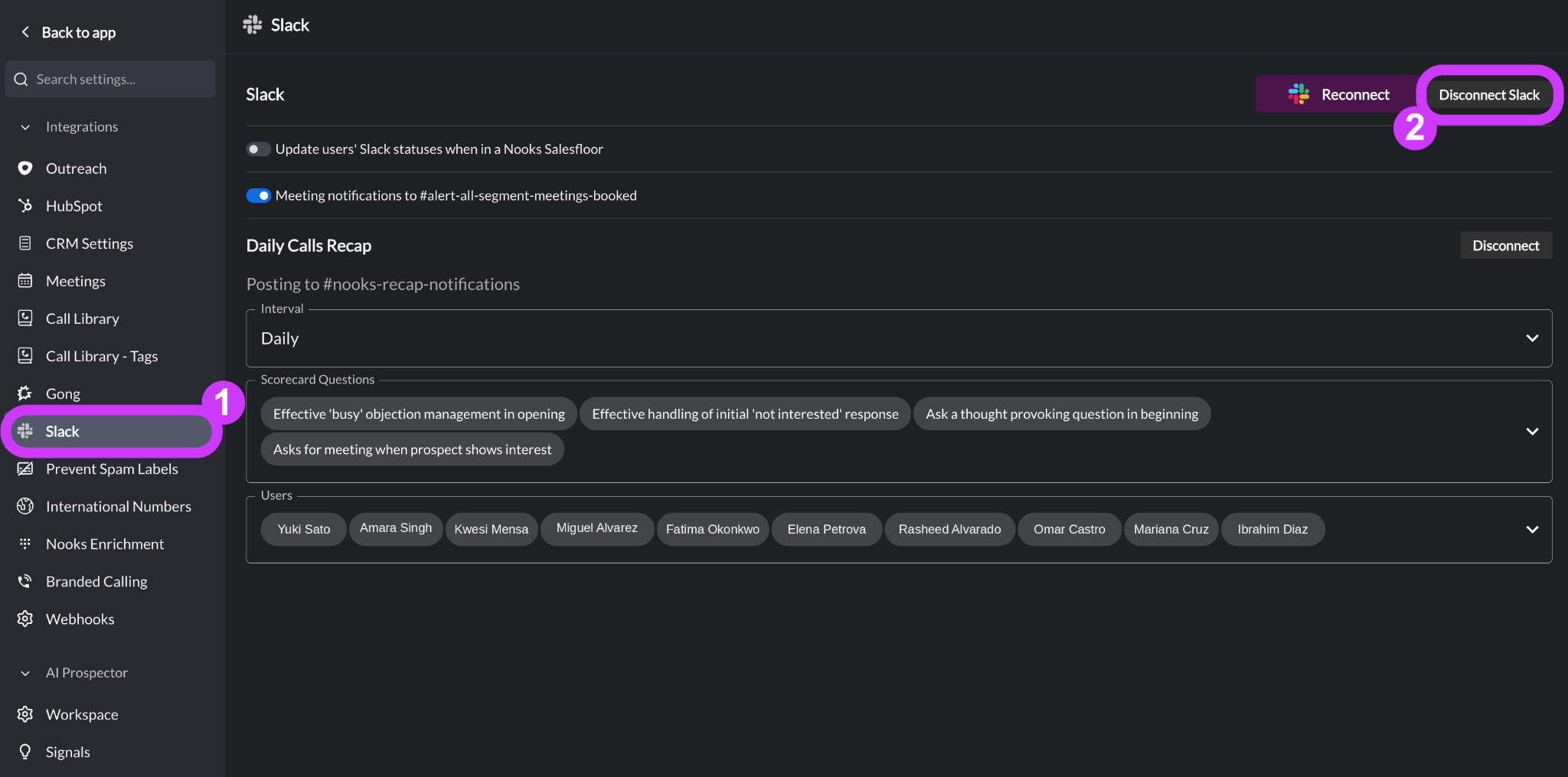
Note: Disconnecting Slack from your Nooks workspace stops the assistant from responding in Slack, but it does not remove the Nooks Slack app from your Slack workspace entirely. To fully remove the app from Slack, a Slack admin needs to remove it from your Slack directory.
Requested Permissions
When you install the Nooks Slack Connector, Nooks requests a specific set of permissions so the AI Assistant can read messages sent to it and reply. The table below lists what each permission allows the assistant to see or do.
Permission Scope | Description | OAuth Scope Name |
Content and info about channels & conversations | View messages and other content in direct messages that “Nooks Agent” has been added to (app action) |
|
Content and info about channels & conversations | View basic information about direct messages that “Nooks Agent” has been added to (app action) |
|
Content and info about channels & conversations | View messages and other content in public channels that "Nooks Agent" has been added to (app action) |
|
Content and info about channels & conversations | View messages and other content in private channels that "Nooks Agent" has been added to (app action) |
|
Content and info about your workspace | View people in your workspace (app action) |
|
Content and info about your workspace | View email addresses of people in your workspace (app action) |
|
Perform actions in channels & conversations | Send message as @nooks_agent2 (app action) |
|
Perform actions in channels & conversations | Send messages to channels @nooks_agent2 isn’t a member of |
|
Perform actions in channels & conversations | Start direct messages with people (app action) |
|
Perform actions in channels & conversations | Add and edit emoji reactions (app action) |
|
Perform actions in channels & conversations | View messages that directly mention @nooks_agent2 in conversations that the app is in |
|
Troubleshooting
Below are some errors that may occur when using the Nooks Slack connector, along with steps to resolve them.
Nooks Agent Responds with: “I don’t recognize you as a Nooks user in this Workspace. Ask your admin to invite you, then try again.”
This error indicates that the Slack connector could not match your Slack account to a Nooks user. To resolve, do one of the following:
Verify you have a Nooks account. Your Nooks Workspace admin can check if you have a Nooks account from Settings → All Settings → Members. If you do not have an account, they can invite you to Nooks with your email address linked to your Slack profile through these steps.
Verify your Slack profile’s email address is in Nooks. In Nooks, go to Settings → All Settings → Email and verify that the email address on your Slack profile is connected to Nooks. If it is not, connect the email address on your Slack profile as an additional mailbox through these steps.
Nooks Agent Does Not React or Reply to a Message
This error indicates that the Slack connector may not be properly enabled. To resolve:
Check that the Nooks Agent is in the Slack channel. The Nooks Agent must be invited to public and private channels before it can respond. If you are DMing the Nooks Agent directly, skip this step, as the Nooks Agent does not need to be invited to DM conversations.
Contact Nooks support. Nooks support will validate whether the feature is still disabled for your Nooks Workspace or Nooks user on the backend.
Nooks Agent Responds with: “Something went wrong answering that.”
This response indicates an unknown error occurred. To resolve, please share the link to the Nooks Agent’s response with the Nooks support team.
FAQs
Does each user need to connect to Slack individually?
No. The Slack connection is a one-time setup that makes the Nooks AI Assistant available to all users in Slack. Once an admin establishes the initial connection, any Nooks user can chat with the Nooks Agent in Slack.
Does the Nooks Agent need to be added to a channel before I can @-mention it?
Yes. In a private or public channel, you need to invite the Nooks Agent first, using /invite @Nooks Agent or by including @Nooks Agent in your message and accepting Slack’s prompt to add it. Direct messaging the Nooks Agent does not require this step.
Does the Nooks Agent remember earlier conversations if I start a new thread?
Each Slack thread is its own separate conversation. The conversation is saved permanently in your Nooks chat history and is viewable in the Nooks web app, but a new thread does not automatically pull in context from a different thread. If you want to continue a conversation, reply in the same Slack thread, or use the footer link to continue the conversation in the Nooks web app’s AI Assistant.
Can I ask the AI Assistant to search Slack and find a specific message?
Not currently. The AI Assistant can only read the thread you @-mention it in. It can't search or pull messages from other threads, channels, or DMs
As a best practice, if you want the AI Assistant to use specific Slack context, @-mention it directly in the thread where that context lives.