Notion Connector for the AI Assistant
Last updated: July 22, 2026
This guide introduces the Notion Connector for the AI Assistant. It covers how to connect and disconnect it, what the AI Assistant can and cannot do inside Notion once it is connected, and example prompts to help you get real value out of it during prospecting and account research.
Background
Your AI Assistant is a research and prospecting partner built into Nooks Sequencing. You can ask it questions about an account, have it summarize a call, draft email and LinkedIn messaging, or have it analyze and synthesize data. The more relevant context it has, the more accurate and personalized its outputs will be.
Data Connectors are how you give the AI Assistant access to information that lives outside Nooks. Instead of manually copying content into or attaching files to a prompt every time you need it, a connector lets the AI Assistant look things up on its own, whenever it’s relevant to what you are working on.
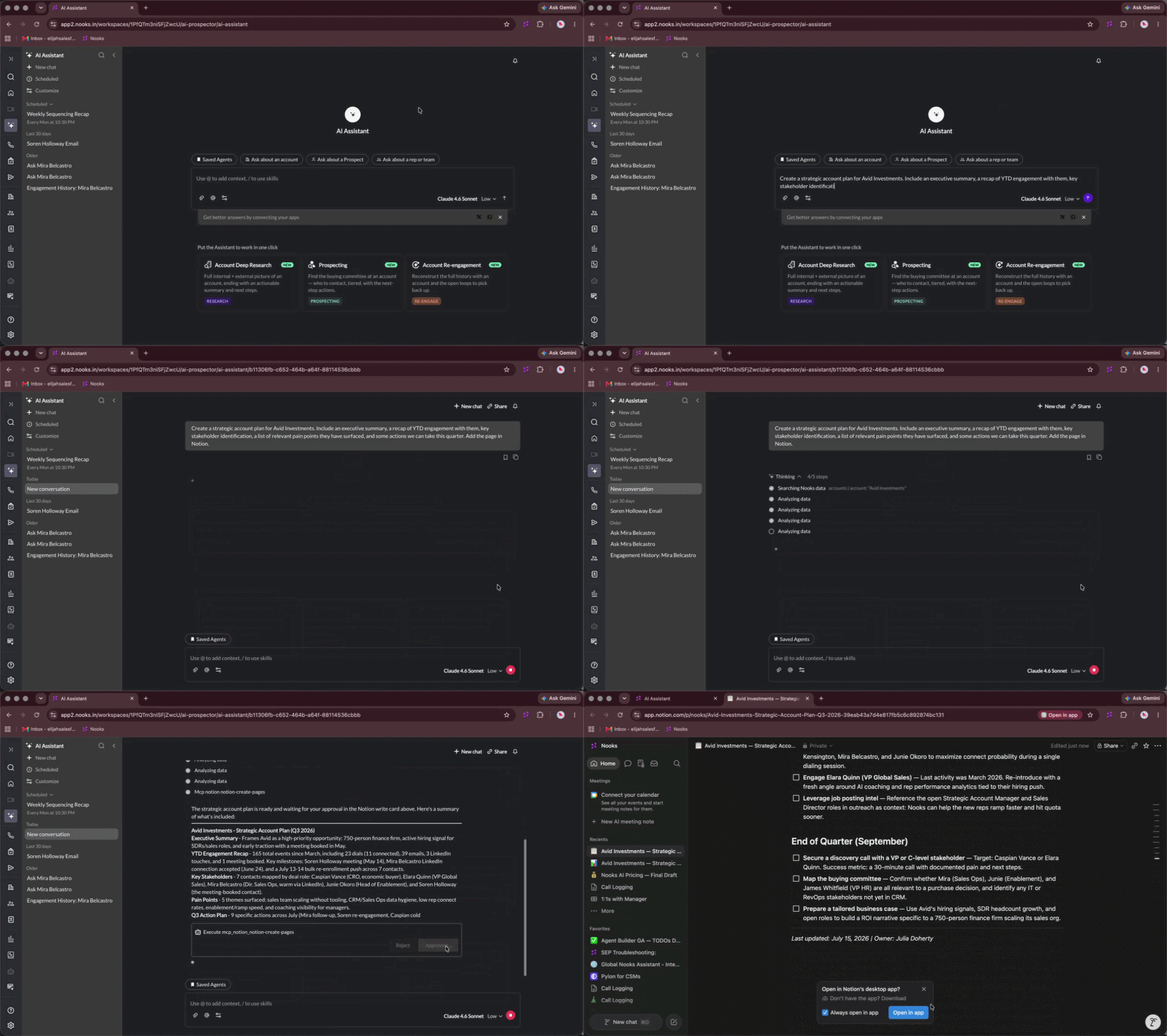
Many teams keep their playbooks, product documentation, competitive battlecards, case studies, meeting notes, messaging, and more in Notion. Connecting Nooks' built-in Notion MCP connector gives the AI Assistant access to all the artifacts your team stores there, enabling it to draw upon those resources when responding to your prompts. With Notion connected, the AI Assistant can help you reference, update, and create content without you having to leave your Nooks workflow.
Connecting the Notion Connector
Each user can connect to the Notion connector. Your connection is used for your account and only grants your AI Assistant access to what you can view, edit, and create in Notion.
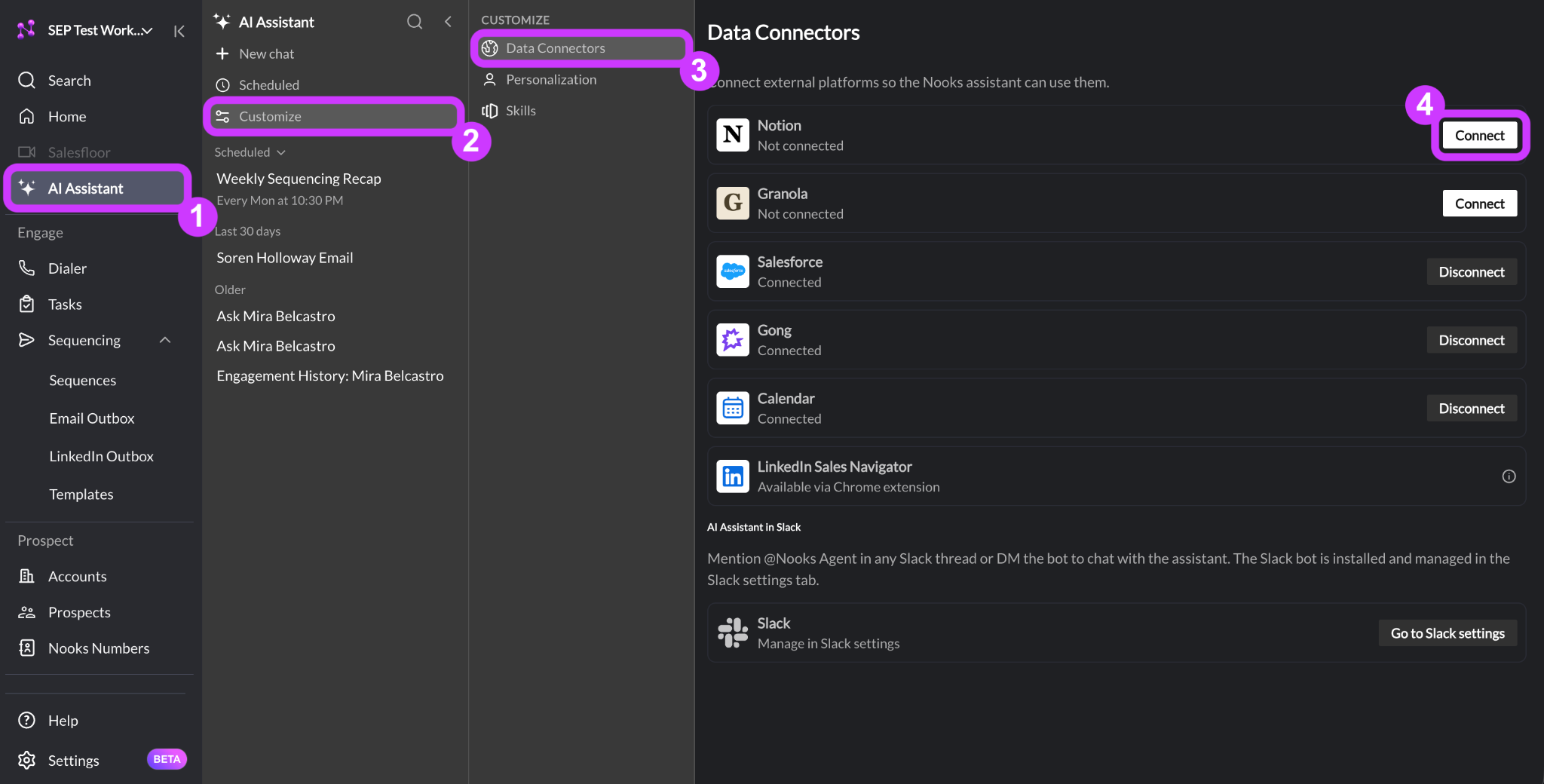
Open the AI Assistant.
Click Customize, then Data Connectors.
In the Notion card, click Connect. A Notion sign-in window will open.
Accept the requested permissions.
Press Continue.
Note: Each team member needs to connect their own Notion account individually. One user connecting does not automatically connect Notion for everyone. If the AI Assistant cannot find something in Notion, check that you personally have it connected first.
Requested Permissions
When you connect the Notion Connector, Nooks requests a specific set of permissions so that the AI Assistant can create, edit, and read Notion on your behalf. The AI Assistant always uses your specific Notion permissions, meaning if you cannot see a page in Notion, the AI Assistant cannot either.
The permissions Nooks requests are listed below:
Respect your page and database access and permissions
Take actions on your behalf, based on your account access
Search across connected apps (requires Notion AI plan)
View workspace’s users and their emails
Using the Notion Connector
Once Notion is connected, you can prompt the AI Assistant to view and take action within Notion. Just describe what you want in plain language while chatting with the AI Assistant. You can also incorporate Notion references in any Scheduled Agents you build in the AI Assistant.
Viewing and Referencing Notion Content
When Notion is connected, the AI Assistant inherits your view permissions within Notion. You can ask the AI Assistant to find, open, summarize, or reference something in Notion.
For the most reliable results, name the specific page or paste its link in your prompt rather than describing it vaguely. Doing so helps the AI Assistant go straight to the right document instead of searching broadly.
Creating and Editing Content
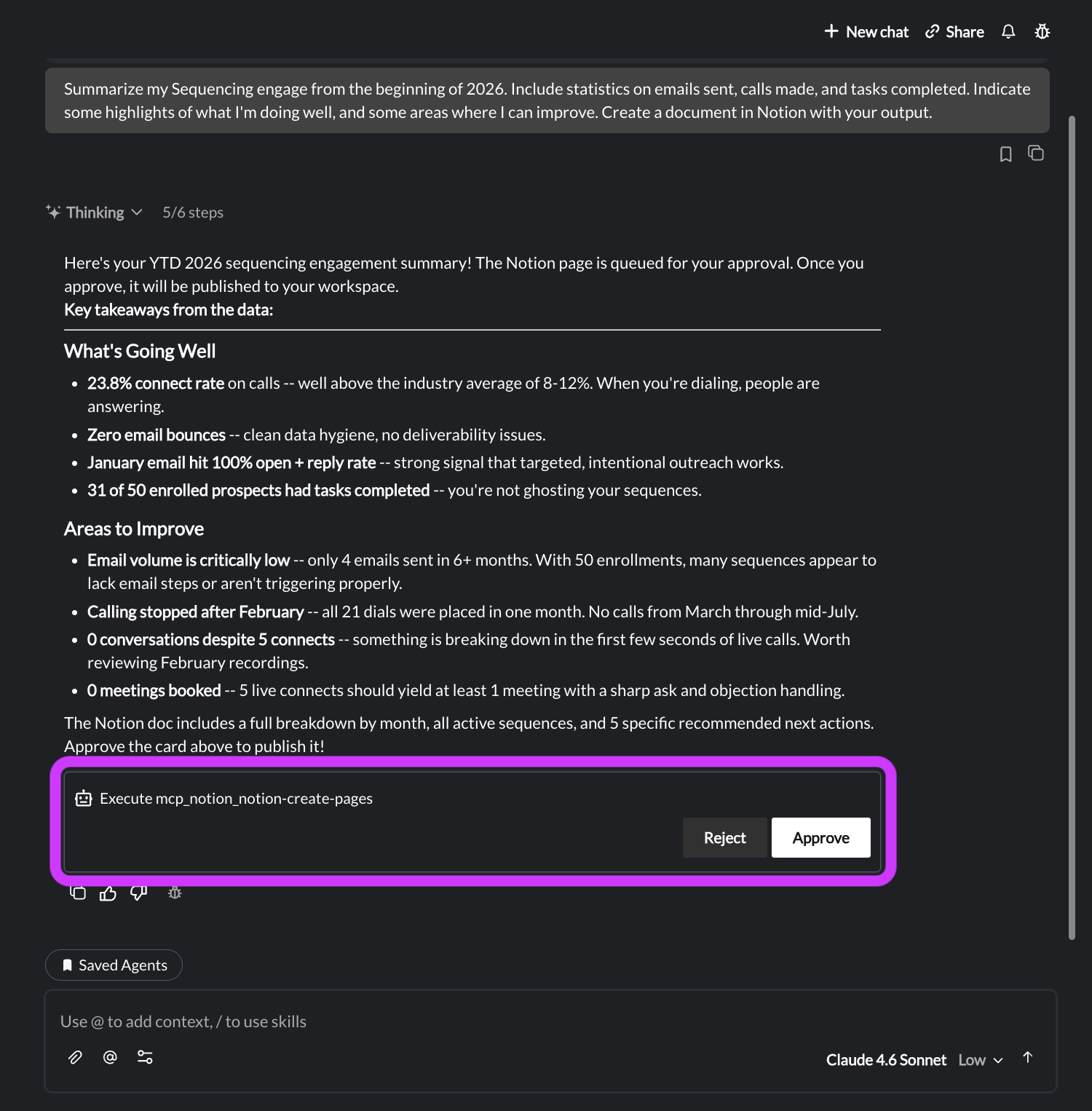
You can also ask the AI Assistant to draft a brand-new Notion page, update an existing one, or leave a comment. Because these are changes to your Notion workspace, any create or edit action requires your approval. The AI Assistant will show you exactly what it plans to change in the chat and wait for you to click Approve before anything is actually written to Notion.
Example Use Cases
The Notion Connector is most powerful when combined with the AI Assistant’s other knowledge sources, like Nooks Sequencing and call data, CRM record context, and Signal intelligence. The table below walks through a few ways you can use the AI Assistant to update collateral without switching tools.
Use Case | Prompt |
Turning a call into documentation | Summarize my call with [Prospect] and create a new page in our Notion “Call Notes” database with the recap and next steps. |
Building an account plan | Use our account plan template [Link to Notion page] to draft an account plan for [Account] this quarter. |
Keeping messaging consistent | Look at our positioning docs in Notion and rewrite this email so it matches our current messaging. |
Finding a relevant case study | Find a Notion case study for a company in [Prospect’s industry] and draft an email that references it. |
Handing an objection on a call | Check our Notion objections playbook for how we handle “we already use [Competitor]” and draft a follow-up email for [Account] that addresses it. |
One-on-one prep | Review [User’s] sequencing activity over the past week. Add a new section to my 1:1 page with them here: ([Link to Notion page]). Be sure to include the rep’s overall stats on the user’s performance, compare them to the prior week, and highlight some wins and opportunities for growth. |
Referencing competitive positioning | Pull our latest [Competitor] battlecard from Notion and summarize the top three differentiators I should mention to [Prospect] on our next call. |
Daily call briefing | Review my calendar for any external calls. Create a Notion page briefing me on each one, ordering the calls in chronological order. Include the following information for each call: Call Overview, Account Snapshot, Usage and Adoption, Previous Engagement History, Purpose of the Call, Talking Points and Action Items, Risks and Opportunity flags. |
Notion Connector Capabilities
The table below shows what the AI Assistant can and cannot do in Notion through the Notion connector.
Capability | Supported? | Requires Approval? |
Search across the Notion content your user has access to | ✅ Yes | ❌ No |
Open and read specific pages | ✅ Yes | ❌ No |
Read comments on a specific page | ✅ Yes | ❌ No |
List workspace users and guests | ✅ Yes | ❌ No |
Create a new page | ✅ Yes | ✅ Yes |
Edit or update existing pages | ✅ Yes | ✅ Yes |
Move or duplicate pages | ✅ Yes | ✅ Yes |
Create or update a simple database | ✅ Yes | ✅ Yes |
Add comments to a page | ✅ Yes | ✅ Yes |
Delete pages | ❌ No | – |
Change sharing permission settings inside Notion | ❌ No | – |
See any page or database that has not been shared with you in Notion | ❌ No | – |
Visibility Scoping
The AI Assistant inherits the connecting user’s permissions. It can only see and act upon the pages the connecting user has access to in Notion. There is no separate visibility setting inside Nooks, so the way to control what the AI Assistant can see and do is by managing sharing directly in Notion.
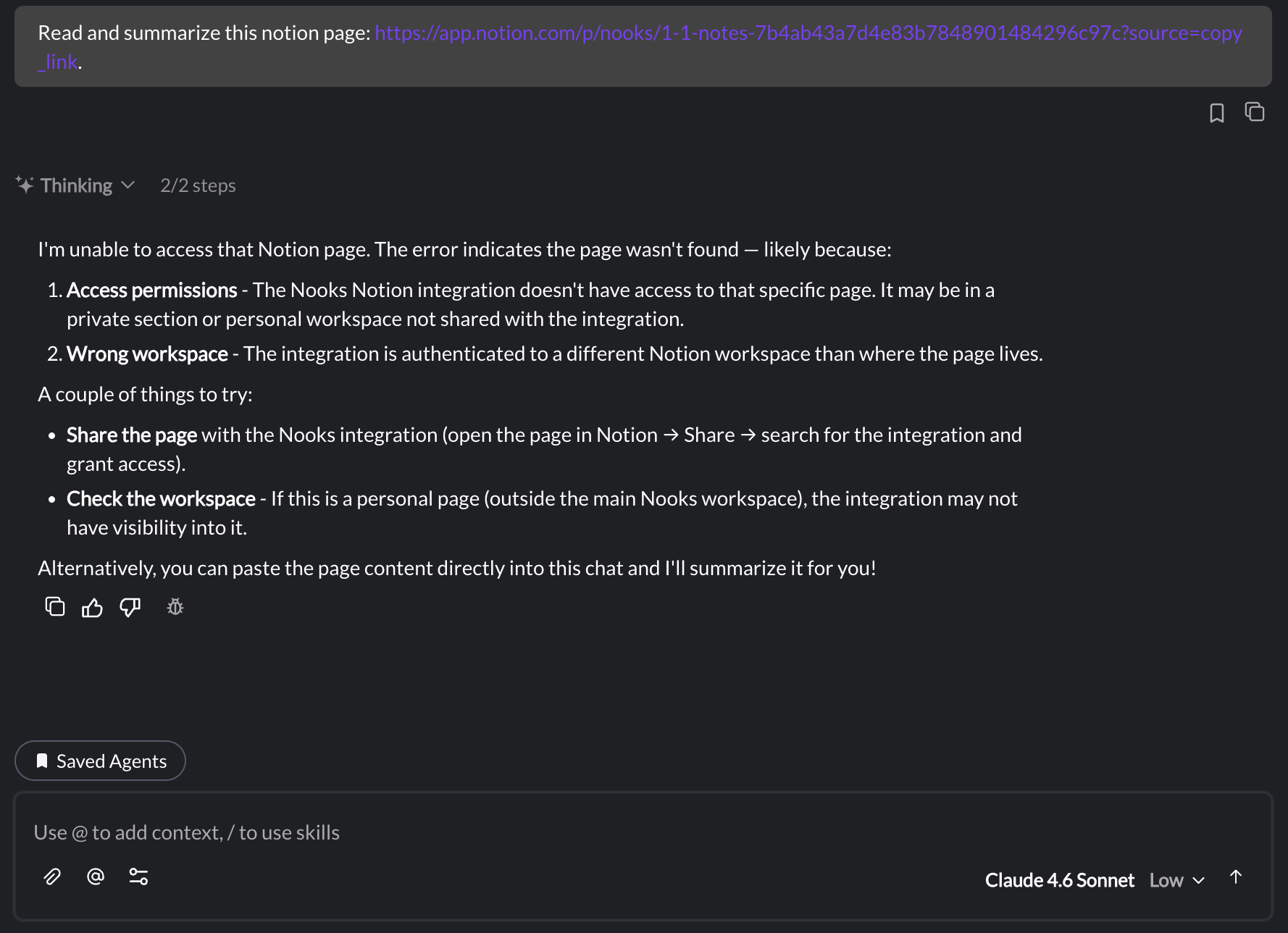
In practice, if you prompt the AI Assistant to access or modify a page you do not have access to in Notion, the AI Assistant will return an error message explaining that it does not have access to that content in Notion.
Disconnecting the Notion Connector
At any time, you can quickly disconnect the AI Assistant from Notion through the following steps.
Open the AI Assistant.
Click Customize, then Data Connectors.
Click Disconnect to the right of Notion to initiate an authorization flow.
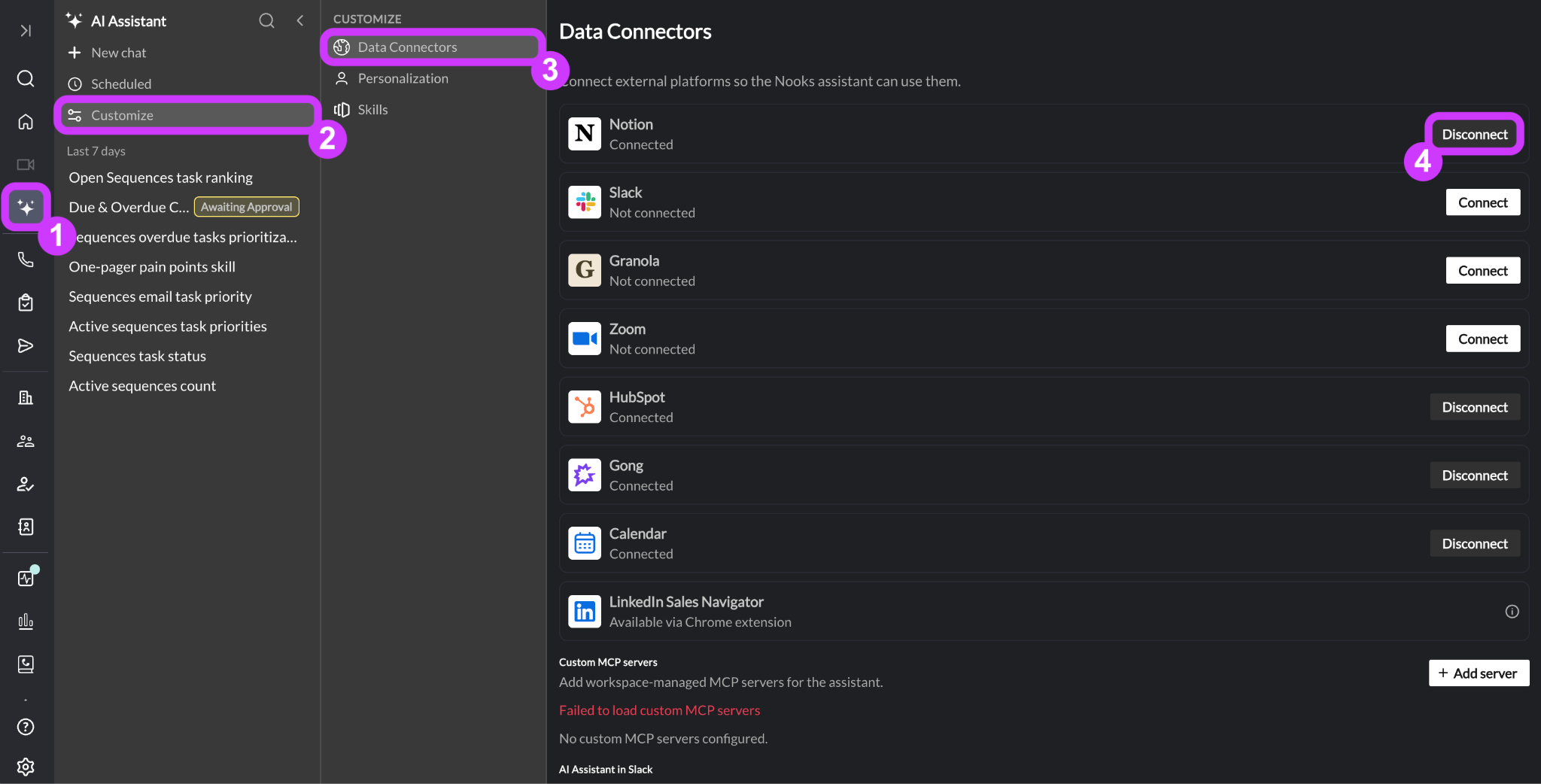
Disconnecting Notion immediately revokes the AI Assistant’s access to your Notion content. You can reconnect at any time by following the connection steps above.
FAQs
Does connecting Notion give the AI Assistant access to my whole company’s workspace?
The AI Assistant can only see what you personally have access to in Notion. It cannot see your entire Notion workspace unless you have access to your entire Notion workspace.
Will the AI Assistant ever delete Notion pages or change who has access to them?
No. The AI Assistant cannot delete pages or change sharing/permission settings. It can create, edit, and comment on pages, but any such changes first appear as a request in your AI Assistant chat that you have to approve manually.
I connected my Notion account, but the AI Assistant could not find my page. What’s wrong?
If the AI Assistant cannot find a specific page you are looking for, first check:
You personally have the Notion Connector connected – A teammate or admin enabling the feature for their account does not connect it for you.
The page exists in the Notion workspace you have connected to Nooks – The connector can only point to one Notion workspace at a time. If the page is stored in a different Notion workspace than the one you are connected to, you can disconnect the connector and reconnect it to the desired workspace.
If both of the above points check out, try naming the Notion page exactly or sharing the link to it in your prompt so that the AI Assistant knows exactly where to look. The AI Assistant is more prone to surfacing the wrong content if you give it a vague description of the page than if you share the exact name or link.