Customize Your AI Assistant
Last updated: July 22, 2026
This guide describes how to configure the AI Assistant to fit the way you sell. Specifically, it covers the Data Connectors, Personalization, and Skills tabs on the Customize page, breaking down what each one does, how to set it up, and how they interact with each other.
Overview
The AI Assistant exists to help automate general sales tasks, like account research, email drafting, and task prioritization, so that you can focus on the high-value, human side of selling. While the AI Assistant is powerful out of the box, the more context it has, the more powerful it becomes. By default, the AI Assistant doesn’t know which tools your team uses, how you like to work, or the specific rules your team follows.
The AI Assistant’s Customize page is where you close that gap.
Data Connectors give the AI Assistant live access to the tools you already use, like your CRM, calendar, call recordings, internal databases, and notes, so that it doesn’t have to ask you for information it could look up itself.
Personalization teaches the AI Assistant about how you (and your team) like to work, so you do not have to repeat yourself every conversation.
Skills provide the AI Assistant with specific rules and playbooks, such as how to prep for a call or when it’s safe to add a prospect to a Sequence, to automatically follow when they are relevant.
Together, these make the AI Assistant’s responses richer, more accurate, and more consistent with your team’s process, and less dependent on your re-explaining context every time you use it.
Getting to the Customize Page
To navigate to the Customize page in the AI Assistant:
Open the AI Assistant in Nooks.
Click Customize.
Data Connectors
Data Connectors are what let the AI Assistant pull real, current information from the tools your team already uses, instead of relying only on what you type into the chat.
Nooks supports the following data connectors:
Connector | What It's Used For |
Pulls in meeting notes and internal docs, so the AI Assistant can reference written content your team has already captured. | |
Salesforce or HubSpot (CRM) | Gives the AI Assistant access to account, prospect, and opportunity/deal records in your CRM. |
Gong | Provides context from your recent call recordings and summaries, so the AI Assistant can reference what was actually discussed on a call. |
Calendar | Lets the AI Assistant see your schedule, so it can reference upcoming meetings or help you prepare for them. |
LinkedIn Sales Navigator | Connected via the Nooks Chrome extension, gives the AI Assistant prospecting and account context from Sales Navigator. |
Allows you to chat with the AI Assistant directly from Slack. | |
Lets an admin connect an internal tool that is not natively supported. Once connected, the tool becomes available to the entire Workspace. Custom MCP Servers are currently limited to tools that authenticate via an API key or bearer token. |
Once connected, the AI Assistant can pull information like recent Gong calls, CRM records and activity history, Notion meeting notes and pages, or your calendar for the day, into your conversations. The AI Assistant reads this information automatically. If the AI Assistant needs to take an action through a connector, it will ask you to approve that action first.
*The Slack Connector enables you to chat with the AI Assistant directly from Slack. It does not currently give the AI Assistant the ability to pull Slack context into any conversation. To give the AI Assistant Slack context, prompt the AI Assistant in a reply to the relevant Slack thread.
Not seeing a connector in the list? Certain connectors are currently in Beta. If a connector is not appearing in your list, contact your Nooks CSM to discuss whether it would benefit your team.
Connecting a Tool
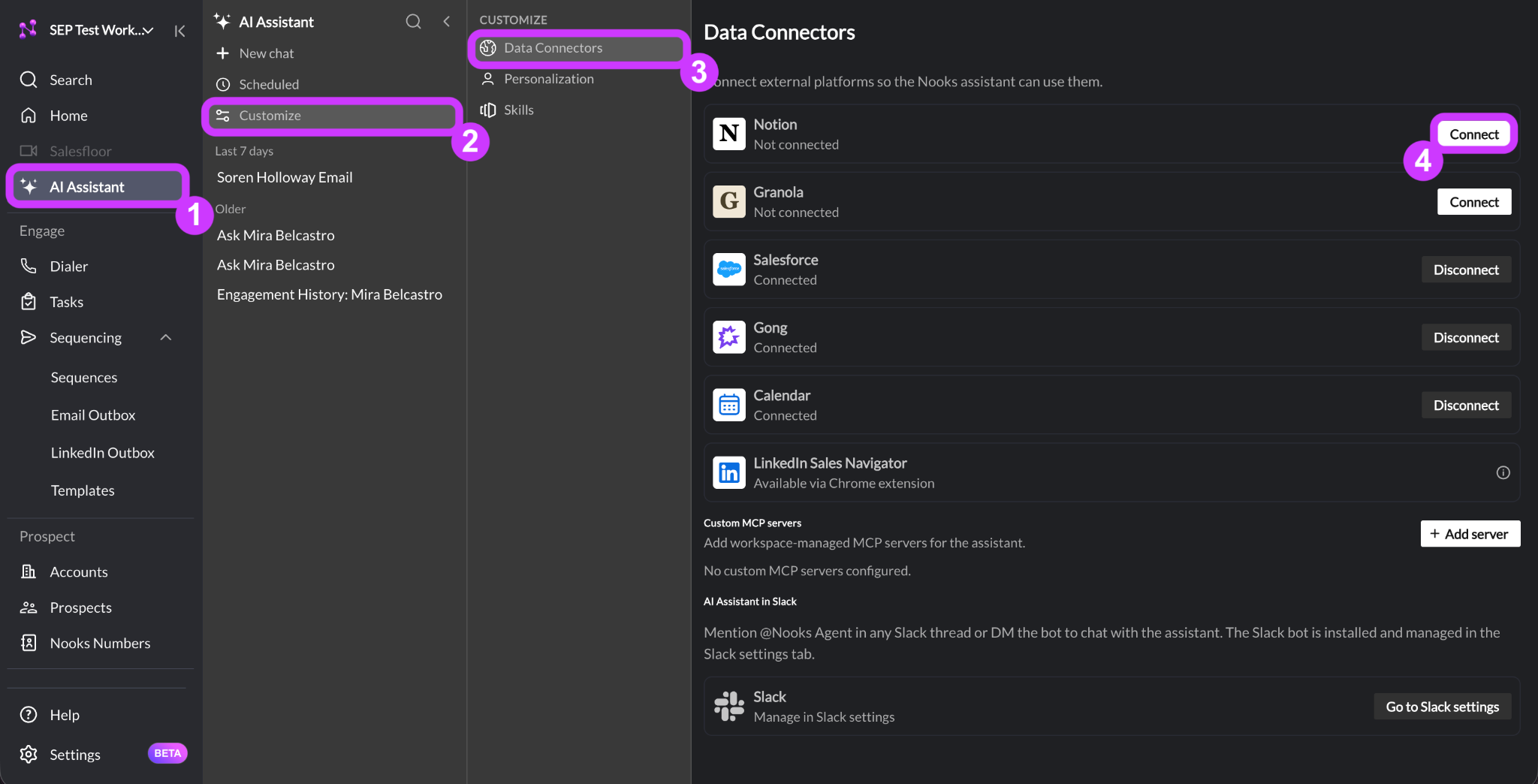
Some of the Connectors are connected automatically when you initially configure your Nooks account so that they are always available. To connect a tool:
From the Customize page, click Data Connectors.
Click Connect next to the data connector you want to connect.
Disconnecting a Tool
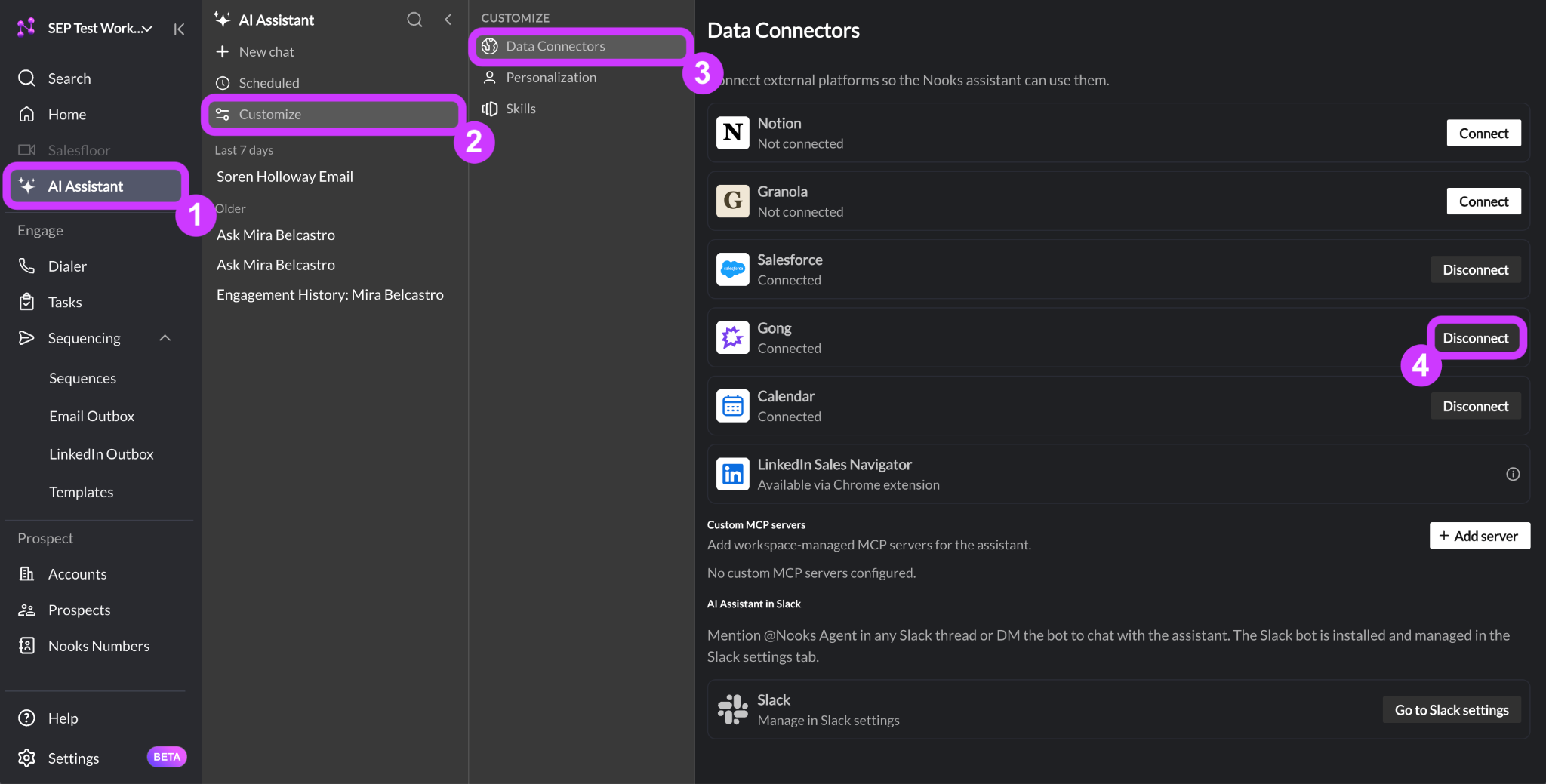
You can disconnect a data connector at any time. Doing so severs the AI Assistant’s access to that tool going forward. To disconnect a tool:
From the Customize page, click Data Connectors.
Click Disconnect next to the data connector you want to disconnect.
Personalization
The Personalization tab is where you tell the AI Assistant standing facts about how you work. This context is automatically loaded into every conversation so that you do not have to remind the AI Assistant of it every time. The Personalization tab has two subtabs.
Tab | Who Can View It | Who Can Edit It | Fields |
Personal | Just you | You | General — How you want the AI Assistant to behave in your interactions Email — Your preferred tone and style for AI-drafted emails |
Workspace | Everyone on your team | Workspace admins only | General — A baseline for how the AI Assistant should behave for the whole team |
The Workspace tab is meant to set a team-wide baseline (e.g., your ideal customer profile, standard talk tracks, company facts, rules for interpreting CRM fields). The Personal tab lets each rep layer their own preferences on top. If your personal instructions conflict with the Workspace’s, your personal instructions take priority.
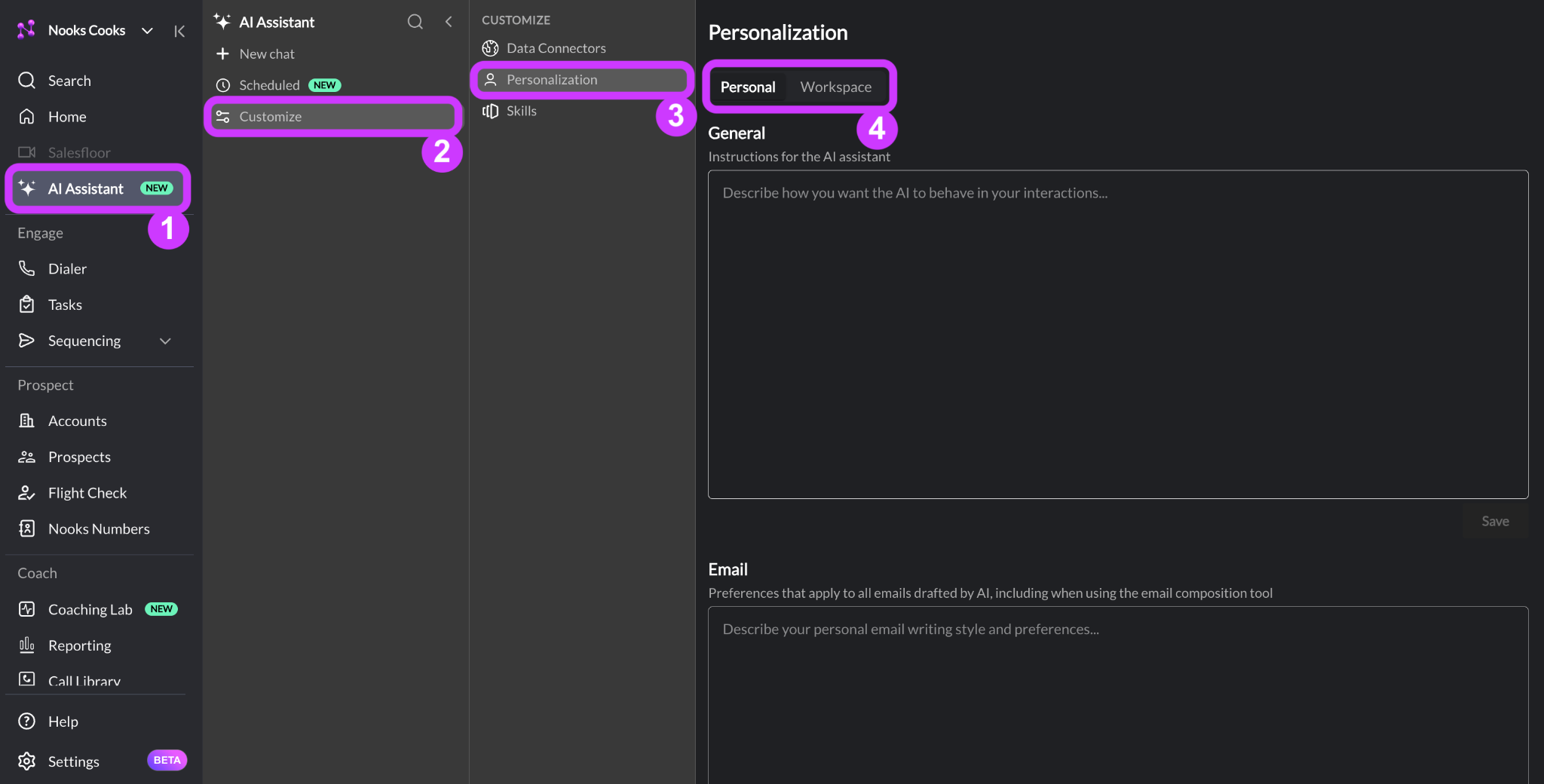
To navigate to the Personalization tab:
From the Customize page, click Personalization.
Choose the Personal or Workspace tab depending on which one you want to review and modify.
Personal Tab
The Personal tab is where you can fine tune the AI Assistant to your specific working style and role. These fields are only visible and editable to you, and they only affect how your AI Assistant performs. Your personal instructions take precedence over the Workspace-level instructions if there are any conflicts, so there’s no need to worry about them being overwritten by team-wide defaults.
General: In the General tab, input standing preferences about how you want the AI Assistant to behave. These instructions are loaded into every conversation you have with the AI Assistant, so it’s best to only include things that are always true about your role and working style. Rules that only apply to a single task or account are better suited to a direct request in the chat.
Point | Example Inputs |
Your role and focus | I’m an SDR focused on outbound prospecting. Don’t suggest late-stage deal or renewal tasks, those aren’t part of my job. |
Territory or segment | I work mid-market accounts in EMEA. Assume prospects are on European time zones when suggesting call times. |
Tools and where context lives | I track my notes in Notion, not the CRM. Always check there first before asking me for context on an account. |
Response format preferences | Keep responses short. Use bullet points, not paragraphs. I’m usually reading this between calls. |
Working hours and availability | I work PST and have back-to-back meetings between 3 and 5 PM. Don’t suggest scheduling tasks, calls, or meetings during that time. |
Sequencing rules | Do not suggest enrolling a prospect to a Sequence if they have been active in a Sequence within the last 2 weeks. |
Email: In the Email field, input instructions for how you want the AI Assistant to generate emails when you ask it to. This context is shared with the AI Assistant any time you prompt it to write an email, so it should be generally applicable to the emails you want the AI Assistant to write. When necessary, you can always include additional specifications that may not apply to all emails in your prompt to the AI Assistant. Some examples of points to touch on are listed below.
Point | Example Inputs |
Subject length | Keep subject lines to 5 words max. Try to personalize them with the prospect or company name where possible. |
Body length | Keep the main email body between 100 and 150 words. |
Tone | Write in a conversational, confident, and respectful tone. Avoid jargon, buzzwords, salesy language, and hype. |
Call-to-actions | End the email with one clear call to action. Do not include calls to action elsewhere in the email. When offering times to meet, always offer 30 minutes—no more, no less. |
Formatting | Break up text into short paragraphs for easy scanning. |
Reading level | Keep the email at or below an 8th grade reading level. |
Personalization | Personalize with relevant context, not compliments. Prioritize the company’s or persona’s pain points, and tie them to outcomes using our product can provide, not product features. |
Things to avoid | Avoid multiple or competing calls to action. Do not include pricing in cold emails. |
Workspace Tab
The Workspace tab lets you customize the AI Assistant to your team’s specific sales motion. When adding Workspace context, include instructions and information that is universally applicable to your team. This context is loaded into every chat session at your Workspace, which helps the AI Assistant perform at its best for every rep.
Only Workspace admins can edit the Workspace tab. All users can view the tab to review what context the AI Assistant is using.
General: In the General field, input context around your team’s sales motion. The more details you provide, the more accurate the AI Assistant’s responses will be. Some examples of points to include are listed below.
Point | Example Inputs |
Account ownership definitions | "My accounts” = the CRM owner field, matched exactly. Do not use the SDR/BDR assignment field. If no owner is listed, use the current user. |
Your usual buyer persona | We typically sell to data engineering leaders, managers and up, at mid-market SaaS companies. Data Engineers are the initial champion and technical buyer. VPs of Data Engineering are the economic buyer who signs. Always get a technical win with the engineering team before looping in the VP for budget approval. |
Your usual sales strategy | New logos always start on a single-team pilot (one data pipeline, one team). Expansion revenue primarily comes from multi-team rollout, not from upselling add-ons to the same team. Prioritize “spread wide” over “sell deeper” in year one. |
Source of truth for different data types | Use LinkedIn Sales Navigator as the source of truth for employment and job title. CRM titles may be stale. |
Data that should not be trusted | Don’t cite the CRM’s “current tools” field as fact. Only state a prospect uses a competing tool if it was mentioned on Gong or Nooks call. Note the date of the call. Only describe a “data downtime” pain if a contact said it on a Nooks or Gong call. Do not infer it from firmographics. |
Interpreting activity | Nooks calls are usually SDR cold calls; Gong calls are AE demos or technical deep dives. Don’t mix them together. Engagement is classified as a two-way conversation: a call that was answered, an email that was replied to, a LinkedIn message that was replied to. |
Rules for head-to-heads with competitors | Against Monte Carlo, emphasize faster time-to-value (self-serve setup in <3 days vs. their typical 3-week onboarding). Against homegrown tech stacks, emphasize maintenance burden, not just capability. |
Signal interpretation | Hot = prior conversation with follow-up or active intent. Warm = hiring, relevant tech stack, or closed-lost. Cold = none of the above. |
Skills
A Skill is a set of instructions the AI Assistant loads only when it’s relevant to what you are doing, rather than instructions you have to repeat every conversation. Skills are your way of encoding how the AI Assistant should do different jobs (like how to prep for a call, or when a prospect is safe to add to a Sequence). By creating Skills, you save yourself the work of repeating the instructions each time.
Creating a Skill
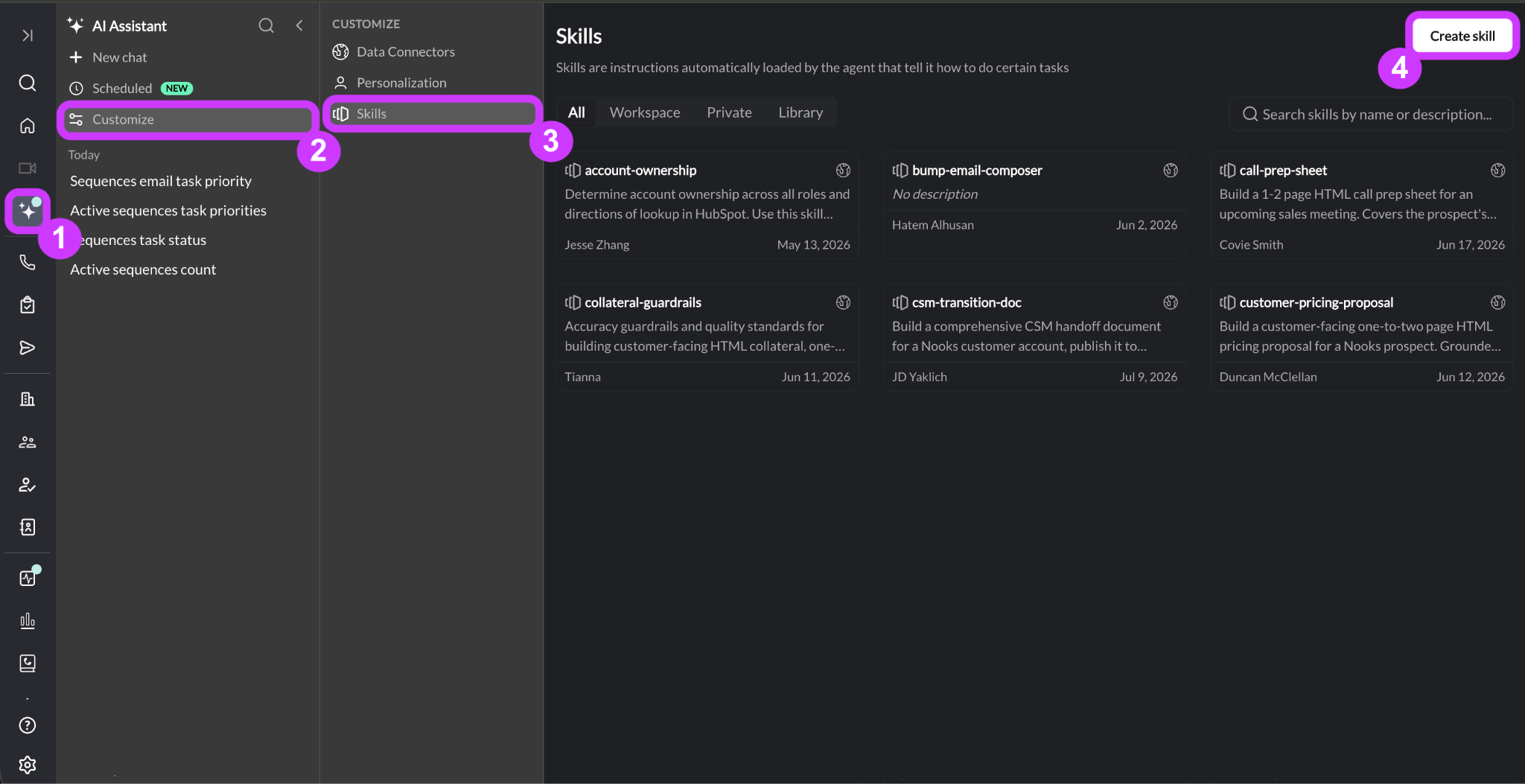
Any user can create a Skill. Only Workspace admins can share a Skill with the entire Workspace. To create a Skill:
From the Customize page, click the Skills to open the Skills Library.
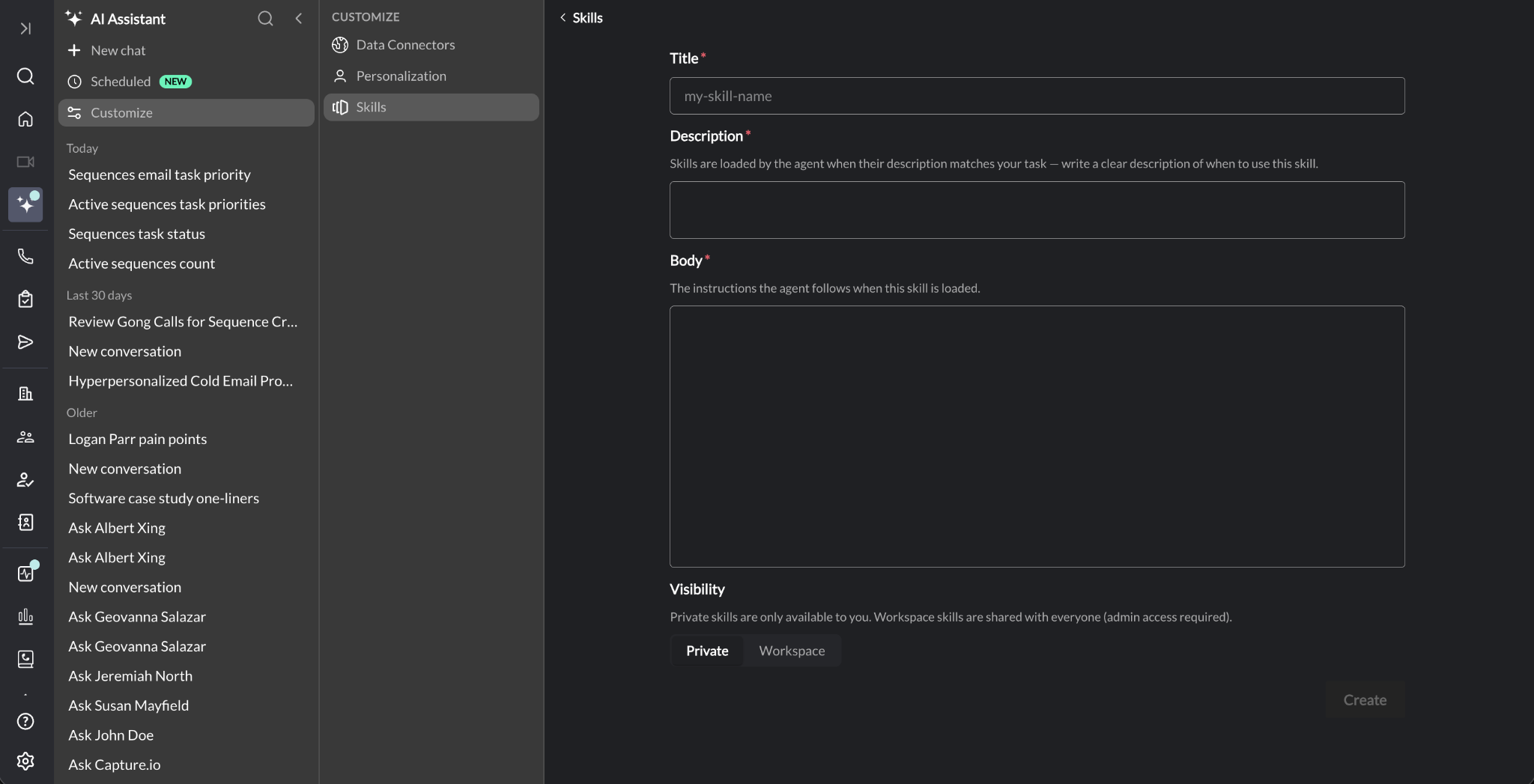
Press Create Skill.
Fill in the required fields (see below).
Press Save.
Recommendation: To avoid creating duplicate or conflicting Skills, search the Skill Library for other skills that already perform that job before creating a new one.
Required Fields
When you are building a skill, there are four required fields to complete.
Title: Enter a short, slug-style name (lowercase, hyphens, no spaces) for the Skill. For example:
call-prep-sheet.
Description: Describe when the AI Assistant should use this skill. This field is the most important because it is what the AI Assistant matches against, so be specific. If this field is blank, the AI Assistant will never automatically use this skill.
Instructions: Provide the actual step-by-step instructions for the AI Assistant to follow when the skill is loaded.
Visibility: Choose who can use the Skill between Private or Workspace. Only admins can set the visibility to Workspace during Skill creation.
Promoting a Skill to a Workspace
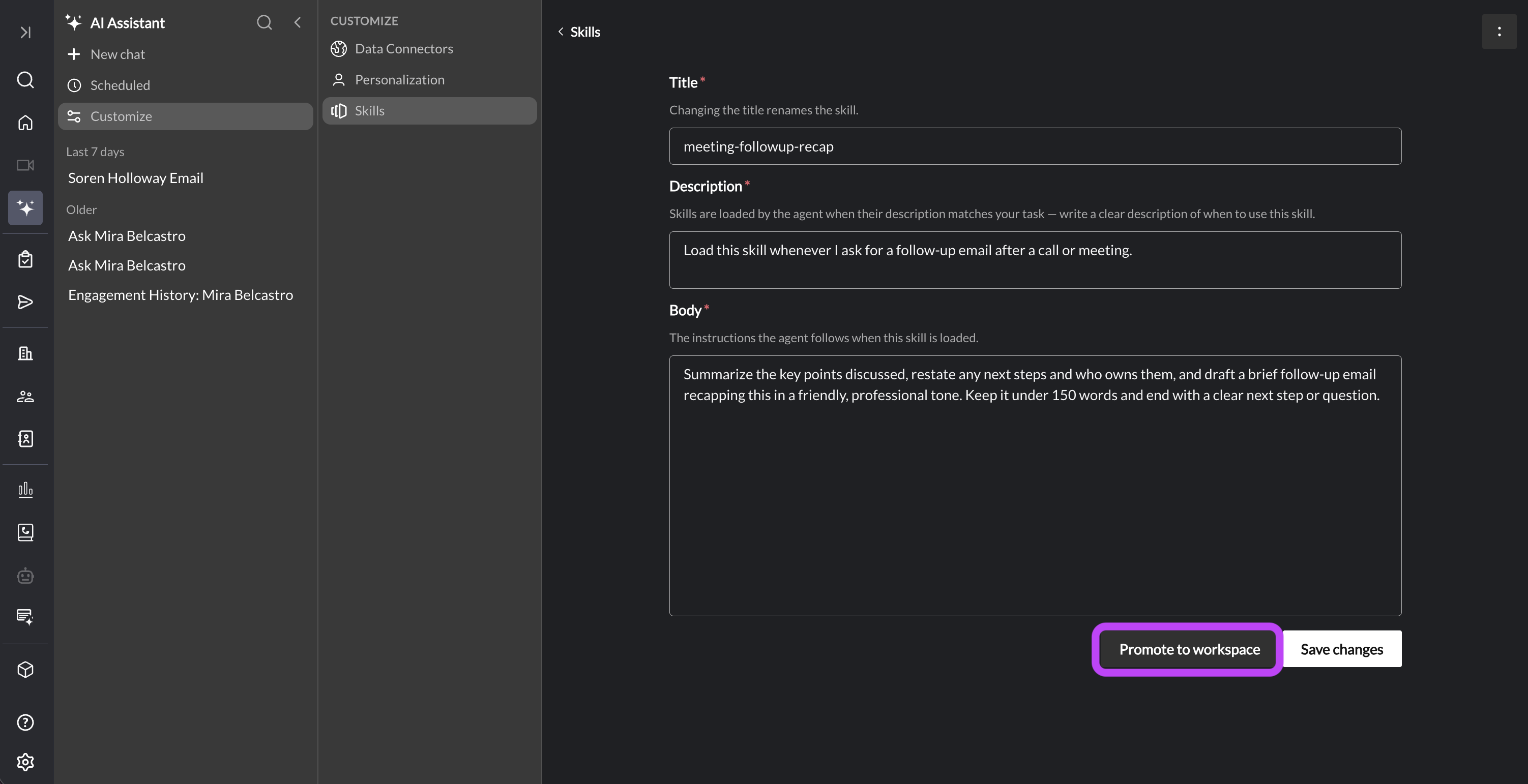
Unless you are a Workspace admin, any new Skills you create start out at Private. Once you have tested one and are confident it works well, you can share it with the whole team. To do so:
Open the AI Assistant.
Click Customize.
Click Skills.
Click into the Skill from the Skills Library.
Click Promote to Workspace. Your Skill will be duplicated and shared at the Workspace level.
Creating a shared skill directly requires admin access, since it is shared with everyone on the team.
Example Skills
Skills work well for anything you find yourself explaining to the AI Assistant the same way, every time. A few example skills you might consider building are included below.
Skill | Name | Description | Instructions |
Call prep sheet |
| Use this skill whenever you are doing call prep for a prospect. | Build a 1-2 page HTML call prep sheet for an upcoming sales meeting. Covers the prospect's current GTM tech stack (CRM, SEP, dialer, signals/intent), engagement history with the prospect, how and why the meeting was booked, a hypothesis for why they need Nooks, key discovery questions, potential objections, and relevant social proof… |
Safe Sequence check |
| Always load this skill when adding prospects to Sequence. | Never add a prospect to a Sequence if they have been in another Sequence within the last 2 weeks. Otherwise it is fine to reSequence them. Once you add them to Sequence make sure you update the current Sequence fields in the CRM... |
Meeting follow-up email |
| Load this skill whenever I ask for a follow-up email after a call or meeting. | Summarize the key points discussed, restate any next steps and who owns them, and draft a brief follow-up email recapping this in a friendly, professional tone. Keep it under 150 words and end with a clear next step or question. |
Post-trial presentation |
| Load this skill whenever I need to build a presentation summarizing any account’s trial. Trigger when I request a “post-trial presentation”, “build a presentation for [account]”, or “post-trial deck.” | Build a presentation recapping the trial: what the prospect set out to evaluate, the key results and usage highlights from the trial period, any blockers or open questions that came up, how our product maps to the goals they stated at the start, and a clear recommended next step (e.g., proposal, contract, or expanded pilot). Keep it to 6-8 slides, lead with outcomes rather than features, and close with a specific ask… |
Account ownership lookup |
| Load this skill whenever I ask who owns an account or need to check before reaching out to a prospect. | Determine account ownership by checking the CRM owner field first. If null, check the SDR owner field. If both are null or the answer is unclear, note that explicitly rather than guessing, and suggest confirming with the account's territory lead before reaching out. |
Pro Tip: Let the AI Assistant help you build a Skill.
Open the AI Assistant and describe the task you need a Skill for — ask it to gather any details it needs (an example output helps).
Refine through back-and-forth chat, then test the result against a real account or prospect.
Iterate until you're happy with it, then ask the Assistant to turn the conversation into a reusable Skill.
Copy-paste it into the Skill builder.
Deleting a Skill
At any time, you can delete Skills that you no longer need. To do so:
From the Customize page, click Skills.
Click into the skill you want to delete.
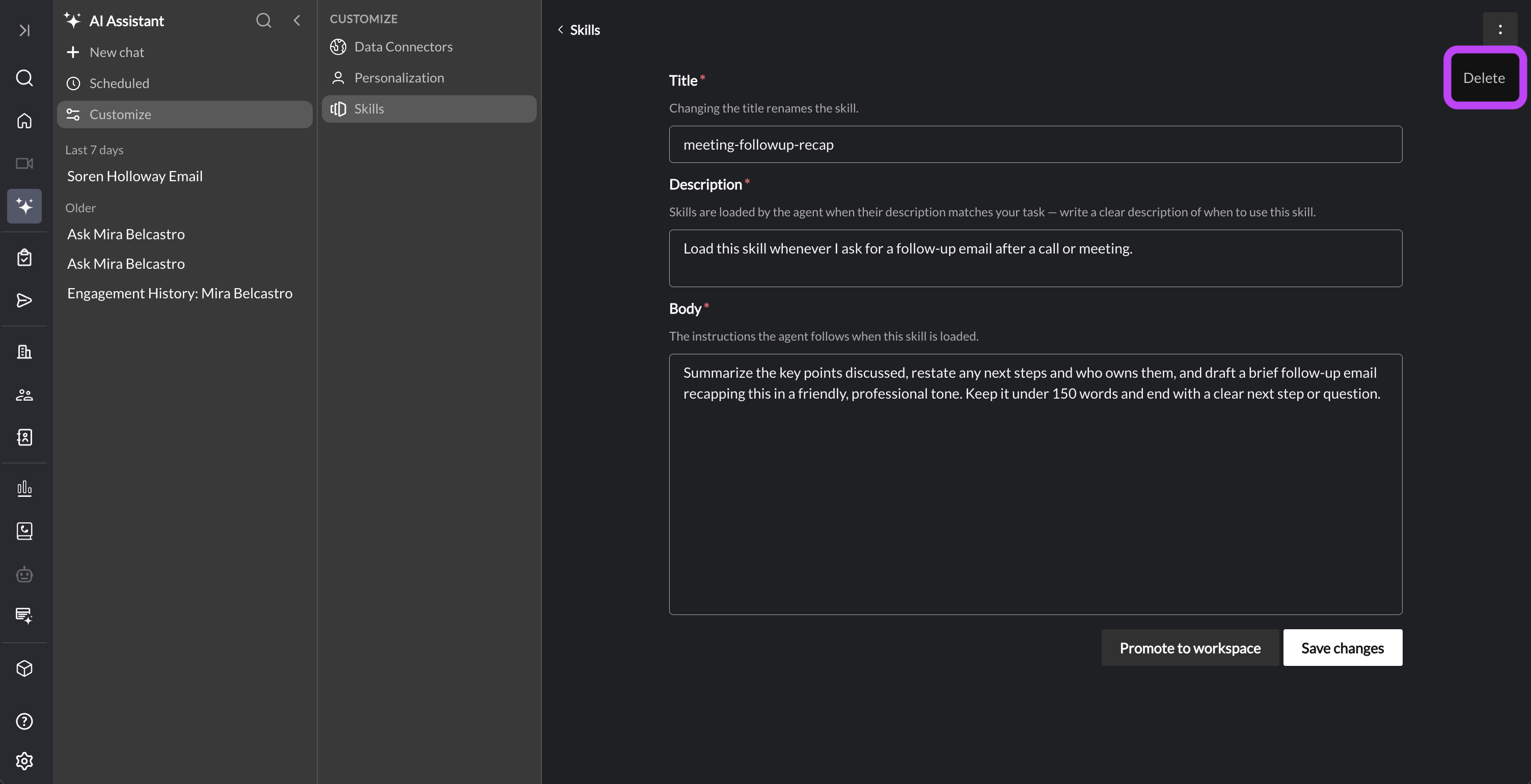
Press the two dots in the top-right corner, then press Delete.
FAQs
When I connect a tool like Notion, does the Assistant see everything I have access to, or just certain pages/channels?
The Assistant gets the full scope of whatever the connecting user has access to. There is not currently a way to limit it to specific pages or objects.
Who can create a Workspace-wide Skill?
Anyone can create a private Skill with no role restrictions. Creating a Workspace-scoped skill requires you to be an Workspace admin. If you are not an admin, you can use the Promote to Workspace option to share a private Skill you have created with your Workspace after testing it out.
What happens if my personal instructions conflict with my Workspace's instructions?
Your personal instructions win out if there are any conflicts.
What is the difference between a Skill and an Agent? When should I use one over the other?
Skills and Agents are related features that can work together, but they solve different problems.
Skill — An instruction that shapes how the AI Assistant does a job. The AI Assistant reaches for it automatically when a matching situation comes up, or you can invoke it to run manually with a
/command. In both cases, skills run inside conversations you are already having.Agent — A saved task that runs when you, a teammate, or a schedule sets it off. You always have to select and run it manually, and it executes the job end to end on your behalf.
Use a Skill when you are doing the work yourself and want help along the way. You are having a conversation with the AI Assistant, you ask for something, you read the output, and you tweak it manually.
Use an Agent when you want to hand the work off completely and get a finished result back. You pick the Agent, it goes and does the whole job on its own, and it returns the output. Learn more about building Agents in this guide.