Scheduled Agents in the AI Assistant
Last updated: July 14, 2026
This article explains what Scheduled Agents are, how to build them, where their output shows up, and how to edit, pause, or delete them. It also includes ready-to-use examples and answers to common questions, so you can get a jumpstart on automating repetitive research and prep work.
Overview
A Scheduled Agents is an AI Assistant workflow that runs on a schedule you set, instead of you having to open a chat and ask for it each time. Think of them as your personal research team that handles the heavy lifting before you even open your laptop. You describe the task once and the AI Assistant runs it for you at the time and cadence you choose, then drops the results into a new chat so they are waiting for you.
Scheduled Agents are particularly handy for automating the recurring tasks that consume valuable time you could spend elsewhere, such as:
Account discovery
Weekly pipeline reviews
Monday prep briefs
End of day activity reviews
By eliminating the friction of repeated manual prompting and consolidating vast amounts of data, Scheduled Agents ensure you are constantly equipped with up-to-date, actionable insights delivered right to your chat.
Every Scheduled Agent is built on the same AI Assistant you use for live chat. It has access to the same skills, data sources, connectors, and, if you choose, the same knowledge and Saved Agent configuration. The only difference is when and how it runs
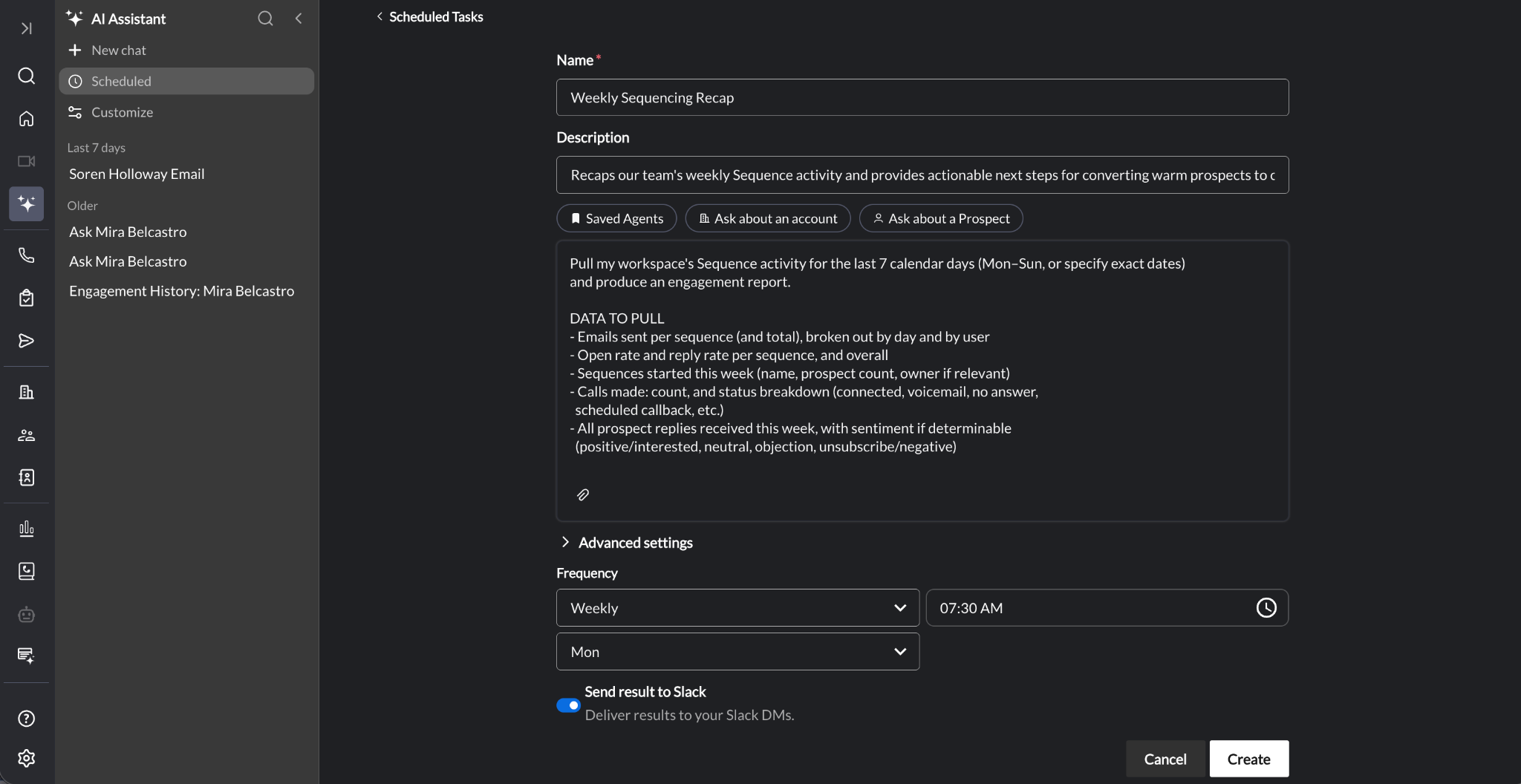
Creating a Scheduled Agent
All users can create a Scheduled Agent. To do so:
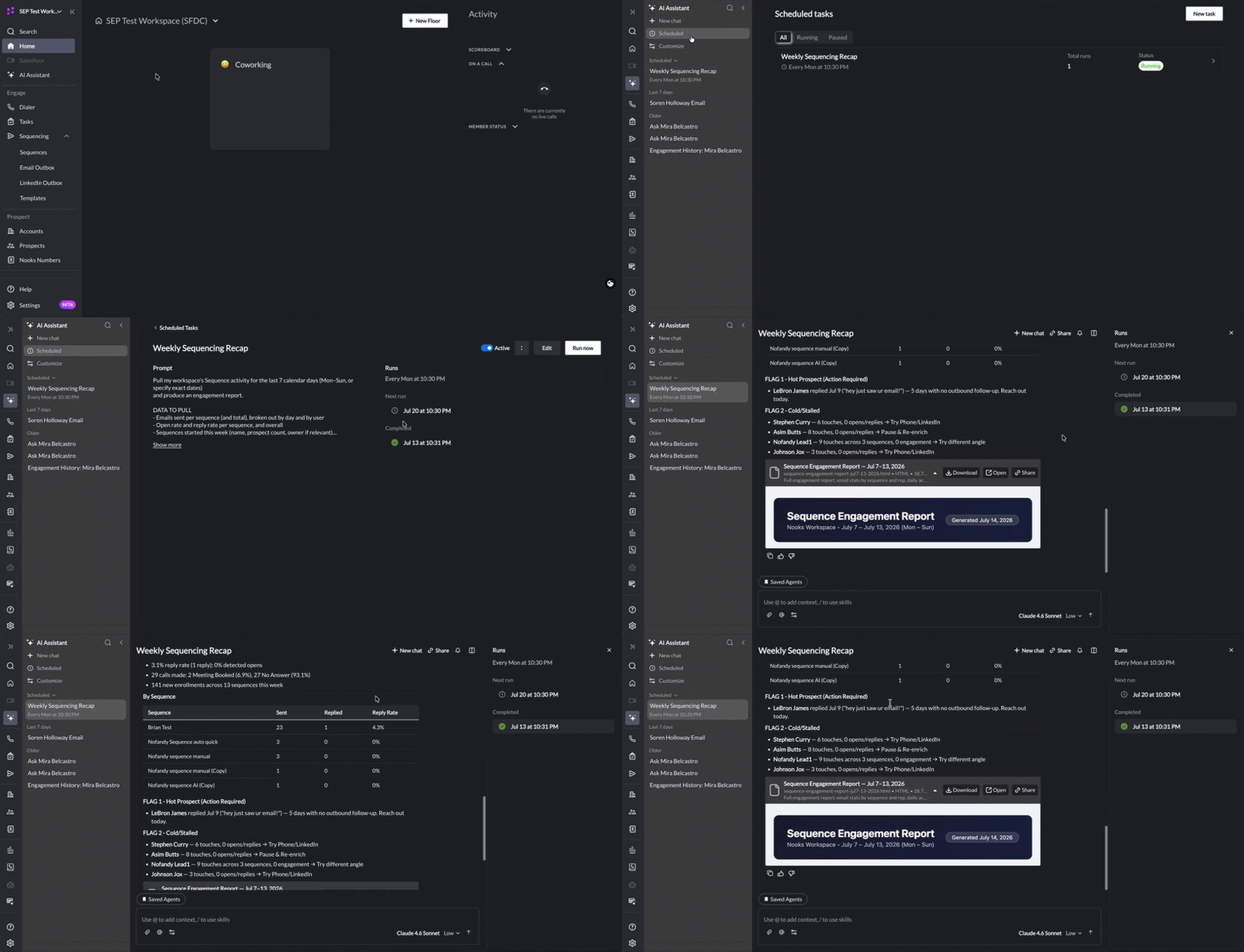
Open the AI Assistant, and go to the Scheduled tab.
Click New task.
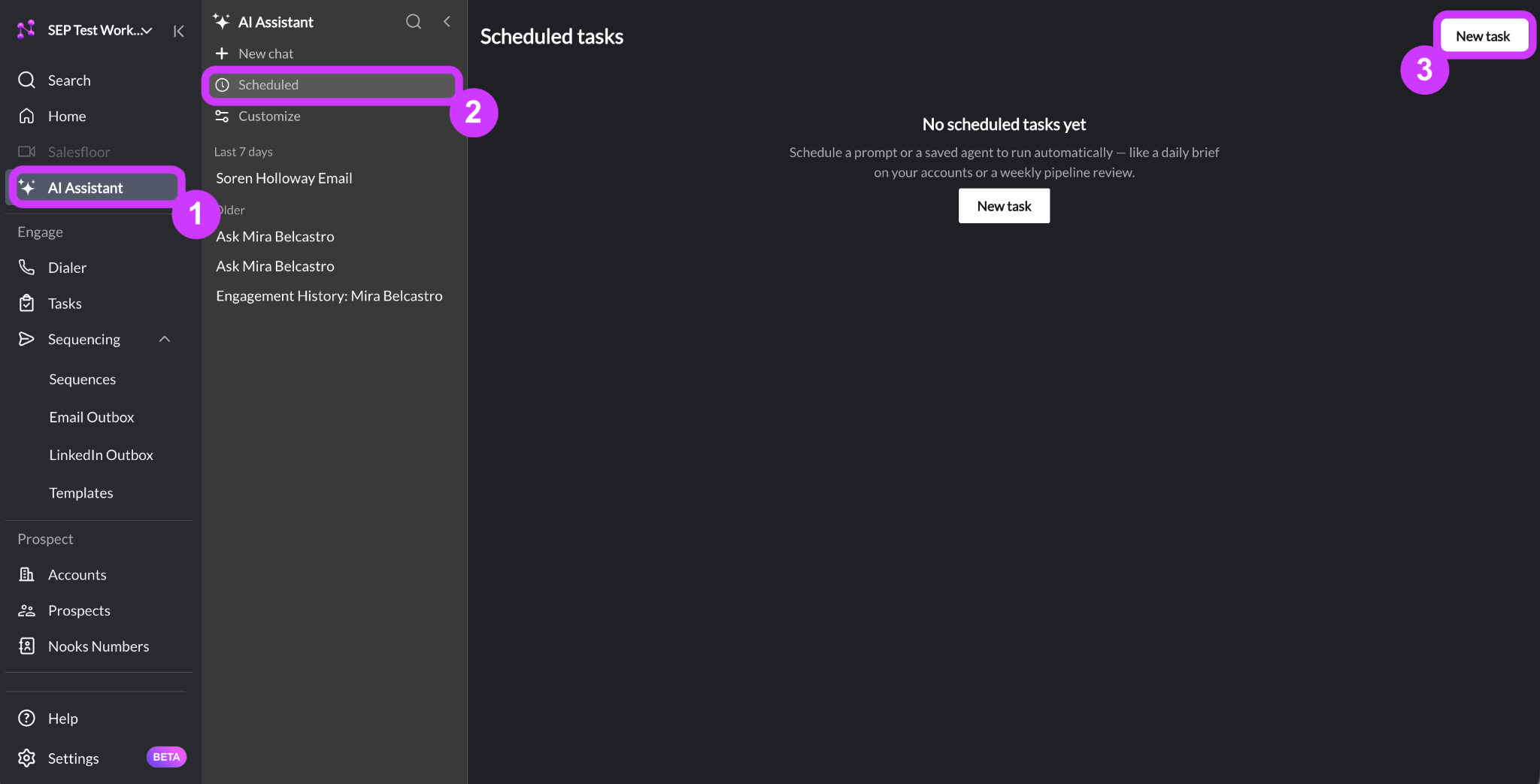
This opens a setup panel where you can fill out the following fields.
Name
Description
Instructions
Advanced Settings
Frequency
Slack Delivery
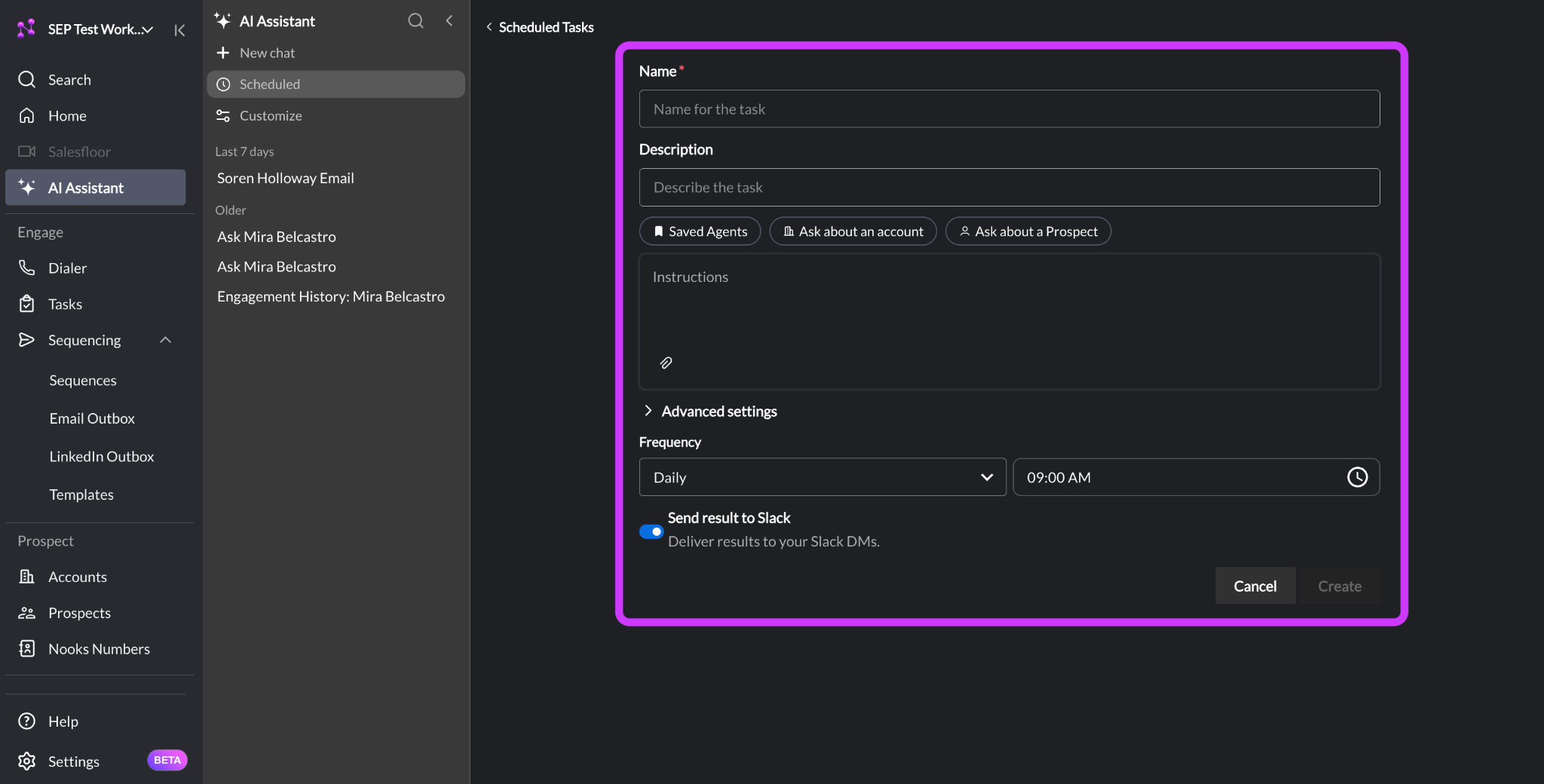
Once you have finished configuring your Scheduled Agent, press Create.
Name and Description
Name: Give your Scheduled Agent a clear, specific name (e.g., Morning Account Digest”) so you can tell your Scheduled Agents apart at a glance.
Maximum character count: 255
Description: Give your scheduled agent a description, usually a longer note to yourself that explains what the task does. This is useful when you have several Scheduled Agents running and need a quick reminder about what exactly each one does.
Maximum character count: 2,000
Prompt or Saved Agent
Every Scheduled Agent needs a set of instructions. The instructions power the Scheduled Agent, telling it what to do, where to source the data from to do it, and how to format the output.
Type A Prompt: Write free-form instructions directly in the setup panel’s instructions box. This route is best for quick, one-off recurring tasks that you do not plan to run elsewhere. If you choose this option, you can also:
Click Ask about an Account or Ask about a Prospect to scope the Scheduled Agent to a specific record, rather than your whole book.
Click the paperclip icon in the bottom-right of the instructions box to attach knowledge files for the Agent to reference on every run.
Pick A Saved Agent: Click the Saved Agents button above the setup panel’s instructions box, then select an Agent you have already built or that has been shared with your Workspace. When you use a Saved Agent, the prompt becomes read-only. You can add additional instructions or context that are specific to your Scheduled Agent in the Add extra context for the agent run… text box that pops up.
Regardless of which option you choose, strive for specificity in your prompt. The more context you provide, the sharper and more consistent the Agent’s outputs will be.
How do you decide whether to write custom instructions and using a Saved Agent? If you think you will want to reuse your prompt elsewhere or that your teammates could benefit from it, create an Agent in the Agent Builder instead, then select it as a Saved Prompt.
Advanced Settings (Optional)
The Advanced Settings section is available only when you are typing a prompt directly. A Saved Agent already carries its own configuration. If using a direct prompt, you can adjust the Advanced Settings.
If using a direct prompt, you can optionally adjust the Scheduled Agent’s model and reasoning effort by expanding the Advanced Settings dropdown. However, the default selections are chosen to efficiently and effectively execute most tasks.
Model: Select the underlying AI model to power the Agent’s runs.
Reasoning Effort: Select how much the agent “thinks” before producing a result.
Deviating from the standard selections can impact the quality of the output and how long it takes for the Agent to run. If you customize the model or reasoning effort, factor that into when you set schedule the Agent to run.
Frequency
Frequency: Within the Frequency section, select the cadence on which you want the Scheduled Agent to run. The Agent starts processing at this date and time whenever it is active. The available options are:
Once – Runs only once at a future date and time you select.
Hourly – Runs at the top of every hour.
Daily – Runs once a day at a time you choose.
Weekdays – Runs once each business day at a time you choose.
Weekly – Runs on the specific day(s) of the week you select, at a time you choose. The day selector enables you to multi-select so that it runs more than once a week.
There is no separate timezone selector to fill in. Nooks automaticalyl uses your browser’s local timezone when you create the schedule.
Because a run starts at the scheduled time rather than finishing exactly then, it’s worth scheduling the Agent 15–20 minutes before you actually need the output. Complex requests can take a few minutes to complete, so budgeting in extra time helps ensure you are not left empty-handed when you need an Agent’s deliverable.
Send Result to Slack (Optional)
If your Workspace has Slack connected to the AI Assistant, you can turn on the Send result to Slack toggle so that you get a direct message from Nooks Agent the moment a run finishes
Accessing a Scheduled Agent's Output
Every run creates a new chat thread in the AI Assistant, labeled with the Agent’s name and a timestamp. The outputs read just like a conversation you would have started yourself. You can always send follow-ups to the AI Assistant if you have questions about its output, want it to refine its output, or want to use its output to kickstart other actions.
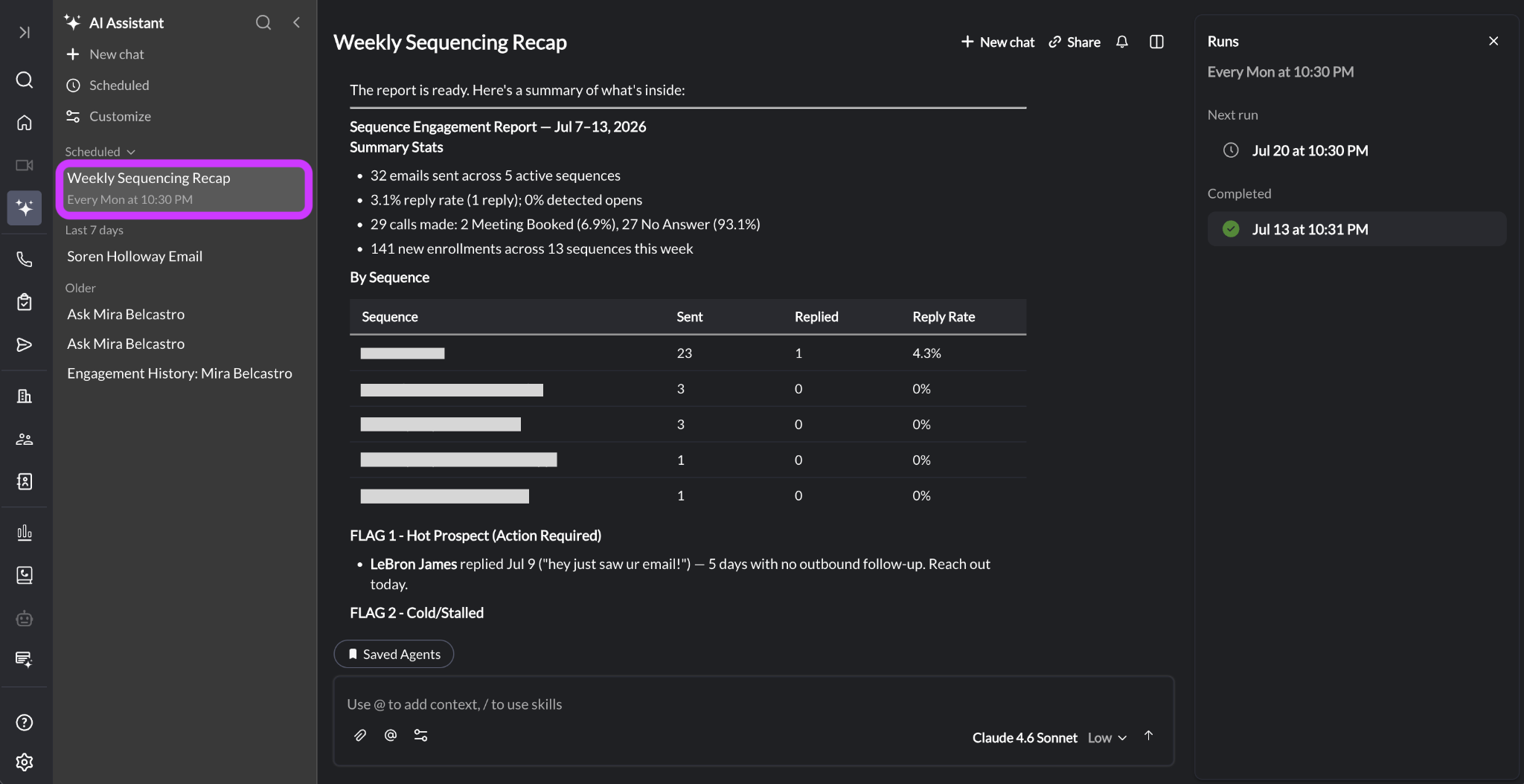
You will also be notified in two other places when an Agent completes its work:
An in-app notification summarizing the result, so you know a new thread is waiting even if you are not looking at the AI Assistant.
A Slack DM, if you have the “Send Results to Slack” setting turned on, including a summary of the result and a link back to the full conversation in Nooks.
To see everything in one place, go back to AI Assistant’s Scheduled tab and open the task. Its detail view has a Runs panel broken down into Next Run, Running, and Completed. Click into any past run to jump straight to its chat thread.
Scheduled Agents are private to you. You will only see and manage the ones you personally create.
Editing a Scheduled Agent
From AI Assistant → Scheduled, you can click into a Scheduled Agent to edit its name, description, prompt, or schedule at any time.
Editing the name, description, or prompt only does not disturb your schedule. Your next run still fires at the same time, just using the updated name or instructions.
Editing the frequency or time recalculates your next run starting from the moment you save the change.
Edits never rewrite an output the AI Assistant has already finished. A run that has already completed retains its results exactly as they were when generated. A run that is actively in progress finishes using the version of the Agent it started with. Any runs that start after you saved your changes use whatever version you most recently saved.
Pro Tip: If a Scheduled Agent’s output is not quite right, edit its existing prompt rather than deleting it and starting all over. Try small tweaks, like:
Adding an output format
Attaching an example of a good output in the Knowledge section
Defining the Agent’s role and audience
Minor changes can make a bigger difference than starting from scratch.
Pausing, Resuming, and Deleting a Scheduled Agent
From AI Assistant → Scheduled, you have two options for stopping a Scheduled Agent from running again.
Pause: Toggle the Active toggle off to stop all future runs immediately but retain the Scheduled Agent, its settings, and its run history.
Resume: Toggle the Active toggle back on for the Agent to pick the schedule back up from that point going forward. A resumed Scheduled Agent will not retroactively complete runs that it “missed” while it was paused.
Delete: Click the two vertical dots, then select Delete to permanently delete the Scheduled Agent. Doing so removes the Scheduled Agent from your Scheduled Agent list and stops all future runs. You can still access past runs from your AI Assistant chat history.
Running a Scheduled Agent Manually
From AI Assistant → Scheduled, you can also complete a one-off run of your Scheduled Agent by clicking inton a task, then clicking Run Now.
Running a Scheduled Agent manually tacks an immediate run onto the Scheduled Agent’s configured schedule. It does not interfere with the configured schedule.
The Run Now optional is useful if you need to use a prompt you have built into a Scheduled Agent unexpectedly, or if you want to test and iterate on your Scheduled Agent’s instructions without waiting for the next run date to roll around.
Examples of Scheduled Agents
The examples below are starting points for Scheduled Agents that execute various use cases. You can copy them into the Instructions box in your Scheduled Agent builder, tweak the wording to your process and needs, and expand upon them to generate the specific deliverables you are looking for.
Use Case | Instructions | Suggested Schedule |
Morning account prioritization | Surface my top 10 accounts to prioritize today, ranked by buying intent signals and recent CRM activity. Exclude anyone I've contacted in the last 7 days. | Daily, 7:30 AM |
Weekly pipeline review | Review my open pipeline. Flag any deals with no activity in 14+ days, identify the 3 accounts most likely to close this month, and suggest a next action for each. | Weekly (Monday), 8:00 AM |
Closed-lost revival | Pull closed-lost accounts from the last 6 months where we lost to budget or timing. Check for any new signals — funding, leadership changes, or hiring — that make them worth re-opening now. | Weekly (Monday), 9:00 AM |
Pre-call intelligence brief | I have calls today. For each meeting on my calendar, pull the account brief: recent news, open opportunities, last touch, and one sharp talk track angle I should lead with. | Daily, 8:30 AM |
Best contacts to prospect today | Across my top 20 target accounts, find and rank the best contacts to reach out to today. Prioritize decision-makers with recent engagement signals or a relevant trigger in the last 30 days. | Daily, 8:00 AM |
Friday sequencing wrap-up | Summarize my sequencing activity from this week: emails sent, reply rates, sequences started, and notable responses. Flag any hot prospects who replied but haven't been followed up with yet. | Weekly (Friday), 4:00 PM |
My team’s overdue Sequence tasks | Create an HTML report of overdue tasks for users on the “NA - Pacific SDR Team” team. Include a summary of the overall counts, as well as a breakdown by task type and task priority. Surface the oldest items and the highest-priority items in dedicated sections. | Daily, 8:00 AM |
Best Practices
A few habits can help separate a Scheduled Agent that becomes part of your regular team for one you set up and ignore. Follow these recommendations to get the most out of your Scheduled Agents.
Write the instructions as a standalone task, not a conversation. Since a Scheduled Agent’s initial output has no earlier back-and-forth to lean on, spell out exactly what you want in the Instructions field. The more specific you are in your request, the more likely the Agent will be to meet your expectations. Treat the prompt as
Be specific. “Surface my top account” is vague. “Surface my top 10 accounts, owned by me in the CRM, excluding those being engaged in Sequences and those we’ve recently contacted, ranked by intent score” gives the Agent clearer constraints. As a result, your output will be more immediately actionable.
Give the Agent a role, a goal, and a desired format. State what the agent should focus on and how you want the results structured (a ranked list, a short summary, bullet points, a slide deck, etc.). Where possible, provide one good example of the kind of output you want.
Schedule a little earlier than you need it. The Agent’s run starts at the scheduled time. It does not finish at it. Build in a 15–20 buffer for anything that requires substantial research.
If the output is not up to par, edit rather than rebuild. Small refinements usually fix things faster than starting from scratch.
Connect your tools for richer output. The more data connectors you have active, the more context the agent has. A morning digest Agent that can see your calendar and your CRM will produce much richer results than one working from CRM data alone. Learn more about connecting your tools here.
FAQs
Who can see my Scheduled Agents?
Just you. Scheduled Agents are private to the creator. Only you can see their outputs and manage them.
Do I need to save my prompt as an Agent first, or can I just type instructions directly?
Either works. A quick or one-time task can stay as a typed prompt. Anything you plan to run repeatedly, share with teammates, or use in other locations is easier to manage long-term as a Saved Agent
If I edit my Scheduled Agent, does it change results that already ran?
No. Edits only apply to runs that haven't started yet. Anything already completed is untouched